Setting Up Withholding Tax
Withholding tax is not paid at a single standard rate. Instead, the amount of withholding tax due varies depending on the type of service provided and the tax jurisdiction.
You use Financials and GTM functionality to define both the withholding tax rates and the accounts that track the withholding tax liability.
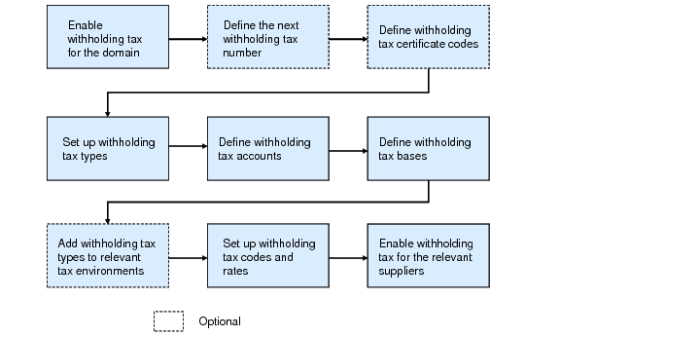
Up to nine steps are required to set up withholding tax:
Withholding tax is enabled for all entities in that domain (automatic step). See
Viewing Entity Withholding Tax Controls.
Withholding Tax Setup
Enabling Domain Withholding Tax Controls
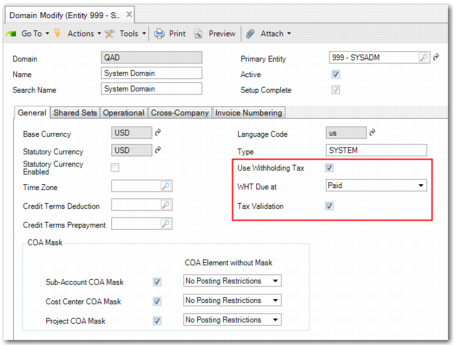
You enable withholding tax for a domain in the General tab of the Domain record.
Domain Modify, General Tab
Use Withholding Tax
Select the field to enable withholding tax for the domain.
The domain-level withholding tax control settings are applied to all the entities within the domain, and you cannot update this setting within an entity.
If withholding tax is enabled for a domain and withholding tax records exist, you should not subsequently disable withholding tax for that domain.
WHT Due at
Specify when you want withholding tax to be posted. There are two options:
• Paid - when the payment is complete.
• For Collection - when the payment is created.
The value of this field can only be changed when there are no existing payments with the status For Collection in the domain. If the WHT Due at field is set to For Collection and the supplier payment status changes to Bounced or Void, or the supplier payment selection is unconfirmed, then the withholding tax posting is reversed.
Tax Validation
Select the field to validate the fiscal tax codes for withholding tax according to a predefined country-specific format for Italy. You specify a supplier’s fiscal code when defining the supplier’s withholding tax information in the Supplier record. See
Enabling Withholding Tax for Suppliers.
Viewing Entity Withholding Tax Controls
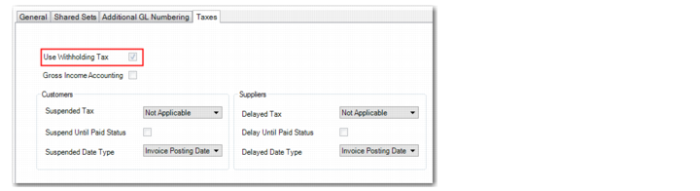
When withholding tax is enabled for a domain, the system automatically enables the Withholding Tax field in the Taxes tab of the Entity record for all entities that belong to the domain. The Use Withholding Tax field is read only, and cannot be changed. You cannot disable withholding tax at entity level.
Entity Create, Taxes Tab
Defining the Next Withholding Tax Number
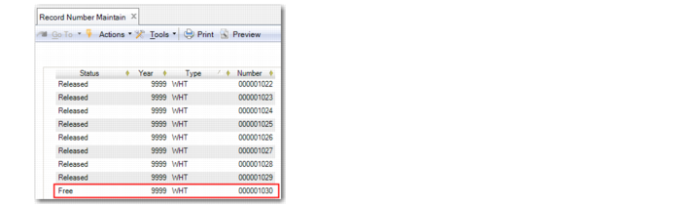
You must define the next withholding tax number in Record Number Maintain, and you must do this for every entity for which withholding tax is enabled.
The withholding tax number is an index for the withholding tax records, and its usage is country dependent. For example, the withholding tax number is required in Thailand and Argentina for withholding tax certificates. The withholding tax number is applied to each payment for which withholding tax applies, and certificates are printed for every payment.
In countries such as Italy, the withholding tax number is not required. Italian withholding tax certificates cover transactions for an entire year, and can involve many withholding tax numbers—one for each payment.
The system generates a withholding tax number within the entity for each payment that is liable to withholding tax. All withholding tax numbers after this number are consecutive within the entity.
To specify the next withholding tax number:
1 Open Record Number Maintain in each entity that uses withholding tax.
2 Right-click in the grid and select Insert a new row.
3 In the new row, set the Type field to WHT and set the Year field to 9999.
4 Specify the next withholding tax number.
5 Save your changes.
Record Number Maintain
Defining Withholding Tax Certificates
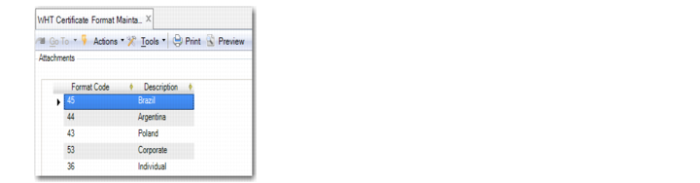
Use WHT Certificate Format Maintain to define one or more withholding tax certificate formats. The certificate formats you define are stored at system level.
Multiple withholding tax certificate formats are needed in countries such as Thailand. The format code is then used in customization to link to a specific form layout.
WHT Certificate Format Maintain
Format Code
Enter a maximum of 20 characters for the format code. This field is mandatory.
Description
Enter a maximum of 40 characters for the format code description. This field is mandatory.
Creating Withholding Tax Types
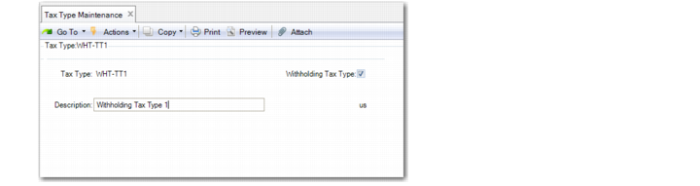
Use Tax Type Maintenance to create one or more tax types for use in withholding tax calculations. You then use these tax types when setting up tax rates for withholding tax calculations.
Tax Type Maintenance
Withholding Tax Type
Select the field if the tax type will be used for withholding tax calculations.
The Withholding Tax Type field is cleared by default.
You must not clear the Withholding Tax Type field if postings have been made using a tax rate that is defined with this tax type.
See
Setting Up Tax Types for more information on Tax Type Maintenance.
Creating Tax Bases
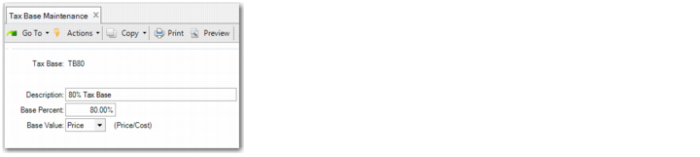
Use Tax Base Maintenance to create tax bases used to indicate the portion of the fees that is subject to withholding tax. The percentage is 100% if the whole transaction is subject to withholding tax.
Tax Base Maintenance
See
Setting Up Tax Bases for more information on Tax Base Maintenance.
Defining Withholding Tax Accounts
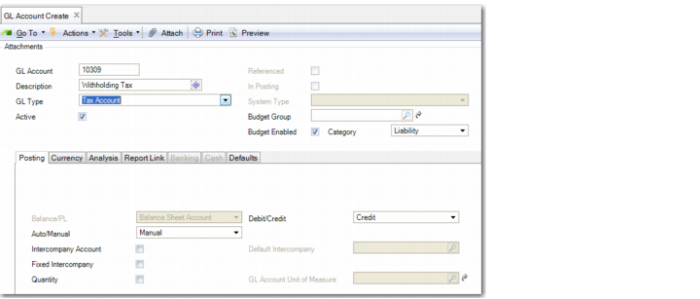
In Tax Rate Maintenance, you must specify the tax account or accounts to use in the payment of invoices and credit notes when posting the withholding tax liability. Before proceeding to Tax Rate Maintenance, you must first define the tax accounts in GL Account Create. The accounts must have the GL type Tax Account.
GL Account Create
Creating Withholding Tax Rates
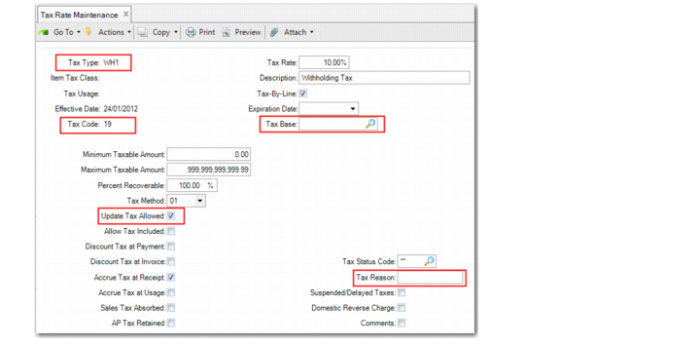
Use Tax Rate Maintenance to define tax rates that use a withholding tax type.
Withholding tax is not paid at a single standard rate. Instead, the amount of withholding tax due varies, depending on the setup parameters of the tax rate.
Tax Rate Maintenance
Tax Type
Specify a tax type for withholding tax transactions. The Withholding Tax Type field must be selected for the tax type in Tax Type Maintenance, indicating that the tax type is designated for use in withholding tax calculations only.
Tax Code
Specify the withholding tax code for the service.
Tax Base
Specify the tax base that determines the percentage of the fee that is subject to withholding tax. See
Creating Tax Bases.
Update Tax Allowed
Select this field to enable tax amounts for this rate to be edited on supplier invoice and supplier payment tax lines.
Tax Rate
Specify the rate at which withholding tax must be applied.
Description
Enter a description of the service that is subject to withholding tax.
Tax Reason
Optionally, you can use this field to store a code that identifies the type of service provided. In Italy, the codes for specific services are provided in the list of Codici Tributo (tax codes), which is published by the Italian tax authorities.
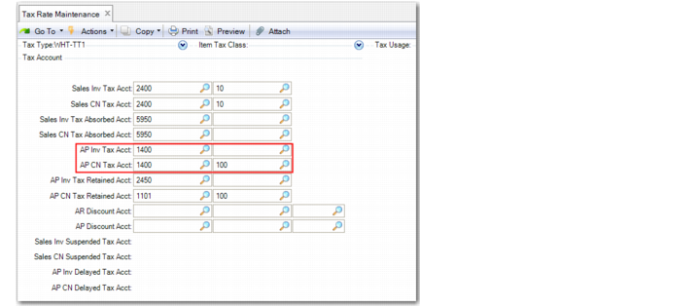
In Tax Rate Maintenance, you must also specify the tax account or accounts to use for payment of invoices and credit notes when posting the withholding tax liability. The GL type for these accounts must be set to Tax Account.
Tax Rate Maintenance, Tax Accounts
Withholding Tax Fields in Tax Rate Maintenance
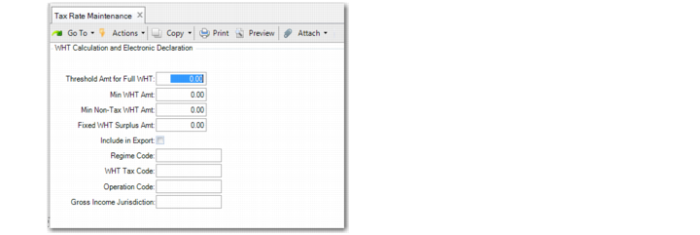
When creating a tax rate record for a tax type for which the Withholding Tax field is selected, you can optionally enter additional values for withholding tax calculation and electronic tax declarations.
Note: These fields are designed for use in country-specific withholding tax localizations.
Tax Rate Maintenance, Additional Fields
Threshold Amt for Full WHT
Specify the minimum invoice amount for which withholding tax applies. In some countries, suppliers must retain the full tax amount if the supplier invoice amount is less than the amount specified in this field.
Min WHT Amt
Specify the minimum withholding tax amount. If the withholding tax amount is less than the value specified in this field, no withholding tax is applied.
Min Non-Tax WHT Amt
Specify an amount to deduct from the supplier invoice amount when calculating the withholding tax amount.
Fixed WHT Surplus Amt
Specify a fixed amount to add to the calculated withholding tax amount.
Include in Export
Select the field if the withholding tax amounts must be included when the data is exported to file. The default is that the field is cleared.
Regime Code
Specify the regime code, which is required for some types of electronic declarations.
WHT Tax Code
Specify the tax code, which is required for some types of electronic declarations.
Operation Code
Specify the operation code, which is required for some types of electronic declarations.
Gross Income Jurisdiction
Specify the gross income jurisdiction code defined by the local government. In Argentina, you must supply this value for Gross Income Perception type taxes.
Creating or Modifying a Tax Environment
Add the withholding tax types you created to the relevant tax environments if you want GTM to automatically calculate withholding tax for POs, fiscal receiving, and supplier invoices.
If you want to use a manual flow for withholding tax calculation, do not add withholding tax types to the tax environment. You can manually add withholding tax to an invoice in the Withholding Tax tab of Supplier Invoice Create.
Enabling Withholding Tax for Suppliers
The Withholding Tax tab of the Supplier record lets you indicate the suppliers for which withholding tax applies, and specify withholding tax data for the supplier. You can only enable withholding tax for suppliers that belong to a domain for which withholding tax is enabled.
Note: The withholding tax fields are also available when you load and modify supplier data using Supplier Excel Integration.
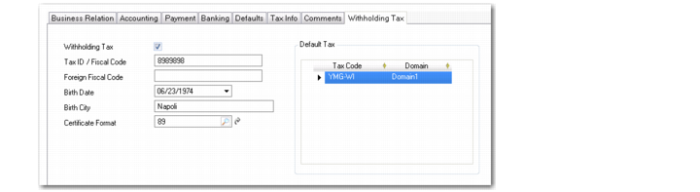
In the Withholding Tax tab, you can enter the fiscal code of the relevant supplier and specify if the supplier is an individual rather than a company. If the supplier is an individual, you can enter additional personal details that might be relevant, such as the person’s place of birth. These details are required for withholding tax legal reporting in Italy. However, the details are not required by other countries, such as Thailand.
Supplier Create, Withholding Tax Tab
Withholding Tax
Select the field if withholding tax applies for the supplier. The field is deselected by default.
Note: Selecting the Withholding Tax field activates the other fields in the tab.
Tax ID/Fiscal Code
Specify the supplier’s tax ID or fiscal code, which the system uses to determine withholding tax. In Italy, the fiscal code is issued by the tax authorities and identifies individuals who reside in Italy and are subject to Italian tax regulations.
If the Tax Validation field is selected for the current domain, the system validates the fiscal code when you click Save or Save and Create. The fiscal code is validated using an algorithm designed for Italy.
Foreign Fiscal Code
If the supplier has a fiscal tax code from another country, specify that tax code here.
Birth Date
If the supplier is an individual, specify the supplier’s date of birth. This field is optional.
Birth City
If the supplier is an individual, specify the supplier’s city of birth. This field is optional.
Certificate Format
Use the lookup to specify a withholding tax certificate format for the supplier. This field is optional.
Default Tax Grid
Use the grid to specify default withholding tax codes for each domain that uses the shared set to which the supplier belongs and for which withholding tax is enabled.
Tax Code
Specify the default withholding tax code that applies for this supplier. You can use the lookup to select from tax codes belonging to tax types designated for use in withholding tax calculations.
This field is mandatory for suppliers that are subject to withholding tax.
Domain
Specify the domain in which the tax code applies. At a minimum, you must specify a tax code linked to the current domain.
When you click Save or Save and Create, the system validates that the withholding tax codes entered in the grid are valid for the associated domains and are linked to tax types designated for use with withholding tax, and that at least a single row exists in the grid, linked to the current domain.