Maintaining Quality Orders
Entering Attribute Values in Test Records
Follow these steps to enter attribute values in test records for open quality orders:
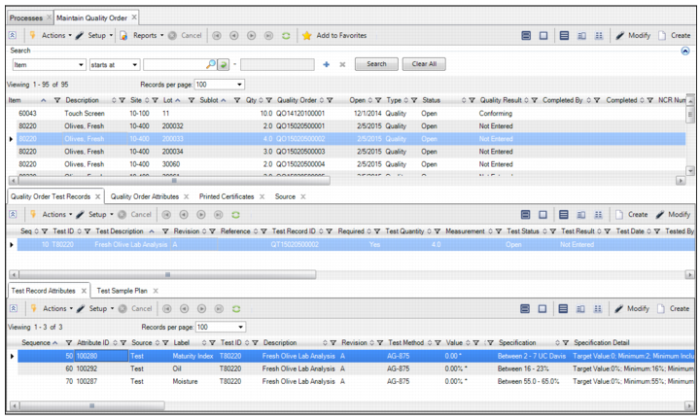
2 In the top level browse, select the quality order.
Maintain Quality Order Collection
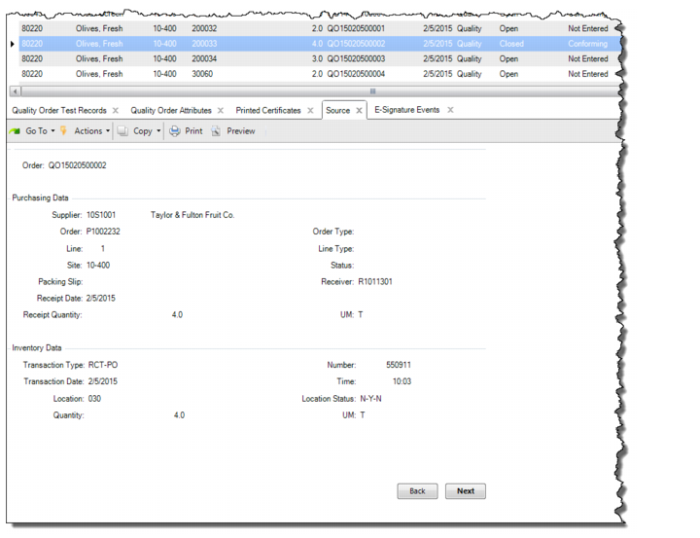
3 Optionally, select the Source tab in the second-level browse and verify that the correct quality order is selected. The Source tab displays the associated purchasing, production, and inventory data, such as sales, work order, and transaction numbers and dates.
Quality Order Source Tab
4 Select a test record in the Quality Order Test Records tab.
Note: A test record is the collection of attributes associated with a certain test specification. The attributes associated with the selected test record are displayed in the Test Record Attributes tab.
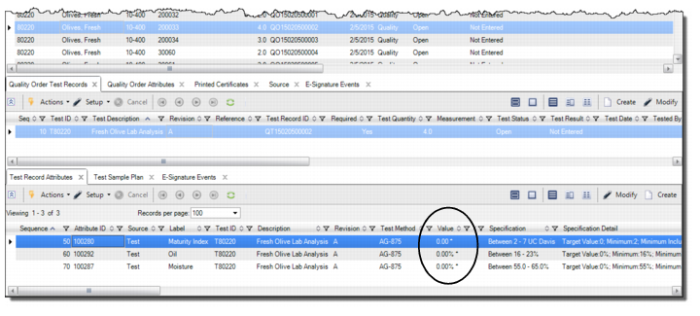
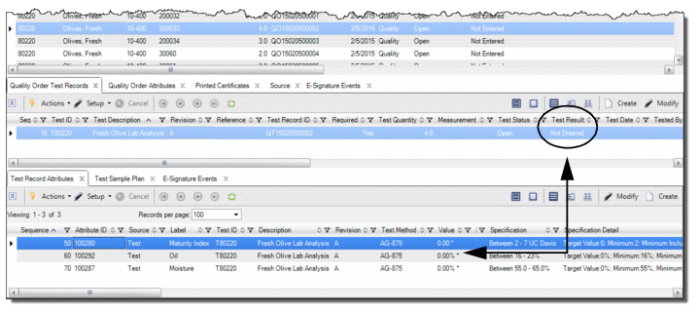
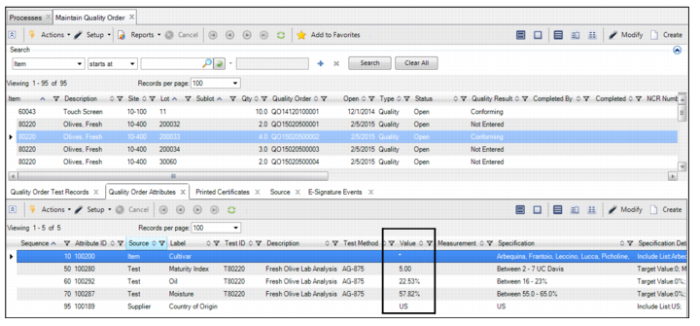
5 The Value field displays the default value for the attribute. If a value has not been entered or accepted for the attribute and if the attribute is required and must be validated (Required = Yes and Validation = Yes), an asterisk is displayed with the value.
Test Record Attributes Tab - Value Field
6 Double-click and open the test record attribute. The following fields are displayed:
Sequence
The sequence number for the attribute on this profile. The sequence determines the order in which attributes print on reports.
Source
Displays the source profile for the attribute.
Attribute ID
This field displays the attribute ID associated with the test record.
Label
Displays the label for the selected attribute.
Specification
Displays the specifications for the attribute.
Note: The specification is only displayed if the specification setting in Quality Control File is enabled (Display Specification for Results Entry = Yes). See
Set Up Quality Control.
Test ID
Displays the test ID associated with the attribute.
Test Method
Displays the test method associated with the attribute.
Value
Enter the attribute value in this field.
Level
Displays the attribute level.
Result
Displays the result of the attribute value:
• Not Entered. The initial result for a lot attribute order or test record, when values have not been entered for any of the attributes.
• Conforming. The result when all of the attribute specifications (Validation = Yes) have conforming attribute values, and all of the attributes (Required = Yes) have been entered.
• Non-Conforming. The result when any of the attribute specifications (Validation = Yes) have non-conforming attribute values, and all of the attributes (Required = Yes) have been entered.
• Incomplete. The result when some of the attribute values have been entered, and at least one attribute value (Required = Yes) has not been entered.
• Inconclusive. The result for a test record when the result for any one of its attributes has been manually set to Inconclusive.
• No Data. The result for a test record when the result for any one of its attributes has been manually set to No Data.
• Blank. The result when all of the attributes (Required = Yes) have been entered and there are no attributes with the Validation setting enabled.
Measurement
This field displays how the attribute is measured or determined. For example, a measurement for flow rate might be expressed as “psi" or “liters/min.”
Reference
Optionally, enter any reference information in this field.
Remarks
Optionally, enter any remarks in this field.
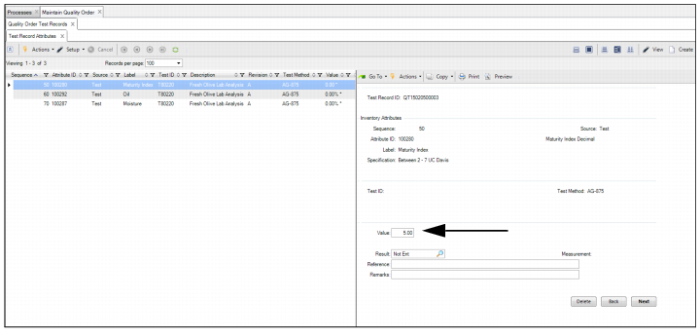
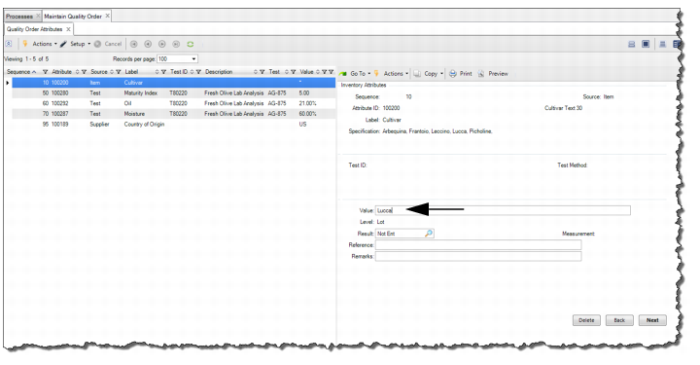
7 Enter the attribute value in the Value field.
Entering the Attribute Value in the Quality Order
8 Repeat these steps and enter the values for the remaining attributes.
Verify Test Record Values Are Entered
Before completing a test record, verify that all the test record values have been entered. Follow these steps to verify that the test record values have been entered:
2 The Value field on the Quality Order Test Records tab displays the default value for the test record attributes. If a value has not been entered or accepted for the attribute and if the attribute is required and must be validated (Required = Yes and Validation = Yes), an asterisk is displayed with the value.
Verify Test Record Attributes - Not Entered
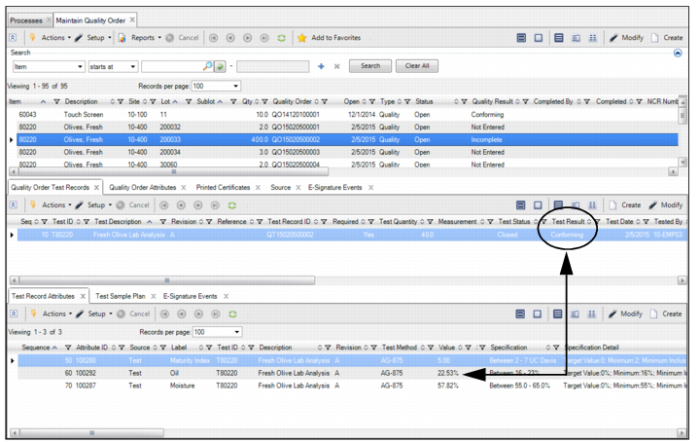
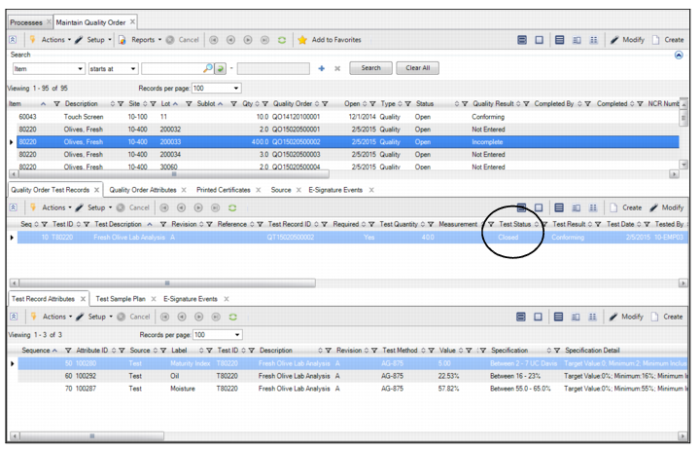
3 When test record attributes have been entered, the Test Result field displays the result (Conforming, Non-Conforming, and so on).
Verify Test Record Attributes - Entered and Conforming
Completing a Test Record
Follow these steps to complete a quality order test record:
2 Select the order in the top-level browse.
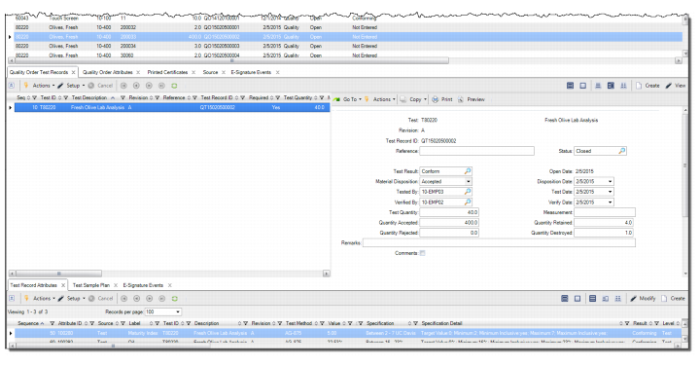
3 Double-click and open the test record. Enter the information about the lot that was inspected, such as quantity retained, destroyed, or rejected, disposition date, tested by, and so on.
Quality Order Test Record Fields
A quality order test record contains the following fields:
Test
The test specification ID associated with the test record. If you are adding a test to the quality order, select or enter the test ID for which you want to maintain results.
Revision
This field displays the revision number for the test specification.
Note: When you enter the test ID, the system retrieves the active revision for the Test ID. If necessary, you can enter a different revision number as long as that revision is an existing revision for that test and has a Released or Obsolete status.
Test Record ID
This field displays the test record ID, a unique identifier that is automatically generated by the system.
Reference
Optionally, enter any reference information.
Status
Select or enter the status of the test record:
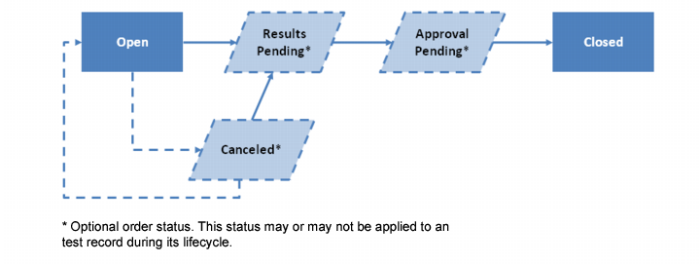
• Open. The initial status for a test record. The status should be Open if the values for test record attributes have not been entered or have not been fully completed. When the status is Open, you can make any modifications to test record data.
• Approval Pending. The Approval Pending status indicates that the attribute values for the test record have been completed, but that the final approval for the test record is still outstanding. When the status is Approval Pending, you can make some modifications to the test record, such as changing the status to Open, but you cannot modify the test record attributes.
• Results Pending. This status indicates that the results have not been fully completed for all the attributes. All other modifications are permitted, including changing the test record status to Open.
• Closed. Set the test record status to Closed after all of the information for the test record and its attributes have been approved. Change the status to Closed to update the quality order attributes to those recorded on the test. When the status is Closed, there can be no further modifications to the test, including its status. To change the status to Closed, values must have been entered for all test record attributes that have the Required setting enabled.
• Closed Edit Pending. This status is applied if a closed test record is being modified for corrections using Edit Closed Test Record. If a test record is closed, it can only be maintained using Edit Closed Test Record. The status of a test record with the Closed Edit Pending status can only be changed to Closed. A certificate of analysis cannot be printed for a test record while it is being modified for corrections.
• Canceled. Set the status to Canceled if no activity is required or performed for the test record. When the test record is for a quality order and the status of a test record is Canceled, it can be changed to either Open or Results Pending, if the status of its quality order is either Open or Results Pending.
Test Record Status Lifecyle
Test Result
This field displays the result of the lot attribute or quality order. The result for the order is automatically updated as values for its attributes are entered. If necessary, you can manually override the result for an order.
• Not Entered. The initial result for a lot attribute or quality order, when values have not been entered for any of the attributes.
• Conforming. The result when all of the attribute specifications (Validation = Yes) have conforming attribute values, and all of the attributes (Required = Yes) have been entered.
• Non-Conforming. The result when any of the attribute specifications (Validation = Yes) have non-conforming attribute values, and all of the attributes (Required = Yes) have been entered.
• Incomplete. The result when some of the attribute values have been entered, and at least one attribute value (Required = Yes) has not been entered.
• Inconclusive. The result for a quality order when the result for any one of its attributes has been manually set to Inconclusive.
• No Data. The result for a quality order when the result for any one of its attributes has been manually set to No Data.
• Blank. The result when all of the attributes (Required = Yes) have been entered and there are no attributes with the Validation setting enabled.
Open Date
The date the test record was created.
Material Disposition
Enter or select the generalized code value that best describes the material disposition of the item lot. Generalized code values are set up using Generalized Codes Maintenance (36.2.13) for field name ql_mtl_disposition.
Disposition Date
Enter the disposition date.
Tested By
Enter a valid employee for the person who executed the test.
Test Date
Enter the date the test executed.
Verified By
Enter a valid employee for the person who verified the test results.
Verify Date
Enter the date the test results were verified.
Test Quantity
Enter the total quantity for the test.
Measurement
Enter a description that explains how data was measured in the test.
Quantity Accepted
Enter the sample quantity that was accepted in the test.
Quantity Retained
Enter the inventory quantity that is retained for possible retesting.
Quantity Rejected
Enter the sample quantity that was rejected in the test.
Quantity Destroyed
Enter the inventory quantity that was destroyed to perform the test. Quantities are typically destroyed for destructive testing, such as determining the tensile strength of wire.
Remarks
Optionally, enter any remarks related to the test record.
Comments
Select this check box to show comments when the system displays quality order data.
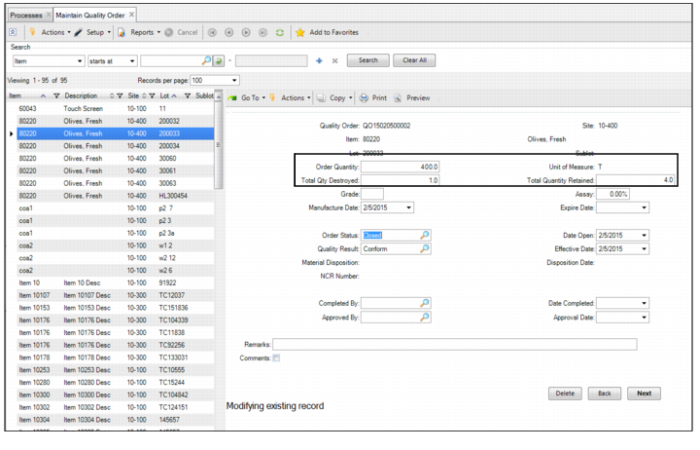
4 To close the test record, change the status to Closed. Click Next.
5 The system prompts you to copy the test record attribute values to the quality order. Click Yes to copy the test record values to the order.
Note: When you copy the test record attribute values to the quality order, the values are copied over to the Quality Order Attributes tab.
6 The test record is complete.
Closing the Test Record
7 When test records are completed, the total quantity retained and destroyed are updated on the quality order.
Closing the Test Record
Canceling a Test Record
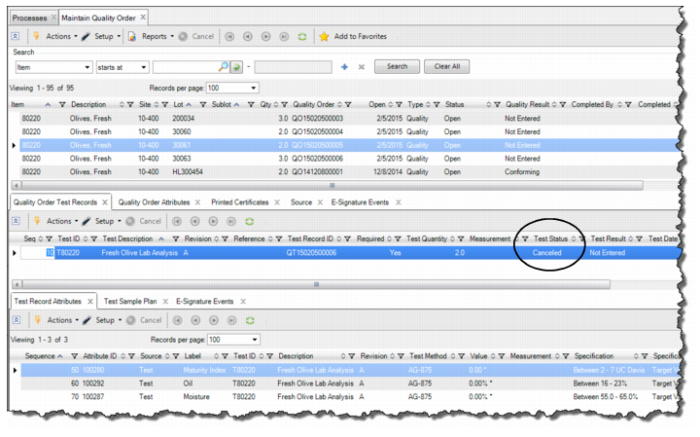
A test that is normally required but not performed can be canceled. Follow these steps to cancel a test record:
2 Double-click and open the test record.
3 Change Order Status to Canceled. The quality order is canceled.
Canceling a Test Record
Deleting a Test Record
You can delete a test record from a quality order if the test record is not required for the item (Required = No) and the order status is Open or Results Pending. You cannot delete a test record if any of the attributes that are associated with the test record are required, unless the test record was manually added to the quality order.
Note: When a test record is deleted, the matching quality order attribute can also be deleted provided that the attributes source is a test, and no other test remaining on the quality order tests the same attribute. If the attribute remains on the quality order, and the attribute belongs to a different test, then make sure the specification is valid for the remaining test.
Follow these steps to delete a test record:
2 Double-click and open the test record.
3 To delete the test record, select Delete from the Actions menu. Then click Yes to confirm. The test record is deleted.
Editing a Closed Test Record
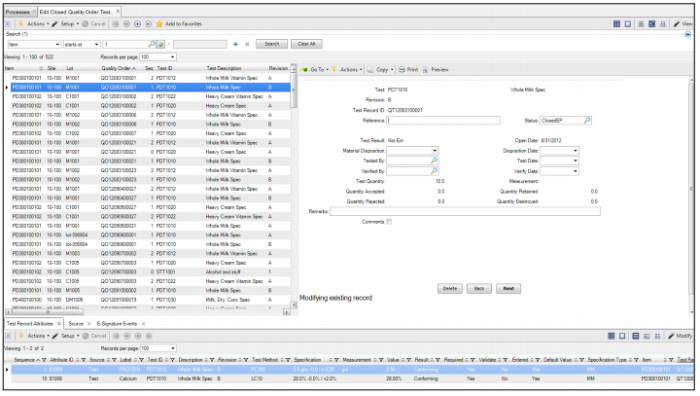
In IAQ, you can edit a limited number of fields on a closed test record by using the Edit Closed Quality Order Test Record program. Follow these steps to edit a closed test record:
1 For the type of order (inventory, purchasing, production, or sales), open the Inspect Inventory, Inspect Production Receipts, Inspect Purchasing Receipts, or Inspect Inventory for Sales Order process map.
2 Select Edit Closed Quality Order Test Record.
3 Select the test record in the top-level browse and click Modify. While you modify the closed test record for corrections, the system temporarily changes the status to Closed Edit Pending, allowing you to update fields for Reference, Status, Material Disposition, Disposition Date, Tested By, Test Date, Verified Date, Verify Date, Remarks, and Comments. For detailed field definitions, see
Completing a Test Record.
Editing a Closed Quality Order Test Record
4 After you have completed the necessary changes, set Order Status to Closed.
Entering Non-Test Record Attributes
Quality orders can have test and non-test record attributes. Follow these steps to enter any non-test attributes:
2 Select the order in the top-level browse.
3 Select the Quality Order Attributes tab, which displays any non-test attributes associated with this quality order.
Entering Non-Test Attributes
4 Double-click and open the non-test attribute. Enter the attribute value in the Value field.
Entering Non-Test Attributes
5 Repeat these steps for any remaining attributes.
Verify that Non-Test Attribute Values Are Entered
Because a quality order can have test and non-test attributes, you must verify that all the attribute values have been entered before completing a quality order.
To determine which values have not been entered, open the appropriate quality order collection and select the Quality Order Test Attributes tab. See
Navigating to Quality Order Collections.
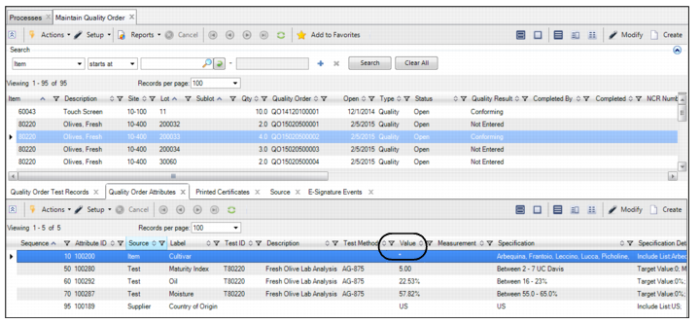
The Quality Order Test Attributes tab displays the test and non-test attributes associated with the quality order. The Value field displays the default value, the default value with an asterisk, or an entered value. If a value has not been entered or accepted for the attribute and if the attribute is required and must be validated (Required = Yes and Validation = Yes), an asterisk is displayed with the value.
Verify Non-Test Attributes Are Entered