QAD 2017 Enterprise Edition
>
User Guides
>
Lean Manufacturing
>
Flow Scheduling
>
Receiving Completed Flow Scheduled Orders
Receiving Completed Flow Scheduled Orders
Use Flow Schedule Receipts (17.13.7) to receive completed products made on a flow production line and backflush the items used to make them at the same time. The quantity received is applied to flow scheduled orders and any associated work orders. Optionally, you can update component backflush information.
Note: Depending on how the flow schedule order is entered, you may be able to use alternative methods to receive completed quantities:
• When a flow schedule references a non-type W (flow) work order, you can receive the items in two ways:
• Using Flow Schedule Receipts. The system updates the Completed field in both Flow Schedule Maintenance (17.13.3) and Work Order Maintenance (16.1).
• Using Work Order Receipt (16.11) or Work Order Receipt Backflush (16.12) as part of your standard work order processing tasks. The system also updates the Completed field in Flow Schedule Maintenance for that schedule. See
QAD Manufacturing User Guide for information on work order receipts.
• When the Work Order field is blank in Flow Schedule Maintenance, you can record receipts for the flow scheduled order only in Flow Schedule Receipts.
Important: Regardless of the method you use, your work procedures should require receipts to be entered as close to completion as possible. When you analyze production performance data using Linearity Summary Inquiry (17.13.13.1), recording timely receipts allows completion information to be up-to-date. Linearity is an important concept in flow manufacturing because it lets you measure planned flow rates against actual rates and adjust your production methods accordingly. See
Flow Linearity.
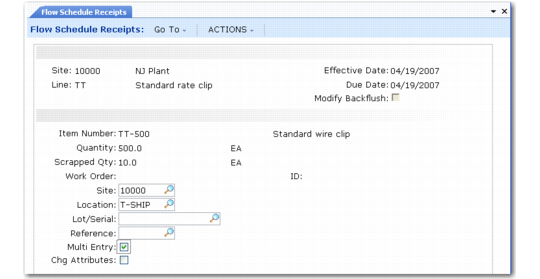
In the first two frames of Flow Schedule Receipts, provide basic data for the receiving process. Based on the settings in some of the fields, additional frames may display.
Flow Schedule Receipts (17.13.7)
Site and Line
Identity the site and production line that produces the item to be received.
Due Date
Specify the due date associated with flow scheduled orders that the system will consider first in applying completions based on the quantity entered in this program.
Using this date as a starting point, the system applies the quantity to orders on the specified production line. No receipts are recorded against orders with due dates later than this. See
Application of Received Quantities.
Modify Backflush
When this field is Yes, additional screens let you update information on the quantity and location of components used during production. See
QAD Manufacturing User Guide for information on backflush.
When you modify backflush while receiving flow scheduled orders, the system uses the same process as when you receive standard work orders using Work Order Receipt Backflush (16.12).
Otherwise, the system uses default information in determining how to issue components. If you have defined component issue locations in Work Center/Location Maintenance (17.1317.13.1.22), it uses those locations first. See
Linking Work Centers to Locations.
Item Number
Enter the number of the item being received. This must be a valid item associated with this production line in Production Line Maintenance.
Quantity
Enter the completed quantity of the item being received.
Note: If the production line flow schedule for the due date does not include open scheduled quantities for this item, the system displays an error message.
After this quantity has been received, it displays in the Completed field in Flow Schedule Maintenance. If a work order is referenced in the flow schedule, the quantity completed is also recorded on that work order.
If you receive an incorrect quantity using Flow Schedule Receipts, you can reverse it by running the program again with a negative quantity. Be sure to enter the same site, location, lot/serial, and lot reference numbers as you entered on the original transaction. After you reverse the original entry entirely, run the program again with the correct quantity. This maintains a complete audit trail.
Scrapped Quantity
Enter the number of items scrapped while producing the quantity being received.
Scrapped quantity displays on work order history and cost reports. The total GL cost of the rejected items posts to the scrap account.
Work order reject items have usually completed the entire process before being rejected, so their entire standard cost is written off to Scrap. Items rejected part way through the process should be rejected at that operation. Then only the excess costs incurred to process the rejected item up through that operation are written off to the Method and Material Usage Variance accounts.
Work Order
Optionally enter the number of a work order referenced on a flow scheduled order.
If you enter a value, it must be a valid non-type W (flow) work order. The work order status cannot be F (firm planned) or C (closed).
The system applies the entire quantity to the associated flow scheduled order. This quantity is added to the Completed field for the flow schedule in Flow Schedule Maintenance and for the referenced work order in Work Order Maintenance.
ID
If you entered a value in Work Order, enter the associated ID number.
This must be a valid ID associated with the work order number.
Multi Entry
Specify whether you want to receive quantities into more than one site or location. When this is Yes, an additional data-entry frame displays.
Change Attributes
Specify whether you want to modify the default inventory attributes of the items being received.
No: Received items are assigned the default inventory attributes.
Yes: The system prompts you to enter the Inventory Status, as well as Assay%, Grade, Expire Date, and Active settings.
Application of Received Quantities
A one-to-one correspondence does not necessarily exist between required quantities on flow scheduled orders and quantities received. You can specify which flow schedule should have the quantity applied to it if it is associated with an existing work order. However, a schedule can include orders without referenced work orders.
When a work order is specified during receipt, the system applies the entire quantity to the associated flow scheduled order, even if it is greater than the open quantity. This also updates the Quantity Completed field for the specified order in Work Order Maintenance.
When you leave the Work Order field blank in Flow Schedule Receipts, the system uses this logic:
Note: Receipts are applied to a flow scheduled order with an associated work order only when you enter the work order number in Flow Schedule Receipts. This logic never applies completed quantities to orders that include a value in the Work Order field.
• First, apply the receipt to flow schedules with open quantities where the flow schedule due date is the same as the receipt due date.
• If no flow schedules with open quantities exist with that due date or if those that do have total open quantities less than the amount being received, begin with the earliest due date and sequence number showing an open quantity and move forward until the entire receipt quantity is applied.
• If the receipt still has an unapplied quantity:
• If the receipt process filled open quantities for the receipt due date, apply any remaining receipt quantity to the last sequence number for that date, even if the quantity completed is greater than the order quantity.
• If the receipt date does not match the due date for any flow schedules that have had completions applied, create a new flow schedule for the receipt due date. Set the quantity scheduled to 0 (zero) and apply the entire remaining amount as completions for this new schedule.
Note: Receipts are never to applied to orders with due dates later than the value you specify in Due Date.
Inventory Effects of Flow Schedule Receipts
Receiving and backflushing increases end-item inventory quantities at designated sites and locations and decreases component inventory. It also updates the work order to reflect quantities completed and scrapped, decreases quantities open for MRP, and adjusts work in process (WIP).
MRP plans for open component requirements. Issuing a required component or an approved substitute decreases the quantity required of that item for planning. It also increases the value of WIP. Issuing a component not listed on the work order also increases WIP.
Recording a receipt or scrap decreases the scheduled receipt quantity for planning. Receipts and scrap can total more than order quantity. Receipts and scrap decrease the value of WIP.
You can change the quantity to issue for any item when Modify Backflush is Yes in the first frame of Flow Schedule Receipts. When you do not need the entire quantity of an item, issue the quantity you need and set Cancel B/O to Yes to cancel the excess requirement for MRP.
The system maintains a complete audit trail of inventory transactions in transaction history (tr_hist). Review these with Transactions Detail Inquiry (3.21.1). Each transaction is identified by a transaction number and a transaction type. Five types of transactions can be created:
• ISS-WO for component material issues
• RCT-WO for finished material receipts
• RJCT-WO for material rejected
• ISS-TR for material issue transfers
• RCT-TR for material receipt from an inventory transfer
When an inventory transaction references a different site than the originating order, the system processes this transaction in two steps.
• On an issue transaction, the inventory is transferred to the order site and then issued.
• On a receipt transaction, the inventory is received and then transferred.
This generates additional transaction types ISS-TR and RCT-TR.
General Ledger (GL) Effects of Flow Schedule Receipts
GL transactions are stored in the unposted transaction table until they are posted using Operational Transaction Post. Review unposted transactions with Unposted Transaction Inquiry and Register. GL transactions are recorded as the following types:
• WO or Work Order
• IC or Inventory
Inventory receipts, apply this-level overhead amount:
• Debit the WIP account from the work order.
• Credit the Overhead Applied account for the product line of the item.
Inventory receipts, receive the finished item:
• Debit the Inventory account defined in Inventory Account Maintenance (1.2.13) for the product line, receiving site, and receiving location.
• Credit the WIP account from the work order.
Rejects (scrap):
• Debit the Scrap account defined in Inventory Account Maintenance for the product line and receiving site.
• Credit the WIP account from the work order.
Component issues:
• Debit the WIP account from the work order.
• Credit the Inventory account defined in Inventory Account Maintenance for the product line, issue site, and issue location.
When inventory transactions affect more than one site, costs may differ between the two sites. Cost variances are posted to the Transfer Variance account defined for the item product line and site in Inventory Account Maintenance, if available. Otherwise, the account defined for the site in Site Maintenance is used. The system automatically generates the appropriate balancing transactions in the GL for each site.
• When the transfer-from and transfer-to sites are in different entities, a balancing entry is posted to the appropriate Cross-Company Inventory Control account defined for the domain referencing the intercompany codes associated with the entities.
• When the two sites are in the same entity, a balancing debit or credit is posted to the Transfer Clearing account defined in Inventory Accounting Control (36.9.2).
Note: For component issues, rather than post differences in cost between two sites to the Transfer Clearing account, differences are posted to the work order, crediting Material Rate Variance.
Labor Reporting
The backflush transaction that runs when you receive flow scheduled orders automatically reports the standard number of hours specified in routing data for the quantity processed.
Usage variances are calculated on earned hours based on the standard hours to complete the number of units reported complete.
Rate variances are calculated as the difference between the employee pay rate and the standard rate for the work center where the labor was reported.
Labor:
• Debits the WIP account from the work order.
• Credits the Labor account for the department.
• Debits/credits the Labor account and credits/debits the Labor Rate Variance account for the department.
• Debits/credits the Labor account and credits/debits the Method Variance account for the department.
Burden:
• Debits the WIP account from the work order.
• Credits the Burden account for the department.
• Debits/credits the WIP account.
• Credits/debits the Burden Usage Variance and the Burden Rate Variance accounts for the department.
Downtime:
• Debits the Cost of Production account for the department.
• Credits the Labor and Burden accounts for the department.