QAD 2017 Enterprise Edition
>
User Guides
>
Lean Manufacturing
>
Flow Scheduling
>
Overview of Flow Scheduling
Overview of Flow Scheduling
A flow schedule is a statement of planned output for a production line for a defined period of time. It consists of a sequenced collection of flow scheduled orders, each of which is represented by a schedule detail record in the database. Based on your business methods, a flow scheduled order can include a reference to a work order that can be processed using standard tools in the Work Orders module.
Parts are processed in the natural flow of tasks required to create the finished product. Items are not made in batches in separate functional departments, and the production of subassemblies is incorporated into the production of the final part. This eliminates the need to prepare schedules for any items other than the finished parts.
Because a flow schedule is used for continuous process manufacturing, components are issued to production by backflushing. This method deducts the required quantities from inventory when order quantities are reported as complete.
Flow Scheduling Life Cycle
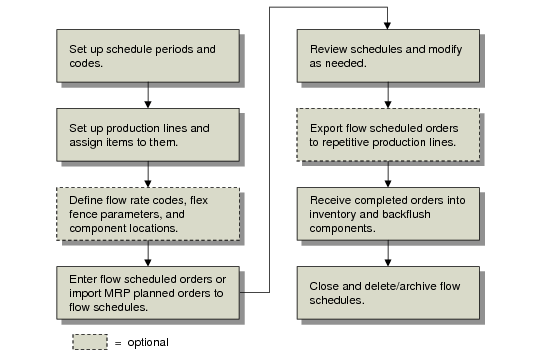
Flow Scheduling Workflow summarizes the steps for setting up and using flow schedules.
Flow Scheduling Workflow
Setting Up Required Data
Along with standard base data, such as sites, items, and locations, you must define several additional types of data specific to flow schedules using the following programs:
• Set up information related to dates, rate expressions, and data displays in Schedule Code Maintenance (17.13.1.19). See
Defining Schedule Codes.
Depending on how you use flow schedules, you can also define several kinds of optional data:
• Define rates used in alternative production line scenarios in Rate Code by Item Maintenance (17.13.1.13) or Rate Code by Type/Group Maintenance (17.13.1.16). Specify in Flow Control (17.13.24) whether the latter program uses item types or item groups. See
Defining Flow Rate Codes.
• Set up links between work centers and the locations that supply them with component materials in Work Center/Location Maintenance (17.13.1.22). See
Linking Work Centers to Locations.
• Use Item Master Maintenance (1.4.1), Item Planning Maintenance (1.4.7), or Item-Site Planning Maintenance (1.4.17) to specify a purchase/manufacture code of W (flow) for items that are typically produced using flow schedules. See
Purchase/Manufacture Codes.
Creating Flow Scheduled Orders
You can initially enter flow scheduled orders in three ways:
• Manually, using Flow Schedule Maintenance (17.13.3). You can optionally add references to existing work orders and demand orders, including sales orders, customer scheduled orders, return material authorization (RMA) issue lines, and material orders. See
Using Flow Schedule Maintenance.
• By copying an existing schedule to a new date range using Flow Schedule Copy (17.13.5). See
Copying Flow Schedules.
Analyzing and Adjusting the Flow Schedule
Once the schedule for a planning period has been entered, use Flow Schedule Maintenance to adjust the sequence in which the flow production line will schedule work for each day in the period.
Based on settings defined in Schedule Code Maintenance (see
Defining Schedule Codes), the system can display a variety of calculated data when you enter or maintain flow schedules:
• On all schedules, the system calculates and displays physical usage—the percentage of overall production line target and maximum capacity represented by the requirements of the current schedule. See
Checking Physical Usage in a Schedule.
• When the associated schedule code has Display Flex Fence Recap set to Yes and appropriate setup records are available in Flex Fence Maintenance, the system calculates whether the production rate for the current schedule is within a user-defined variance from the overall schedule. See
Flex Fences.
• The system can display calculated usage statistics based on alternate resource scenarios, such as an increase in the flow rate that would result from adding an extra machine or person to the production line. Alternate flow rates are set up using Rate Code by Item Maintenance or Rate Code by Type/Group Maintenance. Depending on the results, you can adjust your production line resources as needed before committing to a production schedule. See
Checking Time Usage in a Schedule.
Associating System-Maintained Work Orders
The system automatically associates system-maintained type W work orders with flow scheduled orders for the following:
• Orders that were entered directly in Flow Schedule Maintenance and do not reference a valid existing work order number and ID. The system creates a new type blank work order for each such flow scheduled order.
• Orders that were added to the flow schedule by running Import MRP Orders to Schedule. The system changes the work order type from blank to W.
The status of the type W work orders is set to E (exploded), and the system creates work order bill and routing records based on item setup data just as it does in standard work order processing.
Completing Flow Scheduled Orders
Depending on your company’s manufacturing process, the life cycle of flow scheduled orders then takes one of the following paths:
• For a flow scheduled order that does not reference a standard work order:
• Use Flow Schedule Receipts (17.13.7) to receive the quantity completed into inventory, as well as to backflush components used to manufacture the completed items and record labor based on routings. The system updates the Completed field on flow schedule records with the quantity received. See
Receiving Completed Flow Scheduled Orders.
• When the entire quantity has been completed, close the orders using Flow Schedule Close (17.13.19).
• Closed orders continue to display in Flow Schedule Maintenance until you run Flow Delete/Archive (17.13.23).
Note: You cannot make changes to system-generated type W orders or record completion data using any of the programs on the Work Orders or Shop Floor Control menus.
• For a flow scheduled order that references an existing work order, use standard work order processing to release work orders to production. You can change the quantity either in Flow Schedule Maintenance or Work Order Maintenance (16.1). The system synchronizes changes made in either program with the other. However, due dates can be modified only in Flow Schedule Maintenance, which also updates Work Order Maintenance.
• If you use the Repetitive or Advanced Repetitive module, use Export Schedule to Repetitive (17.13.10) to transfer open flow scheduled orders with a quantity greater than zero to repetitive schedules. Optionally, you can limit the export to items with a purchase/manufacture code of L (line manufactured). Once you have exported a flow scheduled order, the system sets the Posted to Rep field to Yes, and you can no longer use flow scheduling functions for that order. All receiving and reporting transactions use programs in the Repetitive or Advanced Repetitive module.
Schedule Periods
Schedule periods define the period of time in which you want to schedule production. A period may be a single shift, a day, a week, or any period of time applicable to your manufacturing environment. See
Defining Schedule Periods.
A schedule period defines not only a period of time in terms of calendar and working days, but also the total number of production hours available for that period. Although an employee may be scheduled to work an 8‑hour day, the total production hours may be less.
Example: An employee is scheduled to work an 8-hour shift, with 30 minutes for lunch and two 15-minute breaks.
8 – .5 – .25 – .25 = 7 total production hours
If the schedule period is defined as a 7-day calendar week with 5 working days, the total production hours are 35.
Flow Rates
Work in a manufacturing environment can be scheduled for different levels of throughput, or flow rates. When demand increases, management may add more machines or more workers to a production line, increasing the flow rate. You can use flow rates to evaluate different scenarios of increased or decreased machine use or labor to find the optimum level of output for a production line.
Flow rates can be expressed as production output per period of time, such as 50 units per week, or in Takt time.
Takt Time
Takt time is a measurement of the pace at which parts must be manufactured to satisfy the demand represented by the current schedule.
Takt time = operational available time / customer demand rate
Example: You have orders for 225 items per day. The available time to produce those items is 7.5 hours (450 minutes). 450 minutes divided by 225 units equals a Takt time of 2 minutes. One unit must be manufactured every two minutes in order to meet customer demand.
Takt time is a goal. It must be reached to satisfy demand. After Takt time is calculated, you can evaluate the number of machines and operators needed to achieve the required output.
When you complete a flow schedule using Flow Schedule Maintenance, the summary frame includes a Takt time calculation based on the total quantity of items to be produced. See
Schedule Summary.
Physical Usage and Time Usage in a Schedule
Two capacity constraints on a production line are the total quantity of parts that can be produced and the amount of time available to make those parts. When flow rates are used in a schedule, you can compare the sum of all scheduled orders to these two constraints.
Checking Physical Usage in a Schedule
You can associate target and maximum flow rates either with a production line or with a schedule code. The target rate is the optimal rate where production is the most efficient. The maximum rate is the absolute maximum rate that the production line can support.
As orders are entered into a schedule, the schedule order quantity is accumulated and compared to the schedule target and maximum. By viewing the percentage displayed before you actually add the schedule to the database, you can determine if the schedule exceeds the target or maximum. See
Physical Usage Data.
Example: A production line has a target rate of 500 units per week and a maximum rate of 575 per week. When 250 units have been entered into the schedule, you are at 50% physical usage. When 501 units are entered, you can see that usage is more than 100% of the target rate. When 600 units are entered, value of the maximum rate will be greater than 100%.
Checking Time Usage in a Schedule
Production Quantities for Different Flow Rates shows three different flow rates for parts A, B, and C. Normal represents a typical level of production. NewMach represents typical labor usage plus the use of a new machine. MoreLbr represents the use of additional labor on a production line.
Assigning flow rate codes to items lets you evaluate the most effective use of time and machines for a particular schedule. Changing the flow rate code for an item may not automatically increase the production for that part. For example, the NewMach code has no affect on part B because it cannot be produced on that machine, and part C is totally constrained by machine capacities, so using the MoreLbr code has a minimal effect. See
Defining Flow Rate Codes.
Production Quantities for Different Flow Rates
Part | Normal Units/Hour | NewMach Units/Hour | MoreLbr Units/Hour |
A | 10 | 15 | 20 |
B | 10 | 10 | 20 |
C | 10 | 15 | 11 |
In the following examples, the same schedule is used with different rate codes. The target rate for this production line is 500 units per 40 hour work week. The total scheduled orders are for 490 units, so the physical usage is 490 / 500, or 98%. There is enough physical capacity on this line to make the parts.
Time Usage for Normal Rate Code shows how the mix of parts A, B, and C would fit into the 40‑hour work week.
Time Usage for Normal Rate Code
Part | Qty Ordered | Normal Units/Hour | Hours Needed |
A | 150 | 10 | 15 |
B | 140 | 10 | 14 |
C | 200 | 10 | 20 |
Totals: | 490 | | 49 |
Using the Normal rate code, time usage is 49 / 40, or 122.5%. You would need to schedule 9 hours of overtime or handle the overcommitment of time in some other way. You could use a new machine and implement the NewMach rate code or you could add more operators and implement the MoreLbr rate code.
Time Usage for NewMach Rate Code
Part | Qty Ordered | NewMach Units/Hour | Hours Needed |
A | 150 | 15 | 10 |
B | 140 | 10 | 14 |
C | 200 | 15 | 13 |
Totals: | 490 | | 37 |
Implementing the NewMach rate code where an additional machine is used results in a time usage of 37 / 40, or 92.5%.
Time Usage for MoreLbr Rate Code
Part | Qty Ordered | MoreLbr Units/Hour | Hours Needed |
A | 150 | 20 | 08 |
B | 140 | 20 | 07 |
C | 200 | 11 | 18 |
Totals: | 490 | | 33 |
Implementing the MoreLbr rate code where more labor is used results in a time usage of 33 / 40, or 82.5%.
When you enter flow scheduled orders, the system calculates the effects of each flow rate on the overall schedule. You can view the calculations in two ways:
• By total schedule period
• By each day in the schedule period
Flex Fences
Flex fences let you determine if the total amount entered in a schedule for a future period is within a realistic variance from the total amount scheduled for the current period. This lets you see if schedules are maintaining a reasonably constant level of production over several periods. See
Defining Flex Fences.
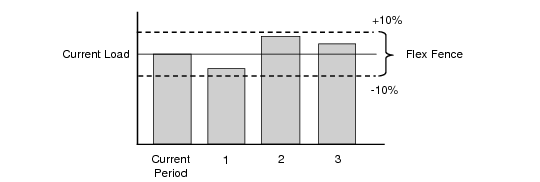
Flex fences are based on the scheduled load for the current period, so the allowed variances in scheduled quantities for future periods does not remain static. As production levels rise and fall over time, so does the flex fence.
Flex fence data is assigned as a percentage value for allowable variances in future periods. Flex fence percentages apply to minimum and maximum scheduled load. For example, a 10% flex fence measures if the total schedule entered is within plus or minus 10% of the production line’s scheduled load for the current period.
Flex Fence Example
Typically, flex fence percentages increase over time. You may assign an allowable variance of plus or minus 5% for one week in the future and 20% for any periods more than four weeks in the future.
When you enter flow scheduled orders for a future period in Flow Schedule Maintenance, the system can calculate how the requirements compare with those of the current period and display a warning if they are outside the specified time fence. See
Flex Fence Data.
Flow Linearity
Linearity is the relationship between scheduled production rates and actual production. Linearity is calculated by comparing the daily scheduled production with daily completed production. The aggregation of all days in a selected period is then used to determine linearity.
It is important to enter production receipts on a daily basis so that the application of receipts to the scheduled orders is correct.
Example: Production is scheduled in 5-day periods. The planned production rate is 20 units per day, and the actual production for the five days is as follows: 19, 20, 23, 21, and 19. Although the planned and actual production for the period result in a total of 100 units, this is not a good indication of the daily deviations that occurred.
Planned versus Actual Production
Production | Day 1 | Day 2 | Day 3 | Day 4 | Day 5 | Totals |
Scheduled | 20 | 20 | 20 | 20 | 20 | 100 |
Actual | 19 | 20 | 23 | 21 | 17 | 100 |
Deviation | 1 | 0 | 3 | 1 | 3 | 8 |
The formula for a linearity index is:
Linearity Index% = (1 - (Sum of absolute deviations / Total rate)) * 100
In the above example, the linearity index is:
(1 - (8 / 100)) * 100 = 92.0%
A linearity index is intended to provide an indication of the success of actual production rates to the planned rates. A consistent level of daily production tends to promote consistent product quality and eliminates the costs associated with unplanned overtime.
After you have entered flow schedules and record completions by receiving completed orders, you can generate linearity summaries to judge the efficiency of your production lines. See
Using Flow Schedule Reports.
Purchase/Manufacture Codes
Purchase/manufacture (Pur/Mfg) codes are used to identify how items are typically obtained; for example, items you ordinarily purchase from another company typically have a code of P, and those you manufacture yourself may have a code of M. Specify purchase/manufacture codes for items in one of the following programs:
• Item Master Maintenance (1.4.1)
• Item Planning Maintenance (1.4.7)
• Item-Site Planning Maintenance (1.4.17)
Two purchase/manufacture codes have special significance in flow scheduling:
• W (Flow manufactured). When you add an item to a production line in Production Line Item Maintenance (17.13.1.7) with a purchase/manufacture code other than W, the system displays a warning message. See
Associating Items with Production Lines.
Additionally, when you add MRP-planned orders to flow schedules using Import MRP Orders to Schedule (17.13.9), you can optionally limit the selection to items with a W purchase/manufacture code. See
Importing MRP Planned Orders to a Flow Schedule.
• L (Line manufactured). When you export a flow scheduled order to a Repetitive or Advanced Repetitive production line using Export Schedule to Repetitive (17.13.10), you can optionally limit the selection to items with this code. They are normally manufactured on a repetitive line. See
Exporting Flow Schedules to Repetitive.
Additionally, when you import an MRP-planned order for one of these items to a flow schedule, the system updates the associated work order to change it to type W. This means the flow schedule can be selected for export to a repetitive production schedule. See
Work Orders.
Work Orders
The flow schedule process can involve two kinds of work orders:
• Standard work orders
• Flow work orders
Standard Work Orders
Standard work orders are created in Work Order Maintenance (16.1) and have the Type field set to blank. Optionally link an existing work order to a flow scheduled order by referencing it in the Work Order and ID fields in Flow Schedule Maintenance (17.13.3). See
Using Flow Schedule Maintenance.
Additionally, when you add an order to a flow schedule using Import MRP Orders to Schedule for an item with a purchase/manufacture code other than W (Flow manufactured) or L (Line manufactured), the system automatically links the work order to the flow schedule. The number displays in the Work Order field in Flow Schedule Maintenance. See
Importing MRP Planned Orders to a Flow Schedule.
You can update some of the information on referenced work orders using both flow scheduling and work order programs. The system synchronizes information between the two modules.
When you record completions for a referenced work order in the Work Orders module, the quantity complete is also updated on the flow schedule. If you delete a work order, the associated flow scheduled order is also deleted, although deleting a flow scheduled order does not delete an associated non-type W work order. When you close an order either in Flow Schedule Close or using a program in the Work Orders module, the update is made in both programs. Changing the Closed status in Work Order Maintenance also reopens the flow order.
QAD Manufacturing User Guide provides more information on standard work order processing.
Flow Work Orders
The system generates a type W (Flow) work order each time you enter a flow scheduled order that does not reference an existing work order. Additionally, when you add an order to a flow schedule using Import MRP Orders to Schedule (17.13.9) for an item that is ordinarily made on a production line and has a purchase/manufacture code of W or L, the system changes the work order type from blank to W.
Type W work orders are system maintained. They are not shown in the Work Order field in Flow Schedule Maintenance. You cannot update or process them using any of the programs in the Work Orders module.
The system uses standard work order defaulting logic for determining such data as accounts when creating type W work orders.