QAD 2017 Enterprise Edition
>
User Guides
>
Lean Manufacturing
>
Flow Scheduling
>
Setting Up Flow Scheduling
Setting Up Flow Scheduling
Flow scheduling requires the following setup information:
• Generalized codes
• Scheduling periods
• Flow schedule codes
• Flow production lines and items
Optionally, depending on how you use flow scheduling data, you can set up additional data:
• Flex fence data
• Flow rate codes
• Links between flow line work centers and work order backflush locations
Flow Setup Menu
Flow Setup Programs lists the programs used to set up Flow Scheduling.
Flow Setup Programs
|
Menu Number
|
Description
|
Program
|
|
17.13.1
|
Flow Setup Menu...
|
|
|
17.13.1.1
|
Schedule Period Maintenance
|
kbppmt.p
|
|
17.13.1.2
|
Schedule Period Browse
|
kbbr001.p
|
|
17.13.1.4
|
Production Line Maintenance
|
flplmt.p
|
|
17.13.1.5
|
Production Line Browse
|
flbr004.p
|
|
17.13.1.7
|
Production Line Item Maintenance
|
flplimt.p
|
|
17.13.1.8
|
Production Line Item Browse
|
flbr006.p
|
|
17.13.1.10
|
Flex Fence Maintenance
|
flffmt.p
|
|
17.13.1.13
|
Rate Code by Item Maintenance
|
flcimt.p
|
|
17.13.1.14
|
Rate Code by Item Browse
|
flbr011.p
|
|
17.13.1.16
|
Rate Code by Type/Group Maintenance
|
flrcgmt.p
|
|
17.13.1.17
|
Rate Code by Item Type Browse
|
flbr012.p
|
|
17.13.1.18
|
Rate Code by Item Group Browse
|
flbr013.p
|
|
17.13.1.19
|
Schedule Code Maintenance
|
flscmt.p
|
|
17.13.1.22
|
Work Ctr/Location Maintenance
|
pppoulmt.p
|
Setting Up Codes for Validated Fields
You can use generalized codes, which you define in Generalized Codes Maintenance (36.2.13), to specify valid values for some fields. They give you flexibility in organizing and implementing functions, since you can define values that are meaningful in your own business environment.
Generalized Codes in Flow Scheduling lists the fields using generalized codes referenced by flow scheduling functions. Use this table to plan which codes to set up for your implementation.
Generalized Codes in Flow Scheduling
|
Field
|
Label
|
Where Used
|
|
flcr_rate_code
|
Rate Code
|
Production Line Maintenance
Rate Code by Item Maintenance
Rate Code by Type/Group Maintenance
Flow Schedule Maintenance
Flow Schedule View
|
|
pt_part_type
|
Item Type
|
Rate Code by Type/Group Maintenance
|
|
pt_group
|
Item Group
|
Rate Code by Type/Group Maintenance
|
Defining Schedule Periods
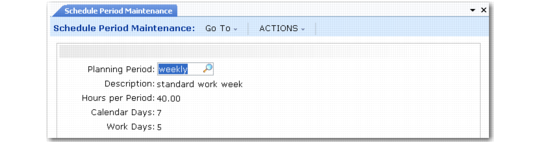
Use Schedule Period Maintenance (17.13.1.1) to create period codes, which include day and hour parameters used throughout flow schedule processing. Schedule periods must be set up before you can define schedule codes in Schedule Code Maintenance (17.13.1.19).
Schedule Period Maintenance (17.13.1.1)
Planning Period
Enter a code identifying a period to be used on a flow schedule.
Because scheduling periods are used by both flow scheduling and kanban functions, you cannot delete a scheduling period that is either:
• Referenced by a production line schedule code record defined in Schedule Code Maintenance
• Associated with an existing maximum demand record in Maximum Demand Maintenance (17.2.2)
Description
Enter a brief description of this planning period (24 characters).
Hours per Period
Enter a decimal greater than 0 (zero) indicating the total number of production hours in the scheduling period.
Calendar Days
Enter the number of calendar days in this planning period. This must be greater than or equal to the value of Work Days.
Flow Schedule Maintenance uses this value in combination with the start date of the associated schedule code to determine a date range for the schedule.
Work Days
Enter the number of work days in this planning period. This cannot exceed the value of Calendar Days.
The system uses this field in combination with Hours per Period to calculate the number of hours available during each day. This is a simple average; the system does not use the shop calendar or repetitive shift calendar to determine actual work days and hours. If different hours are worked on certain days in your manufacturing environment, you should set up separate periods for the differing work schedules.
Defining Schedule Codes
Use Schedule Code Maintenance (17.13.1.19) to specify codes that define basic information about a schedule.
After you define scheduling periods, you can create scheduling codes for periods using different start dates. For example, based on a scheduling period named WEEK, you can define schedule codes for WEEK1, WEEK2, and so on.
The system uses schedule codes to determine default settings and base data in the following programs:
• When you set up flow production lines in Production Line Maintenance, you can optionally specify default schedule and rate codes that are used whenever you enter a flow schedule for that production line.
• When you create a schedule using Flow Schedule Maintenance, the specified schedule code determines the period and start date that the system uses in date calculations, as well as unit of measure information. Additionally, the schedule code includes recap settings that control which data summary screens display during schedule maintenance.
Note: You cannot control the recap display on individual schedules from Flow Schedule Maintenance. Be sure to set the appropriate display settings for each schedule code you will use.
An additional use for schedule codes is to view flow schedule data in different ways. For instance, when you use Flow Schedule Detail View (17.13.13.10) to look at a flow schedule that was produced by week, you can change the schedule code to one with a different value in Period that lets you see the data summarized in monthly increments. See
Using Flow Schedule Reports.
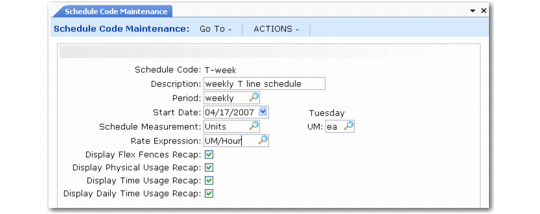
Schedule Code Maintenance (17.13.1.19)
Schedule Code
Enter an alphanumeric code representing this set of schedule information. This can be up to eight characters.
Description
Optionally enter an alphanumeric description (24 characters) of this flow schedule code. This field is for reference and displays in other programs when you reference the schedule code.
Period
Enter the scheduling period associated with this schedule code. This value must already be defined in Planning Period Maintenance (17.13.1.1).
When you reference this schedule code in Flow Schedule Maintenance, the system uses the associated period information from Planning Period Maintenance in date calculations. It is also used to determine date displays in some reports and inquiries.
Start Date
Enter the starting date for flow schedules that use this code.
This field cannot be blank. When you enter a date, the system displays the day of the week next to the field.
Flow scheduling functions throughout the system use this value to verify that schedule dates are accurate. For example, you cannot enter a due date in Flow Schedule Maintenance using this schedule code if it is earlier than this date.
Schedule Measurement
Enter the type of measurement associated with flow schedules that use this code. Valid values are:
• Units
• Weight
• Volume
If you enter Weight or Volume, you must enter a valid weight or volume unit of measure in the UM field. UM is optional if you enter Units.
The system uses this setting together with the value of UM when it performs physical and time usage calculations for flow schedules referencing this code. When a unit of measure is specified, all items on the flow schedule are converted to that UM. If Schedule Measurement is Units and UM is blank, the system uses the stocking UM of all items on the schedule and combines them, even if the values are different. For example, it would combine one of a unit defined as EA (each) with one of a unit defined as DZ (dozen) for a total of two, even though the actual physical number of items is 13.
UM
Enter the unit of measure associated with flow schedules that reference this code.
When Schedule Measurement is Units, you can leave this field blank or specify a valid UM. When Schedule Measurement is Weight or Volume, a valid UM is required.
Rate Expression
Specify the method used to express the flow rate of a production line that references this schedule code. See
Flow Rates.
Valid values are:
• UM/Per: Number of UMs made in one period
• UM/Hours: Number of UMs made in one hour
• UM/Day: Number of UMs made in one day
• Per/UM: Periods required to make one UM
• Hours/UM: Hours required to make one UM
• Day/UM: Days required to make one UM
The first three options express flow rate in terms of the production output per period of time. The other three define the rate in terms of
Takt time—the rate at which parts must be manufactured to satisfy demand. See
Takt Time.
The following fields control the display of flow schedule data when schedules are entered in Flow Schedule Maintenance (17.13.3).
Display Flex Fences Recap
Specify whether Flow Schedule Maintenance displays the Flex Fences Data frame after you complete data entry on schedules that reference this code. The system also displays a warning message if the scheduled quantity for the period is outside the flex fence parameters.
Regardless of the value of this field, the system calculates and displays flex fence information only if records have been set up for the production line in Flex Fence Maintenance (17.13.1.10). See
Flex Fences.
Display Physical Usage Recap
Specify whether Flow Schedule Maintenance displays the Physical Usage frame after you complete data entry on schedules that reference this code.
Physical usage is expressed as the percentage of the maximum production rate and target production rate represented by actual production for the period.
Display Time Usage Recap
Specify whether Flow Schedule Maintenance displays the Time Usage frame after you complete data entry on schedules that reference this code. When this field is Yes, the system displays time usage data for all flow rate codes associated with the site, production line, and schedule code.
Time usage is expressed as the percentage of the available hours for a given flow rate represented by the hours used in the schedule.
Display Daily Time Usage Recap
Specify whether Flow Schedule Maintenance displays the Time Usage by Day frame after you complete data entry on schedules that reference this code.
Time usage by day is expressed as the percentage of the available hours for each day represented by the hours used on that day.
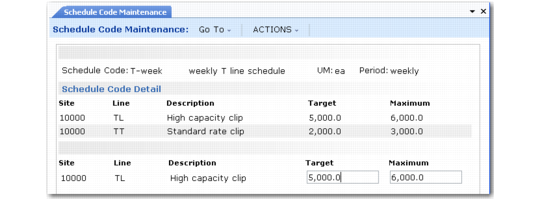
Optionally, you can use this program to associate target and maximum production rates with specified sites and production lines that use this schedule code. When you complete basic data entry in the first frame and click Next, the system prompts you to modify schedule code detail. Specify Yes to access another data entry frame for entering flow rates.
Note: You can also enter flow rates for schedule codes in Production Line Maintenance.
Schedule Code Maintenance, Schedule Code Detail Frames
Target
Enter the optimum number of units produced by this line during the schedule period when it uses this schedule code.
This cannot be greater than the value entered in Maximum.
Flow Schedule Maintenance uses these quantities to calculate physical usage.
Maximum
Enter the absolute maximum number of units produced by this line during the schedule period when it uses this schedule code.
This cannot be smaller than the value entered in Target.
Setting Up Flow Production Lines
Use Production Line Maintenance (17.13.1.4) to define a production line at a specific site that will be used to manufacture items according to quantities and sequences specified by flow schedules.
Flow Schedule Maintenance uses the information from this program, along with information from Schedule Code Maintenance, to calculate production capacity and other data that can be used to analyze whether the production line can meet current and upcoming schedule requirements.
Important: Flow production line records are stored in the same table as production lines used by the Repetitive, Advanced Repetitive, and Operations Planning modules. However, the records created with this program include some data used only in flow scheduling. For example, flow rates defined here apply only to flow schedules.
Delete existing production line records by pressing Delete when the cursor is in any field below the Production Line field. Before deleting the record, the system verifies that the production line is not used by a schedule in the Flow Scheduling, Repetitive, or Operations Planning modules. The system deletes schedule code detail records associated with the production line.
Note: If you have also defined this production line in the Repetitive or Advanced Repetitive module, that production line record is not affected.
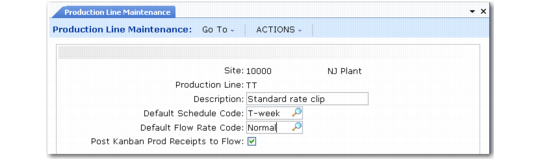
Production Line Maintenance (17.13.1.4)
Site
Enter an alphanumeric code representing the site where this production line is located. This site must be defined in Site Maintenance. You must have security access to the site, and it must be in the current database.
Line
Enter an alphanumeric code for a production line used for manufacturing flow-scheduled items.
Description
Optionally enter an alphanumeric description of this production line. Some programs, including reports and inquiries, display this description when you enter the production line code.
Default Schedule Code
Optionally enter a default schedule code for this production line. This value must be defined in Schedule Code Maintenance. See
Defining Schedule Codes.
If you enter a value, it defaults to the Schedule Code field when you create a new schedule for this production line in Flow Schedule Maintenance. Otherwise, that field is blank. Additionally, when you use Production Line Item Maintenance to identify items that can be produced on a flow production line, that program gets the default unit of measure from the default schedule code.
In Flow Schedule Maintenance, flow schedule codes are used to convey basic data about a flow schedule, including such information as periods, start dates, and unit of measure data.
Default Flow Rate Code
Optionally enter a default flow rate code for this production line. If you enter a value, it is validated against codes entered in Generalized Codes Maintenance (36.2.13) for field flcr_rate_code.
If you enter a valid value, it defaults to the Flow Rate field when you create a new schedule for this production line in Flow Schedule Maintenance. Otherwise, that field is blank.
In Flow Schedule Maintenance, flow rate codes are associated with a specific production rate on a specific production line.
Post Kanban Production Receipts to Flow
Indicate whether production receipts recorded using Kanban transactions are also recorded as completions for flow scheduled orders on this production line.
No: Kanban production receipts are not recorded as flow schedule completions.
Yes: When you record a production receipt in the Kanban module with an effective date that corresponds to a flow schedule due date for the item, the system updates the Completed field on the flow scheduled order with the quantity received.
When more than one order is available to record completions, the system applies the same logic used when you receive completed quantities in Flow Schedule Receipts (17.13.7). See
Application of Received Quantities.
Note: When this field is Yes, the system applies completions only to flow scheduled orders that do not reference an existing, non-type W work order.
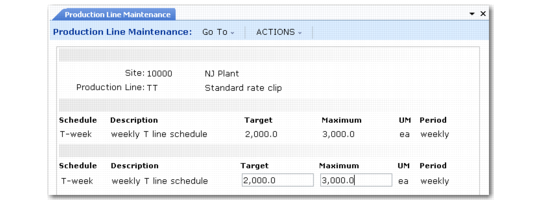
Optionally, you can associate target and maximum production flow rates with specific schedules when they are referenced in Flow Schedule Maintenance on a schedule for this production line. When you complete basic data entry in the first frame and click Next, the system prompts you to modify schedule code detail. Specify Yes to access another data-entry frame for entering flow rates. A frame displays existing production line records. Use the bottom frame to update these or enter new records.
Note: You can also associate flow rates with production lines in Schedule Code Maintenance.
Production Line Maintenance, Schedule Code Detail Frames
Schedule
Enter a flow schedule code to be associated with this production line. This must be defined in Schedule Code Maintenance.
When you enter a valid value, the system displays the description and rate expression defined for the code in Schedule Code Maintenance. You can then specify target and maximum production rates for this production line.
Target
Enter the optimum number of units produced by this line during the schedule period when it uses this schedule code.
This cannot be greater than the value entered in Maximum.
When you create a schedule using this schedule code for this production line in Flow Schedule Maintenance, the system calculates physical usage relative to this value.
You can delete schedule code detail records by pressing Delete from this field.
Maximum
Enter the absolute maximum number of units produced by this line during the schedule period when it uses this schedule code.
This cannot be smaller than the value entered in Target.
When you create a schedule using this schedule code for this production line in Flow Schedule Maintenance, the system calculates physical usage relative to this value.
You can delete schedule code detail records by pressing Delete from this field.
Associating Items with Production Lines
Use Production Line Item Maintenance (17.13.1.7) to identify items that can be scheduled for a flow production line.
Important: In Flow Schedule Maintenance, you can enter an item on a flow schedule for a production line only when it has been associated with that production line using this program. Additionally, Import MRP Planned Orders selects orders only for items that have been defined in this program.
A preference value assigned to each item allows the system to determine priorities for assigning MRP-driven demand for items that can be produced by multiple lines. When you import planned orders for such items, the system selects the production line with the lowest value in the Preference field as the primary line for producing the item.
You cannot update information about the production line itself in this program. Instead, use Production Line Maintenance (17.13.1.4).
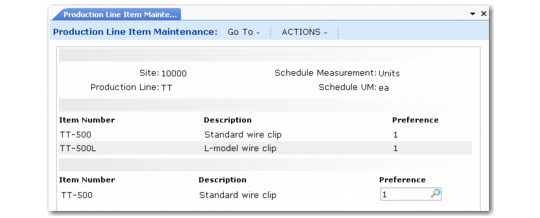
In the first frame, enter the site and production line code for a line already defined in Production Line Maintenance. The system displays the schedule measurement and UM values from the default schedule code for the production line, if one is defined.
Production Line Item Maintenance (17.13.1.7)
In the center frame, the system displays any existing items assigned to this production line. Use the bottom frame to edit existing item records or enter new ones.
Item Number
Enter the number of an item that can be manufactured on this flow production line. This must be a valid item defined in Item Master Maintenance (1.4.1).
An item can be associated with more than one production line.
A unit of measure conversion must be defined in Unit of Measure Maintenance (1.13) when:
• The production line is associated with a default schedule code in Production Line Maintenance.
• The default schedule code has a schedule unit of measure specified in Schedule Code Maintenance.
In this case, a UM conversion record must exist between the schedule UM and the item’s stocking UM. Otherwise, the system displays an error.
Preference
Indicate the relative priority the system should assign to this production line when you use Import Flow Schedules from MRP (17.13.9) to create flow scheduled orders for this item based on MRP-generated data.
Valid values are integers greater than 0 (zero). A lower value indicates a higher preference.
When determining which production line should be used to fill MRP-generated demand for a flow-scheduled item, the system looks at all production lines for the site that can produce the item. If it finds more than one, the system considers the instance with the lowest Preference value as the primary line.
A primary line must exist during data entry. If a record exists for the same item-site combination on a different production line, you can enter the same Preference value here only if a third line has a lower value so that it can be used as the primary production line. Otherwise, you cannot complete line entry without assigning a different Preference value.
Similar logic applies when you delete an item from a production line. For example, you can produce the same item on production lines 100, 200, and 300. Production line 100 has Preference for the item set to 1; for lines 200 and 300, it is set to 2. If you delete the item from production line 100, the system cannot resolve which should be the primary line for this item. In this case, a warning message displays when you delete the item from production line 100.
To delete an existing item record from this production line, press Delete when the cursor is in the Preference field. The system verifies that the item is not included on a flow schedule for this production line with a due date later than today. If it is, a warning message displays.
Defining Flex Fences
Use Flex Fence Maintenance (17.13.1.10) to define flex fence parameters for flow schedules.
Flex fences are tools for determining if the total schedule being entered or maintained is within a realistic, specified variance from the current period’s total schedule. This lets you verify that schedules are maintaining a reasonably constant level of production over several periods, or warns you of large changes in production requirements in an upcoming period. See
Flex Fences.
When you set up flex fence parameters and Display Flex Fence Recap is Yes in Schedule Code Maintenance for the code specified on the flow schedule header, the system displays two kinds of flex fence data after you complete data entry in Flow Schedule Maintenance:
• A summary frame of flex fence data
• A warning message when the variance for a period on the schedule is outside the specified percentage
Note: When the system does not find flex fence parameters for the production line and schedule code, the flex fence recap frame and warning messages do not display regardless of the setting of Display Flex Fence Recap.
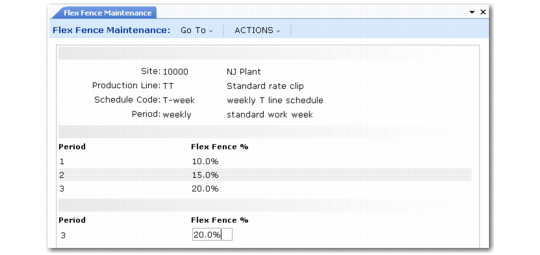
In the first frame, enter the combination of site, production line, and schedule code associated with the flex fence parameters. When you enter a schedule code, the system displays the period associated with the code in Schedule Code Maintenance.
Flex Fence Maintenance (17.13.1.10)
You can apply flex fences more generally by leaving one of the first three fields in the program blank. Only one of the three fields can be blank. For example, if you leave Production Line blank, the flex fence parameters apply to all flow orders that specify this combination of site and schedule code, regardless of the production line.
In the center frame, the system displays any existing flex fence values. Use the bottom frame to edit existing flex fence periods or define new ones.
Period
Enter the relative number of the period for which the system will use the specified percentage in flex fence calculations.
This period is relative to the current date. For example, when you are using weekly schedules, period 1 covers the schedule for the week immediately following this one.
To determine the period in which the schedule being maintained falls, the system:
• Reads all existing flow schedule master records backwards, beginning with the one being maintained.
• Counts the number of records read with the appropriate site and production line until it finds the one that includes today’s date. This is the number the system uses as a period to select a flex fence percentage.
Numbers in this field do not have to be consecutive. If there is a gap in the sequence, the system uses the value for the previous period until it reaches the next specified period. For example, if you have percentages defined only for periods 1 and 4 and you are entering a schedule for what the system calculates to be period 3, it will continue to use flex fence parameters specified for period 1 until you maintain the schedule for period 4.
Flex Fence Percentage
Enter the percentage the system should use in comparing a production line’s resource usage for the period being maintained with a baseline period. For example, if you enter 5, the system measures whether calculated usage is within –5 or +5 percent of the baseline period’s scheduled usage.
Typically, flex fence percentages increase over time. If you enter a percentage that is less than a previous period’s value, the system displays a warning. You can disregard this message.
When you access a schedule in Flow Schedule Maintenance, the system obtains the total schedule usage from the schedule that includes today’s date. This is the baseline value used in the flex fence calculation. It then determines the period for the schedule being maintained and uses the associated percentage to calculate minimum and maximum values. If the current schedule’s resource usage is outside that range, the system displays a warning message.
Use of Flex Fences
When you enter a flow schedule in Flow Schedule Maintenance for a period after the current one, the system searches for flex fence records in the following order:
1 One that matches site, production line, and schedule code
2 One that matches site and production line, with a blank schedule code
3 One that matches site and schedule code, with a blank production line
4 One that matches production line and schedule code, with a blank site
When it finds a match, the system calculates which period applies to the future schedule being maintained, using the current period as 0. It then uses the associated percentage to calculate flex fence variances for that future schedule based on the scheduled quantity for the current period.
Note: All flex fence calculations are based on comparisons between future periods and the current period. When you enter schedules for the current period, flex fence parameters are not applicable.
If the variance is not within the specified percentage, the system displays a warning message.
Defining Flow Rate Codes
In addition to the standard target and maximum production rates you can associate with a production line in either Production Line Maintenance or Schedule Code Maintenance, you can also optionally define flow rate codes that can then be associated with numeric flow rates in two ways:
• For specific items using Rate Code by Item Maintenance (17.13.1.13)
• For item types or groups using Rate Code by Type/Group Maintenance (17.13.1.16)
Flow rate codes let you measure physical and time usage in a schedule. You can check to see if the total production output or hours in a new schedule do not exceed production capacity. See
Flow Rates.
Before setting up flow rate data, you must first define flow rate codes in Generalized Codes Maintenance (36.2.13) for field flcr_rate_code.
When you enter or maintain flow schedules using Flow Schedule Maintenance (17.13.3) for items that have flow rates defined, the system displays resource usage data based on different scenarios. See
Time Usage Data.
Flow Rate Codes for Items
Use Rate Code by Item Maintenance (17.13.1.13) to associate optional flow rate codes with numeric production rates for specific items on a production line.
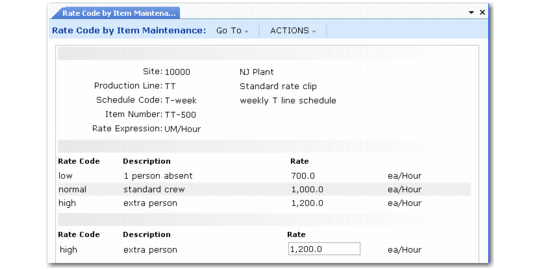
In the first frame, enter the combination of site, production line, schedule code, and item number to which the flow rate codes apply. The system displays the rate expression associated with the code in Schedule Code Maintenance.
You can apply flow rate codes more generally by leaving either Site, Production Line, or Item Number blank. Only one of the three fields can be blank. For example, if you leave Production Line blank, the flow rate codes apply to all flow orders that specify this combination of site, schedule code, and item number regardless of the production line being used.
Note: Schedule Code is always required because the system uses it to determine the rate expression that applies to flow rates.
The system validates unit of measure (UM) conversions for the item if you enter a value in Schedule Code that has a schedule UM specified in Schedule Code Maintenance. In this case, a UM conversion record must already be set up in Unit of Measure Maintenance between the schedule UM and the item’s stocking UM. Otherwise, the system displays an error.
Rate Code by Item Maintenance (17.13.1.13)
The center frame displays existing flow rate code records, if any have been defined. Records are listed in ascending numeric sequence based on the rate, rather than by flow rate code. Use the bottom frame to edit existing flow rate records or enter new ones.
Rate Code
Enter the flow rate code for this item. Values are validated against codes entered in Generalized Codes Maintenance for field flcr_rate_code. The system displays the description associated with the generalized code.
In Flow Schedule Maintenance, flow rate codes are associated with a specific production rate on a specific production line. When Display Time Usage Recap is Yes in Schedule Code Maintenance for the schedule code specified in the flow schedule header, the system displays time usage data for each flow rate code defined for items on the production line.
Rate
Enter the production rate represented by this flow rate code when it is used with the specified item. When Display Time Usage Recap is Yes for the schedule code on a schedule being entered in Flow Schedule Maintenance, the system displays time usage data based on this rate.
Important: This rate should be in terms of the displayed rate expression, which is associated with the schedule code specified in the first frame. For example, if the rate expression is units/hour, you might enter a flow rate of 100. However, the same rate for a rate expression of hours/unit would be 0.01.
Flow Rate Codes for Item Types or Groups
Use Rate Code by Type/Group Maintenance (17.13.1.16) to specify production line flow rate data unique to item types or groups. Items are optionally associated with types or groups in one of the following programs:
• Item Master Maintenance (1.4.1)
• Item Data Maintenance (1.4.3)
This program is very similar to Rate Code by Item Maintenance. However, instead of specifying an individual item, you can apply the defined flow rates to item types or groups. See
Flow Rate Codes for Items.
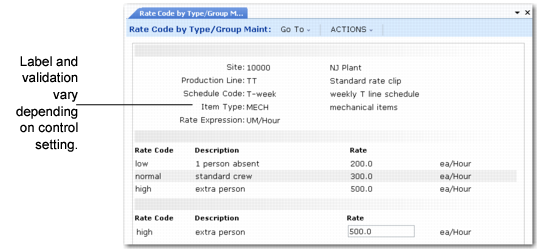
Rate Code by Type/Group Maintenance (17.13.1.16)
Indicate how you want to apply these rates in the Enter Flow Rate Code by Item Type/Group field in Flow Control (17.13.24). The field label and generalized codes validation in Rate Code by Type/Group Maintenance change based on that setting, as shown in
Effects of Flow Control Setting.
Effects of Flow Control Setting
Flow Control Value | Field Label | Generalized Codes Validation |
Type | Item Type | pt_part_type |
Group | Item Group | pt_group |
Use of Flow Rate Records
Flow Schedule Maintenance uses the following search sequence to determine which flow rate record to use in its calculations:
1 Search for the specific site, production line, schedule code, and item number (from Rate Code by Item Maintenance).
2 Search for specific site, production line, schedule code, and item type or group associated with the item number entered (from Rate Code by Type/Group Maintenance).
3 Search for specific site, production line, schedule code and a blank item number (from Rate Code by Item Maintenance).
4 Search for specific site, blank production line, schedule code, and item number (from Rate Code by Item Maintenance).
5 Search for blank site, production line, schedule code, and item number (from Rate Code by Item Maintenance).
Linking Work Centers to Locations
Optionally, you can set up a link between a flow production line work center and the location from which it backflushes components used to produce items on flow scheduled orders. By associating one or more locations with a work center and specifying a preference value for each, you can control the order in which the system selects backflush locations when you receive a flow scheduled order into inventory. See
Receiving Completed Flow Scheduled Orders.
Use Work Center/Location Maintenance (17.13.1.22) to set up these links.
In the first frame, enter the combination of site, work center, and machine that will backflush components from the specified locations. You must enter at least a valid Work Center. To create more general records, you can leave Site or Machine blank.
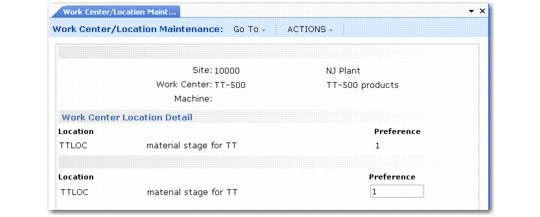
Work Center/Location Maintenance (17.13.1.22)
The center frame displays existing flow rate code records, if any have been defined. Use the bottom frame to edit existing records or enter new ones. If this work center consumes components from more than one location, you can enter multiple locations. Use the Preference field to specify the priority the system should use in backflushing required components from each location.
Use of Work Center/Location Records
When you record completions using Flow Schedule Receipts and Modify Backflush is set to No, the system uses the following sequence to find locations that can provide the total quantity of components used by the completed flow schedules.
1 Based on the routing, use locations associated with a specified site, work center, and machine code.
2 Based on the routing, use locations associated with a specified site, specified work center, and blank machine code.
3 Based on the routing, use locations associated with a blank site, specified work center, and specified machine code.
4 Based on the routing, use locations associated with a specified work center only.
5 Based on item master data, use the location associated with the item.
6 Use blank location.
If a matching record has more than one location specified, the system consumes components in the order specified in Preference. When locations in one record do not provide sufficient components for the entire quantity received, the system consumes available components and searches for another appropriate location.
If backflush requirements still are not met, the system displays a warning message and a data-entry frame for the backflush location.