Kanban Items
Use Kanban Item Master Maintenance (17.1.1) to identify items that are supplied using kanban loops, as well as specify default values for loop and process records. You must define items with this program before you can:
• Associate them with kanban loops using Kanban Master Maintenance (17.1.4)
• Set up process item records for them using Kanban Process Maintenance (17.1.3)
Important: You must define items using Item Master Maintenance (1.4.1) before you can set them up as kanban items.
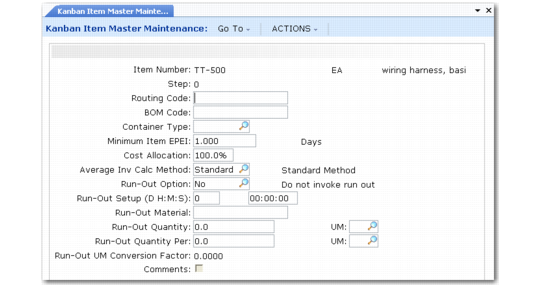
Kanban Item Master Maintenance (17.1.1)
Note: When creating a new loop based on records imported using Kanban Workbench Import (17.2.17), the system creates a new kanban item master record if the item/step specified in the import file does not already exist. See
Kanban Items.
You can associate process steps, routings, and bills of material (BOMs) with kanban items. Because items may use different routings or BOMs depending on where they are in the manufacturing process, you can create multiple item records with different steps to differentiate them.
When they are specified, the initial routing and BOM codes default from Item Master Maintenance (1.4.1). If you do not specify a routing or BOM code for the kanban item, the system uses standard logic to determine the value associated with kanban loops for the item. For example, if no routing code is specified for a kanban item, Kanban Card Create searches for a routing record specified for the item-site, then the item. If those records do not include a routing, the system looks for a routing code that is the same as the item number.
You can also specify the following values for a kanban item:
Container Type
Specify the type of container used to store and move this kanban item. This value must be defined in Container Type Maintenance (17.1.9). It defaults to new loop records for this item in Kanban Master Maintenance. See
Kanban Containers and Labels.
Minimum Item EPEI
Optionally enter the default minimum EPEI for this item when it is added to a process in Kanban Process Maintenance. The default is 0 (zero). See
EPEI.
The Kanban Item Master Maintenance field uses decimal days. However, if you enter a value here, the system converts it to the units specified in the EPEI Display Option field in Kanban Process Maintenance.
Specify a minimum item EPEI, for example, when you never want to set up the machines to make a given item more than once every three days. If the calculated process EPEI is less than the specified minimum item EPEI, the system uses the minimum value instead.
Cost Allocation
Specify the percentage of the total cost of this item represented by its value at this process step. The default is 100%.
The system uses this percentage in kanban workbench average inventory and safety stock value calculations. The kanban item cost at a given process step is calculated by multiplying the cost of the item from the cost set specified in the workbench by this percentage.
Defining the cost of an item as less than 100% is useful when the item at a step is still work in process, and the total components and labor required for the completed item have been only partially used.
Average Inventory Calculation Method
Specify the default average inventory calculation method for new kanban loops. This value defaults to Kanban Master Maintenance. You can change it for individual loops.
The system calculates the value of the Average Inventory Units field in the workbench based on the method specified for the loop, as well as various other values from the workbench.
Valid values are either Standard (the default) or Mfg1.
For Standard, average inventory is calculated as follows:
If Order Quantity is greater than 0, then Average Inventory = (Order Quantity * 0.5) + (Average Daily Demand * FIFO Time) + (Total Safety Stock and Safety Time) + Container Size Safety Stock
If Order Quantity is 0, then Average Inventory = ((Fixed Interval Time * Average Daily Demand) * 0.5) + (Average Daily Demand * FIFO Time) + (Total Safety Stock and Safety Time) + Container Size Safety Stock
If Order Quantity and Fixed Interval are both 0, and Daily Demand is 0, then Average Inventory = (Total Safety Stock and Safety TIme) + Container Size Safety Stock
If Order Quantity and Fixed Interval are both 0, and Daily Demand is greater than 0, then Average Inventory = (Kanban Quantity * 0.5) + (Average Daily Demand * FIFO Time) + (Total Safety Stock and Safety Time) + Container Size Safety Stock
For Mfg1, average inventory is calculated as follows:
1/4 * (3 * Final Order Quantity + Average Daily Demand * Run Time in Days) + (Total Safety Stock and Safety Time) + ((FIFO Time in Days * Average Daily Demand) rounded up to the kanban quantity) + Container Size Safety Stock
Where:
Run Time in Days = (Loop Final Order Quantity * Cycle Time) / Process Time in a Day + (Item Setup Time / Process Time in a Day)
Note: Method Mfg1 is designed for loops that have Source Type set to Process.
Run-Out Option
Enter Yes if the source that supplies this item at this step typically runs the quantity needed to use the entire supply of a given material regardless of the kanban quantity. Otherwise, enter No. This value defaults to Kanban Master Maintenance. You can change it for individual loops.
Especially in situations with extensive setup times to change over to a key material, setting up a work center for just the kanban quantity may not be efficient. Instead, the process produces enough items to consume an entire bulk quantity of that material. For example, if changing over a process to set up a coil of steel takes significant time, it may be more efficient to use the entire coil each time you run the item. The total amount of material available, the quantity required to produce each item, and the amount of time required to change over to a new supply can be useful information for analyzing kanban setup and sizing alternatives.
This field is for reference. The value specified in Kanban Master Maintenance displays in the kanban workbenches and is included in files created by Kanban Workbench Export, along with the related run-out parameters defined in Kanban Item Master Maintenance.
Note: These reference fields display in the workbenches and are included in files created by Kanban Workbench Export.
Run-Out Setup
Enter the time (in days, hours, minutes, and seconds) required to change over this run-out material when it needs to be replenished.
Run-Out Material
Enter the run-out material associated with this item. For example, this could be a coil of wire.
Run-Out Quantity and UM
Enter the quantity and unit of measure of this run-out material. For example, this can be the number of feet of wire in a coil. The UM field is validated against values entered in Generalized Codes Maintenance for field knbi_run_out_qty_um.
If you also enter the unit of measure for Run-Out Quantity Per, the system looks for a conversion factor defined in Unit of Measure Maintenance. If one is available, it defaults to the Run-Out UM Conversion Factor field.
Run-Out Quantity Per and UM
Enter the quantity of this run-out material used to produce a single kanban item. The UM field is validated against values entered in Generalized Codes Maintenance for field knbi_run_out_qtyper_um.
Run-Out UM Conversion Factor
Enter the conversion factor between the Run-Out Quantity and the Run-Out Quantity Per. For example, if the run-out material is a coil of hose 500 feet long and each kanban item requires a 3-inch length, you would specify a foot-to-inch conversion factor of 0.08333333.
When you first define a record in this program, this field is blank. If you specify values in the two UM fields that have a conversion factor defined in Unit of Measure Maintenance, the system automatically adds that value to the field. If you change it, the system displays a warning message.
When you save a record with the field blank, it defaults to 1. To add new units of measure that have conversion factors defined, enter them in the UM fields, set Run-Out UM Conversion Factor to 0 (zero), and click Next. The system displays the conversion factor.
Comments
Enter Yes to update or enter comments related to this kanban item; otherwise, enter No. Comments defaults to Yes if comments are already associated with the item; otherwise, the default is No.
When Comments is Yes, the transaction comments screen displays for you to enter or review comments regarding this item.