Transaction Frames
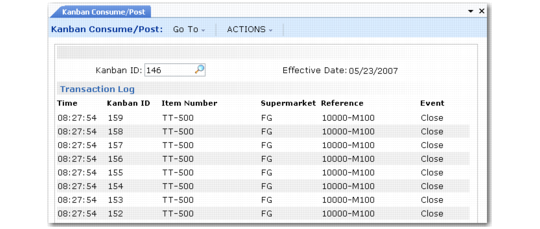
Begin recording cards by entering a valid number in the Kanban ID field or by scanning the bar code.
The Transaction Log at the bottom of the screen displays a list of recent transactions. The latest kanban entry is always displayed at the top of the transaction log.
Kanban Consume/Post, Transaction Entry Screen
If Kanban Cycle Enforcement is set to Warning or Error in Kanban Master Maintenance, the system verifies that the card has not been recorded during the specified time interval and displays a warning or error message as needed. Next, the system validates the card against controlled entry values, if any, and displays appropriate messages. A warning can be accepted or overridden. When an error displays, the kanban entry is automatically rejected. See
Card Tracking Information.
Note: Sequence enforcement settings may also cause the system to validate whether the current transaction is in the proper sequence. If it is not, a warning or error message displays. See
Sequence Enforcement.
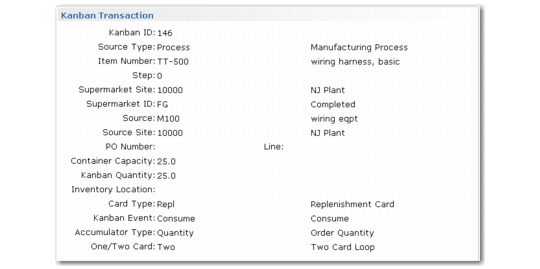
After you record a card, the system displays transaction summary data for the amount of time specified in the Transaction Display Pause in Seconds field in Kanban Control. When that field is 0 (zero), the summary does not display. See
Control Program.
Kanban Consume/Post, Kanban Transaction Summary Frame
Important: In QAD .NET UI, the system does not automatically clear the display after the specified number of seconds. You must press the spacebar to enter the next card. Leave the Kanban Control setting at 0 to avoid this.
After the card summary displays for the specified time, the Kanban ID field redisplays. When you have recorded all the cards, click Back.