QAD 2017 Enterprise Edition
>
User Guides
>
Master Data
>
Items/Sites
>
Items
>
Internal Part Changeover
Internal Part Changeover
Internal part changeover functionality lets you plan, ship, and invoice while phasing in new internal part numbers yet keeping customer part numbers the same. Since all of this happens automatically, the need to manually change orders, plans, and schedules is eliminated. The system automatically manages the change from one internal part number to another, so your purchase order operations continue without disruption.
Note: You can use internal part changeover functionality even when customer item numbers are not used. So, an item replacement schedule that consists of internal parts does not require an associated customer item before internal part changeover features can function properly.
The system provides inventory visibility for older, internal parts that have been replaced by newer, improved parts. This allows a company to effectively use up existing inventory before shipping the latest part.
Since you can set effective dates or quantities that stipulate a change to replacement part numbers, you can effectively plan and anticipate internal part number changes. Internal part changeover functionality ensures that required ship schedules are not created for expired customer scheduled order lines.
Features
Internal part changeover functionality uses the system’s item replacement functionality to provide the system with an automated way of moving seamlessly from one internal part to another using item replacement effective dates and effective cumulative shipped quantities.
The effective dates stipulate when a new internal part number replaces another part number on order documents. You can also set cumulative shipped quantity levels to stipulate when an internal number is replaced. Both methods let you plan the phase-in of new internal part numbers. Internal part changeover features let you:
• Map incoming customer demand requirements to the correct internal part number based on item replacement effective dates or cumulative shipped quantities.
• Manage the cumulative required and shipped quantities correctly when switching to new internal part numbers.
• Know when there is excess inventory when internal part numbers change.
• Report on:
• Contract activity for the customer part number
• Full visibility of the contract history for both the past and current active line items for a customer part number
• Available inventory for each item, including remaining inventory that exists for item numbers being replaced
• Use system-created picklists that display remaining inventory of old item numbers.
• For an RSS, report on:
• Item replacement details and full item replacement schedule
• An RSS split, for which order lines, and the cause of the split (date or quantity)
• Warnings for requirements that fall outside the effective date range for the order line or that exceed the end effective quantity
The following topics discuss areas within the system that operate with internal part changeover functionality.
Customer Scheduled Orders
The following topics discuss enhancements made to customer scheduled order line data when using internal part changeover functions.
Contract Lines
When entering order lines, the system displays a frame that lets you search through the order lines on a scheduled order by specifying an item number or customer item number. For existing numbers, the system displays contract lines that match the selection criteria. You can select a line to edit, and that line’s information is populated in the next frame. You can also leave both fields blank to display the next frame, which prompts you to enter item number, customer reference, model year, and so on with those fields left blank.
Customer Item/Item Replacement Creation
When you create an order line using an item number that does not have a customer item cross-reference, the system now prompts you to create one from within Customer Scheduled Order Maintenance (7.3.13). The system displays Customer Item Maintenance frames, including the Item Replacement Details frame. You can create a customer item cross-reference to the item or an item replacement for the item.
Master Lines
When scheduled order lines have the same domain, ship-from, ship-to, customer part number, PO number, customer reference, and model year, and the internal items on the order lines all belong to the same item replacement schedule, the system groups them into an order line set. The first line of the set is the master line. An order line set is a group of order lines that the system treats as a single order line because each item/line is a replacement as defined by the item replacement schedule and the values in the ship-from, ship-to, customer item, PO, customer reference and model year fields.
The master line effectively controls all non-master lines in the order line set. Required Ship Schedule (RSS) parameters specified on the master line are filtered down to the non-master lines, and start/end effective dates set at the master line also apply to the non-master lines.
All planning and shipping schedules are built using the master line. You can create or update an RSS for a master or a non-master line.
Active Start/End Effective Dates
Customer scheduled order lines have active start and end dates that let you control planning and shipping for the order line. When you create an RSS, either manually or using RSS Update, the system does not add schedule requirements with dates after the end effective date.
On the RSS output report, the system lists requirements as rejected when the order line is expired. When shipping items, the system displays a warning to alert you that the order line is no longer effective when you attempt to ship requirements past the end effective date.
Cumulative End Effective Quantity
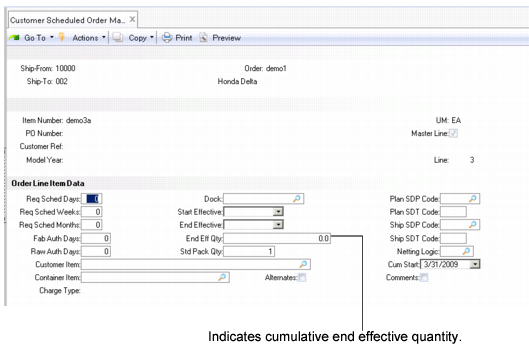
The End Eff Qty field for order line data lets you enter the end effective cumulative shipped quantity for the master line and for all orders in the line set. When creating an RSS, the system does not allocate the portion of the requirement that exceeds the end effective quantity. For example, if the requirement is for 100 and the end effective quantity is for 75, the system creates the RSS for 75 and displays the original requirement quantity and a message indicating that the quantity was adjusted.
On the RSS output report, the system lists requirements as rejected when the requirement quantity exceeds the end effective cumulative shipped quantity. When shipping, the system displays a warning to alert you that the order line is no longer effective due to cumulative quantity and prompts you to change the quantity.
Item Replacements
You can add multiple levels of automatic item replacement in Item Replacement Maintenance (1.23.1). For example, B2 can replace B1, and B3 can replace B2, and when a customer orders B1 and B3 is the effective part, B1 is replaced with B3. Item Replacement Maintenance lets you specify a ship-to address or a customer address as part of the item replacement record. For more information on item replacement, see
Item Replacements.
Customer Items
Customer Item Maintenance (1.16) lets you define multiple internal part numbers for a single customer item number using the Item Replacement Details frame.
Setting Up Internal Part Changeover
Before you can take full advantage of internal part changeover functionality, you must set up the following:
Create a Customer Part Number Cross-Reference
Use Customer Item Maintenance (1.16) to set up a relationship between a single customer item and one or more internal part numbers.
1 After you specify the customer/ship-to, specify the customer item. With the item replacement functionality, you must create customer item maintenance records for every ship-to/dock to which a customer item may be shipped.
2 In the Item field, enter the internal part number to associate with the customer item, then press Go.
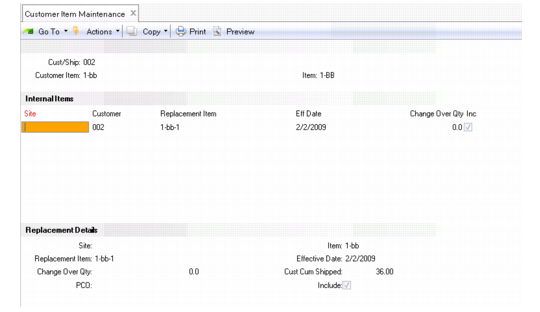
The system displays the Internal Items frame, which lists replacement item numbers that are associated with the internal item number. The frame also indicates the site, customer, effective date, changeover quantities, and whether the item replacement is included.
3 Select an item replacement from the list to edit, or press Go to enter a new internal part number to associate with the customer item number.
4 Enter or edit the site, internal item number, replacement item, effective date, changeover quantity, and PCO.
5 Indicate whether to make the cross-reference active by setting Include to Yes.
Note: Cust Cum Shipped is display only; it is calculated by totaling the cumulative shipped quantity for the item using customer, ship-to, and/or site data.
The following figure depicts Customer Item Maintenance frames and fields of importance when specifying multiple internal part numbers that correspond to a single customer item number.
Customer Item Maintenance (1.16)
Create an Item Replacement Record
Before you can use internal part changeover functionally, you must have an existing item replacement record. Use Item Replacement Maintenance (1.23.1) to create the record.
Note: Before you create the item replacement, you must define both the original item and the item that replaces it in Item Master Maintenance (1.4.1). If you delete an item defined in Item Master Maintenance, the system automatically deletes it in item replacement functions.
You can define the replacement item by site, customer, effective date, item and replacement item, or any combination of these.
For internal part changeover functions, use the following procedure:
1 Enter the original item to be replaced as the internal part number. Enter the internal part number in the Item Number field.
2 Enter the site.
3 Enter the customer/ship-to in the Customer field.
4 Enter an effective date for the item replacement in the Effective Date field.
5 Optionally, enter a quantity that must be reached to initiate item replacement in the Change Over Qty field.
Note: If you enter a changeover quantity, it takes precedence over the effective date.
6 Enter another internal part number to replace the original internal part number in the Replacement Item field.
7 Specify additional replacement data in the remaining fields.
8 Save the record.
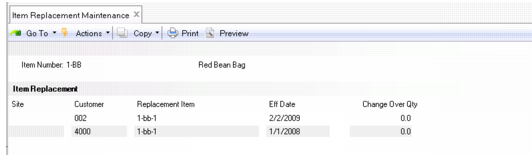
Item Replacement Maintenance (1.23.1), Item Replacement Frame shows the Item Replacement Maintenance, header, Item Replacement frame, and Replacement Detail frame.
Item Replacement Maintenance (1.23.1), Item Replacement Frame
Item Number
Enter the item number for which you are defining a replacement item. Items must be predefined in Item Master Maintenance (1.4.1). You cannot specify:
• An item as its own replacement
• A customer item
Site.
Optionally, enter the site where this item replacement record should be active. Leave blank to indicate the item should be replaced at all sites.
Customer/Ship-To
Optionally, enter the customer or ship-to code for whom this item should be replaced. Leave blank to indicate the system should replace the item on orders created for any customer or ship-to. Customers can be sold-to addresses. Customers must be predefined in Customer Create (27.20.1.1) and set up in Customer Data Maintenance (2.1.1).
Effective Date
Enter the date this record should be activated. For discrete orders, this determines when the system automatically begins to replace the associated item. For scheduled orders, this determines when the system automatically begins to replace the associated item if a Change Over Qty is not specified. Effective Date cannot be blank.
Change Over Qty
Enter the current item’s cumulative shipped quantity at which the replacement item on the record would take effect. This only applies to scheduled orders.
When you enter a value greater than 0 (zero), the system uses this quantity to determine item replacement and ignores the effective date on the record.
Example: An item replacement record is defined with an effective date of today and changeover quantity of 200; however, only 150 have been shipped against the current item. Even though the date indicates to switch to the new item, the changeover quantity has not been reached. Since the changeover quantity takes precedence over the date, the switch to the new part does not occur.
Include
Use this field to make a record active.
This field is useful when you have a generic item replacement for all customers or all sites, but you want to exclude a particular customer or site. You can specify the unique customer or site in the header then set this field to No to exclude this record from item replacement that occurs for all other customers or sites.
No: This record is not active.
Yes (the default): This record is active and should be used for replacement.
Quantity
Enter the quantity of the item being replaced.
Replacement Item
Enter a valid item number defined in Item Master Maintenance to use as the replacement item.
Rep Quantity
Enter the quantity of the replacement item. The replacement quantity cannot be 0.
PCO Number
Optionally, enter the number of the product change order (PCO) associated with the change that requires this item to be replaced. This field is for reference only if you are using the Product Change Control (PCC) module. If you are not using the PCC module, enter any tracking number that is meaningful in your system.
Comments
Indicate whether to enter comments and have the system copy and display those comments when you enter an order or quote for the replaced item.
No (the default): You cannot enter comments and the system does not prompt for comments during order entry.
Yes: The Transaction Comments frame displays in Item Replacement Maintenance. Optionally, enter a master reference number, language code, type code, and page number for the comments. In the order-entry program, the Comments field defaults to Yes. Continuing through the order-entry process displays the item replacement comments, unless you change the order-entry Comments field to No.
Auto Accept
Indicate whether replacement should occur automatically when an order or quote is entered for the replaced item.
No (the default): When an order or quote line for the replaced item is entered, the system prompts you to replace the original item with the replacement item and quantity defined in this record. If you respond with Yes, the system replaces the original line item with the replacement item.
Yes: When an order or quote for the replaced item is entered, the system automatically replaces that line item with the replacement item and quantity defined in this record. A message displays indicating that the item is being replaced and the order process continues without interruption.
This value defaults from the corresponding field in Item Replacement Control (1.23.24).
Round Quantity
Indicate the rounding method to use when non-whole number replacement item quantities are encountered.
Round Up (the default): The system rounds up the replacement item quantity to the next whole number. For example, 3.3 is rounded up to 4.
Round Dn: The system rounds down the replacement item quantity to the whole number. For example, 3.7 rounds down to 3. Any quantity less than 1 is rounded down to 0; however, this causes the system to report an error, and you must re-enter the order or quote quantity.
None: The decimal quantity calculated by the system is the quantity of the new item used on the order or quote.
This value defaults from the corresponding field in Item Replacement Control (1.23.24).
Update Customer Scheduled Orders
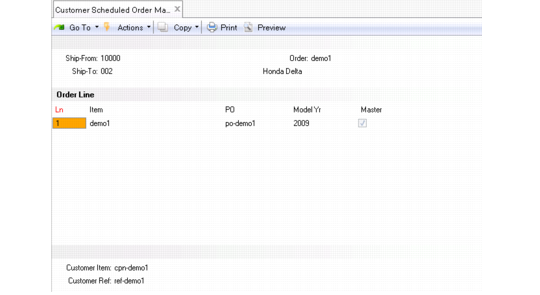
When you create or modify a line item in Customer Scheduled Order Maintenance (7.3.13), the system displays a frame that lets you search through all lines on the order by specifying a customer item and/or item number as selection criteria. If you enter data in these fields, the system displays an order line frame that shows you contract lines that match the criteria. The order line frame displays the order, line number, cross-referenced items to the customer items, purchase order, customer reference, model, year, and whether the line is the master line; see figure
Customer Scheduled Order Maintenance, Customer Item Frame.
Customer Scheduled Order Maintenance, Customer Item Frame
Create Customer Items/Replacement Items from Customer Scheduled Order Maintenance
When the system prompts you for the item number, PO, customer reference, model year, and so on, if the item number you enter does not have an associated customer item, the system prompts you to create one.
Note: Menu level security is applied, so if you normally cannot access Customer Item Maintenance, the access restriction still applies.
To save you time, the system prompts you to create the customer item cross-reference from within Customer Scheduled Order Maintenance. If you respond with Yes, the system displays the Customer Item Maintenance frame with the Item Replacement Details frame. Create a new customer item cross-reference or define item replacement effective dates using the Customer Item Maintenance frame.
Create/Update the Master Line
When the master line is the line item entry:
• The Master Line field is set to Yes.
• You cannot update the Customer Item field if there are non-master lines associated with it.
• You cannot delete the line if the master line is part of an order line set with more than one line associated with the set.
• Fields in the Order Line Item Data frame are not protected
Note: All fields in the Order Line Item Data frame are protected for non-master lines, except the Cum Start, Container Item, Alternates, and Comments fields.
The system keeps the fields on the Order Line Item Data frame that are protected for non-master lines synchronized with the same fields on the associated master line.
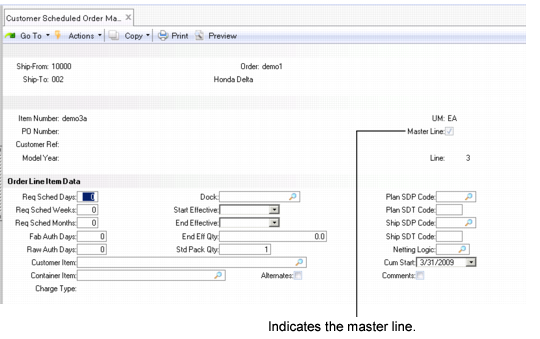
Customer Scheduled Order Maintenance, Master Line
In the line entry frame, all fields are the same except the following:
Customer Ref
If a customer part number exists as a cross-reference to an internal part number specified in the Item field, the customer part number displays here. If one does not exist, the system prompts you to create one.
Validation of this field depends on the setting of Customer Ref is Customer Item in Customer Schedules Control (7.3.24). If Yes, you must provide a valid customer item number. When a customer item defaults, it corresponds to the internal item number entered in the Item field. Alternately, if you enter a customer item in Item, then the customer item defaults in the Customer Ref field. If No, optionally enter any customer reference. The value is not validated.
Master Line
This field is display only. The system determines the value by checking whether an order line set exists for the information you enter and whether the item has the same item replacement schedule.
When the field is Yes, this line item is the master line. You can enter an old internal part number, a future internal part number, or a customer part number when you:
• Update schedules using Customer Plan Schedule Maint (7.5.1), Customer Ship Schedule Maint (7.5.2), or Required Ship Schedule Maint (7.5.3).
• Update required ship schedules (RSSs) using Required Ship Schedule Update (7.5.5) or Selective Req Ship Sched Update (7.5.6).
• Import schedules using EDI.
When creating a scheduled order line, if that line falls into an existing order line set, the Master Line field is set to No because a master line exists. This happens when creating an order line for a replacement item that has the same ship-from, ship-to, customer item, PO, customer reference, and model year as the order line for the item it is replacing.
Set the Cumulative End Effective Quantity
For the master line, you can specify an end effective cumulative quantity in the Order Line Item Data frame; see
Cumulative End Effective Quantity Field.
The combination of cumulative shipped quantities for orders in an order line set determines the open quantity for:
• Schedule requirements
• Picklists and pre-shippers
• MRP requirements
Since a single set of customer planning/shipping requirements can produce two or more required ship schedules in a single run of RSS Update, open quantity calculations differ when using internal part changeover functionality. The system calculates schedule cumulative quantities across each RSS it creates, causing each RSS to act as one linked RSS. When the system calculates the open quantity for any individual requirement on any of the linked RSSs, the open quantity calculation considers all linked RSSs to determine the true open quantity for the requirement. So, open quantity calculations span all RSSs created in the split.
End Eff Qty
If the current line entry is the master line, enter the cumulative quantity for the master line and for all orders in the line set. This becomes the end effective cumulative shipped quantity across the entire order line set. This field is display only for the non-master lines.
The quantity entered controls planning and shipping, along with the start/end effective dates, for the order line. The system does not allocate schedule requirements for a scheduled order line with a total projected cumulative quantity that exceeds the end effective cumulative quantity during RSS creation. When creating the RSS, the system does not plan for any orders in the order line set when the cumulative quantity exceeds the quantity entered here. On the RSS output report, the system lists requirements as either adjusted or deleted from the RSS, depending on the situation, when the order line has reached the end effective cumulative quantity value.
The system displays a warning to alert you that the order line is no longer effective and prompts you to change the quantity when you attempt to ship requirements beyond the end effective cumulative quantity. When you confirm a shipper, the system checks each shipper line that references a sales order for cumulative quantities and displays warnings as appropriate.
The system also displays errors or warnings when the cumulative end effective quantity is exceeded when you use any of the following:
• Shipper Workbench
• SO Shipper Maintenance
• Shipper Gateway
• Container Workbench
• SO Container Maintenance
• Sales Order Shipments
• Pre-Shipper/Shipper Auto Confirm
• RSS Update
• RSS Maintenance
End effective quantities display on certain reports and inquiries.
Cumulative End Effective Quantity Field
Update Customer Plan/Ship Schedules
Because multiple active internal part numbers can exist for a single customer part number, the system ensures that you maintain and update the correct active schedule for the part number. To do this, the system uses the setting of the Master Line field in Customer Scheduled Order Maintenance for both planning and shipping schedules.
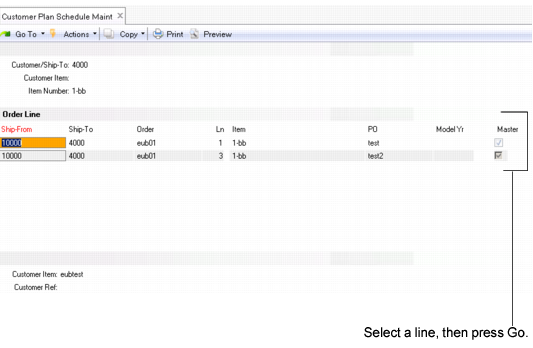
In either Customer Plan Schedule Maint (7.5.1) or Customer Ship Schedule Maint (7.5.2), when you enter a valid item in the Item Number field, the system displays all scheduled order contract lines that match selection criteria. Select a line, then press Go to continue; see
Customer Plan Schedule Maintenance (7.5.1). The screen is the same for Customer Ship Schedule Maintenance.
Customer Plan Schedule Maintenance (7.5.1)
When you enter schedule data for a non-master line, the system automatically directs you to the master line and populates the next frame with the master line data. The fields in the next frame are available for update, but they cannot be changed to reference a non-master line.
All planning and shipping requirements are loaded to the master line, even when the master line is no longer the effective line for the order line set. The RSS update programs obtain requirements from the master line and reallocate them across the order line set, based on items/order lines that are effective according to the item replacement schedule.
When sending schedules using EDI, the system loads schedules based on the master line data for the item, item replacement, or cross-reference customer item. Also, you can create or update an RSS for any line, regardless of the value in the Master Line field. This is because, over time, the effective item/order lines are not always the master line, and therefore, you must have access to the RSS even for a non-master line.
Create an RSS for Customer Schedules
When you have defined internal item replacement records, the system can create an RSS schedule for the current internal part number and one or more of the replacement part numbers, based on the item replacement effective date or cumulative changeover quantity parameters you defined in Item Replacement Maintenance.
When you update the RSS, the system uses the effective date or the cumulative changeover quantities to process schedule data. This includes applying schedule quantities to both the old and new part numbers and calculating schedule cumulative quantities for the new and old part numbers.
When the system processes an RSS that includes a changeover to a replacement internal part number, the system first calculates and creates an RSS using plan/ship schedules for the master line; then, the system adjusts the RSS by distributing the RSS requirements across the effective internal item numbers and their order lines, according to either date or cumulative changeover quantities specified on the item replacement records.
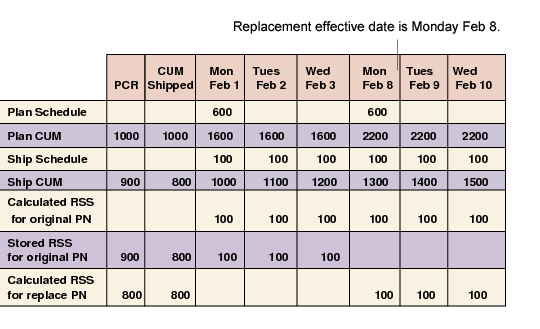
RSS Example for Replacement Part shows a two-week schedule of plan and ship cumulative quantities, the calculated RSS for the original item, and the stored RSS for both the original and the replacement item. In the example, note the following:
• The original part number is the master line.
• The effective date for the replacement part is Monday, Feb 8.
• The system uses the original part number (PN) master line settings to calculate the RSS.
• Netting logic is set to 3 — replace beginning of the planning schedule with the shipping schedule (replace logic).
RSS Example for Replacement Part
Processing Orders with Internal Part Changeover
You process orders with item replacements or customer cross-references as usual when using internal part changeover functionality.
There are some differences, though, when dealing with master lines, scheduled order effective dates, and scheduled order cumulative end effective quantities.
The following topics discuss a typical processing scenario and, following that, major areas of processing while phasing in a new internal part number but keeping the customer part number the same.
1 An ECO is initiated to indicate that an internal item is replaced by another internal item.
2 The planner estimates a date upon which the old part number runs out based on the old part number’s open orders and on-hand quantity.
3 The planner determines effective dates of old and new part number or determines the cumulative changeover quantity in Item Replacement Maintenance.
4 The order clerk sets up a new order line using Customer Scheduled Order Maintenance for the new internal part number, optionally specifying order line end-dates for old item part number to prevent shipping against expired order lines.
5 The order clerk manually creates or receives customer schedules using EDI including customer part number, quantity, and date.
The system creates new customer planning and shipping schedules and calculates the RSS. The system splits the demand among the old and new internal part numbers by effective date or cumulative changeover quantity. The planner uses the RSS to plan for production and purchasing of materials.
6 The planner runs MRP to explode the bill of materials (BOM) and routing.
The demand for the old and new part numbers displays on planning documents.
7 The shipping clerk uses Picklists/Pre-Shipper-Automatic to print the picklist, which contains the new internal part number.
The system displays remaining inventory of old items to pick.
8 The shipping clerk manually picks old parts, depleting old part inventory, or new parts during the transition.
9 The shipping clerk confirms the shipment and uses ASN Export to send the ASN.
Picklists
You can continue to ship all remaining inventory of the old item until inventory is exhausted before you start shipping replacement items. You can do this using the same picklist without rerunning the required ship schedule. To use up the remaining inventory of an older item the picklist must be manually changed in Pre-Shipper/Shipper Workbench (7.9.2). The picklist itself shows the following information to assist in using up remaining inventory for replaced items:
• Prints on the picklist the older part numbers that have remaining inventory
• Prints the total inventory balance available to ship
Older inventory items that have inventory on-hand that is not available or is restricted from shipping transactions do not print on the picklist as available to ship.
Shipping
You can continue to ship all remaining inventory of the old item until inventory is exhausted.
During the shipper confirm process, the system lets you ship both the new and old part on the same shipper. The system maintains cumulative shipped quantities for both lines when the shipment is confirmed.
ASNs
When you use Shipment ASN Export (35.4.1) to export advanced ship notices, the system supports multiple internal part numbers for the same customer part number on a single shipper.
When the system sends the ASN, it replaces the internal part number with the customer part number based on Customer Item Maintenance (1.16) records. The system replaces part numbers even when two or more internal part numbers are mapped to a single customer part number.
When the shipper has two or more lines that contain different item numbers that correspond to the same customer item number, the system displays an EDI message that lists each shipper line separately.
EDI
EDI functions also work with customer item numbers and replacement item numbers. When EDI returns:
• A customer item number given a customer/ship-to address and an internal item number, the system finds the correct customer item number when the internal item is part of a chain of item replacement records.
• An internal part number given a customer/ship-to address and a customer item number, the system returns the most effective internal item referenced on the customer item record or item replacement record.
• The value in any field on the customer item record given a customer/ship-to address and a customer item number, the system finds the internal part referenced and returns the most effective internal item number.
Consignment Records
A customer part number in usage consumption can be cross-referenced to an internal part number that has one or more item replacements. So, multiple consignment records can exist with multiple part numbers that relate to a single customer part number.
When you use Document Import (35.1) to import consignment usage, the system determines the part number for the customer part number in the EDI eCommerce message. If the part number has scheduled item replacement, the system determines if the previous part number has existing usage records to consume. If consignment usage records exist for the previous part number, the system consumes the oldest usage for the oldest item first.
When you delete a customer item record, the system checks whether consignment or customer scheduled orders exist that reference the customer item being deleted.
Invoices
When you create a self-bill using Self-Bill Auto Create (27.6.12.4) or Self-Bill Maintenance (27.6.12.1), the system creates two separate self-billing cross-reference records when:
• Two different part numbers correspond to a single customer part number.
• Both part numbers are shipped on a shipper for a self-billing enabled customer.
You can either:
• Combine both shipper lines onto a single self-bill line using the customer part number.
• Create two self-billing lines using the part numbers for both self-billing cross-reference records.
When you combine both shipper lines, the system consumes both self-billing cross-reference records that it creates when it posts the invoice.
Cumulative Shipped Quantities
Customers inform suppliers of the cumulative amount shipped for an item; however, that amount can change at any time.
When customers notify suppliers of the cumulative shipped amount, you can update the amount in the system using Cumulative Shipped Maintenance (7.5.16) or Cum Shipped Reset (7.5.18).
When adjusting the cumulative shipped quantity in Cumulative Shipped Maintenance, the quantity is adjusted only for the line you have specified. You can adjust the cumulative shipped quantity for master and non-master lines in this program.
When you set the cumulative shipped for an item number to zero for the next fiscal year or for other reasons as dictated by the customer, the system keeps track of the reset value and adds it to other values in the order line set to determine the cum shipped for the order line set.
Cumulative Shipped Reset processes all lines in a contract or order line set. It determines the master line and all non-master lines associated with the master line in a set for processing. It also keeps track of each line it has processed, preventing duplicate processing for a single line. This prevents the system from creating multiple history records for a single line.
When you set the cumulative shipped for an item number to zero for the next fiscal year, the system resets each line in the order line set to zero.
View Internal Part Change Over Data
Consolidated Scheduled Order Report (7.5.19) provides a comprehensive view of contract activity based on the customer part number; for example, you can view data for two or more contracts or contract lines for a single customer part number. You can also use the following browses to view data:
• Customer Scheduled Orders Browse (7.5.25)
• Planning Schedule Detail Browse (7.5.26)
• Ship Schedule Detail Browse (7.5.27)
• RSS Detail Browse (7.5.28)
• Shipment History Browse (7.5.29)
• Active Customer Sequence Browse (7.5.30)