Analyzing Obsolete Inventory
Use Obsolete Inventory Analysis (3.5.1.9) to:
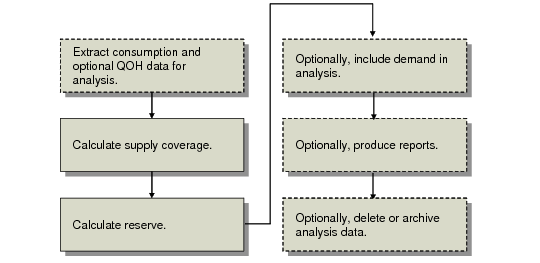
• Extract inventory consumption data or optionally, use previously extracted consumption data.
• Optionally, use Quantity on Hand (QOH) balances as of the analysis date or as of the GL period end dates for the date range you specify.
• Calculate supply coverage.
• Calculate reserve.
• Optionally, include demand and either add it to consumption or use the greater of demand or consumption.
• Optionally, produce reports and output files.
Once the system analyzes data, you can optionally delete or archive the data using Consumption Delete/Archive (3.5.1.20).
Processing Flow depicts the general process flow.
Processing Flow
Specifying GL Periods
All obsolete inventory calculations are based on GL calendars. You specify the GL calendar period in the Period/Yr field in Obsolete Inventory Analysis (3.5.9). You can specify a period range by adding an end period and year in the To field.
Note: Set up GL calendar using functions on the Financial Calendar Setup Menu (25.4).
The system bases consumption calculations on consumption from previous periods. However, if you specify a period range that includes future periods, the system multiplies the past consumption rate by the number of periods you specify to determine consumption for the entire period.
For example, if today is 06/21/05 and you specify a 12-month period for consumption from 01/2005 to 12/2005, the system analyzes consumption starting on 01/01/05 and ending on 12/31/05. Since today’s date is in June, it uses the consumption from January to the end of May multiplied by 12 months to obtain the total 12-month period consumption.
If today is 06/21/05 and you specify a period from 1/2005 to 2/2005, the system analyzes consumption from 01/01/05 to the last day of the ending period, or 02/28/05.
If you specify that the system calculate demand, the period of coverage is always in the future. For example, if today is 06/21/05 and you specify a 12-month period from 01/2005 to 12/2005, the system analyzes consumption starting on 01/01/05 and ending on the last day of the month for today’s date—06/30/05. It then analyzes demand starting on the first day after the end of the month for today’s date—07/01/2005—up to the end of the period you specified—12/31/05.
If you specified a past period for the system to analyze demand, the system analyzes only consumption for the past period. For example, if today is 06/21/05 and you specify demand from 01/2005 to 05/2005, the system produces consumption calculations starting from 01/01/05 up to 05/31/05.
If you specify a future period for the system to analyze demand, the system starts the calculation from the first day of the month of the period you specify up to the last day of the month in the ending period you specify. For example, if today is 06/21/05, and you specify a period range of 07/2005 to 12/2005, the system starts demand calculations on 07/01/05 and ends them on 12/31/05.
Using QOH Balances
When analyzing consumption, you can optionally set Use As of QOH so that the system either:
• Uses and reports the quantity on hand as of the date you run the analysis
• Uses and reports the actual quantity on hand for the end date of every GL period within your specified period range
Example: You specify a period starting on January 1, 2005 and ending on June 15, 2005 and set Use As of QOH to Yes. The system analyzes inventory using the actual quantities on hand from Jan 31, Feb 28, March 31, April 30, May 31, and June 15, 2005. If you set Use As of QOH to No, the system analyzes inventory using the quantity on hand as of the date you run the analysis.
Note: When you analyze demand, the system always uses the quantity on hand as of the date you run the analysis.
The system uses the QOH balances differently when analyzing inventory, depending on whether you are adding demand to consumption or using the greater of either consumption or demand. When you set Use As of QOH to Yes and:
• Both Add Demand and Greater of Demand are No, the calculation uses the QOH balance as of the GL period end dates that you specify in Period/Yr and To.
• Add Demand is Yes and Greater of Demand is No, the calculation uses the QOH balance based on the date you run the analysis.
• Use Greater of Demand is Yes, the calculation uses the QOH balance as of the GL period end dates within the date in Period/Yr and To for consumption and the QOH balance based on the extract date for demand.
The system reports the QOH balance along with consumption data if you set Retain Consumption Data to Yes in Obsolete Inventory Control and Extract Qty on Hand to Yes in Extract Consumption.
Extracting and Reporting Consumption
If you did not run Extract Consumption (3.5.1.7) previously and if Retain Consumption is No in Obsolete Inventory Control, you can extract consumption data by entering a GL period in the Period/Yr and To fields. The system temporarily stores the consumption data while it performs obsolete analysis on the data.
If you previously extracted consumption data through Extract Consumption, the system uses and reports that data based on the period and year you specify.
Set Report Consumption to Yes to report consumption data once the analysis is complete.
Calculating Number of Periods of Supply Coverage
The system calculates the number of periods of supply coverage based on the following formula:
[(Inventory QOH) / (consumption quantity for date range periods)] * entire date range periods
You specify the period or range of periods in the Period/Yr and To/Yr fields. Set Report Coverage to Yes to display supply coverage data when the analysis is complete.
Calculating and Reporting Reserve
Obsolete Inventory Analysis also calculates the value of obsolete inventory reserve. It calculates reserve values based on the following equation:
(Depreciation rate for items specified) * (item’s standard cost)
Set Report Reserve to Yes to display reserve data when the analysis is complete.
Calculating Demand
You can choose to have the system calculate demand. If you do, you must select one of the following for demand calculations:
• Add demand calculations to consumption calculations.
• Use the greater of the demand calculation or consumption calculation.
Note: Obsolete Inventory Analysis (3.5.9) calculates both demand and consumption.
The system calculates demand quantities in the same way that MRP Summary Inquiry calculates gross requirements. That is, demand is gross requirements as currently determined by the system, excluding the quantity on hand (QOH) and scheduled receipts. MRP calculates gross requirements. Once calculated, it subtracts both the quantity on hand for the previous period and scheduled receipts to determine net requirements.
If you specify to add demand calculations to consumption calculations, the system adds demand quantities to consumption quantities based on the GL period or period range you specify. The system determines consumption using the following calculation:
[(Inventory QOH) / (consumption quantity for respective date range periods + demand quantity for respective date range periods)] * entire date range periods
If you specify to use the greater of the demand or consumption calculation, the system calculates consumption and demand separately based on the GL period you specify. It determines demand using the following calculation:
[(Inventory QOH) / (demand quantity for respective date range periods for demand)] * respective date range periods for demand
When Include Negative is set to Yes, the system displays items on hand with negative quantities on coverage and reserve reports. The system displays coverage periods and reserve amounts as 0 (zero), not negative numbers.
You can print demand data by setting Report Demand to Yes in Obsolete Inventory Analysis to display demand data when the analysis is complete.
Note: You must set either Add Demand or Greater of Demand to Yes to display demand data.
Sorting Report Data with Levels
The system sorts data for the report based on the fields you enter in Level 1 Field, Level 2 Field, and Level 3 Field. Levels are indented in the report, providing data separation and grouping.
For example, if you do not specify any level fields, the report sorts detail lines by item and site. If you specify Level 1 Field as item type, the report sorts data by item type with detail lines by item and site.
If you specify Level 1 Field as item type, Level 2 Field as ABC code, and Level 3 Field as item group, the report sorts by item type first, by ABC code second, and by item group last with detail lines by item and site.
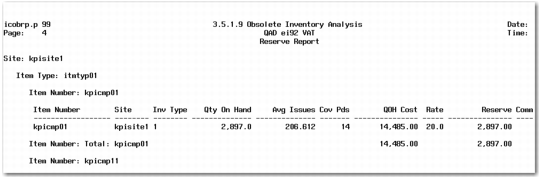
Example: The following example report has three user-selected level breaks, each with an indented header line. Detail lines are by site, item type, and item number.
Example Report with Levels
Specifying an Output File
Before you specify an output file name and file type, you must set up output file processing in Output File Type Maintenance (3.5.1.5). You specify the program that converts the output, which fields display in the output file, and other formatting in Output File Type Maintenance. You can use the system-supplied converter programs or create your own converter program. Specify the output file name and type in Obsolete Inventory Analysis (3.5.1.9).
Note: If you specify the type as CSV, you may have to add the.csv extension before you import into some PC-based applications.
Running the Analysis
After all obsolete inventory controls are set and you define inventory types and depreciation rates, you can analyze data.
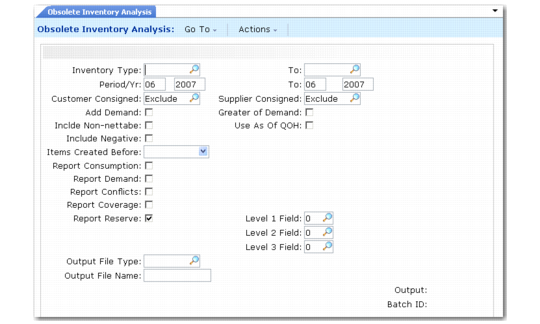
Obsolete Inventory Analysis (3.5.1.9)
Inventory Type/To
Enter a range of inventory types for selecting transactions to analyze.
Period/Yr
Enter the first GL period in a range of periods for which you want the system to analyze obsolete inventory. Enter the period in a two-digit format; for example, enter 06 for June.
If you ran Extract Consumption specifying a date range, the system uses that collected consumption coverage data here; so, the date you enter here should fall within the period you specified in Extract Consumption.
Enter the year after you enter the period. Enter the year in a four-digit format; for example, enter 2005.
To
Enter the last GL period of collected consumption data for which you want the system to analyze obsolete inventory. Enter the year in a four-digit format.
Customer Consigned
Supplier Consigned
Add Demand
Specify whether the system adds consumption data to demand data.
No: Do not add demand to consumption calculations. When both Add Demand and Greater of Demand are No, the system analyzes obsolete inventory using consumption data only.
Yes: Add demand calculations to consumption calculations. The system adds demand quantities to consumption coverage quantities. This field cannot be Yes when Greater of Demand is Yes.
Greater of Demand
Specify whether the system uses the greater of the consumption calculation or the demand calculation.
No: Do not use the greater of the demand or consumption coverage calculation. When both Greater of Demand and Add Demand are No, the system analyzes obsolete inventory using consumption coverage data only.
Yes: Use the greater of the demand or consumption coverage calculation. The system calculates consumption and demand separately, then uses the greater of the individual calculations.This field cannot be Yes when Add Demand is Yes.
Use As of QOH
When analyzing inventory, indicate whether the system uses the QOH balance as of the date you run the analysis or the actual QOH for the end date of every GL period within the period range you specify in the Period/Yr and To fields.
Note: When you analyze demand, the system always uses the quantity on hand as of the date you run the analysis.
No: The system uses and reports the QOH balance as of the analysis run date.
Yes: The system uses and reports the actual QOH balance for the end date of every GL period within the period range you specify in Period/Yr and To fields. The system uses the QOH balances differently when analyzing inventory, depending on whether you are adding demand to consumption or using the greater of either consumption or demand.
Include Non-nettable Inventory
Include Negative
Items Created Before
Enter a date if you want the system to include items that were added up to this date. Use this field to exclude any items from analysis that have not existed for sufficient time to build up an issue history.
Report Consumption
Indicate whether you want to report consumption data. The system reports consumption data by inventory types, item numbers, sites, consumption dates, periods, quantities, and QOH.
No: Do not report extracted consumption data.
Yes: Report extracted consumption data.
When Retain Consumption Data in Obsolete Inventory Control is No, the system extracts data first, then reports it. If Retain Consumption Data is Yes, the system reports the previously extracted data.
Report Demand
Indicate whether you want to display item inventory type conflicts in this report. The system reports conflict data by item number, site, inventory type, line type, commodity code, ABC code, or whether the item is a purchased or manufactured item.
No: Do not report demand data.
Yes: Report demand data.
When both Add Demand and Greater of Demand are No, you cannot report demand data. If you try, an error message displays.
Report Conflicts
Indicate if you want to display item inventory type conflicts in this report.
You specify inventory types in Inventory Type Maintenance (3.5.1.1). Because of the way you group items, some items may overlap inventory types. When the system calculates obsolete inventory values, it resolves the conflict of overlapping inventory types within the same site through a course of action you specify in Obsolete Inventory Control. If you specify that the system not analyze obsolete inventory data when it encounters conflicts, the system does not analyze the items in conflicting inventory types, but it does present conflicting inventory type data here.
No (the default): Do not report items that overlap inventory types when analyzing obsolete inventory.
Yes: Report items that overlap inventory types when analyzing obsolete inventory. Conflicting data displays in a report when the analysis completes.
Note: You can set Conflicts Only to Yes in Item Inventory Type Report to display just conflicts before you analyze data here.
Report Coverage
Indicate whether you want to report supply coverage data. Supply coverage data includes the number of periods that the current quantity on hand supplies based on the average past usage. The system reports coverage data by item, site, inventory type, quantity on hand, total issues, and average issues.
No: Do not report extracted supply coverage data.
Yes: Report extracted supply coverage data.
Report Reserve
Indicate whether you want to report reserve data. Reserve data includes reserve values that the system calculates by applying depreciation rates to the current quantity on hand. The system reports reserve data by item, inventory type, quantity on hand, average issues, coverage periods, QOH cost, rate, and comments.
No: Do not report extracted reserve data. If Report Reserve is No and Output File Type is blank, the system does not report useful reserve data.
Yes: Report extracted reserve data.
Level 1 Field
Specify a field that acts as the first level of information for the reserve report. The system sorts data for the report based on the fields you enter here and in Level 2 Field and Level 3 Field.
Level 2 Field
Specify a field that acts as the second level of information for the reserve report. The system sorts data for the report based on the fields you enter here and in Level 1 Field and Level 3 Field.
Level 3 Field
Specify a field that acts as the third level of information for the reserve report. The system sorts data for the report based on the fields you enter here and in Level 1 Field and Level 2 Field.
Output File Type
Specify an output file type. The default is blank. A blank here creates no output file. You can specify output file formatting options in Output File Type Maintenance (3.5.1.5). See
Specifying an Output File.
Output File Name
Specify an output file name. The default is blank. You specify the path in Path for Reserve Output in Obsolete Inventory Control (3.5.1.24). See
Setting Obsolete Inventory Controls.