QAD 2017 Enterprise Edition
>
User Guides
>
Master Data
>
Items/Sites
>
Items
>
Defining Item Data
Defining Item Data
You can use Item Master Maintenance (1.4.1) to define all of the attributes of an item.
General Item Data
Every item has some relatively static information that describes its general characteristics, regardless of how it is used. This includes the item’s description, product line, unit of measure, drawing, revision, status, and so on.
Any general data you set up for an item must be valid for all sites in the system, since this data cannot be defined per site. If general item data for an item varies by site, you must set up the item with different item numbers.
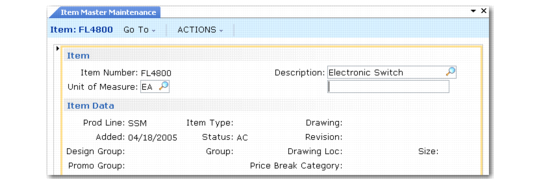
Item Master Maintenance (1.4.1), Item Data
The item number, description, product line, and unit of measure (UM) are the most visible and most important engineering fields.
The item number is the index for item data. Whenever you enter a number in an Item field, it is validated against numbers in the item master. The fields for unit of measure, group, type, and status permit virtually any combination of characters. Most of these fields are validated with generalized codes, and lookup browses can be set up.
See
QAD System Administration User Guide for details on generalized codes.
Important: It is important for purchase orders and for the operation of the Product Change Control module that the engineering revision level for an item is the same in Item Master Maintenance and Item-Site Planning Maintenance. Use the Item Revision No Variation Report (1.5.19) to highlight any revision variations for review and correction.
Item Number and Description
Most companies have not escaped controversy when determining conventions for item numbering and item descriptions. Proponents of significant, semi-significant, and nonsignificant item numbering schemes argue the advantages and disadvantages of coding information into an item number.
For multi-national organizations that have users with diverse languages, defining items using only numeric characters can be an important requirement. If user languages are not based on the same code page, some characters may not display correctly.
Any numbering scheme is possible. Since you can access lookups that can be searched by item number or description, significant numbers are not critical.
Item Unit of Measure
The item unit of measure is used for inventory balances, product structures, manufacturing orders, planning, and reporting. Values can be defined with generalized codes.
Different areas of a company may handle an item using different units of measure. For example, an item may be moved in pallets but sold by the box. For these cases, set up alternate units of measure and conversion factors in Unit of Measure Maintenance (1.13).
When items are handled in different units of measure on purchase orders, sales orders, and inventory transactions, the system automatically converts the quantities from an alternate unit of measure to the item unit of measure using the predefined conversion factors. In most cases, either unit may be entered on transactions.
The formula for alternate unit of measure is:
Standard UM * Conversion = Alternate UM
Grouping Fields
If grouping items by product line does not satisfy the planning and reporting requirements of all company departments, the item type and group fields can also be used to group items. Both fields are used in the planning and sales modules. The item type is also used for product costing functions and cycle count reporting.
Design groups are used in the Product Change Control module to determine who is responsible for changes affecting the item.
Item Status Code
Use Item Status Code Maintenance (1.1.5) to define status codes to associate with items in Item Master Maintenance or Item Data Maintenance. Status codes indicate where an item is in its life cycle from planning through design, production, and obsolescence. For example, you can set up a status code of AC to show that an item is actively manufactured and sold, and one of OB to identify obsolete items.
Use item status codes to restrict which transactions can occur for a particular item. When you process an item transaction, the system checks the item’s status code to verify that the transaction is not restricted. If it is, an error message displays and you cannot proceed.
You also can use item status codes to select records in some reports and other functions. For example, when you are updating ABC code rankings and calculations using Item ABC Status Report/Update (1.5.9 or 3.6.3; 1.5.33 or 3.6.27 for enhanced .NET UI version), you can enter a comma-separated list of item status codes to be excluded. The function does not process items associated with specified codes.
Item Inventory Data
Inventory control is responsible for the security, movement, accuracy, and, in some cases, the allocation of inventory. Every item has inventory control information associated with it. The system uses this information to track and control the movement of the item. For example, if an item has an expiration date, you cannot issue the item after that date.
Most of the fields you specify in this frame default to the same fields in Item-Site Inventory Data Maintenance (1.4.16) when you set up a record for a specific site. Article number is only defined at the item level. Lot groups are already defined by site when they are set up in Lot Group Maintenance (1.22.13).
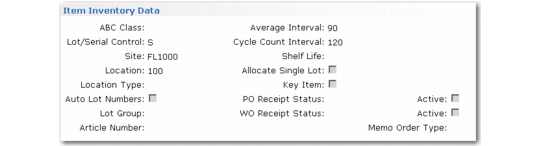
Item Master Maintenance (1.4.1), Item Inventory Data
The following briefly explains how inventory control fields are used.
ABC Class
This code classifies items by level of importance, such as dollar value, with class A being the most important. The system uses the ABC class code with cycle counting. You can add the code directly or leave it blank. If left blank, you can have the system calculate an item’s ABC class code by running the Item ABC Status Report/Update (1.5.9 or 3.6.3; 1.5.33 or 3.6.27 for enhanced .NET UI version). See
Item ABC Status Report/Update.
Lot/Serial Control
The value of Lot/Serial Control for the item determines if a lot or serial number is required.
Blank: Lot/serial numbers are not required, although they can be recorded as needed.
L: Lot numbers are required for this item. During issues and receipts, a lot number must be entered. The lot number applies to the entire transaction quantity entered.
S: Serial numbers are required for this item. During issues and receipts, a unique serial number must be entered for each item. For example, if you receive 10, you must enter 10 serial numbers.
The system maintains complete lot/serial number traceability. The Lot Actual Bill Inquiry (3.22.3) lists all the lot/serial numbers of components and raw materials used to make a given lot/serial number. Lot Where-Used Inquiry lists all the places that an individual lot/serial number was used, all the way to the end customer.
For manufactured items, lot numbers can optionally be assigned by the system by setting Automatic Lot Numbers to Yes. When the item is received into inventory using a work order receipt function, the lot number is set to the work order lot ID.
If you are using the Regulatory Attributes module (1.22), stricter levels of lot and serial control are available. You can also generate lot numbers based on a pattern specified in the Lot Group field.
You cannot modify this value from blank to S or L if a quantity of the item already exists in inventory.
Site
Specify the site where you normally manufacture or store the item. The site defaults from Inventory Control (3.24), but can be overridden.
Location
Enter an optional location code indicating the physical location where this item is normally stored. See
Locations for details.
The value you enter is the default for all sites. Since locations often vary by site, set up site-specific values in Item-Site Inventory Data Maintenance (1.4.16).
Note: Default locations for sales transactions can also be defined by the customer in Reserved Location Maintenance (2.1.9.1). Consigned inventory uses the default locations defined in Ship-To/Item Controls Maintenance (7.18.1).
Repetitive inventory backflush uses default item or item-site locations only when the work center where the backflush occurs is not itself specified as a location.
Assigned item locations are particularly useful when you always store an item in the same place, since they minimize data entry and prevent errors.
Location Type
Enter a code identifying the type of location where this item is stored.
The value you enter is the default for all sites. Set up site-specific values in Item-Site Inventory Data Maintenance (1.4.16).
A type code can be assigned to each location in Location Maintenance (1.1.18). When an item is received, transferred, or counted using a cycle count or tag count, the system verifies that the location type matches the location type associated with the item. If not, an error displays and the transaction cannot be processed.
Use type codes for items with special storage requirements, such as temperature or humidity. You can describe the exact requirements using master comments associated with the item.
Automatic Lot Numbers
This field determines whether the system automatically assigns lot numbers to items with Lot/Serial Control set to Lot. It has no effect for other items.
The value you enter is the default for all sites. Set up site-specific values in Item-Site Inventory Data Maintenance (1.4.16).
The following programs can assign automatic lot numbers:
• Purchase Order Receipts (5.13.1)
• Work Order Receipt (16.11)
• Work Order Receipt Backflush (16.12)
• Repetitive Labor Transaction (18.14)
• Work Order Operation Backflush (16.19)
How lot numbers are generated when Automatic Lot Numbers is Yes depends on whether you specify a lot group. Lot groups are only available if you are using the Regulatory Attributes module (1.22).
• If you enter a value in the Lot Group field, number format is determined by the rules specified in Lot Group Maintenance (1.22.13).
• If Lot Group is blank, work orders use the work order ID as the lot number. Automatic lot numbers are not assigned in purchase orders.
See
Assigning Lot Groups to Items for information on lot groups.
Average Interval
Specify the number of calendar days used as the averaging interval in ABC computations.
Cycle Count Interval
Specify the number of calendar days between cycle counting this item.
Shelf Life
Enter the number of calendar days that this item can be held in inventory before it becomes unusable. Shelf life is typically defined for items that spoil or degrade over time.
You can use shelf life to set the expiration date for inventory. Inventory that has expired does not appear on picklists as a quantity to be picked. If you try to ship or issue expired inventory, an error message displays and you cannot continue.
The system calculates an expiration date when an item is received into inventory by adding the number of days specified for shelf life to the receipt date. You can change expiration date using:
• Inventory Detail Maintenance (3.1.1)
• Detail Maintenance by Item/Lot (3.1.2)
• If you are using the Regulatory Attributes module, Multi-Lot Inventory Detail Update (1.22.19)
When a lot is recertified, a new expiration date can be assigned.
You can impose additional restrictions by using the Issue Days field in Inventory Control (3.24). If you set the number of days to 5, you cannot ship or issue expired inventory or inventory that will expire in the next 5 days.
Allocate Single Lot
This field indicates whether the system should always fill sales orders and work orders from a single lot of this item. If Yes, you can manually allocate orders from more than one lot using Sales Order Manual Allocations (7.1.6) or Work Order Bill Maintenance (16.13.1), but the system displays a warning message.
Key Item
Enter Yes if you do not want to start an order when an insufficient quantity of this item exists. Otherwise, enter No.
You cannot release a work order or print a picklist when a sufficient quantity on hand of a key item does not exist. An error message displays. You can adjust the order quantity manually to ensure that you can complete the order.
Key items are typically difficult to obtain. They may have long lead times or may be in short supply. Only a few items should be designated as key items. For example, glass is a key item for a window manufacturer. When enough glass is not available to fill an order, the order cannot be started.
PO Receipt Status
Specify a default inventory status for the item when received on a purchase order. This field is optional. If not specified, the status of the location or site is used as a default. See
Inventory Status Codes.
WO Receipt Status
Specify a default inventory status for the item when received on a work order. This field is optional. If not specified, the status of the location or site is used as a default.
Memo Order Type
Leave blank to indicate that this is not an expensed memo item.
Enter a type code to indicate that this item is an expensed memo type item. These items have no effect on inventory or MRP when they are placed on an order. Any entry other than blank implies an expensed item.
When you place items on an order, this value defaults to the line item Type field in the following sales- and purchase-related programs:
• Sales Order Maintenance (7.1.1), Sales Quote Maintenance (7.12.1), RMA Maintenance (11.7.1.1), and Customer Scheduled Order Maintenance (7.3.13)
• Purchase Order Maintenance (5.7), Requisition Maintenance (5.2.3), and Supplier Scheduled Order Maintenance (5.5.1.13)
The value you enter is validated against values defined in Generalized Codes Maintenance (36.2.13) for field name pt_memo_type. If no generalized codes are set up for this field, you can enter any value.
Note: Do not set up generalized codes for values that already have a specific meaning. For example, values such as B (for blanket), S (for subcontract), and R (for RTS) invoke unique processing that may override or conflict with memo type order processing.
Item Shipping Data
The shipping department uses item shipping data to determine freight charges. For example, freight charge calculations use the item’s shipping weight to determine freight costs.
Item Master Maintenance (1.4.1), Item Shipping Data
In some business environments, it is a common practice to use commodity codes to group items for internal business needs. For example, all suppliers providing a certain kind of commodity—represented by a commodity code—may be rated together, regardless of the particular item.
Note: If you are using the Supplier Performance module, performance can be monitored based on commodity codes. See
QAD Purchasing User Guide.
Create valid commodity codes and associate groups of items with them in Commodity Code Maintenance (1.4.19). The associated code then displays in Item Master Maintenance and can be modified if needed.
Note: Corporate commodity codes are distinct from the commodity codes used to classify goods for Intrastat reporting purposes. These are set up with Intrastat Commodity Code Maintenance (29.22.3) in the Intrastat module. See
QAD Intrastat User Guide for details.
Planning Data
The material planning department uses item planning data to determine how and when to replenish inventory. This data affects MRP, purchasing, manufacturing (work orders, repetitive schedules, and master scheduling), configured products, and costing. Most of the fields are used in material requirements planning (MRP).
For details about MRP, see
QAD Manufacturing User Guide.
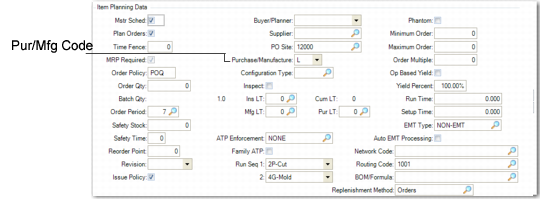
Item Master Maintenance (1.4.1), Item Planning Data
The Pur/Mfg (purchase/manufacture) code determines how items are planned, costs are calculated, and cumulative lead times are calculated. This code can be:
• Purchased: obtained from suppliers
• Manufactured: produced internally, typically with work orders
• Line: produced internally, typically on a production line
• Flow: produced internally, typically on a flow production line
• Routable: produced internally
• Distribution: obtained from distribution sites
• Configured: configured to customer order and produced internally
• Family: a special type of item used for operations planning
Note: The system assumes items with a blank Pur/Mfg code are manufactured. If you are viewing items on a production line in the .NET UI Master Scheduling Workbenches, you must set this field to L to view the item.
Specifying an ATP horizon for an individual item in Item Master Maintenance or Item-Site Planning Maintenance overrides the Sales Order Control value.
Replenishment Method
Specify the method to replenish inventory. The default is Orders.
Kanban: Entering kanban creates a kanban record for the item in kanban. Kanban is a method of just-in-time (JIT) production that uses standard containers or lot sizes with a single card attached to each. It is a pull system in which work centers use a card to signal that items are to be withdrawn from supply sources. The kanban system defines a communication signal or card indicating that items need replenishment.
Orders: MRP uses order due dates to determine when quantities will be available to replenish inventory.
Purchase/Manufacture: Inventory is replenished by purchasing it from suppliers or manufacturing it internally, typically with work or production orders.
DRP: Inventory is replenished through distributed requirements planning (DRP) intersite requests, which balance supply and demand among sites.
Family: Inventory is replenished through family-level items. Components of the family item are special items that can be any type: manufactured, configured, or another family item.
Routable: Inventory is replenished from items produced internally.
Configured: Inventory is replenished through products that are configured to customer order and produced internally. These are indicated by a Pur/Mfg code of Configured in Item Master Maintenance.
Purchased: Inventory is replenished through purchased items, driven by purchase orders.
Manufactured: Inventory is replenished through manufactured items.
Line Manufactured: Inventory is produced internally, typically on a production line.
Item Cost Data
The item cost data is divided into three sections:
• Price and tax data
• General ledger (GL) cost
• Current cost
Price
Price and costs are entered in base currency specified in Domain/Account Control. The item master price is the default list price in sales transactions, if price lists are not being used. You can only assign one list price directly to an item.
See
Pricing for details on using price lists.
The taxable status and tax code default from the product line and are used in the Purchasing, Sales Orders/Invoices, and Customer Services modules.
GL and Current Costs
The item GL costs are the standard costs used for GL transactions. Both the GL costs and current costs are the costs for the item at the site specified in the inventory data section.
In turn, each of these costs has five cost categories: material, labor, burden, overhead, and subcontract. Burden is sometimes known as variable burden or variable overhead. Overhead is known as fixed burden or fixed overhead. Use Item-Site Cost Maintenance (1.4.18) to update the GL and current costs for a particular site.
Both the GL and current costs can be updated automatically during routing and product structure roll ups by using item cost utilities in the Item Data Menu (1.4) or by using cost simulation programs in the Cost Management module.
These programs are discussed in
QAD Costing User Guide.