QAD 2017 Enterprise Edition
>
User Guides
>
Master Data
>
Items/Sites
>
Locations
Locations
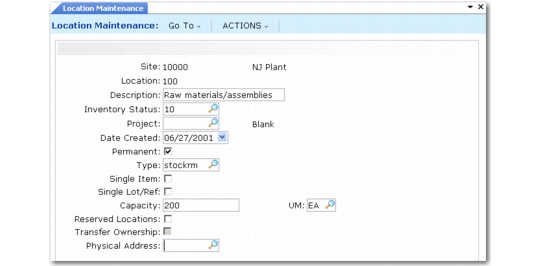
Use Location Maintenance (1.1.18) to specify areas within a particular site where inventory is stored; see
Location Maintenance (1.1.18). A location can include shelves, bins, tanks, lots or other storage areas. Each location’s parameters identify what can be stored there and how that inventory can be used.
Each time you perform an inventory transaction, such as an issue, receipt, or transfer, you must specify both a site and location. Use Item Master Maintenance (1.4.1) or Item Inventory Data Maintenance (1.4.5) to define default sites and locations for individual items. Use Item-Site Inventory Data Maintenance (1.4.16) to assign site-specific locations to an item. When considering location defaults, the system searches for a site-specific record first. If the record does not exist, location defaults from Item Master Maintenance.
Note: If detailed inventory security is needed, use programs on the Update Restriction Menu (36.3.7) to designate who can update particular items at specific locations and which inventory status changes they can make.
A site can have an unlimited number of locations. Although the system permits the use of blank location codes, this is not recommended.
Note: The Transfer Ownership field is active only if you are using the optional Supplier Consignment Inventory module. See
QAD Purchasing User Guide.
Location Maintenance (1.1.18)
When establishing a naming convention for location identifiers, consider the picking order specified in Inventory Control (3.24). When items are picked by location code, work-order and sales-order picklist functions check locations in ascending or descending order according to the Inventory Control setting. Because of this, numeric location codes such as 1000, 1100, and 8000 are recommended. If you use significant codes and allocate in ascending order, the system checks locations in alphabetical order; for example, Inspect would come before Storage.