Defining Approval Levels
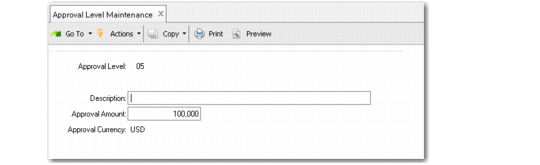
An approval level within GRS is defined as the maximum amount of approval currency a person assigned that level is authorized to approve. You define approval levels in Approval Level Maintenance (5.2.1.1). To view existing approval levels, use Approval Level Browse (5.2.1.2).
Approval Level Maintenance (5.2.1.1)
Approval Level
Enter a two-digit number defining a level. At initial system setup, you should consider establishing these in increments of 5 or 10 so that you can later insert intermediate levels. These codes are also used in the Review Level field in approver maintenance programs (5.2.1.13 through 5.2.1.16).
Approval Level 00 is reserved by the system and indicates that a person is not an approver or reviewer. Individuals with this level are not included when reports are generated. Although you can route requisitions to zero-level approvers, their approvals do not count toward the number of required approvals specified in Requisition Accounting Control (36.9.3).
Description
Optionally enter a text description of the approval level. This description appears on various inquiries and reports.
Approval Amount
Enter the amount a person assigned this level is authorized to approve or required to review. This amount is expressed in the approval currency defined in Requisition Accounting Control.
This amount can represent either a maximum or minimum, depending on where it is used.
• In the approver maintenance programs, Approval Level is the maximum authorized level. When Approval Required is Yes in one of these programs, the associated individual must approve all requisitions up to this amount.
• But when Review Required is Yes, Review Level is a minimum—this individual must review all requisitions above this amount.
Approval Currency
The system displays the currency defined in Requisition Accounting Control (36.9.3). You cannot update this field here.