QAD 2017 Enterprise Edition
>
User Guides
>
Service/Support Management
>
Installed Base
>
End Users
>
End User Setup
End User Setup
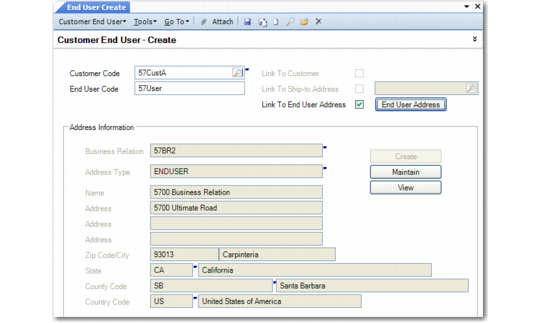
Use End User Create to define an end-user record and link it to a customer. You also define end user contacts and their related information in End User Create or Modify in Accounts Receivable. This address and contact information then displays in End User Data Maintenance.
For more information on setting up end user records, see
QAD Financials User Guide.
If you choose to use a customer or ship-to code as the end user code, the address information defaults from that record and only the sort name can be changed. Use Customer Modify (27.20.1.2) and Customer Ship-To Modify (27.20.2.2) to maintain these addresses. If you define a new code for the end user, you can maintain the address, tax, and contact information.
Use End User Data Maintenance (11.9.1) to complete the end-user setup by specifying details used in SSM functions
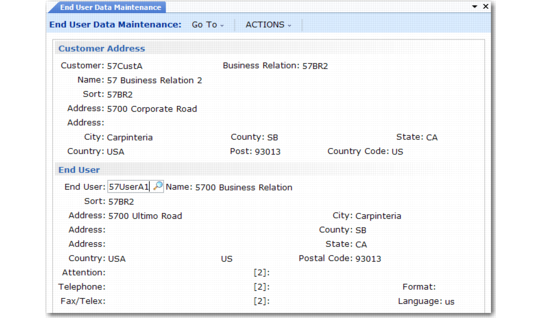
Customer Address and End User Frames
Specifying a customer in End User Data Maintenance displays the customer’s address fields in the Customer Address frame.
In the End User frame, select an end user from those that have been created and linked to the customer in End User Create.
End User Detail Frame
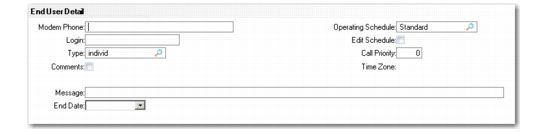
The End User Detail frame displays next, where you specify details related to this end user that affect other service activities.
End User Detail Frame
Modem Phone and Login
Specify an optional phone number for the end user’s modem and a login user ID. These fields are for reference and may appear on some reports and inquiries.
Note: Enter a modem number for companies that provide software or hardware support. Performing remote diagnostics via modem can save time and expense of an on-site visit.
Type
Enter an optional code set up with Generalized Codes Maintenance for field eu_type. End-user type codes group end users in categories. You define warranty types and default charge codes based on the end-user type: You might have one warranty for priority end users and one for regular end users. Or you might categorize foreign and domestic end users using the end-user type field.
Operating Schedule
Specify a master schedule for the end user. End user master schedules are defined in End User Master Schedule Maintenance (11.9.13). If required, you can customize the schedule for the end user’s needs using the Edit Schedule field. See
End User Schedules for more information on defining end user master schedules.
Edit Schedule
Select this field and click Next to edit the schedule specified in the Operating Schedule field. The End User Schedule frame opens.
If the Operating Schedule field is blank, you can create a new schedule for the user using the End User Schedule frame.
See
Creating a Personal Schedule for an End User for information on the End User Schedule frame.
Call Priority
Priority indicates the importance of calls from this end user. Lower numbers indicate a higher priority. If you specify a nonzero value, it displays as the default in Call Maintenance (11.1.1.1). The end-user priority takes precedence over the priority associated with any contract or warranty in effect for this end user, or the priority defined as a user preference.
Time Zone
This field displays when Multiple Time Zones is active. It defaults from the end user’s customer if a value has been defined there; otherwise, it defaults from the Time Zone field in the domain record. Enter a time zone defined with Multiple Time Zones Maintenance (11.21.22.1).
This field determines how times are displayed and stored in Call Maintenance when a call for this end user is taken. The end user’s time zone also affects engineer scheduling, service coverage, and service pricing.
You can only update this field when you create an end user. After an end-user record exists, change the time zone with the End User Time Zone Change Utility (11.21.22.20). This utility updates calls for the end user to reflect the new time zone.
Message
Enter an optional, brief message regarding this end user that displays in various call-related programs for calls associated with this user. For example, when you create a call or record service activity, the message displays at the bottom of the window. It also appears on printed calls, which the engineer often uses as a kind of work order.
End Date
If the message becomes obsolete after a certain date, enter that date in this field. When the system date matches or exceeds the end date, the message no longer displays.
Service Office Detail Frame
The Service Office Detail frame stores information for assigning and scheduling engineers for this end user, as well as managing calls.
When you associate a primary or secondary engineer with an end user, the system checks settings in Engineer Schedule Control. A warning displays under these conditions:
• If Limit by Service Area is Yes and the engineer’s service area does not match the end user’s area
• If Limit by Time Zone is Yes and the engineer’s time zone either does not match the end user’s or is outside the range in Range of Hours to Consider
Note: To limit by time zones, MTZ must be active.
Service Office Detail Frame
Engineer Code
This code specifies the engineer usually assigned to calls for this end user—perhaps the one closest to this end-user site, or the one preferred by the customer. The engineer scheduling function in Call Maintenance awards points to this engineer based on twice the Primary Eng Points field in Engineer Schedule Control.
Secondary Eng
The engineer scheduling function in Call Maintenance awards points to this engineer based on the Primary Eng Points field in Engineer Schedule Control.
Engineer Group
Enter an optional code to group engineers. Set up code values in Generalized Codes Maintenance for field fsgroup. You might, for example, group engineers who do only telephone support separately from those who work in the field.
Service Area
Enter the code you set up with Area Maintenance to identify the geographical area of this end user. Usually the area relates to a service center. For example, a service center may service North America, Canada, or just the province of Ontario. You can define call queues and assign engineers for each service area.
The engineer scheduling sequence in Call Maintenance awards points to engineers with an area matching the end user initiating the call.
Escalation Number
Enter an optional code indicating the escalation sequence for calls initiated by this end user. Any sequence here overrides escalation defaults set in Call Default Maintenance, Service/Support User Preferences, or the standard escalation in Escalation Control. Specifying unique escalations lets you give extra priority or special handling to certain callers.
Travel Distance and UM
Enter the distance, in the travel unit of measure, from the service center to this end user. The unit of measure is M (miles) or K (kilometers) and defaults from Call Management Control. Values specified here display in the Travel and Estimated Time frame of Call Maintenance.
Travel Time
This value designates the number of hours required to travel between an end-user installation and the service office. It also sets the default for the Travel Time field in the Travel and Estimated Time frame of Call Maintenance, and can help calculate the estimated time for the call. Note that the system does not include travel time when calculating engineer load; it is only for reference.
Processing Defaults
The next frame of End User Data Maintenance defines defaults for an end user that are used by other functions.
Processing Defaults Frame
Create ISB
The value of Create ISB in End User Control determines the default for a new end user. This field indicates whether to create installed base records for this end user. The setting in this field and the value in the Installed Base field of Service Item Maintenance must both be Yes for the system to add an item to the installed base.
These two fields affect the default value for the Update Installed Base field in the Installed Base Detail frame of Sales Order Maintenance, Pending Invoice Maintenance, and RMA Maintenance. They also affect the Update ISB field in Call Maintenance, Call Quote Maintenance, and Call Activity Recording.
PO Required
Yes in this field indicates that you cannot record service activity for this user without a purchase order. This feature is for organizations that do not use service contracts, but purchase service on a case-by-case basis. The value for the end user defaults from the associated customer. This field affects the following:
• RMAs and Service Contracts. If a PO is required, you must enter it before the line items can be updated.
• Contract Quotes. If no purchase order exists, a warning states that a PO is required. You cannot release the quote to a contract without a PO number.
• Call Quote Maintenance and Call Maintenance. You can create calls and quotes without a PO, but a warning displays.
• Call Activity Recording. If the end user requires a PO, you cannot get past the header without entering it.
• Call Quote Release to Recording. If an end user requires a PO and none is specified, the quote cannot be released.
Auto Renew Contracts
The value in this field determines the default displayed in Contract Maintenance (11.5.13.1) for the Auto Renew field when you add this end user to a contract. Renewal Process/Report (11.5.13.10) examines this field to determine which contract lines should be renewed.
Invoice Format
The Invoice Format frame of End User Data Maintenance defines the level of detail displayed on printed invoices for this end user. You define the level of detail initially when each invoice sort is set up. The detail level you specify for an end user overrides the level associated with the invoice sort.
Invoice Format Frame
Ln
Line number created by the system.
Invoice Sort
Enter the name of an invoice sort. You can specify a level of detail for this invoice sort for this end user that is different from the default for this invoice sort in general.
Det
The Det (detail) column determines whether detailed or summarized invoice information is printed on invoices for this end user. The value here is the default for the Invoice Detail column in Call Invoice Recording when calls for this end user are reviewed.
Contacts Frame
Contacts are created for the end user in End User Create or End User Modify; you cannot add them here. You can only display details defined in the other functions. Primary contacts display with a Name Type of P. Each contact name has its own title, telephone, and fax numbers.
Note: To determine which end user a caller is associated with, search by contacts in the End User Selection frame of Call Maintenance.
The first primary contact and associated phone number display by default in the Caller and Phone fields when you create a call for this end user. This information prints on the call for the engineer.
Contacts Frame