Moving Items in the Installed Base
Use Installed Item Move (11.3.13) to update the location of installed base items from one end user to another.
This function is especially useful for corporations that move equipment between divisions and diverse locations. Normally, if the item you are moving has a component structure in the installed base, the system moves the items with it. However, you can move components of a configured item to a new site.
Example: A company has computer systems at different sites and moves components of the different systems, such as disk drives, from one site to another. Using Installed Item Move is easier than altering the installed configurations of each computer system by deleting one component and adding another.
You can also use this function if you often take calls from unknown end users. This is typical for organizations that sell to retail outlets. Associate the end user with a temporary customer during Call Maintenance. Later, you can create a new customer for this end user, then move the installed base item.
Note: You can also move an installed base item from one end user to another when creating a new call or a new call line in Call Maintenance. See
Installed Base Move Frame for more information.
Restrictions
Moving items in the installed base has two restrictions:
• The item to be moved and any of its components, if it has an installed configuration beneath it, cannot be referenced by:
• A call
• A contract with either current or future coverage
• An unprocessed RMA receipt line
All of these functions depend on installed base information that is rendered invalid by moving the item. Clean up open calls, contracts, or RMAs before attempting to move the item.
• If the end-user type of the target end user does not match the type of the source end user, a warning displays. Since warranty terms can vary by end-user type, an item’s warranty may not apply to a different type of end user. Use the recalculate coverage option to modify the warranty type, installation date, and warranty expiration date.
Move Date
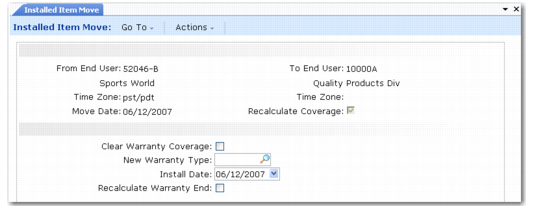
To move an item in the installed base, enter a source and target end user in Installed Item Move, illustrated in
Installed Item Move (11.3.13). You can specify the actual move date. The default is today. The system uses this date to check for contract and warranty coverage.
If you change the default Move Date value, it is most often to a date earlier than the current one. If you set the date ahead, service coverage for the From End User might not be valid, and warranty coverage for the To End User is not valid until the install date.
Note: If MTZ is active, enter the move date relative to From End User’s time zone.
Recalculating Coverage
If you are moving an item with warranty coverage, the coverage may no longer be appropriate for the new end user. Specify Yes to Recalculate Coverage to choose coverage options.
Installed Item Move (11.3.13)
You can clear the warranty coverage for the new end user. Or you can modify the coverage by specifying an alternate warranty and installation date, and by requesting the system to recalculate the warranty end date for the item based on the new install date.
Selecting Items to Move
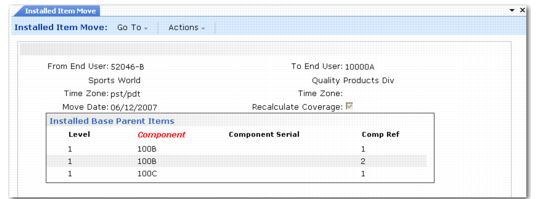
Next, a lookup displays the parent-level installed base items for the From End User. Only top-level items display, since they are the ones you usually move.
Select the items you want to move. An asterisk (*) in the leftmost column indicates selection. Click Next to move the items and their components to the To End User.
Installed Item Move (11.3.13)
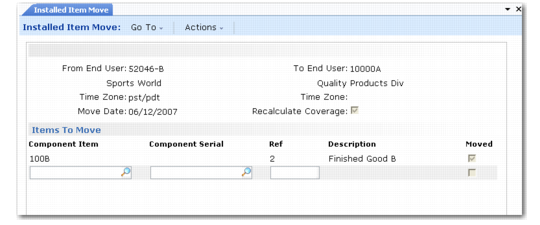
You can add more items to move manually on the next frame.
Manual Entry in Installed Item Move
When you finish moving items and click Back, the system prompts you for an output device and generates a report listing the items moved, their installation dates, and associated warranties. Ensure that this information is correct for the new end user.