Generating Installed Base Calls
You can also use the Call Generator for items in the installed base. Use this feature to meet many needs relative to installed base updates that do not require the additional level of control provided with field notifications.
When creating calls for installed base items, specify a work code. The system uses appropriate defaults set up with Call Default Maintenance, if available. If you specify the PM work code, one field of the item selection criteria changes. Instead of selecting installed base items based on ship date, you can select items based on their last PM date.
You can also combine calls for items in the installed base, so the items for one end user are put on one call. Only one currency can be used on the call.
Items in the installed base may include a product structure beneath them. To limit calls to parent items only, set Top Level Only to Yes. If you are using classification codes to group items in the installed base, you can also select items using a code.
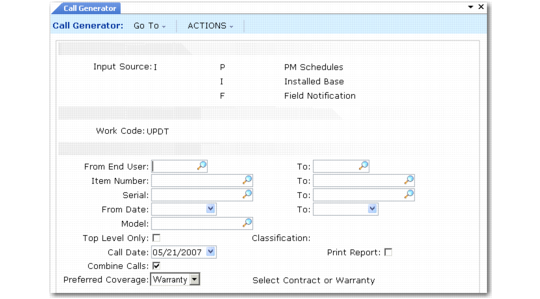
Call Generator for Installed Base Calls illustrates the Call Generator when Input Source is I.
Call Generator for Installed Base Calls
Work Code
The default is blank. Enter any valid work code defined with Work Code Maintenance. The system uses the work code specified for calls generated and finds call defaults created in Call Default Maintenance.
From End User, To
This field can be blank. If it is not, the system creates calls only for end users within the range.
Item Number, To
This field can be left blank. If it is not, the system creates calls only for installed base items with numbers within the range.
Serial, To
This field can be blank. If it is not, the system creates calls only for installed base items with serial numbers within the range.
From Date, To
This field can be blank. If it is not, the system creates calls only for item numbers with a date within the specified range. Select items on PM schedules based on a range of last PM dates. Select items in the installed base based on a range of ship dates.
Model
If you are tracking installed base items by model number, enter a model number in this field to include only items with this model in the calls generated.
Top Level Only
Set to Yes to create call lines only for parent items. Set to No to create call lines for each item in the installed base configuration.
Classification Code
Optionally enter a classification code for grouping installed base items. When specified, calls are generated only for items with this classification and all codes beneath it in a hierarchy. See
Create Classification Codes.
Call Date
Defaults from the system date, but can be modified. Specifying an open date for calls generated during this execution of the Call Generator gives you more control over when the system begins processing the calls. This can be especially significant if you use effective dates on coverage limits, since the system uses the call open date when determining coverage terms that apply to an item.
Combine Calls
Specify Yes to generate one call for each end user. The system creates multiple lines for each installed base item for this end user. Specify No to create one call for each installed base item.
Preferred Coverage (Warranty/Contract)
The system uses this value if overlapping coverage exists for an installed base item.
Print Report
Indicate whether the system should generate a printed report listing the calls created.
No: A report is not generated, but a message does display when execution completes indicating the number of calls created and the range of call numbers.
Yes: You are prompted for an output device for the report and Batch ID. Set to Yes to run in batch.