Classifying ISB Records
To facilitate finding items in the installed base, you can use user-defined item classifications. To do this, follow these steps:
• Create classification codes that are meaningful to your own business needs using Classification Maintenance (11.3.18). Order classifications in a hierarchical structure by linking child classifications to parent classifications.
• Enable ISB filtering for the entire system in Service Management Control (11.24) and then tailor the system setting for individual users in Service/Support User Preferences (11.21.23).
• Associate a default classification code with the items you typically track in the installed base using Service Item Maintenance (11.3.7), described on
here.
• Update any existing installed base records with the correct classification code using Installed Base Item Maintenance (11.3.1), described on
here.
After this setup is complete, you can choose a classification code from any level of the hierarchy before using ISB lookups in the programs listed in
Programs with ISB Lookups. The system finds and displays only the records that have the specified classification or any classification linked below it in a hierarchy.
Programs with ISB Lookups
|
Menu Number
|
Description
|
Program Name
|
|
7.1.1
|
Sales Order Maintenance
|
sosomt.p
|
|
11.1.1.1
|
Call Maintenance
|
fscamt.p
|
|
11.1.1.7
|
Call Quote Maintenance
|
fscqmt.p
|
|
11.1.1.13
|
Call Activity Recording
|
fscarmt.p
|
|
11.1.3.1
|
Pending Call Maintenance
|
fspcmt.p
|
|
11.1.6
|
Call Queue Manager
|
fsquemg.p
|
|
11.1.8
|
Call Generator
|
fscagen.p
|
|
11.3.1
|
Installed Base Item Maintenance
|
fsisbmt.p
|
|
11.3.5
|
Installed Configuration Maintenance
|
fsbmismt.p
|
|
11.3.12.1
|
Field Notification Maintenance
|
fsfnmt.p
|
|
11.3.12.2
|
Field Notification Inquiry
|
fsfniq.p
|
|
11.3.13
|
Installed Item Move
|
fsisbmv.p
|
|
11.5.1.1
|
Contract Quote Maintenance
|
fsqomt.p
|
|
11.5.13.1
|
Contract Maintenance
|
fssamt.p
|
|
11.7.1.1
|
RMA Maintenance
|
fsrmamt.p
|
|
11.7.1.13
|
RMA Receipts
|
fsrmais.p
|
|
11.13.15.8
|
Engineer Assignment Maintenance
|
fsegtmt.p
|
Use Classification Inquiry (11.3.19) to view the hierarchical relationship of classifications. You can also use classification code to select records to display in Installed Base Inquiry (11.3.2), Installed Base Report (11.3.3), or ISB by Classification Inquiry (11.3.20).
When items in the installed base are classified, you can optionally generate calls based on classification code in Call Generator.
Additional reference information about the fields that support classification filtering and alternative browses is provided in
Installed Base Classification.
Plan a Classification System
The way you set up classifications depends on your manufacturing environment, how many different product types you want to track and their relationships with each other, and how many users have access to your ISB.
Begin your analysis by first considering and listing which parent items need to be tracked. From this list, identify which parent items require further definition. Continue this identification process until you identify all the items you want information about.
When you design your coding system, keep the following guidelines in mind:
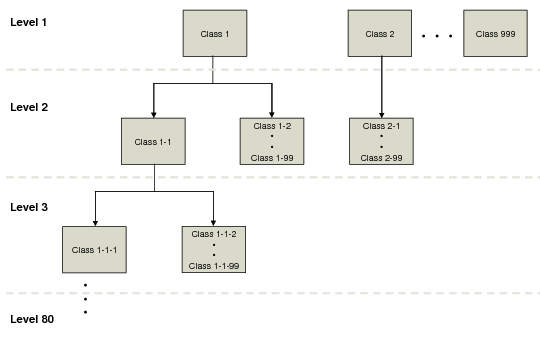
• You can have up to 999 classification hierarchies.
• One parent can have 99 children.
• One classification can have 80 subordinate levels.
• A classification code cannot have more than one parent.
• Parent and child classification codes cannot be the same.
• Blank classification codes are not allowed.
Note: Additional technical details about classification codes is included in
Reference
Classification Code Hierarchy illustrates the hierarchy concept.
Classification Code Hierarchy
Classification Example
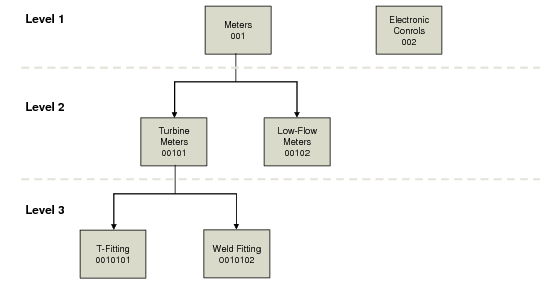
You manufacture meters and electronic controls. Use Classification Maintenance to create classifications for all meters (001) and one for electronic controls (002).
In have two types of meters, so you create two additional classification codes that are lined to code 001:
• Turbine meters (00101)
• Low-flow meters (00102)
Because your turbine meters can be packaged with T-fittings or weld fittings, two more codes are needed linked to 0010101 and 0010102, respectively.
Classification Code Hierarchy illustrates this classification hierarchy.
Classification Code Example
Note: While 80 subordinate levels are supported, it is unlikely that you will need more than a few.
Create Classification Codes
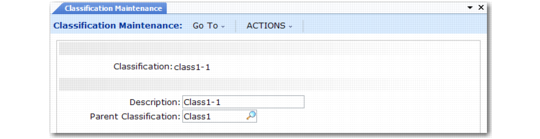
After you have planned your hierarchy, use Classification Maintenance (11.3.18) to create and maintain codes for classifying installed base records. Define the hierarchical relationships between classifications by entering parent classification codes.
You can also use this program to delete codes, with the following restrictions:
• The code is not referenced in an installed base record.
• The code is not associated with a service item in Service Item Maintenance.
When you delete a code that is in a parent relationship to other codes, the child codes are then associated with the deleted code’s parent. If the deleted code has no parent, the child codes become top-level codes in the hierarchy.
Classification Maintenance (11.3.18)
Classification
Enter a classification code (maximum 12 characters) you want to use to classify ISB records.
Description
Enter the description (maximum 24 characters) of the classification code. Description displays in the lookup and prints on reports and inquiries as space permits.
Parent Classification
Enter an existing classification code to create a hierarchical relationship between codes. The parent code cannot be the same as the code entered in the first frame.
Parent code is optional. Each code can have only one parent.
Set Filtering Default
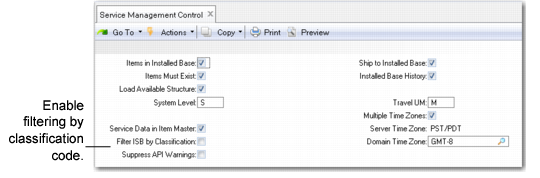
Use Service Management Control (11.24) to enable or disable ISB filtering by classification code at the system level. The value of this setting affects all programs that have a field with an associated installed base lookup.
Service Management Control (11.24)
Filter ISB by Classification
Specify whether you want to filter ISB records based on classification codes before displaying ISB lookups.
No: All ISB records are displayed.
Yes: You can select a classification code to limit records included before an ISB lookup displays.
This field defaults to Service/Support User Preferences (11.21.23) where you can specify a different value for individual users as needed.
Using the Classification Lookup
When a service program includes a field that references installed base items, lot/serial numbers, or ISB references, the system checks the value of Filter ISB by Classification for the user in Service/Support User Preferences. If this is Yes, a classification lookup displays.
If no user preference exists, the system checks the value of Filter ISB by Classification in Service Management Control. Again, if this is Yes, the classification lookup displays.
When you select a value from the Classification lookup, ISB data is filtered using that code. When you press Help to request a lookup on any of the fields related to the ISB, only records associated with the selected classification code or any child codes beneath it display in the lookup.
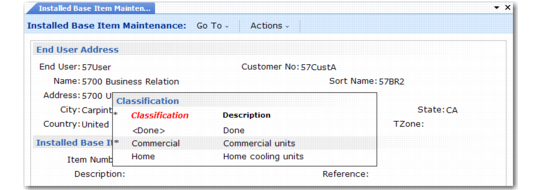
Classification Lookup illustrates the Classification lookup in Installed Item Move (11.3.13). The lookup is the same in all supported programs.
Classification Lookup
All top-level codes (those without parents) initially display. If a classification has codes beneath it in a hierarchy, an asterisk (*) displays next to it in the lookup. You can drill down to see codes at the next level by pressing Enter with the code selected. Press Enter with <Done> selected to use the selected code as a filter.
When you press Enter with a selected code and no lower codes exist, that classification is used as the filter.
To bypass filtering, press <Done> when the lookup first displays. The system will display all ISB records without filtering by any classification code.
You can move quickly to a particular value in the lookup by typing the first letter of the code you want to use. Then press Enter to select it. You can also type < to move to the <Done> selection.