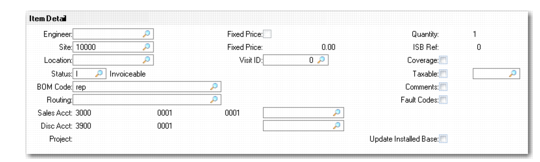
Item Detail Frame
After you accept the Item Selection frame, the Item Detail frame appears. In this frame, you modify information for the displayed line item. Most fields default either from the call record, the information supplied on the header of Call Activity Recording, or settings in the Call Recording/Invoicing frame of Call Management Control.
Item Detail Frame
Engineer
Engineer defaults from the engineer assigned to the item on this call. For a new line, it defaults from the engineer assigned to the call. When you create the first report for a call line, the engineer information helps determine the line-item site. This site can also affect the BOM and routing that the system suggests.
You must enter a value in this field. If you did not assign an engineer to the call, enter one here. Engineer provides the default for each line of detail, but you can edit it any time during the call. If a call involves multiple engineers, record one engineer’s detail, return to the Item Detail frame to change the engineer, and record the second engineer’s detail. Alternately, you can open a separate report for each engineer.
Engineer scheduling in Call Maintenance considers only the engineer on the call header when calculating engineer load. If you specify other engineers for some line items or reports, their availability is not affected.
Site
The site code identifies the facility that issues items you use to service the call line. This site code is the default for item usage records. Site defaults from the engineer record if the engineer has a designated site. Otherwise, the system searches for the site of the engineer’s assigned area, then the default spares site in Default Site Maintenance, then the item’s site in the item master, and finally the call customer site.
The system determines costs by site. After you create a report, you cannot change the site for the line.
Location
Location defaults from the engineer record. If blank, the system searches for the location for the engineer’s assigned area, then the default spares location in Default Site Maintenance. Use locations to track inventory for items issued for the line item.
Status
Specify one of three values that indicates the report’s status:
I (invoiceable). Indicates that this report is ready for invoicing. Invoiceable is the default status when you create a report. When you release a quote to CAR, the system gives its reports a status of I so that you can immediately invoice activity you record.
H (hold). Does not allow the system to invoice the report. The system sets reports to H if an error occurs during inventory processing. You can enter a status of H to delay invoicing a report.
C (closed). The system sets a report status to C when you post the invoice. You cannot modify closed reports. You can enter a status of C only if the report has no detail.
BOM Code
Use only service BOMs set up with Service Structure Maintenance. This field defaults from the BOM code in Call Maintenance.
When you add items in CAR, the system searches first for BOM codes you defined in Service Item by Site Maintenance (11.3.9). If no BOM exists for the call line site, the system searches for a BOM you defined in Service Item Maintenance. For the PM work code, the system uses the PM BOM code. For the install work code, the system uses the install BOM code. In all other cases, the system uses the repair BOM code.
When you execute this frame, the system enters the detail records for the BOM into the item usage frame for the first operation on the routing that does not have items. After the system generates the line item’s BOM, the field becomes output only.
If you do not want usage records created automatically, clear this field before continuing.
Routing
Use only service routings from Service Routing Maintenance. This field defaults from the routing in Call Maintenance.
When you add items in CAR, the system uses the routing for the item’s work code in Service Item by Site Maintenance (11.3.9). If no routing exists for the site, the system searches for a routing in Service Item Maintenance. For the PM work code, the system uses the PM routing. For the install work code, the system uses the install routing. In all other cases, the system uses the repair routing.
When you execute this frame, the system enters the routing steps into the Labor/Expenses frames. If BOM codes exist for a routing operation, the system enters these as items used for the operation. After the system generates the line item’s routing, the field becomes output only.
If you do not want usage records created automatically, clear this field before continuing.
Sales and Discount Account, Sub-Account, Cost Center
The system displays the Sales and Sales Discount accounts from the revenue product line. You cannot update these fields here. After the invoice is created, update them in CIR as needed.
Sales and Discount Project
Enter an optional code identifying the general ledger (GL) project associated with the sales and sales discount amounts for this call line item. These fields default from the sales and discount projects associated with the contract line providing coverage; otherwise, they are blank. The sales and discount project are typically the same.
The system verifies that the project exists and is active and that it is valid with the other Sales and Sales Discount account components.
Project
Enter an optional code identifying the general ledger (GL) project associated with the cost of labor, expenses, and items for this call line item.
You can update this field only when the value of Project Code Handling in SSM Accounting Control is set to Project per Labor/Expense (P). When Project Code Handling is Single Project per Line (S), the report project defaults from the sales project and cannot be changed.
This project is validated with other Cost of Goods Sold account components during GL transaction post.
Fixed Price
Displays the work code’s Fixed Price field value. You cannot change this field. If Fixed Price is Yes, you can specify a fixed price in the following field. Use fixed price repairs to charge customers a fixed amount for service regardless of the repair cost. When Fixed Price is Yes, use only a charge code with Fixed Price Billable set to Yes.
Fixed Price
If Fixed Price is Yes, the system searches the header’s price list for a price that has the fixed price unit of measure in Call Management Control. If none exists, the default price is zero.
Visit ID
Specify the QAD Field Service Scheduler (FSS) visit ID to record labor activity against. The lookup displays the list of open visits for the current call.
If you select a visit, you can consume labor time for both the travel time for the visit and for the estimated work time (or any combination of the two). This field is optional.
See QAD Field Service Scheduler User Guide for more information on FSS.
Quantity, ISB Ref
Output-only fields showing values you entered in the previous pop-up.
Coverage
Defaults from Coverage Window in Call Management Control. If Coverage is Yes, a frame displays coverage information such as contract number, contract service type, start and end date, active service type, warranty service type, and install and expiration dates.
Coverage limits for the contract or service type also display. For a contract, this includes the contract number and the line number providing coverage. The system also displays the limits you defined by invoice sort or work code/service category, the percentage of coverage, and the coverage amounts for the defined conditions. The engineer servicing the call often examines this coverage information.
Taxable
Defaults from the header Taxable field. You can determine the tax status for each line item. See
Taxes in SSM for more details about taxes.
Comments
Defaults to Yes if comments exist. Specify Yes to enter or review call line comments. The system copies comments into Call Invoice Recording. You can print comments on the invoice.
Fault Codes
Defaults from Use Fault Codes in Call Management Control. Set Fault Codes to Yes to enter problem, cause, and resolved codes in a pop-up. Define these codes in Generalized Codes Maintenance. If you entered fault codes in Call Maintenance, those values display so you can adjust or add information.
Update Installed Base
Defaults to Yes when:
• The item is in the installed base, regardless of other settings.
• Installed Base in Service Item Maintenance is Yes for the item and Create ISB is Yes for the end user in End User Data Maintenance.
• The item is not in the item master, but Create ISB is Yes for the end user in End User Data Maintenance.
If Yes and the line item is not in the installed base, a pop-up displays so you can specify ISB parameters and add the item to the installed base. If the line item is in the installed base, no additional frames display.
If you do not enter an item number, Update ISB defaults to No. If you enter the item number of a lot/serial-controlled item and do not specify a lot/serial number, the system sets Update ISB to No and does not let you change it. A lot/serial controlled item can only be added to the installed base with a lot or serial number.
If Update ISB is Yes and Load Available Structure is Yes in Service Management Control, the system adds component items that you used to the installed base. You must mark these items as belonging in the installed base in Service Item Maintenance. The system removes returned items that exist in the installed base regardless of the setting of Load Available Structure.