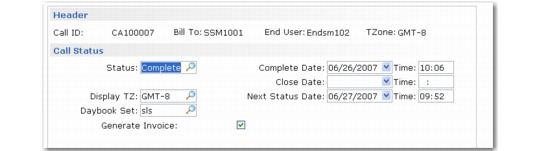
Call Status Frame
When you complete all line items, a final frame enables you to specify a status for the entire call and modify call dates and times.
Note: If MTZ is active and you did not edit call line dates, a display time zone pop-up appears before the call status frame. Your selection in the pop-up determines how the system presents dates and times on the call status frame. See
Multiple Time Zones for more information.
Call Status Frame
Status
You can field security to this field. The system attempts to set the call’s status to complete or closed, depending on the setting of Close on Recording. It sets the call’s status to complete if all line items are complete. It sets the status to closed if line items are complete and no open MOs exist. If these conditions are not met, the system does not change the call’s status.
Complete Date, Time
When the system sets the status to complete, it enters the completed date and time.
Close Date, Time
When the system sets the status to closed, it enters the close date and time.
Next Status Date, Time
Displays the value for the call. If you are using call escalations and do not want the next escalation step to affect this call, change the next status date and time.
Daybook Set
Enter the code for the set of daybooks that the system will use during invoice post. This defaults from the customer address. You can change it to a valid value defined in Daybook Set Maintenance (25.8.7) or Daybook Set by Site Maintenance (25.8.10). If daybooks have been set up by site—based on a setting in Sales Order Accounting Control—the system verifies that the specified daybook set matches the call header site. See
QAD Financials User Guide for details on daybooks.
Generate Invoice
This field appears only if Invoice From Recording in SSM Accounting Control is Yes and you make a change in CAR that can affect the pending invoice. If Invoice from Recording is No, you must process the invoice in Call Invoice Recording (11.1.1.15). If you set the call status to hold or cancel, you cannot set Generate Invoice to Yes.
If you accept the Yes value for Generate Invoice, the system creates a pending invoice for lines that have a complete or closed status. If the call’s status is complete or closed and Generate Invoice is Yes, the system invoices all lines.
Note: When the following settings are active in Legal Document Control (7.10.24), a shipper will not be created in Call Activity Recording:
• The Legal Document Form Code field contains the value 51.
• The Enable Electronic Legal Doc field is selected.