Call Line Detail Frames
When you leave the Billing Summary frame, you enter a sequence of frames similar to Call Activity Recording. First a line item selection frame displays. After you select a call line to review or update, labor and expense frames display first, then item usage frames. After you make changes and complete the trailer, the system recalculates the invoice and redisplays the summary frame.
The various detail frames let managers or supervisory personnel examine the CAR data and adjust prices before invoicing the customer.
Call Selection Frame
When you leave the Billing Summary frame, the Call Selection frame displays, as shown in
Call Selection Frame. Call ID, Bill-To, and End User are output only.
Call Selection Frame
Item Selection Frame
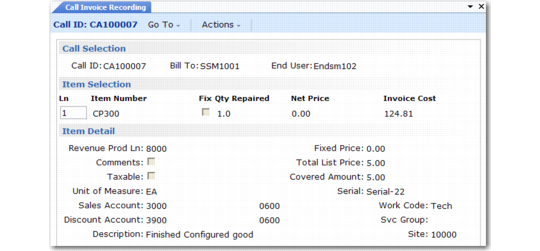
In the Item Selection frame, you can select a call line with activity to be invoiced. Other line fields are output only. Use Next/Previous to scroll through call lines. The Item Detail frame displays information related to the selected line. This example displays item detail for line 1.
The Item Selection information defaults from Call Activity Recording and the price and cost on the Billing Summary frame. The system calculates the total fields from the detail information. You cannot modify total fields. Make changes to prices or covered amounts at the detail level.
Ln
Line number refers to the call line in Call Maintenance or Call Activity Recording.
Item Number
Output only. Displays the number of the item being serviced on this call line.
Fix
Output only. Fix indicates whether or not you repaired this item at a fixed price. You enter this value in Call Activity Recording.
Qty Repaired
Output only. Qty Repaired is the total of this item that you repaired in this call. You enter this value in Call Maintenance or Call Activity Recording.
Net Price
Output only. The amount you bill the customer for this call line. Use Net Price to track margins and compare service costs and coverage costs.
Invoice Cost
Output only. The cost of service for this call line. This can be zero, less than, or greater than the net price for the item. Use Invoice Cost to track margins and compare service costs and coverage costs.
Item Detail Frame
Revenue Prod Line
The product line for the income you generate from servicing this line item. The revenue product line and the item product line can be different. The system finds a default revenue product line from product lines you define in Revenue Product Line Maintenance, using the call line’s service type and work code, and the item’s service group or product line.
If no revenue product line exists, the system uses as a default either the service type’s product line or the item’s product line, based on Use Item Prod Line in SSM Accounting Control. If Modify Sales Accounts is Yes in SSM Accounting Control, you can modify the sales and sales discount accounts of this product line.
Comments
If Yes, you can review or update the call line’s comments. After you select or enter comments, you can specify where you want to print them.
Taxable
Defaults from the value of Taxable in CAR and sets the default for each line of detail. See
Taxes in SSM for details on how the system calculates taxes in call invoices.
Tax Class
The tax class of the detail records affects tax calculation.
UM
If Fix is No, you can edit this field. It defaults from the item’s unit of measure in the item master. For non-inventory items, UM is blank. If Fix is Yes, the fixed price unit of measure in Call Management Control displays.
Sales and Discount Account, Sub-Account, Cost Center
The system displays the Sales and Sales Discount accounts. These accounts default from the revenue product line unless you define alternate accounts in Sales Account Maintenance (1.2.17).
You can modify these account components only if Modify Sales Accounts is Yes in SSM Accounting Control.
When you post an invoice, the system:
• Credits the Sales account with the total sales amount, minus discounts or tax-included amounts. The system records this amount in sales history and uses it to calculate commissions and terms discounts. To distinguish it from other sales activity, the system stores sales history for call activity with a type of R, repair.
• Debits the Sales Discount account for the total sales amount minus the extended list price.
See
Detailed Accounting in CIR for more details about account usage.
Sales and Discount Project
Enter an optional code identifying the general ledger (GL) project associated with the sales and sales discount amounts for this call line item. These fields default from CAR. The sales and discount project are typically the same.
The system verifies that the project exists and is active and that it is valid with the other account components.
See
Project Codes in CAR for more information.
Description
For inventory items, displays the first line of the item’s description in Item Master Maintenance.
Note: The fields on the right side of the Item Detail frame are output only.
Fixed Price
If you specify a fixed price for this line item on the call’s price list, it displays here. The fixed price displays even if Fixed Price is No for this service activity. Use this as reference if you provide fixed price repairs as an alternative to contract and warranty coverage.
Total List Price
For this line item, the total of all list prices for items, expenses, and labor. If any part of this service is covered, Total List Price is more than the net price in the Item Selection frame.
Covered Amount
The amount of service activity covered by the contract, warranty, or service type. The system calculates net price in the Item Selection frame from the total list price minus the covered amount.
Serial
The serial number of the repaired item displays.
Work Code
The work code for the repair, recorded in Call Maintenance or Call Activity Recording.
Service Group
The service group of the item, which you define in Service Item Maintenance.
Site
The line item’s site in CAR. Site determines the From zone when the system calculates tax data for this line item.
Labor/Expenses Frames
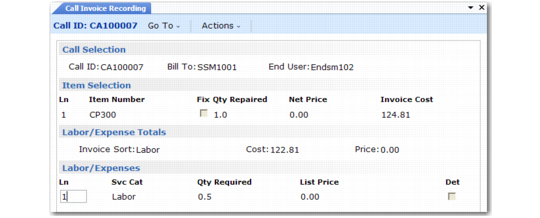
After you click Next to accept and move past the call line frames, the Labor/Expense Totals frame appears. You can review labor and expenses recorded in CAR for each call line. Labor and expense details display by invoice sort.
After you enter an invoice sort, you can review its detail lines in the Labor/Expenses frame.
Labor/Expenses Frames
Invoice Sort
Enter an invoice sort associated with the labor and expense service categories recorded for the line item. When you select an invoice sort and press Enter, the system fills in the cost and price and displays the Labor/Expenses frame.
Cost
Output-only field displaying total labor or expense costs for the invoice sort.
Price
Output-only field displaying the net price of details recorded for this invoice sort. This is the amount you bill the customer.
Ln
Use this field to select the line of detail summarized by this invoice sort that you want to review. Use Next/Previous to scroll through lines.
Svc Cat
Output-only field displaying the line’s service category.
Qty Required
Output-only field displaying the number of units of this service category recorded in CAR.
List Price
Output-only field displaying the price of one unit of this service category. To modify the price, set Detail to Yes.
Note: Fixed price service uses one price and you cannot modify prices for individual details.
Det
If Yes, the next frame is the Labor/Expense Detail frame.
Labor/Expense Detail
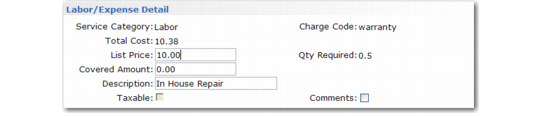
If Det in the Labor/Expenses frame is Yes, the Labor/Expense Detail frame displays when you click Next to accept the labor or expense values. Output-only fields display values updated in Call Activity Recording.
Labor/Expense Detail Frame
Service Category
Output-only field displaying the line’s service category.
Charge Code
Output-only field displaying the charge code for this labor or expense line.
Total Cost
Output-only field displaying the total cost for this labor or expense line.
List Price
The price for one unit of this service category. You can modify the price, unless you are providing the service at a fixed price. Fixed price service uses one price and you cannot specify prices for individual details. Changes you make here display in Call Activity Recording, and the system recalculates the invoice’s net price.
To control changes, apply field security to this field.
Qty Required
Output-only field displaying the number of units of this service category recorded in CAR.
Covered Amount
Displays the covered amount for this labor or expense line for review or update. Changes you make here display in Call Activity Recording, and the system recalculates the invoice’s net price. To control changes, apply field security to this field.
Description
Displays the description of the standard operation or operation step from a routing. For expenses, Description is blank unless you entered a description in CAR. You can modify description, but changes are not reflected in CAR.
Taxable
If Yes, the system calculates taxes for the line. The default depends on the taxable status of the call line and whether the line is a fixed repair.
• If this is not a fixed price service and the taxable status of the call line is No, the taxable status of detail record is No and you cannot change it.
• If this is not a fixed price service and the taxable status of the call line is Yes, the taxable status of the detail record defaults from the value in Service Category Maintenance for the service category.
• If this is a fixed price service, the system calculates tax at the call line level. The taxable status of detail record is the same as the call line’s status and you cannot change it.
See
Taxes in SSM for details on how the system calculates taxes in call invoices.
Tax Environment:
Tax Usage
The tax usage defaults from the tax usage in the header. However, when Legal Document Control (7.10.24) contains specific settings and the service category has a different tax usage set in Service Category Tax Detail Maintenance (11.21.21.15), this tax usage overrides the one in the header.
Tax Class
Enter a tax class previously defined in Tax Class Maintenance (29.1.5). GTM tax classes help determine the tax environment (set of tax types) for the transaction.
Tax Class defaults from Service Category Maintenance. If the current call line is not taxable or is a fixed price service, Tax Class is blank and you cannot change it.
Comments
Yes displays the comments transaction frame, where you can review and update comments entered in Call Activity Recording for labor/expense transactions.
Item Totals and Item Usage Frames
After you review labor and expense invoice sorts, you can review item usage. The two frames are similar.
When you select an item invoice sort in the Item Totals frame and press Enter, the system fills in the cost and price and displays the Item Usage frame. You can review each detail line for an item invoice sort in the Item Usage frame. Output-only fields display information from Call Activity Recording.
In CAR, you can issue, return, and exchange items on the same line of detail. To ensure proper tax detail, CIR displays these actions as separate records.
Item Totals and Usage Frames
Invoice Sort
Enter an invoice sort associated with the items you used to repair the call line item. The invoice sort must be type I, for item. When you select an invoice sort and press Enter, the system fills in the cost and price and displays the Item Usage frame.
Cost
Output-only field that displays the total cost for items in the invoice sort.
Price
Output-only field that displays the total net price for items in the invoice sort. This is the amount you bill the customer. Service coverage can make the net price less than the list price.
Ln
Use this field to select the line of detail summarized by this invoice sort that you want to review. Use the up and down arrows to scroll through lines.
Item Number
Output-only field that displays the inventory item number you used in this service activity.
Qty Required
Output-only field displaying the number of units you used of this item.
Qty Returned
Output-only field displaying the number of units you returned of this item.
Exchange
Output-only field indicating if you specified an exchange credit for returned items.
Detail
Controls whether or not the Item Detail frame displays next.
Issue Detail Frame
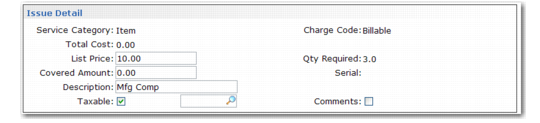
The output-only fields display values you entered in CAR.
Issue Detail Frame
Service Category
Output-only field displaying the item’s service category.
Charge Code
Output-only field displaying the charge code for the item issued.
Total Cost
Output-only field displaying the total cost for this issue line. This field is zero for items you return or exchange.
List Price
The price for one unit of this item as you entered it in Call Activity Recording. You can modify the price unless you are providing this service at a fixed price. Fixed price service uses one price for the line and you cannot specify prices for individual details. To control modifications, apply field security to this field. If you make changes, the system displays them in Call Activity Recording, and recalculates the net price for the invoice.
Qty Required
Output-only field displaying the number of units of this item you used in Call Activity Recording.
Covered Amount
Displays the covered amount for the items on this line as you entered it in CAR for review or update. To control modifications, apply field security to this field. If you make changes, the system reflects them in Call Activity Recording, and recalculates the net price for the invoice.
Serial
Output-only field displays the serial number if you issued or returned one serialized item.
Description
Description of the issued item as you entered it in Item Master Maintenance or modified it in CAR. Description can be modified, but changes are not reflected in CAR.
Taxable
Indicate if the system calculates taxes on this line of detail. The default depends on the call line’s taxable status and whether or not this is a fixed price repair.
• If this is not a fixed price service and the line’s taxable status is No, the system sets the taxable status of all detail records to No and you cannot change it.
• If this is not a fixed price service and the line’s taxable status is Yes, the taxable status for items defaults from the value in Item Master Maintenance.
• If this is a fixed price service, the system calculates tax at the call line level. The system sets the Taxable field at the detail level to the value of the call line and you cannot change it.
See
Taxes in SSM for details on how the system calculates taxes in call invoices.
Tax Class
Enter a tax class previously defined in Tax Class Maintenance (29.1.5). GTM tax classes help determine the tax environment (set of tax types) for the transaction.
Tax Class defaults from Item Master Maintenance. If the current call line is not taxable or is a fixed price service, Tax Class is blank and you cannot change it.
Comments
If Yes, you can review or update comments you recorded in Call Activity Recording for the service detail.
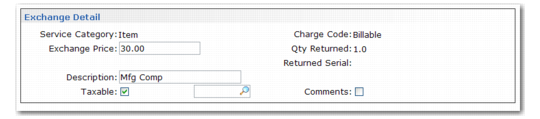
Exchange Detail
For items that you return for an exchange credit, a frame displays that is slightly different from the Issue Detail frame. This section describes only the fields that are different.
Exchange Detail Frame
Exchange Price
Displays the amount of credit you specified in CAR for this exchange. If you make changes here, the system reflects them in Call Activity Recording and recalculates the net price for the invoice. To prevent price from being modified, apply field security to this field.
Qty Returned
Output-only field displaying the number of items you are exchanging.
Returned Serial
Output-only field displaying the serial number of the exchange item. This field has a value only when you return one serialized item in CAR.
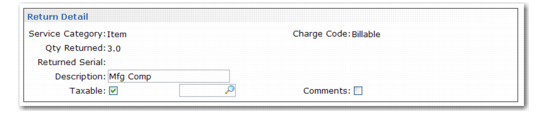
Return Detail
For items that you return without an exchange credit, the Return Detail frame displays.
Return Detail Frame
The fields on this frame are the same as on the Exchange Detail frame.
Trailer Frame
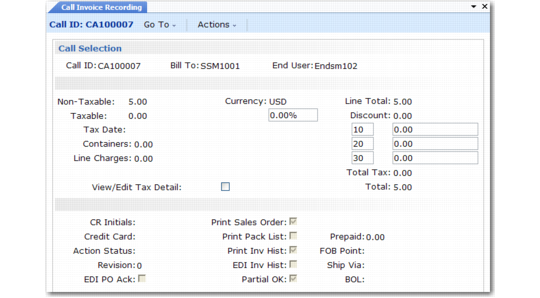
After reviewing the invoice detail, the trailer frame displays. This is the same frame that displays for standard sales orders that you create in Sales Order Maintenance (7.1.1).
Call Invoice Recording Trailer Frame
Most trailer fields default from the bill-to address and have the same function as in sales orders. These fields include Discount Percent, CR Initials, Credit Card, Action Status, Partial OK, and Ship Via. By default, CIR uses the taxable and nontaxable trailer codes in SSM Accounting Control.
You can review and edit tax detail in the trailer. Unlike a sales order, multiple lines of detail can exist for each call line.
In Call Invoice Recording, you create the invoice after you consume the items, rather than before they ship as in sales orders. For this reason, some trailer fields are not relevant in CIR, such as Ship Via, FOB Point, and Partial OK.
See
Taxes in SSM for details on taxes in CIR.
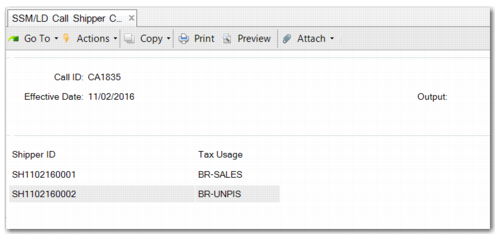
SSM/LD Call Shipper Confirm
Use SSM/LD Call Shipper Confirm (11.1.1.29) to create legal document numbers for legal document lines created using Call Invoice Recording. This program is only used when the following settings in Legal Document Control (7.10.24) are active:
• The Legal Document Form Code field contains the value 51.
• The Enable Electronic Legal Doc field is selected.
When these setting are active, Call Invoice Recording creates legal documents and invoices, but does not assign legal document numbers. Assign separate legal document numbers for each shipper associated with a call by running SSM/LD Call Shipper Confirm.
Call ID
Enter the call ID containing the shipper to confirm.
Effective Date
The date of this shipment. The default is the system date. The effective date determines the date of the GL transaction to inventory. The effective date has no effect on the inventory balance update, which is updated immediately.
When you click Next, the shippers associated with the call are displayed.
SSM/LD Call Shipper Confirm (11.1.1.29)
When you click Next, the following fields are displayed:
Carrier/Ship Via/FOB Point/Mode of Transport/Carrier Shipment Ref/Vehicle ID/Payment Type/Carrier Account
These fields appear on various printed documents.
Multi
Set the Multi field to Yes if this shipment requires more than one carrier. The system prompts you for additional carriers.
Document Format
Enter a valid document format of a type applicable to shippers, or leave this field blank. If the document format is edited for a shipper marked as having been printed, the system issues a warning message, but lets you continue.
Consolidate Ship
Consolidate indicates whether this shipment can be consolidated by transactions of a given type. Enter No to prohibit consolidation. Enter Optional to allow but not require consolidation. Enter Yes to require consolidation.
Language
The Language field contains the default language for retrieving header, line item, and trailer comments with the shipper.
Comments
Choose Yes in Comments if you want to attach any information about this document. The Master Reference field defaults to the document format of the shipper, and the Language field defaults to the language of the shipper. This enables you to copy comments associated with the document format to the line item of the shipper.
When you click Next, you can enter further complementary data.
Driver
Optionally enter the driver name of the carrier’s vehicle. This field is for reference only and appears on some legal documents.
License Number
Optionally enter the license number of the carrier’s vehicle. This field is for reference only and appears on some legal documents.
Print Comments
Specify whether to print shipper comments on the legal document.
Print Legal Document with Shipper
Choose Yes to immediately print the legal document along with the shipper. If you choose No, you can print the legal document later using Legal Document Print (7.10.4).
This value defaults from the Print Legal Document option in Legal Document Control (7.10.24).
Number of Copies
Specify how many copies of legal documents you want to print.
Volume
Enter a code indicating the amount of space the inventory occupies.
Volume UM
Enter a unit of measure in which the net weight is expressed, such as CF, SF, CM. This field is validated against predefined values entered in Generalized Codes Maintenance for field pt_size_um, if any.
Legal Doc Detail Maint
Select this field when you want to verify or change the fiscal data. The fiscal data in the shipper is used in the legal document.
On the next page, you can assign the legal document number.
Sequence ID
When prompted for a legal document sequence ID, accept the default sequence ID or specify another one assigned to the current site.
When you click Next, the shipper is confirmed and the legal document number is assigned.
SSM/LD Call Shipper Unconfirm (11.1.1.30) enables you to unconfirm the confirmation. This program cancels the legal document and creates a debit note on the financial side. To unconfirm a shipper, enter the ship-from ID, the original shipper that was generated in Call Activity Recording, and the relevant dates.