MO With Call
When using MOs with a call, you open a call and order material specifically for the call. Linking the MO to the call has the advantage of making all the tools inside Call Activity Recording available for managing the MO.
In some business situations, legal or contractual reasons require this explicit connection between service inventory allotments and call history. For example, the government can require military contractors to supply this kind of data as part of the maintenance record.
In other cases, the business simply prefers this method, or it is the easiest, most economical way to supply engineers and account for service costs. You can use this method when you bill a customer directly for parts consumed on a call.
For MOs with a call, you use Call Activity Recording to coordinate the whole supply, reporting, and return of inventory generated by service activity. You can track costs and activity per call, customer, end user, or problem.
Relationship Between Call and MO
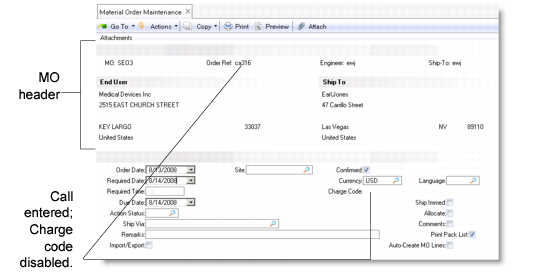
MOs can only be created for open calls. The call status cannot be closed, canceled, or hold. If you enter a call with a status of complete, the system displays a warning. The engineer and ship-to values on the MO default from the call. The MO also uses other defaults associated with the customer of the call’s end user, including ship via, remarks, and currency.
Ship-to addresses for MOs with a call default from the value of Ship To in Material Order Control (11.11.24). If this is end user, the Ship-To defaults from the call’s end user. If it is engineer, it defaults from the address of the engineer assigned to the call.
You can also create drop-ship addresses. Suppose the engineer wants a replacement item shipped to a local airport so he can pick it up on the way to the customer site. Material Order Maintenance enables you to create a Ship-To address for this particular material order. If the address does not exist, you are prompted to create it.
Each MO line references a particular call line. When you select the call line later in Call Activity Recording, the system displays related MO lines. You can then choose to load the MO items into CAR item detail records.
Note: When an MO is associated with a call, all items ordered must be consumed by the call or returned before the call can be closed. When this happens, the system removes the MO.
Using MOs or BOMs to Load CAR Item Usage
The system provides three ways to streamline data entry in the Call Activity Recording Item Usage frames:
• Ordering the items needed with an MO and loading the MO lines in CAR.
• Attaching a BOM to the item being repaired and allowing CAR to list all BOM items as item usage in CAR.
• Creating a parts list and loading the parts list items in CAR.
These methods are alternatives to one another—you cannot use them together. Decide which method is best for your business practices and establish procedures to ensure that the method you use is consistent across your enterprise.
If you order the items required for a call with an MO, you must load and consume these items in CAR. If you attach a BOM to the item and the system lists the BOM items for the call, the same items can be loaded again, resulting in twice as many items appearing in the usage frame as are required.
A warning displays when you create an MO for a call line item and you have assigned a BOM to the item, or when you have already created reports with item usage. The system does not generate an error. If you need to order additional items beyond the standard BOM, this may not be an erroneous situation.
You can have CAR and Material Order Maintenance autocreate lines from a parts list or a BOM. If you create a parts list, the parts list takes precedence and you cannot explode the BOM. If a parts list does not exist, CAR can autocreate lines from MO lines. Using a parts list also means that changes to the MO are reflected in the parts list, and vice versa. In order to ensure the accuracy of CAR item usage, QAD recommends the use of a parts list. For details, see
Creating a Parts List.
Filling Out the MO Header
For MOs with a call, you must enter an open call in the Order Ref field. If you enter a call, you cannot specify a charge code.
Header for MO with a Call