Material Order Shipments
Use Material Order Shipments to enter the selection data for shipping MOs. Unlike shipment for standard sales orders, Material Order Shipment executes an inventory transfer and receipt, and an additional unplanned issue, depending on the kind of MO:
• MO with a Call. Transfers items from their current location to the place where they will be consumed on a call.
• MO without a Call. Transfers items from their current location to replenish engineer stock.
• Expensed MO. Transfers the items, then issues them as service expense.
A transfer reduces inventory quantity for an item at the From Site and From Location, and increases it at the Engineer Site and Engineer Location. When the function completes, it prints delivery documents.
Note: If you are using shipping groups and inventory movement codes, you can enter shipment information and generate shippers during MO shipment. See the Shipping chapter in
QAD Sales User Guide for details.
During the material order shipment process, you perform the following steps:
• Enter shipment data.
• Modify line-item quantities.
• Confirm shipments.
• Enter trailer data.
• Print Material Delivery Note and Back Order Advice.
You can execute Material Order Shipments as a separate function or initiate shipments in Material Order Maintenance if you enter confirmed orders. To initiate shipments from Material Order Maintenance, set Ship Immed on the MO header to Yes.
Engineer Site and Location
A consistent engineer site and location are critical to managing MOs. During shipment, the destination fields default from the site and location associated with the engineer in Engineer Maintenance. If these are not available, the system uses the default site and location defined for the engineer’s area.
When inventory ordered on an MO is consumed in Call Activity Recording, the system uses the same logic to derive the site and location for inventory issues. So, if you ship the items somewhere else, change the defaults in CAR for inventory issues to occur correctly.
Establish procedures so that the system references the same site and location when looking for stock for a particular engineer.
The system performs normal location validation. This includes verifying whether the location exists, based on the setting of Automatic Locations, and verifying the actions allowed at the location based on restricted transactions.
• For all MOs, the inventory receipt transaction (RCT-TR) must be allowed.
• For expensed MOs, the unplanned issue transaction (ISS-UNP) must also be allowed.
Material Order Shipments Field Reference
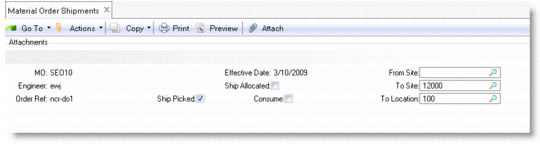
If you do not choose to ship immediately from Material Order Maintenance, you can ship MOs later, using Material Order Shipments (11.11.6), illustrated in
Material Order Shipments Header (11.11.6). To ship an MO involves several steps, some of which are optional.
Note: The login country for the user determines the numeric and date formats.
MO Frames
|
Frame
|
Req
|
Purpose
|
|
Header
|
Y
|
Specify MO to be shipped and shipment defaults.
|
|
MO Line Items
|
Y
|
Review and modify allocations and quantities.
|
|
Issue Detail
|
N
|
If Multi Entry is Yes, change details for multiple quantities.
|
|
Confirmation
|
Y
|
Confirm items to be shipped.
|
|
Trailer
|
Y
|
Generate delivery note.
|
Material Order Shipments Header
Material Order Shipments Header (11.11.6)
MO
Enter the number of a valid MO you created with Material Order Maintenance. The MO number must exist. If the MO is not confirmed or has no lines, a warning displays. When this function is executed from Material Order Maintenance, the system fills in the number and does not let you change it.
Engineer and Order Ref
These fields are output only and default from the MO.
Effective Date
Enter the GL effective date for the shipment transaction. The default is the current date. The system verifies that the date is within an open fiscal period.
The effective date determines when this transaction affects GL balances.
Ship Allocated
The default is No. If Yes, the quantity allocated on each item line displays in the To Ship column in the MO line-item detail section of Material Order Shipments. If you have not printed a packing list—for example, if you are shipping from Material Order Maintenance—none of the items are picked. In this case, use Ship Allocated to set up default shipping information.
Note: Use Ship Allocated to set up default shipping information if you are shipping directly from Material Order Maintenance.
Ship Picked
Specify Yes (the default) to include all items in the To Ship column that were picked when the packing list was printed. Otherwise, they display in the Backorder column, and you must specify the order quantity for each line.
Consume
By default this field is set to Yes to indicate that the selected items should be consumed automatically when shipped. This defaults from the setting of the Material Order Control file.
Override Partial OK
Specify whether to allow partial shipments for this material order.
Yes: Allow partial shipments.
No: Check the Partial OK field in Customer Data Maintenance to determine whether partial shipments are allowed.
Note: This setting has no effect on MOs without a call.
From Site
Inventory site where items are located. You can leave this field blank unless the MO spans multiple databases. If you specify the site, it must be valid.
To Site and Location
These fields default from the site and location associated with the engineer. If these values are blank, the system uses the site and location defined for the engineer’s area.
Material Order Line Items
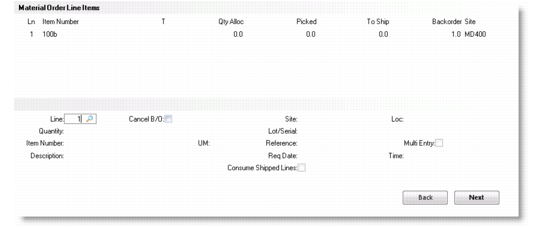
After you complete the header, the Material Order Line Items frame displays. Each item ordered on the MO displays. You can change each line before it is transferred. You can also overrule the system allocation and enter another location from which to transfer the item.
Material Order Shipments Line Items
Line
Enter a line number to display or modify associated data.
Cancel B/O
The default is No. Yes indicates that any item under the Backorder column should be removed from the order. No indicates that items on backorder should be retained for later shipment.
Quantity
The quantity to be shipped for this line displays. You can modify it. If Ship Allocated and Ship Picked are Yes, the quantity is the total of the Allocated and Picked columns. You can enter a new quantity. For example, an engineer may have ordered five items and now wants only three.
Item Number, Description, and UM
These are output-only fields referring to the line-item number and its inventory description and unit of measure.
Site and Location
Defaults from the inventory site and location associated with the item in the item master. You can modify these fields.
Lot/Serial and Reference
The serial number and inventory reference of the first item picked for this line.
Required Date, Time
Enter the date and time at which the material order is required. These values indicate when the ordered items will arrive at the customer’s site.
Consume Shipped
• This field defaults from the Consume field on the header. Enter Yes to cause this line to be consumed.
Multi Entry
The system sets this field to Yes when a line has multiple items and it cannot be changed. If Yes, an Item Issue Detail frame displays so that you can modify the serial number of each item picked.
When you accept the shipping information, you are prompted to confirm the items being shipped. The default reply is Yes. Accepting Yes displays the line item, item being shipped, what site and location it is shipping from, lot and serial numbers, quantity, and unit of measure.
You are prompted again to confirm that all information is correct. If you accept Yes, the shipment trailer displays. If you enter No, you can change information.
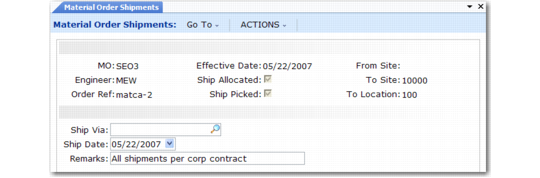
Material Order Shipment Trailer
The trailer entry is analogous to standard sales order shipment. After accepting the data, the system processes the items entered.
Material Order Shipments Trailer
Ship Via
When the MO is associated with a call, this field defaults from the Ship Via associated with the end user’s customer. Set up codes with Generalized Codes Maintenance for field so_shipvia.
Ship Date
Defaults from the system date, but can be modified.
Remarks
You can enter brief remarks concerning MO handling. If you specified a call on this MO, remarks default from the remarks associated with the end user’s customer.
Output
Enter an output device for reports that print when the shipment function executes.
Printed Output
The system creates two documents during the shipment process:
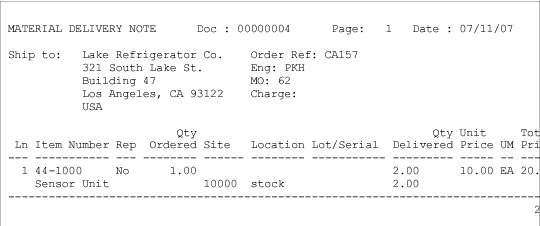
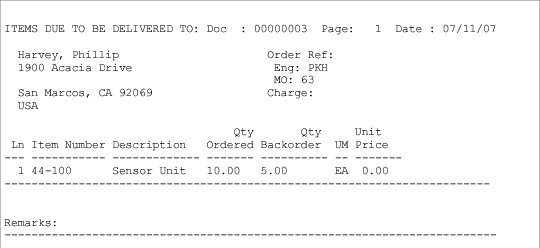
• Material Delivery Note. This document always prints and includes the shipping address, quantities, pricing, extended price, shipped from location, and shipped date. It is a packing slip to use with your freight service. The title, Material Delivery Note, prints at the top of the output.
• Back Order Advice. This document prints only if items on the MO remain on back order. It shows items, quantities, and sales price information.
Material Delivery Note
Each Material Delivery Note has a control number. The system uses this number to track transactions related to this MO. Use the control number when partial shipments are made or items remain on back order and are shipped later. In this case, the system tracks the quantity shipped on each document. Set the value for this number in the Next Delivery Note field of Material Order Control.
The material delivery note lists items on the MO that are transferred to the engineer location. This includes all picking information and price information based on the price of the item in Item Master Maintenance. These prices are suggestions only and can differ from the invoice pricing determined during Call Activity Recording.
Material Delivery Note (132-column print format)
Back Order Advice
Back Order Advice lists all MO items on back order, their quantity, and sales price information. Each Back Order Advice has a control number. Set the value for this number in the Next Back Order Advice field of Material Order Control.
Back Order Advice (132-column print format)
Inventory and GL Transactions
Shipping an MO generates issue (ISS-TR) and receipt (RCT-TR) inventory transactions. If the transfer is a site-to-site transfer, the system creates GL account transactions and bookings with standard inventory transfer routines.
You can review the transactions created using Unposted Transaction Inquiry (25.13.13). The GL reference begins with IC and does the following:
• Debits the Inventory account defined in Inventory Account Maintenance for the product line at the To site and location
• Credits the Inventory account defined in Inventory Account Maintenance for the product line at the From site and location
When inventory transactions affect more than one site, costs may differ between the two sites. Cost variances are posted to the Transfer Variance account defined for the item product line and site in Inventory Account Maintenance, if available. Otherwise, the account defined for the site in Site Maintenance is used. The system automatically generates the appropriate balancing transactions in the GL for each site.
• When the two sites are in different entities, a balancing entry is posted to the appropriate Cross-Company Inventory Control account defined for the domain referencing the intercompany codes associated with the entities.
• When the two sites are in the same entity, a balancing debit or credit is posted to the Transfer Clearing account defined in Inventory Accounting Control.
Expensed MOs
In case of an expensed MO with a charge code, the items ordered are transferred to the engineer site and location entered in Material Order Shipments and then consumed. The system handles this action as an unplanned issue (ISS-UNP).
The debit account for the costs is the Service Expense account from the product line for the charge code. Costs are credited against the Inventory account of the consumed item’s product line.
MOs With and Without a Call
While expensed MOs are issued immediately, items transferred with other MOs remain in inventory. Items ordered for a call are issued out of inventory only when they are consumed for the call in Call Activity Recording. To maintain the relationship between the items and the call, the system marks the items in the To site as allocated to the call or line. This allocation prints on standard reports like the Allocated Inventory.
Items ordered for the engineer’s inventory replenishment remain in inventory until consumed in some way, probably in Call Activity Recording.