QAD 2017 Enterprise Edition
>
User Guides
>
Service/Support Management
>
Control Programs
>
SSM Accounting Control
SSM Accounting Control
Settings in SSM Accounting Control (36.9.10) affect various operational aspects of SSM that also have financial impacts. They are included in a single program to simplify access control.
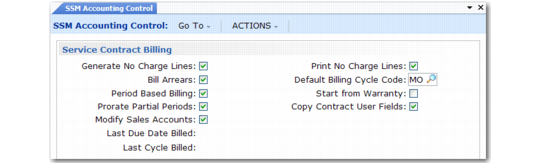
SSM Accounting Control (36.9.10), Service Contract Billing Frame
Generate No Charge Lines
Indicate whether to generate invoice lines for contract line items that have no associated charge. Billing Release to Invoice (11.5.18.13) examines this field when the system generates invoice lines for a contract. If No, only a contract line with an amount to be billed generates a corresponding invoice line. If no lines on the contract create a financial transaction, the system does not generate an invoice. If Yes, the system creates an invoice line for each service contract line regardless of the invoice amount.
An invoice line with a zero amount can exist when a service contract line has either a zero quantity or price.
Use this feature to generate a billing that shows items covered at no additional charge as part of some other purchased coverage.
Example: The first line on a contract is for service on a computer. Lines 2 through 5 list components that are included at no charge: CPU, Memory, Disk Drive, Terminal.
When the service invoice is created, you can choose to see only line 1 by setting Generate No Charge Lines to No, or all lines by setting Generate No Charge Lines to Yes.
Use this field with Print No Charge Lines, which Invoice Print examines. If Generate is No, the setting of the Print field has no effect. If Generate is Yes, you normally set the Print field to Yes also. Set the Print field to No only to generate and print a no-charge invoice without displaying any line items on it.
Bill Arrears
This field determines the default for Bill Arrears in Contract Maintenance (11.5.13.1). This field indicates whether to bill service contracts at the beginning or the end of the service period. If Yes, service contracts are billed on the first day following the end of the billing period. After a bill is released for invoicing, the system sets the next billing date to the first day of the next billing period.
The setting of Bill Arrears affects which revenue type can be used with a contract:
• When Bill Arrears is Yes, you can choose cash basis or accrued.
• When Bill Arrears is No, you can choose cash basis or deferred.
Period Based Billing
Indicate whether contract billing is normally synchronized with calendar months:
Yes: Invoicing begins on the first day of the next calendar month, regardless of the start date of the contract. For example, a contract with a start date of January 23 is billed starting on February 1.
No: Billing periods for contract invoices use the actual start date of the contract header and line, without synchronizing to the start and end days of the month. A contract on a monthly cycle starting on January 23 is billed on January 23, February 23, March 23, and so on, assuming Bill Arrears is No.
The value you define in the control program sets the default for the same field when new contracts and quotes are created.
Period Based Billing works in conjunction with Prorate Partial Periods. If Period Based Billing is Yes, you can set Prorate Partial Periods to Yes to ensure that any partial periods are included in invoicing. If Period Based Billing is Yes and Prorate Partial Periods is No, any days in the partial period prior to the beginning of the month or after the end are essentially given away free.
Billing periods are always determined by the contract header start and end dates, in conjunction with the billing cycle code. The system then fits the line billing into those periods, based on the line start and end dates and billing cycle. If contract line start and end dates differ from the header, partial periods can result for the line even if none exist for the header.
Prorate Partial Periods
Indicate how the system normally invoices for coverage periods that are less than a complete month:
No: If Period Based Billing is Yes, partial periods are essentially given away free and no invoice is generated for them.
Yes: Invoices are generated for partial periods based on the percentage of a month the partial period represents.
The value you define in the control program sets the default for the same field when new contracts and quotes are created.
If Period Based Billing is Yes, partial periods are likely to occur. You can use the Prorate Partial Periods field to make sure that any partial periods are included in invoicing. If Period Based Billing is Yes and Prorate Partial Periods is No, any days in the partial period prior to the beginning of the month are essentially given away free.
Partial periods can also occur even if you are not using period based billing. You might have a contract that begins on January 12 and ends on March 20. The system would bill for two months, leaving a partial period from March 12 to March 20. The value of Prorate Partial Periods would determine whether billing is created for this period.
Modify Sales Accounts
Determines whether you can update the Sales and Sales Discount accounts in Contract and Contract Quote Maintenance. If No, the accounts display but you cannot change them.
Print No Charge Lines
Specifies if invoice lines with zero amounts print on service contract invoices. Invoice Print and Invoice Reprint examine this field. If Yes, an invoice line is printed even if there is no charge to the customer. If No, only nonzero invoice lines print.
This field is used with Generate No Charge Lines, which is examined by the Billing Release to Invoice function. If the Generate field is No, the setting of the Print field has no effect. If the Generate field is Yes, you normally set the Print field to Yes also. Set the Print field to No only to generate and print a no-charge invoice without displaying any line items on it.
Default Billing Cycle Code
Enter a code indicating how often you typically bill service contracts. For example, contract lines can be billed monthly, quarterly, or annually. This field is required. Set up billing cycles with Billing Cycle Code Maintenance (11.5.18.1).
This code defaults to the header Billing Cycle field when new contract quotes or contracts are created. The header billing cycle defaults to the next contract level, either default items or end users, based on the value of Item End Users in the contract header.
You can accept the default or specify a different billing cycle code at various levels below the contract header. However, you cannot specify a lower-level cycle that indicates less frequent billing than the cycle specified on the header.
Start from Warranty
Indicate whether a service contract normally starts only after the warranty expires. If Yes, when you enter a service contract for an installed base item, the system sets the start date to the day following the warranty expiration date. You can change this start date.
Copy Contract User Fields
If Yes, the system copies data for user-defined fields from the service contract to the pending invoice without requiring custom programming.
Last Due Date Billed
An output-only field updated when you execute Billing Release to Invoice. It displays the date in the Contracts Due Until field when you last executed Billing Release to Invoice (11.5.18.13).
Last Cycle Billed
An output-only field updated with the Billing Cycle value when you execute Billing Release to Invoice.
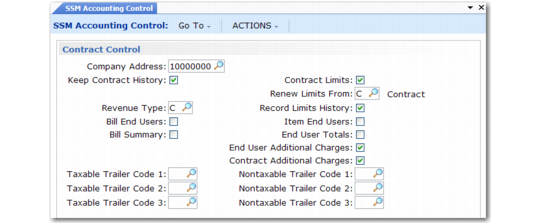
SSM Accounting Control, Contract Control Frame
Company Address
Address code that normally appears on printed documents such as service quotes and contracts. This address also applies to call quotes and service marketing letters. You can change it to another address prior to printing. If you print on pre‑addressed forms, leave this field blank.
Keep Contract History
Indicate whether to maintain booking history for contracts. If Yes, the system keeps an audit trail of contract billings and billing reversals in transaction history, identified as type ORD-SO. It records the service type, order quantity, price, cost, date, and user ID, among other information. Use booking inquiries and reports to review this information. Review detailed transaction history using Transactions Detail Inquiry (3.21.1).
Contract booking history differs from sales order booking history in that contract additions and changes are not recorded, only the billing activity.
Revenue Type
Enter the revenue type code to use as the default for billing service contracts. Valid values are A (Accrued Revenue), C (Cash Basis), or D (Deferred Revenue). The default is C.
Cash Basis: To post contract revenue upon receipt, set Revenue Type to C. In cash-basis accounting, revenue is recorded in the period it is actually received.
Accrued Revenue: To accrue revenue by default, set Revenue Type to A. You should also set Bill Arrears to Yes; otherwise, errors are generated in Contract Maintenance. In accrual-basis accounting, revenue is recorded in the period in which it is earned, regardless of whether cash is received in that period. Run Revenue Recognition (11.5.18.21) to accrue amounts, usually monthly.
Note: The default setting of Bill Arrears should be appropriate for the default revenue type.
Deferred Revenue: To defer revenue by default, set Revenue Type to D. You should also set Bill Arrears to No; otherwise, errors are generated in Contract Maintenance. Perform the normal invoicing procedure at the beginning of the contract coverage period. Collected revenue is held in a deferred account and is posted periodically over the contract duration when you run Revenue Recognition.
The value you define in the control program sets the default for the same field when new contracts and quotes are created.
If you plan to use deferred or accrued revenue types, you must set up appropriate accounts for the system to use either in Domain/Account Control (36.9.24) or in Product Line Maintenance (1.2.1).
Bill End Users
Indicate who normally receives invoices generated for contracts by Billing Release to Invoice:
No: Only one billing address, specified in the contract header, is associated with the contract. Billing Release to Invoice (11.5.18.13) generates all contract invoices to this address.
Yes: Multiple billing addresses can be associated with the contract, one for each contract end user. At least one invoice is generated in Billing Release to Invoice for the bill-to address associated with each end user defined on the contract.
Note: The invoice for contract-wide additional charges is always sent to the header billing address, regardless of the value of Bill End Users.
This field sets the default for the same field in the header of new contract quotes and contracts.
Bill Summary
Enter Yes if you typically invoice contracts in summary format; otherwise, enter No. This field sets the default for the same field in the header of new contract quotes and contracts.
When Bill Summary is Yes for a contract, the details that are not printed on an invoice are stored in the database. You can view these details using Billing Detail Report.
Note: The system limits invoices to 999 lines. If the setting of Bill Summary would result in more than 999 lines on an invoice, Billing Release to Invoice creates separate invoices as needed.
Contract Limits
This field determines whether limit amounts can be defined in Contract Type Maintenance and updated in Contract Quote Maintenance and Contract Maintenance. This setting has no affect on warranty types. Limit amounts cannot be defined for them.
No: You can define coverage levels in Contract Type Maintenance, but limit amounts cannot be specified. The coverage levels as defined for the service type are used without modification when a contract or contract quote is created.
Yes: You can define both coverage levels and limits in Contract Type Maintenance. When you create a new contract or contract quote, you are prompted to copy coverage limit data from the contract type to the contract header. You can copy and update coverage limits at every level of the contract: header, default end user or item, and detail lines.
Important: The enforcement of limits is only possible when coverage details are copied into the contract.
When used on a contract, limit amounts are checked in addition to coverage levels. As service is recorded for an item on a contract in Call Activity Recording, the amounts are accumulated against the limit. When the limit is reached, the system suggests an over-limit charge code, although this can still be overridden on a case-by-case basis.
If you do not plan to use the limit feature but provide a level of coverage without limits, set this field to No to avoid unnecessary prompts during contract maintenance.
Renew Limits From (C/S)
Possible values are C, for contract, and S, for service type. The default is C. This field determines the default for the same field in Contract Maintenance and only has an effect when the Contract Limits is Yes. The value for the contract supplies the default for the Renew Single Contract and Copy Contract to Contract functions. In Renewal Process/Report, the system checks the value of this field for each contract being renewed.
• When set to C during renewal or copy functions, the system copies limits as defined on the existing contract, extending the effective dates to accommodate the new contract start and stop dates.
• When set to S, the system refers to the service type for the contract and copies the limits defined there. If you set up limits on the type with effective dates, the system copies the limits effective on the new contract start date from the service type.
Record Limits History
If Yes, the system writes a history record whenever contract limits are consumed during invoice post. This record includes information about the call and the activity that consumed the limits. If No, the system does not create this history.
Item End Users
Indicate how you typically set up the relationship between items and end users on contracts. This field sets the default for the same field in the header of new contract quotes and contracts.
No: The contract is designed to provide coverage for one or more end users with associated items.
Yes: The contract is designed to provide coverage for one or more items with associated end users.
The value you specify for this field on a contract determines the order in which frames display as you maintain the contract. You cannot change this value after a contract has been created.
End User Totals
This field controls the display of the End User Total frame in Contract Maintenance and Contract Quote Maintenance.
No: The frame is not included in the sequence of frames.
Yes: The frame is included.
This field is also checked by Contract Quote Print (11.5.1.3) and Contract Print (11.5.13.4). End-user totals are not printed when this field is No.
End User Additional Charges
This field controls the display of the End User Additional Charges frame in Contract Maintenance and Contract Quote Maintenance.
No: The frame is not included in the sequence of frames.
Yes: The frame is included.
Note: If the contract being edited has end-user additional charge items, the frame displays regardless of this setting.
Contract Additional Charges
This field controls the display of the Contract Additional Charges frame in Contract Maintenance and Contract Quote Maintenance.
No: The frame is not included in the sequence of frames.
Yes: The frame is included.
Note: If the contract being edited has contract-wide additional charge items, the frame displays regardless of this setting.
Taxable Trailer Code [1,2,3]
The taxable trailer codes most frequently used on service quotes and contracts. Trailer codes identify miscellaneous non-sales charges. These codes display as the default on the trailer for taxable contracts and quotes, prompting you to enter any miscellaneous charges. You can change these charges. Miscellaneous charges can include freight, customs and import duties, setup, service, handling, or other special charges.
Each trailer code is set up with the appropriate GL account to which amounts are posted. You can enter trailer codes along with an amount on the trailer section of service quotes and contracts. The system calculates any applicable taxes. The trailer code, description, and amount print on all formal documents.
Nontaxable Trailer Code [1,2,3]
The nontaxable trailer codes most frequently used on service quotes and contracts. Trailer codes identify miscellaneous non-sales charges. These codes display as the default on the trailer for nontaxable contracts and quotes, prompting you to enter any miscellaneous charges. You can change the charges. Miscellaneous charges can include freight, customs and import duties, setup, service, handling, or other special charges.
Each trailer code is set up with the appropriate GL account to which amounts are posted. You can enter trailer codes along with an amount on the trailer section of service quotes and contracts. The trailer code, description, and amount print on all formal documents.
SSM Accounting Control, Service Management Frame
Credit Hold Option
This field indicates how the system should manage a request for service activity from a customer on credit hold or over their credit limit. Service activity includes:
• Calls
• Contracts
• Return material authorizations (RMAs). For RMAs, the value of Credit Hold Option is checked rather than the value of Hold Orders over Credit Limit in Sales Order Accounting Control.
• Material orders (MOs), only when they are associated with a service call that does not have the hold status defined in Call Management Control; an MO can never be created for a call on hold. This field also does not affect MOs associated with project activity orders (PAOs), which are controlled by a similar field in Project Realization Control.
Enter one of the following values:
0: Service activity is accepted, regardless of the customer credit status.
1: Service calls, call-related MOs, RMAs, and contracts are accepted, but a warning displays if the customer is on credit hold or the credit limit is exceeded. The action status of MOs, RMAs, and contracts depends on the Use Action Status in SO Accounting Control field and credit-related setting in Sales Order Accounting Control.
• When Use Action Status in SO Accounting Control is Yes, the action status of MOs, RMAs, and contracts is set to the code specified in Sales Order Accounting Control.
• When Use Action Status is SO Accounting Control is No, the action status of MOs, RMAs, and contracts is set to HD (Hold).
The call status is set to the Hold status defined in Call Management Control.
2: Service calls, RMAs, and contracts cannot be created for customers who are on credit hold or over their credit limits. An error message displays and you cannot record the call or create an RMA or contract until the customer credit hold field is reset to No. In addition, contract quotes cannot be released to contract, and call quotes cannot be released to a call. RMA shipments are not allowed if the customer balance plus the order value exceeds the customer credit limit, and RMAs cannot be released to a work order.
MO processing is slightly different. If the call customer is on credit hold, the MO cannot be created. However, if the customer balance exceeds the credit limit, the MO can be created, a warning displays, and the action status is set to HD.
When Credit Hold Option is 2 and the RMA, contract, or MO line being entered puts the customer balance over the credit limit, the system does not prevent you from completing the request. This is because the credit limit is not actually exceeded until the order line is complete. Instead, the system accepts the service contract, RMA, or MO, displays a warning message, and places the resulting document on credit hold.
Use Action Status in SO Accounting Control
Specify whether service activities use the settings related to credit violations in Sales Order Accounting Control.
Yes: Service activities use the credit violation codes and the sequencing rule set in Sales Order Accounting Control.
No: Service activities do not use any settings from Sales Order Accounting Control.
Use Item Prod Line
The default is Yes. If Yes, the system uses the product line of the item. If No, the system uses the product line from the service type. This setting affects the determination of the default product line in Contract Maintenance, Contract Quote Maintenance, RMAs, and Call Activity Recording. You can change the product line.
In each function, the effect of Use Item Prod Line can be different.
• In contracts and contract quotes, the product line determines the GL sales accounts.
• In RMAs, the product line determines the GL sales and cost of goods sold accounts.
• In Call Activity Recording, the setting of Use Item Prod Line determines which product line’s WIP account is used for labor, expense, and item transactions. It can also affect the search for a charge product line if you have not set up one in Charge Product Line Maintenance.
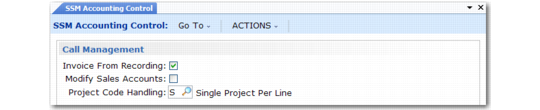
SSM Accounting Control, Call Management Frame
Invoice From Recording
Determines whether or not you can invoice from Call Activity Recording. If Yes, a Generate Invoice field appears in the Call Status frame of Call Activity Recording. If No, you can generate invoices only from Call Invoice Recording. Set this to No to restrict who is allowed to generate invoices.
Modify Sales Accounts
Determines whether you can modify the Sales and Sales Discount accounts in Call Invoice Recording. If No, the accounts display but you cannot change them.
Project Code Handling
Use this field to indicate how you want the system to apply project codes to the costs and revenue recorded for call service activity. There are two choices: Single Project per Line (S) and Project per Labor/Expense (P).
These two settings support two different models for using projects. The first choice lets you track both costs and revenue with the same project. This might be used for a lengthy installation of a complex system. The second model is closer to the way projects apply to standard work orders in a manufacturing environment. In this model, costs are tracked separately from revenue.
Up to three projects can be specified in Call Activity Recording:
• Project associated with the Sales account for tracking call revenue. This project is validated with the other Sales account components that display on the screen.
• Project associated with the Sales Discount account. This is typically the same as the sales account project. This project is validated with the other Sales Discount account components that display on the screen.
• Project associated with call line reports for tracking call costs. This project is validated with other Cost of Goods Sold account components during GL transaction post.
When Project Code Handling is set to Single Project per Line (S):
• One sales project and one sales discount project can be associated with each call line in Call Activity Recording. These default from the contract line providing coverage, if any, and are typically the same.
• The system sets the report project to the value entered for the sales project and it cannot be changed. The same project is used for both revenue and costs created by labor/expense transactions and material issues and receipts for this line.
• Once you have specified a project, it cannot be changed. The sales project defaults to each report and each labor, expense, and item detail record.
• When an invoice is created for the call line, either in CAR (if Invoice from Recording is Yes) or Call Invoice Recording (CIR), the sales and sales discount projects from CAR default to the call invoice. These values can be modified in CIR, if needed.
When Project Code Handling is set to Project per Labor/Expense (P):
• Each labor and expense transaction created for a call line can have a different project associated with it. The sales and sales discount project default from the contract line providing coverage and can be modified. The report project also defaults from the contract-line sales project and can be modified.
• If a contract does not provide coverage or a project is not specified on the contract line, all call line projects default to blank. Each time a new report is opened for a call line, the same defaulting logic is used.
• The report project sets the default for each labor record. For expenses, the project defaults first from the employee (engineer), if one has been defined; otherwise, the report project is used. This is similar to the way work orders handle project codes. You can modify the report project even after other reports exist, and the new project defaults to new labor and expense transactions.
• You can also modify the project on each labor and expense detail. However, the project associated with item consumption defaults from the report project and cannot be changed.
• The report project is used for costs only. When an invoice is generated, the sales and sales discount projects default to the invoice just as when Project Code Handling is set to S. The revenue projects (sales and sales discount) set the default for each line on the call invoice. The only difference in how revenue projects are handled when Project Code Handling is P is that the fields can be modified in CAR even after reports exist.