Setting Up Sales Order Control
Sales Order Control (7.1.24) controls allocations, standard sales orders, EMT sales orders, forecast consumption, trailer codes, and history retention.
Sales Order Control (7.1.24)
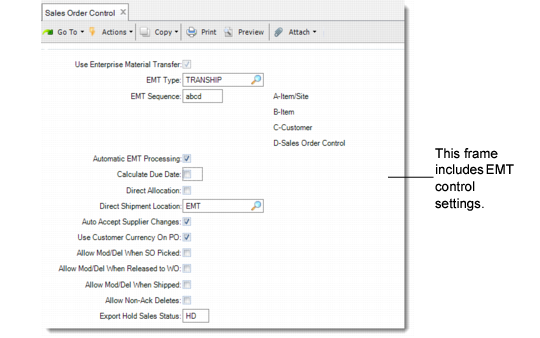
Use the second frame of Sales Order Control to establish EMT defaults at the PBU and SBUs.
Use Enterprise Material Transfer
Enter Yes to activate EMT.
EMT Type
Specify the default EMT type for processing sales orders. The system uses this field in combination with EMT Sequence. Possible values are: NON-EMT, TRANSHIP, DIR-SHIP.
EMT Sequence
Enter the search order sequence the system should use when determining the default EMT type for a sales order. Specify any combination of A, B, C, and D, where:
• A = Item/Site, defined in Item-Site Planning Maintenance (1.4.17)
• B = Item, defined in Item Master Maintenance (1.4.1)
• C = Customer, defined in Customer Create (27.20.1.1)
• D = Sales Order Control
Auto EMT Processing
This field is used only by level-2 business units for multilevel EMT processing. Enter Yes to have level-2 business units automatically generate secondary POs for lower-level business units. See
Using Multilevel EMT.
Calculate Due Date
Enter Yes to have the system calculate the due date using various lead times. See
here.
Direct Allocation
Enter Yes to reserve a supplier’s inventory for EMT sales orders that you create. When the PBU and SBU are in domains in the same database, the system makes a preliminary allocation in the SBU’s database. This is confirmed and converted to a normal allocation when the SBU creates a confirmed secondary sales order from the EMT purchase order. See
here.
Direct allocation works only under a specific set of conditions related to setup data. Under most circumstances, leave this field set to No.
Direct Shipment Location
Enter a location at the PBU to be used when items are shipped by the SBU directly to the customer. The system uses this location to create and relieve allocations in preparation for invoicing the customer. No inventory actually exists there. The location must have an inventory status of non-nettable and non-available. This prevents MRP from planning requirements for these items.
Auto Accept Supplier Changes
Enter Yes to allow the PBU to automatically accept due date and quantity change requests received from the SBU.
When this field is No, the system creates change records associated with change requests. You must then use Sales Order Maintenance (7.1.1) to manually accept supplier changes, or Supplier Change Rejection Maint (35.22.2) to reject them.
Use Customer Currency on PO
Enter Yes to have the system use the currency associated with the end customer when generating an EMT purchase order from the PBU’s primary sales order. When the SBU imports this purchase order to create a secondary sales order, that sales order is in the end customer’s currency.
When this field is No, the system uses the currency associated with the supplier when generating the EMT purchase order—resulting in a secondary sales order that is also in the supplier’s currency.
Note: Specify currencies in Customer Create (27.20.1.1) and Supplier Create (28.20.1.1).
Allow Mod/Del When SO Picked, When Released to WO, When Shipped
Enter Yes to let the PBU modify or delete the primary sales order line after importing a status change message from the SBU. When you access a line with a status change with one of these fields set to Yes, the system displays a warning and prompts you to continue. See
Shipment Status.
When one of these fields is set to No, the PBU is prevented from making any changes to a sales order line after importing the related status change from the SBU.
Note: The system does not accept all changes to a line with a status change. For example, while you can change the salesperson commission on a line that has already been picked at the SBU, the system displays an error message if you attempt to change the quantity.
Allow Non-Ack Deletes
Specify whether the PBU can delete its primary EMT sales order or individual order lines before importing an acknowledgment from the SBU when Require Acknowledgment is Yes in Purchasing Control.
No (the default): An error message is displayed if you attempt to delete an unacknowledged order or line when Require Acknowledgment was set to Yes in Purchasing Control at the time the order was exported to the SBU.
Yes: You can delete unacknowledged orders or lines regardless of the Purchasing Control setting.
Export Hold Sales Status
Specify how EDI eCommerce PO export functions send EMT purchase orders to the secondary business unit (SBU) supplier based on the value of Send Credit Held SO in Supplier Data Maintenance (2.3.1).
Blank (the default): The system exports all orders to SBUs with Supplier Data Maintenance records that have Send Credit Held SO set to Yes, regardless of action status.
HD: When Send Credit Held SO is Yes, the system exports orders with an action status of HD or blank. Orders with any other action status are excluded.
Other non-blank value: When Send Credit Held SO is Yes, the system exports orders with Action Status set to this value or blank. Orders with any other action status are excluded.
Note: When the sold-to customer’s Customer Data Maintenance (2.1.1) record has EMT Credit Flow set to Yes, the exported PO includes the Action Status value from the primary sales order.