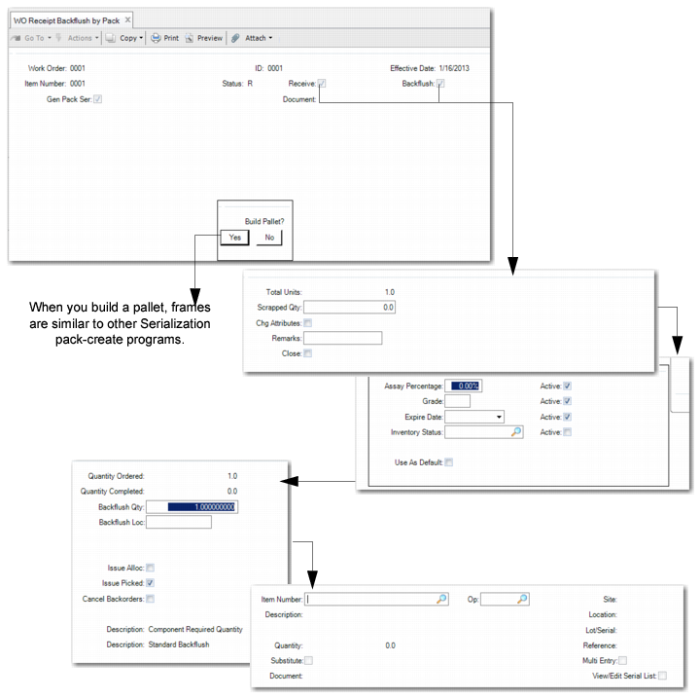
WO Receipt Backflush by Pack
Use WO Receipt Backflush by Pack (16.5.5) to receive finished goods and issue WO components by pack. You can receive completed products and backflush to issue the items used by the pack. You use this program instead of the QAD EE function Work Order Receipt Backflush when:
• You have serialized finished product to receive and backflush and you set Receive to Yes.
• You have non-serialized finished product with serialized components or components in a pack to receive and backflush and you set Backflush to Yes.
Create New Unit Packs
You can create new unit packs, and then load inventory to the new unit pack.
Select No when the system prompts you to build the pallet. Then enter a blank serial ID in the Unit Pack frame. Finally, enter inventory data. You can enter additional data and the BOP code. The system generates the serial ID for the unit pack only.
For the following functions, refer to the sections listed with the function:
• Create New Unit Packs and Assembly Packs – similar to that for Pack Receipt by WO; see
Pack Receipt by WO.
• Build Lower-Level Packs on an Existing Parent Pack – similar to that for Pack Receipt by WO; see
Pack Receipt by WO.
• Generate Serial IDs According to Pack Code – similar to that for Pack Receipt Unplanned; see
Unplanned Receipts.
Navigation
Enter the work order ID and effective date; then, specify a receipt or backflush by setting either field to Yes; then, specify Yes in Gen Pack Serial to create new packs.
Enter the serial IDs to receive as finish products.
Optionally, enter scrap quantities, attributes, or remarks. Enter the quantity ordered, completed, backflushed and any additional backflush-related information, such as the calculation method and backflush method; then, enter the serial ID to issue as components.
After details display and you confirm that details are correct, the system displays the Additional Data frame. Once completed, you can receive/backflush the packs.
Note: In the WO Receipt Backflush by Pack graphic, additional frames that are displayed are not shown.
WO Receipt Backflush by Pack (16.15.5)
Work Order and ID
Enter the work order number and ID for the serial IDs that you want to receive.
Effective
Enter the effective date for the transaction. The default is the system date.
Receive
Indicates whether finished products are to be received into inventory in this transaction.
Yes: The system prompts you to enter serial IDs to receive.
No: You can backflush component items without receiving any finished products into inventory.
Backflush
Indicate whether component items are to be backflushed from inventory in this transaction. When Yes, the system prompts you to enter the component and then scan serial IDs to backflush.
Gen Pack Serial
Specify Yes to have the system generate pack serial numbers. When Yes, you can create new serial IDs by batch with an entered pack code. When No, you are required to scan or enter serial IDs manually.
Serial ID
Enter the serial ID of the parent pack.
Total Units
The system displays the quantity received into stock.
Scrapped Qty
Enter the number of items scrapped on this work order. Scrapped quantity displays on the work order history and cost reports.
Close
Indicate whether to set the work order to closed. Once a work order is closed, additional component issues and work order receipts cannot be recorded. Labor can continue to be reported. You cannot delete the work order until the system processes the Accounting Close function.
Backflush Qty
Enter the quantity to use when backflushing components from inventory. The default is the total units plus the scrapped quantity that you enter on the first screen.
Backflush Loc
Optionally, enter a location for the backflush. When the field is blank, the system backflushes items from the default location specified on the work order picklist. When you specify a location, the system creates detail allocation records with the new location and backflush quantity.
Issue Alloc
Indicate whether to issue allocated inventory. Issue allocated and picked determine which inventory to issue for each component item. When you scan a serial ID for the component, then system ignores the Issue Alloc and Issue Picked for this component.
Issue Picked
Indicate whether to issue picked inventory. Issue allocated and picked determine which inventory to issue for each component. To issue picked components, set this field to Yes, then review the issued data to confirm that each quantity has the correct data.
Cancel Backorders
The setting you enter here is the default for each component item to issue, and you can change it manually on each item.
Yes: Set to Yes only on the final work order receipt backflush. Yes cancels the component requirement. The quantity remaining is not issued later. The system sets the quantity required to zero and notifies MRP of decreased requirements.
No: Indicate that any remaining quantity required for a component should remain open.
Quantity Calculation Method
Sets the calculation method used to determine the quantity to issue for all components. The default is Component Required Quantity. Other valid choices are Work Order Bill Qty Per and Phantoms First. You can still adjust each issue quantity on a line-by-line basis in the detail screen.
Backflush Method
Defines whether to use the backflush quantity you entered (the default standard backflush) or to include prior issues and receipts against this order.