Adding Fields to Financials QRF Reports
Use the following process to add user-defined fields to Financials reports developed using the QAD Reporting Framework (QRF):
2 Link the new field to the QRF report, and specify the report resultset field that will display data for the new user-defined field. See
Linking the UDF to the Report.
Creating the New Field
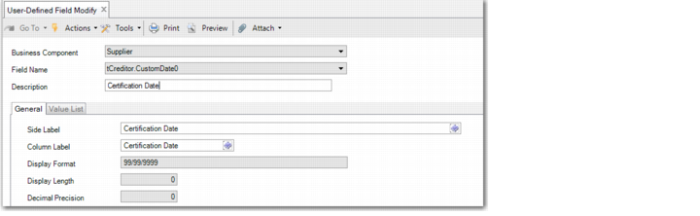
To add a user-defined field to a QRF report, determine the component for which you want to add the field, and add the field to a component that is part of the report’s dataset. For example, to customize the Supplier Check Print report, you can add fields to the Supplier component or to the Supplier Invoice component.
Define the field using the User-Defined Field function. See
Create a User-Defined Field for detailed information.
User-Defined Field Modify
Important: After you define the field, add the field to the UI using design mode so that the field can become usable and receive data that can be displayed on the report. See
UDFs and Design Mode Linking the UDF to the Report
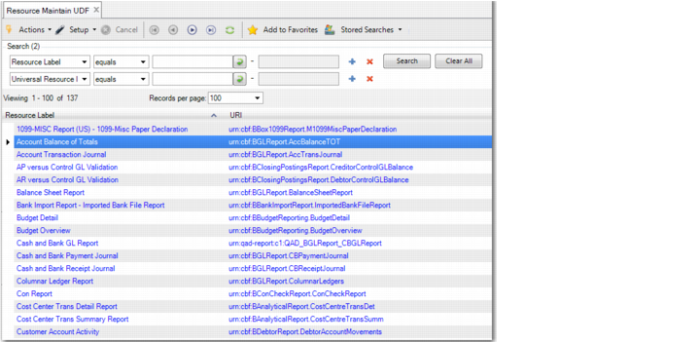
Use User-Defined Fields on Report Maintain (36.25.92) to associate user-defined fields with reports developed using QRF. When you open User-Defined Fields on Report Maintain, a browse displays a list of all Financials reports developed using QRF.
User-Defined Fields on Report Maintain Browse
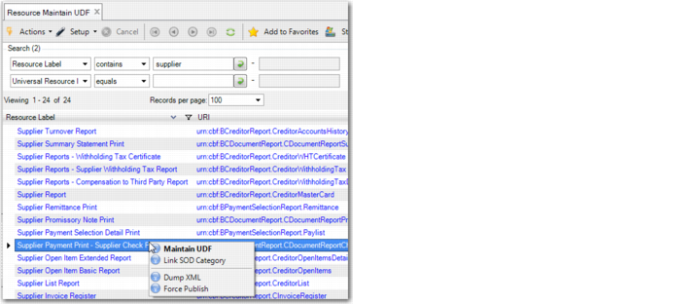
In the browse, select the report to which you want to add the user-defined field. Then, right-click and select Maintain UDF.
User-Defined Fields on Report Maintain Browse, Context Menu
When User-Defined Fields on Report Maintain opens for the report you selected, the grid lists the user-defined fields that have been created for components in the report’s dataset. Locate the field you want to add to the report, and, in the Resultset Field column, specify the report field in which you want to display data. Save your changes.
User-Defined Fields on Report Maintain
Report
Displays the name of the data source for the report.
End User Field
Displays the database field name for the user-defined fields that have been created for components in the report’s dataset.
End User Field Description
Displays a description of the user-defined field, as defined in User-Defined Field Create.
Resultset Field
Select the report field in which you want to display data for the user-defined field. Select a resultset field of the same type as the user-defined field. For example, if the user-defined field is a date field, select a resultset date type field.
Adding the Resultset Field to a Report
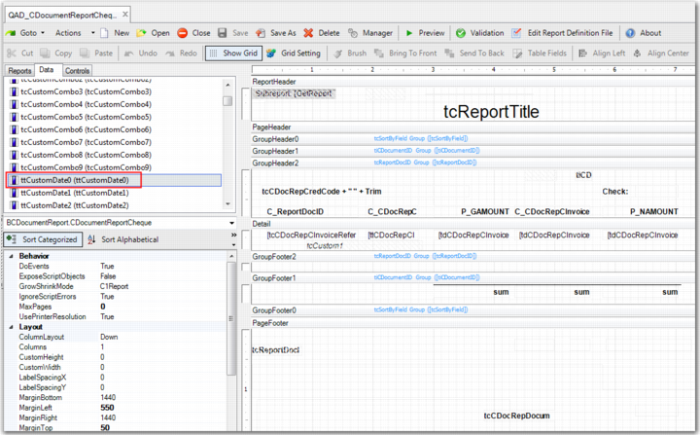
To add the user-defined field to a QRF report, open the report in Report Resource Designer. Add the report resultset column that you linked to the user-defined field to the report design and then save your changes.
Report Resource Designer, Supplier Check Print Report
For more information on QRF reports and on Report Resource Designer, see
QAD Reporting Framework User Guide.