RF Basic Setup
This section describes the setup required before you can use an RF. RF setup varies depending on the tasks warehouse staff intend to complete with the RF; however, some basic setup is required for every RF, regardless of the specific warehouse tasks performed.
You must set the following for every RF device:
• Startup parameters
• System codes
• System procedure codes
• System flavors
Startup Parameters
You can optionally set startup parameters for the RF. The system includes three parameters that have defaults; however, you can change the defaults.
RF Startup Parameters describes the parameters.
RF Startup Parameters
|
Parameter
|
Description
|
Value to Enter
|
Default
|
|
aimsyscode
|
Informs the startup procedure that this is not a regular full-screen session but an RF device session.
|
RF
|
RF
If nothing is entered, the system assumes RF.
|
|
aimshortmsg
|
Sets error and warning messages to 20 characters maximum, which displays on the RF correctly. Normal screen 80-character messages are unreadable on the RF.
|
Yes
|
True
If nothing is entered, the system assumes true.
|
|
aimselecttype
|
Determines the screen type for the RF Select Task function work menu:
• Non-blank specifies a transaction prompt type of screen.
• b or blank specifies a scrolling window type of screen.
|
b
|
b
If nothing is entered, the system assumes b.
|
To set the parameters, use the -param function with the startup script with the parameter and the value; for example:
-param aimshortmsg=false
Setting System Codes
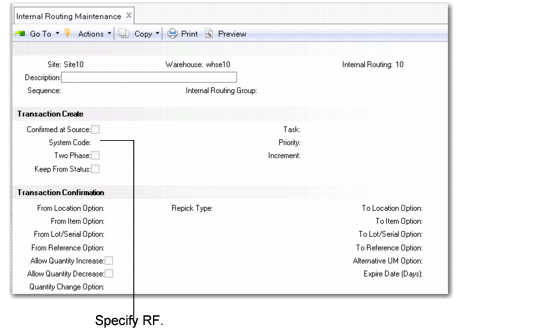
Use the System Code field in warehouse programs to specify that created transactions are confirmed in the RF. Specify RF in the field to create transactions confirmed in RF screens.
When you specify the System Code in Warehouse Maintenance (4.1.1), the value defaults to the same-named field in Internal Routing Maintenance (4.2.5), shown in
Internal Routing Maintenance (4.2.5), System Code Field; however, you must specify RF for every other occurrence of the System Code field.
Internal Routing Maintenance (4.2.5), System Code Field
Setting System Procedure Codes
You set system procedure codes in
Task Maintenance (4.11.1.1). The procedure codes along with flavor codes determine which program runs when RF users select the Next Task or Select Task menu option.
Example: The RF user is assigned a put-away task with an RC procedure code and flavor b. This specifies only prompt for pallets and not for items/lots. The system uses the whrfRCB.p program for the next task. If the RF user’s next task is a pick with procedure code PK and flavor b, the system uses the whrfPKB.p program.
Enter one of the following codes in the Procedure Code field in Task Maintenance (4.11.1.1):
AJ: This option is for cycle counting adjustments.
PK: This option displays the issue order number. It also defaults the From Location field to blank and the To Location field to the expected destination.
RC: This option displays the receipt order number. It defaults the From Location field to the expected source and defaults the To Location field to blank.
TF: This option does not display any order information. It defaults both the From Location and To Location fields to blank.
Setting System Flavors
The system uses flavor codes to set different RF screen layouts. For example, a fork-lift operator may use an RF layout to pick several pallets at once, while a warehouse picker may use an RF layout to pick just one pallet at a time. You specify these codes in the Flavor field in
Work Location Group Maintenance (4.3.9):
b: Selection by reference
c: Multi-bin pickup
d: Dynamic sizing