Return Put-Away Procedure
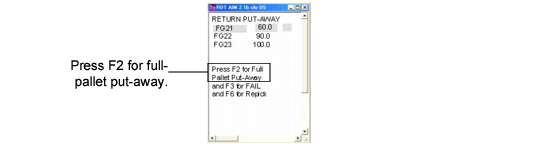
When staff complete all replenishment tasks from the single pallet, the RF automatically displays the Return Put-Away screen; see
RF Return Put‑Away Option. The following procedure shows how to return unused quantities one item at a time from the RF once you finish replenishing.
RF Return Put‑Away Option
1 Return the pallet to the stock area.
2 On the RF, press F2.
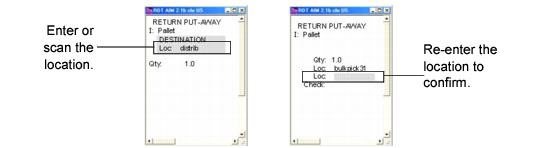
The RF prompts you to enter or scan the destination location; see
RF Put-Away Location Prompt.
3 Choose one of the following:
a Scan or enter the destination location.
b If a warehouse defaults in the Location field, place your cursor on the warehouse; then press Return.
Pressing Return in the Location field indicates that the system should find the return location in the warehouse to start the put-away.
Note: You can set up locations in the SLG list that are either the home location or locations that are closest to the home location to decrease travel time. Define the SLG list with the home location or the location closest to the home in the first sequence so that the system checks for this location in each SLG first. See
Storage Location Group List Maintenance.
The RF prompts you to confirm the location.
4 Confirm the destination location by re-entering the location.
5 Put away the item.
6 Repeat steps 1 through 5 for all items remaining on the pallet.
RF Put-Away Location Prompt