Creating a New Shipment Type
You can create a new shipment type to associate with the workflow.
1 Go to the ZS option in the Windows UI.
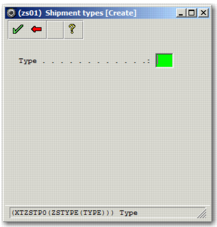
2 Press F6 or click the Create a new entry option. The Shipment Types [Create] window appears.
Shipment Types [Create] Window
3 In the Type field, enter a short code to identify the new shipment type.
4 Click the green check mark button. The Shipment types window appears.
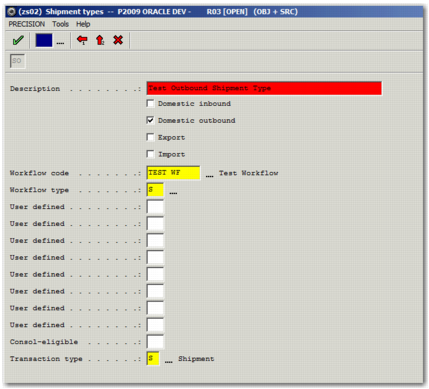
5 Give the shipment type a meaningful description. Fill in the fields as in
Shipment Types Window to specify that the shipment is related to the newly created workflow, and is created from the shipment transactions.
Shipment Types Window
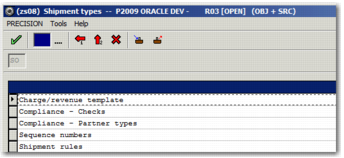
6 Click the green check mark button. The Shipment Types Sub-options screen appears. It is not necessary to make any changes to this screen for the purposes of this example.
Shipment Types Sub-options Screen
7 Click the green check mark button. The Shipment Types [Create] window appears. Click the red back arrow to return to the list of shipment types.