Integration with ERP Shop Floor Operations
Production driven maintenance provides tools to establish mappings between EAM equipment and ERP operational data and items, so that the system can automatically update the equipment DUOM.
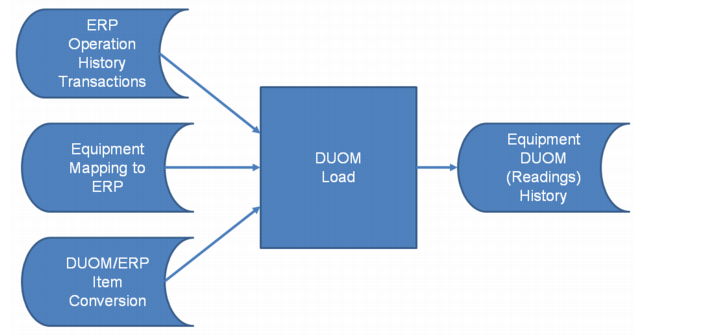
When production driven maintenance is incorporated, EAM reads a file in ERP on a regular schedule and then updates equipment usage data in EAM. Production driven maintenance automatically converts information to match work centers, machines, and tool IDs in ERP to corresponding EAM equipment records. EAM maps the ERP product ID to a specific EAM DUOM. EAM reads the ERP production history table and determines which records need to be updated with the correct usage. Then PM work orders can be generated based on updated equipment meter readings from the downloaded ERP data. Each op_hist record represents work that has been done on the shop floor and allows machine and tool usage tracking, either in terms of the number of items produced or the amount of time for each process.
Flowchart: Production Driven Maintenance Integration with ERP Shop Floor Operations
Setup – Integration with ERP Shop Floor Operations
If you are using the ERP operational transaction history to update equipment DUOM records, you must set up the following operations fields on the MFG/PRO Options tab on the site record:
• Customer Field
• Trans (system updated)
• Create Conv?
• Ignore Tools?
• Separate Tools?
In the Operation submenu on the Site record, you must specify the ERP operation history transaction types that are from the ERP op_hist table. These operation types provide the work center, machine, or tool with its production usage that maps to the EAM equipment and updates its DUOM reading. See
Operation Type – Production Driven Maintenance Setup.
Create Conversions for Equipment to ERP Operation Data
The following conversion tables, located in Maintenance|Production Driven Maintenance, are used for the DUOM load process:
• Equipment Mapping to ERP
• Equip DUOM/ERP Item Conversion
Both tables must contain the EAM equipment number if you want at least one DUOM for that piece of equipment to be updated. When set up properly, these tables can identify the correct EAM equipment number to update and the multiplier to use to calculate the DUOM reading based on ERP operation transaction history data.
Note: If a tool code in ERP is mapped to a piece of EAM equipment in the Equipment Mapping to ERP browse and that equipment is set up as a child in EAM, do not use the Equipment DUOM/ERP Item Conversion. In this scenario, you must use one or the other. If the tool is used in both, the DUOM for the EAM child equipment updates twice.
Equipment Mapping to ERP
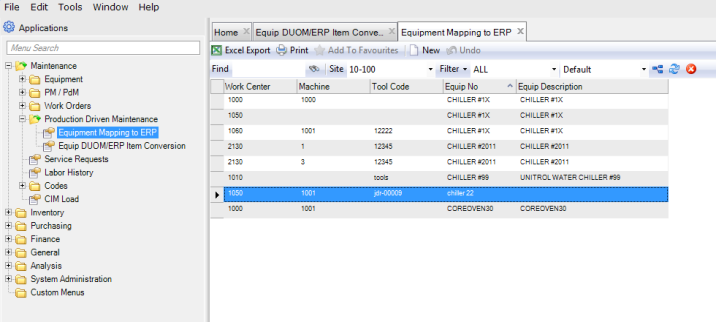
The Equipment Mapping to ERP browse displays records that identify EAM equipment numbers and how they relate to the work center, machine, and tool codes in ERP.
To set up this table properly, it is essential to understand how the work center, machine, and tool codes are used in ERP and how they relate to EAM equipment in your organization.
Follow these steps to add a record to the Equipment Mapping to ERP browse:
1 Open the Equipment Mapping to ERP browse located in Maintenance|Production Driven Maintenance|Equipment Mapping to ERP.
Equipment Mapping to ERP Browse
2 Click New. Enter the relevant information in the following fields:
Work Center
Select the work center using the lookup. The lookup displays all the work centers from the domain in ERP.
Machine
Select the machine using the lookup, which displays only the machines linked to the selected work center.
Tool Code
If Tools are used in ERP, a tool can be mapped to an equipment number. Enter the Tool code exactly as it appears in ERP, and then select the Equipment No that corresponds to that tool. In cases where tool codes accurately correspond to an EAM equipment record, as in the case of a die that is attached to a piece of machinery, you can update the DUOMs for two pieces of equipment, the machine and the tool, instead of just one or the other. To do this, select the Separate Tools? check box on the MFG/Pro Options tab in General|Business Units|Sites.
Equip No
Select the equipment number using the lookup. The Equip No lookup only displays equipment that is specific to your current site.
Note: This translation table is not site specific. The equipment mapping for all sites is displayed and managed here.
Equip Description
Displays the equipment description for the piece of equipment selected in the Equip No field.
3 Press Enter to save.
4 Once the work center or work center and machine combination is mapped to an EAM equipment number, EAM can recognize which equipment’s DUOM record to update based on the work center on the ERP’s Shop Floor Operation History record being read.
Note: If an equipment number in EAM has not been added to the Equipment Mapping to ERP table, EAM does not attempt to update any equipment DUOMs for that piece of equipment.
Equip DUOM/ERP Item Conversion
The content for the Equipment DUOM/ERP Item Conversion browse can be manually defined or automatically created using the Create ERP Conversion Records action.
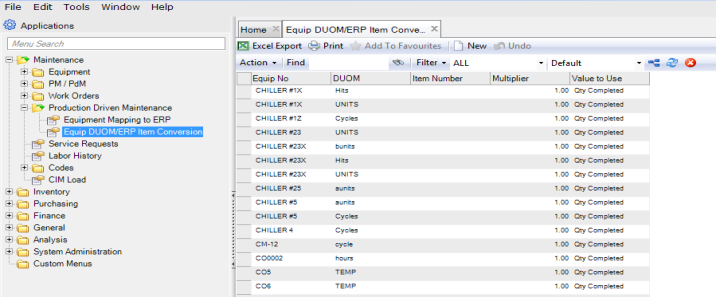
Equip DUOM/ERP Item Conversion Browse
Manually Add Records to the Equip DUOM/ERP Item Conversion Browse
Follow these steps to manually add a record to the Equipment DUOM/ERP Item Conversion browse:
1 Open the Equipment DUOM/ERP Item Conversion browse located in Maintenance|Production Driven Maintenance|Equip DUOM/ERP Item Conversion.
2 Click New. Enter the relevant information in the following fields:
Equip No
Select the equipment number using the lookup. The Equip No lookup only displays equipment that is specific to your current site.
Note: This translation table is not site specific. The equipment mapping for all sites is displayed and managed here.
DUOM
Select the DUOM using the lookup. The lookup only displays DUOMs linked to the selected equipment number.
Item Number
Enter the item number code from ERP for the item or part that is manufactured in your plant on the EAM equipment specified.
Multiplier
Enter a multiplier in this field. The number entered in this field establishes the conversion between the number of parts processed and the DUOM or the amount of time and the DUOM.
Example: If five parts are processed per stroke (the DUOM), set the multiplier to 0.2 (1 stroke/5 parts = 0.2 multiplier).
Value to Use
The system populates this field with a value that represents whether the conversion is from time to DUOM (Act Run or Std Run) or from units made to DUOM (Qty Completed). Qty Completed is the typical entry.
• Act Run. Actual run time per DUOM.
• Std Run. Standard run time per DUOM.
• Qty Completed. Quantity of units made per DUOM.
3 Press Enter to save.
The Equipment DUOM/ERP Item Conversion browse displays pieces of equipment and how the equipment’s DUOM relates to the ERP item and its production activity.
Create Records Using the ERP Conversion Records Action
The ERP Conversion Records action automatically populates the EAM Equip DUOM/ERP Item Conversion browse with all the current EAM equipment numbers and their DUOMs. It provides a way to create basic Equipment DUOM/ERP Item Conversion records for every piece of equipment in the EAM database. Once the action has been run, you can then open the Equip DUOM/ERP Item Conversion browse and modify the records as needed.
If the Create Conv? setting on the Site record is enabled, when a new DUOM is added to a piece of equipment in the Readings submenu and then the ERP Conversion Records action is run, the equipment and its new DUOM are added to this browse.
DUOM Conversion for Parent-Child
The DUOM conversions for parent-child equipment are only used if the Upd Children? setting is enabled on the parent’s equipment record. When this field is enabled and a current reading is updated for the equipment’s DUOM, EAM updates the DUOMs for all of the equipment’s children based on the DUOM conversions set up in this browse. For information about the Upd Children? setting, see
Equipment: Codes Tab.
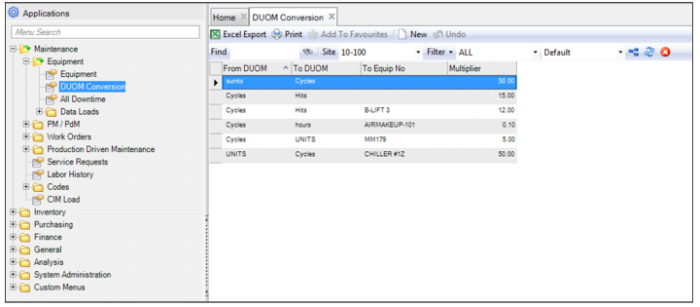
DUOM Conversion Browse
Follow these steps to add a DUOM conversion record for parent-child equipment:
2 Open the DUOM Conversion browse located in Maintenance|Equipment|DUOM Conversion.
3 Click New. Enter the required information in the following fields:
From DUOM
The DUOM for the parent equipment.
To DUOM
The DUOM for the child equipment.
To Equip No
If this relationship is unique to one child DUOM, then specify that child as the To Equipment No. If this relationship occurs many times in the equipment parent/child hierarchy, leave the To Equipment No field blank.
Multiplier
The multiplier that is used to convert one equipment’s DUOM to another equipment’s DUOM. For example, if one stroke by a parent equipment drives five rotations on the child, then use a multiplier of 5 to define the relationship. In this example, the From DUOM would be strokes, the To DUOM would be rotations, and the multiplier would be 5.
4 Press Enter to save.
ERP Shop Floor Operations
To enable the DUOM Load Job to update the Equipment DUOM, the site’s operation transaction types defined in EAM are used to select the ERP operation history transactions along with the operation data related to the EAM Equipment Mapping to ERP and Equipment DUOM/ERP Items Conversions.
Initialize ERP Operation
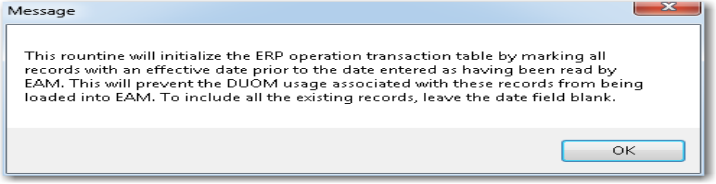
The Initialize ERP Operation action initializes the ERP operation transaction table by marking all records with an effective date before the date entered as having been read by EAM. This action prevents the DUOM usage associated with these records from being loaded into EAM. To include all existing records, leave the date field blank.
Follow these steps to run the Initialize ERP Operation utility:
1 Open the Equip DUOM/ERP Item Conversion browse located in Maintenance|Production Driven Maintenance|Equip DUOM/ERP Item Conversion.
2 Select Initialize ERP Operation from the Action menu. This action runs the Initialize ERP Operations utility, which limits those records that are included during the DUOM Load process.
3 The following message is displayed. Click OK.
Initialize ERP Operations Message
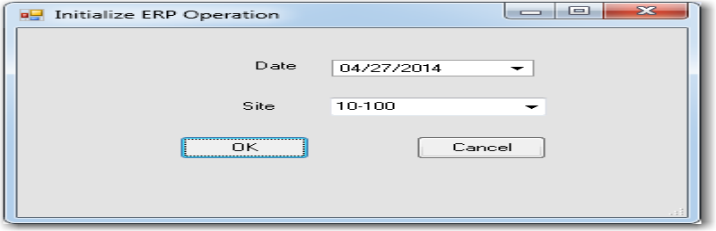
4 The Initialize ERP Operation window opens.
Initialize ERP Operations Window
5 Using the calendar lookup, select the date to convert the ERP manufacturing records into EAM DUOM readings. To include all existing records, leave the date field blank.
6 Using the drop-down list, select the site in which the ERP manufacturing records will be converted into EAM DUOM readings.
7 Click OK.
DUOM Load – Batch Job Program
Use the DUOM Load Job Program to automatically update equipment DUOMs based on the operation transaction types defined in EAM for the site. EAM uses the site to select the ERP operation history transactions, the operation data related to the EAM Equipment Mapping to ERP, and the Equipment DUOM/ERP Items conversions.
Follow these steps to run the DUOM Load Job program:
1 Open the Job Program browse located in System Administration|Job Control|Job Program.
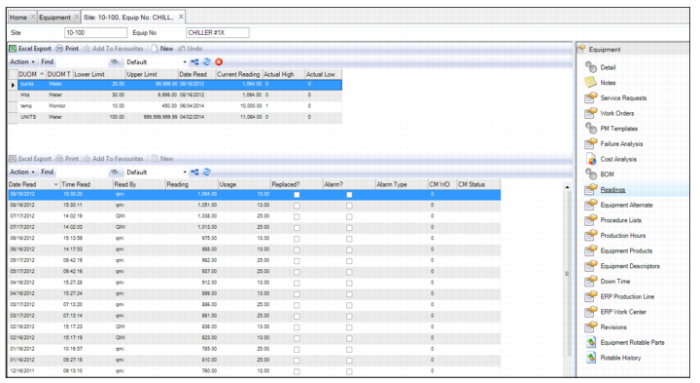
3 After the DUOM Load job runs, the equipment DUOM is updated with readings that you can view in the Equipment Readings submenu. The readings can be used to determine the PM Issue for the equipment.
Updated Equipment DUOM Readings