Service Request Activities
Authorize a Service Request
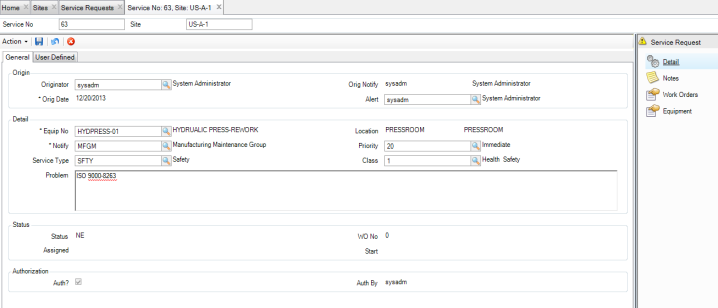
If SR Auth? is enabled for the SR site’s domain, service requests must be authorized before you can create a work order from the SR. If a service request is closed or canceled, you cannot authorize it.
Note: The Authorize function for service requests is optional. Service request authorization is enabled by selecting the SR Auth? check box in General|Business Units|Domain on the Maintenance tab. See
Sites: Maintenance Tab.
To authorize a service request, open the service request and select Authorize from the Action menu. Enter your user name and password and click OK.
Authorizing a Service Request
Create Work Orders from Service Requests
The Create Work Order action allows you to create a work order and associate it with the current service request. When you create a work order from a service request, EAM pulls in all the data from the service request and automatically enters it into the work order. This feature saves you time and ensures data integrity. If a work order has been created from a service request, the work order is directly tied to the service request and the associated work order numbers appear in the Work Orders submenu.
Note: A work order serves as an outline of maintenance work to be done. When the work is complete, it is updated with summary information. A completed work order gathers valuable data for historical reporting and analysis.
Create a Work Order from a Service Request
Follow these steps to create a work order from a service request:
1 Open the Service Request browse. Display the Dept column in the browse to more easily sort your service requests.
2 Highlight the service request. Select Create Work Order from the Service Request Action menu.
A Work Order browse opens displaying the work order that was created.
Creating a WO from a Service Request
Create a Work Order from Multiple Service Requests
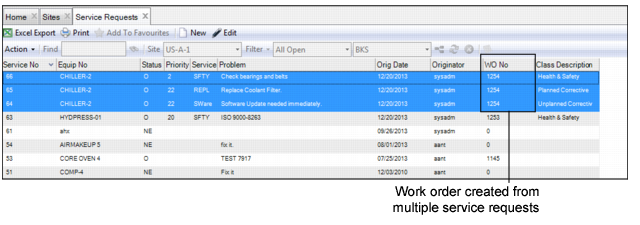
If a piece of equipment has several associated service requests, you can consolidate them into a single work order. When using the Global Create Work Order action, EAM combines multiple service requests into one work order as long as the service requests reference the same equipment number.
Follow these steps to create a work order from multiple service requests:
1 Open the Service Request browse. Display the Dept column in the browse to more easily sort your service requests.
2 Highlight the service requests and select Global Create Work Order from the Service Request Action menu.
The work order number is displayed in the Service Request browse.
Creating a WO from Multiple Service Requests
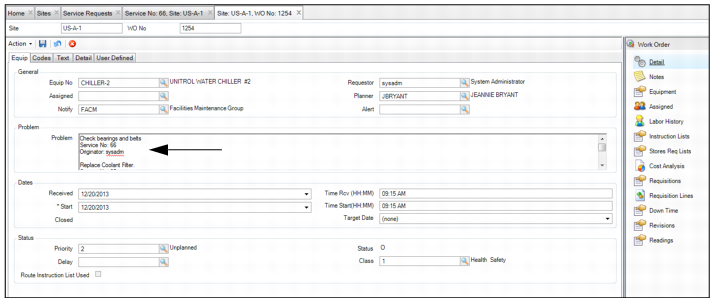
Note: Information about each of the service requests is displayed in the Problem field.
Creating a WO from Multiple Service Requests
Create a Work Order from the Work Order Submenu
You can also create a work order from a service request in the Work Order submenu. To create a WO from a service request, open the service request. Select the Work Orders submenu and click New. Enter the necessary information in the WO record. See
Filling Out the Work Order.
Creating a WO from a Service Request
Remove the Association Between a Work Order and a Service Request
The Remove Work Order action allows you to remove the association between a service request and a work order. After performing the Remove Work Order action, the service request is no longer associated with the original work order and you can assign the service request to a new work order.
Follow these steps to remove the association between a work order and a service request:
1 Open the Service Request browse and highlight the service request. Select Remove Work Order from the Service Request Action menu.
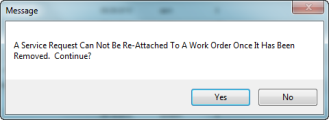
A message is displayed stating that the service request cannot be reattached to the original work order after it has been removed.
2 Click OK.
Note: Once you remove the association between the work order and the service request, the service request can be assigned to a new work order.
Removing the Association Between WO and Service Request
3 When the association between the work order and the service request is removed, the work order field in the Service Request browse changes to 0.
Note: EAM automatically notes the service request removal, user ID, and date in the problem description on the work order.