Creating a Stores Requisition List
Create a Stores Requisition List Header
Follow these steps to create a stores requisition list header:
1 Open the Stores Requisition List browse. Click New in the upper browse.
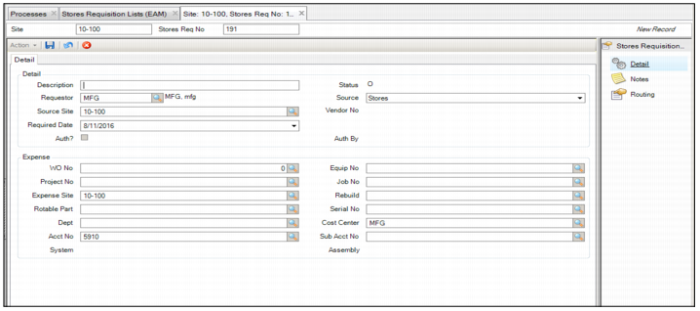
2 A blank Stores Requisition List opens. The system increments the new stores requisition list number and defaults to the current site for the source and expense site data. The requestor defaults to the current user and today’s date. Change any of this data if needed.
Creating a Stores Requisition List
3 Enter the relevant information in the following fields:
Detail
Description (Detail)
Each parts list has a description. Since you can associate multiple parts lists to a work order, the description helps to quickly identity the task for these parts.
Status (Detail)
The stores requisition status code and the work order share the work order status validation table.
Note: After you issue all parts on the child browse of the stores requisition and the issued quantity equals the planned quantity, EAM automatically changes the status of the stores requisition to C (closed). You can reopen a closed stores requisition. You can change the status of the stores requisition.
Requestor
The employee who created the stores requisition list.
Source
This field indicates whether to source a stores requisition list internally or from an outside vendor. Options include vendor and stores. The default is stores.
Source Site
The site from which to select parts and issue to a stores requisition.
Vendor No
This vendor is the source for the parts on the stores requisition list. You can update it only if source is Vendor.
Required Date
The required date for the requested parts.
Auth?
If the stores requisition is authorized, this check box is selected. You can require that stores requisition lists are authorized by setting the Stores Auth? field to All in the More Inventory tab of the Site record. See
Sites: More Inventory Tab.
Auth By
The ID of the user who approved the stores requisition list.
Expense
WO No
Associate a work order with the stores requisition list. The stores requisition inherits the work order account structure.
Equip No
The equipment associated with the stores requisition list.
Project No
Associate a project to a stores requisition list.
Job No
If a specific project requires the list of parts associated with the stores requisition, associate the project number. On issue, the parts are expensed correctly to the project. Projects can have multiple jobs. Select the specific job to expense parts on issue if there is an associated project.
Expense Site
Defaults to the current site, but you can charge material expenses to another site when parts issue to the stores requisition.
Rebuild
Send rebuildable components to this location. Associate a valid rebuild area on the stores requisition. On issue, the parts are directed to the rebuild location.
Rotable Part
Select a valid rebuild area to charge material to a rotable part. Identify the rotable part number and specific serial number. Only rotable parts currently in the rebuild area display in the lookup.
Serial Number
The serial number of the part with which the work order is associated.
Dept
The expense department number issued to the stores requisition list. All parts issued against the stores requisition list charge to the department number on the stores requisition list.
Note: If you use the QAD ERP application, there is not a department field associated with the general ledger number. EAM does not send the department code to the QAD ERP application. Most customers use the cost center as a department field.
Cost Center
The expense cost center number issued to the stores requisition list. All parts issued against the stores requisition charge to the cost center number on the stores requisition list.
Acct No
The expense account number associated with the stores requisition list. All parts issued to the stores requisition charge to the account number on the stores requisition list.
Sub Acct No
The expense sub-account number associated with the stores requisition list. All parts issued against the stores requisition charge to the sub-account number on the stores requisition list.
System
If the stores requisition is for a piece of equipment, find further usage detail in the system and assembly codes. Codes reference specific locations on specific equipment. They provide an inventory breakdown for cost and where items are used.
Assembly
Stores requisitions for a piece of equipment contain more usage detail using the system and assembly codes. Codes reference specific locations on specific equipment. They provide an inventory breakdown for cost and where items are used. Enter a system code before you select an assembly code.
4 Once you have entered your data, click the disc icon to save.
Adding Notes to the Stores Requisition List
If necessary, you can add any notes to the stores requisition list. To add notes, select the Notes submenu and enter the notes in the field.
Note: The Notes submenu is a free-form text box for notes that are for internal use only and are not printed on any documents.
Adding Parts to a Stores Requisition List–Manually
Note: In EAM, there are three ways to add parts to a stores requisition list:
• Manually. You can add parts individually. Follow the procedure in this section
1 To manually add parts, highlight the stores requisition list header and click New in the lower browse.
Adding Parts to a Stores Requisition List
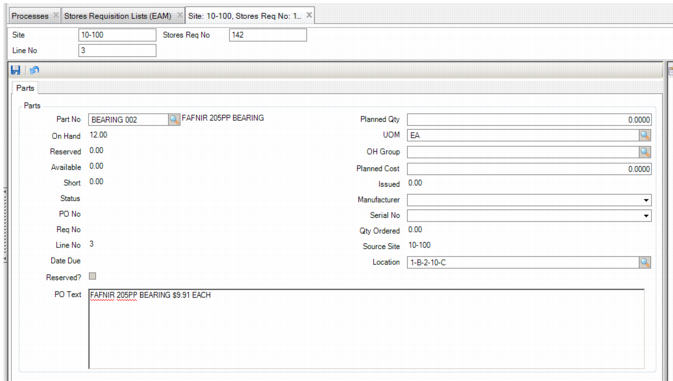
2 A blank part record opens. Enter the required information in the following fields:
Part No
Use the lookup to select the part number to add to the stores requisition list.
Planned Qty
Enter the quantity to order in this field. When you enter a planned quantity, EAM calculates the cost and enters it into the Planned Cost field.
On Hand
Displays the quantity of this part in inventory.
UOM
Displays the part’s unit of measure, which is pulled from the inventory part record. You can also select the UOM using the lookup.
Reserved
The quantity of this part reserved for this stores requisition.
OH Group
Displays the part’s OH group, which is pulled from the inventory part record. If necessary, you can select the OH group using the lookup.
Available
Displays the quantity of this part that is available in inventory.
Planned Cost
Displays the planned cost of the part. If necessary, you can enter a new cost in this field.
Short
The system calculates this field to show the number of parts reserved but not available in stores. For example, if there are 10 unreserved parts in stores and you attempt to reserve 12, a shortage of 2 is shown because only 10 can be reserved. The number short is updated based upon reserving, unreserving, receiving, and issuing of a particular part. This field is not updateable by the user.
Issued
Displays the number of parts that have been issued.
Status
Displays the part’s status, which is pulled from the inventory part record.
Manufacturer
If this is a rotable part, select the part’s manufacturer from the drop-down list.
PO No
If a PO is created because of this stores requisition list, this field displays the PO number.
Serial No
If this is a rotable part, select the part’s serial number from the drop-down list.
Req No
If a requisition is created because of this stores requisition list, this field displays the requisition number.
Qty Ordered
If a PO is created because of this stores requisition list, this field displays the quantity ordered.
Line No
If a requisition is created because of this stores requisition list, this field displays the requisition line number for this part.
Source Site
Displays the part’s source site, which is pulled from the inventory part record.
Date Due
If a requisition has been created for this part, this field displays the due date, which is pulled from the requisition.
Location
Displays the part’s location, which is pulled from the inventory part record.
Reserved?
.This check box is selected if parts have been reserved for this stores requisition list. See
Reserve Parts on a Stores Requisition List.
PO Text
Displays an expanded description, specification, or other data that identifies the part. The purchase order may contain this information, which is pulled from the inventory part record. If necessary, you can enter additional information in this field.
3 After entering the part information, click the Save icon.
Copy an Equipment BOM into a Stores Requisition List
Follow these steps to copy an equipment BOM to a stores requisition list:
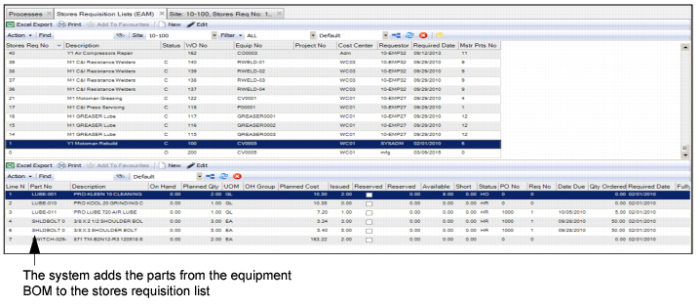
1 To add parts on an equipment BOM to a stores requisition list, highlight the stores requisition list and select Copy BOM.
2 A lookup opens, which displays a list of equipment BOMs. Double-click the BOM to add the parts to the stores requisition list.
3 Click the Save icon.
Copy an Equipment BOM to a Stores Requisition List
Copy a Master Parts List to a Stores Requisition List
Follow these steps to copy a master parts list to a stores requisition list:
1 To add parts on a master parts list to a stores requisition list, highlight the stores requisition list and select Copy Master Parts List.
2 A lookup opens, which displays a list of master parts list. Double-click the parts list to add the parts to the stores requisition list.
3 Click the Save icon.
Print a Stores Requisition List
To print a pick list or a stores requisition list document, open the Stores Requisition List browse and highlight the requisition list header. Select Print Document from the Stores Requisition List Action menu.