Codes
Codes, which serve as the supporting data in the Purchasing module, include the following:
Defining Vendor Codes
Vendors, bill-to, and ship-to data codes are downloaded from ERP. Do not update vendor data from EAM, except when noted.
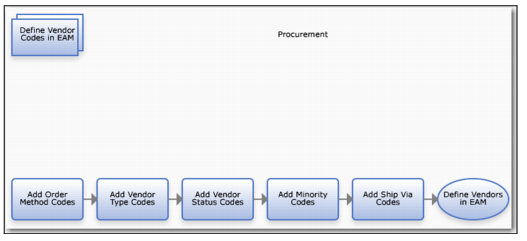
Define Vendor Codes Process Flow
1 Add order method codes.
2 Add vendor type codes.
3 Add vendor status codes.
4 Add minority codes.
5 Add ship-via codes.
Address Codes
Address codes include the bill-to and ship to codes.
Bill-To Codes
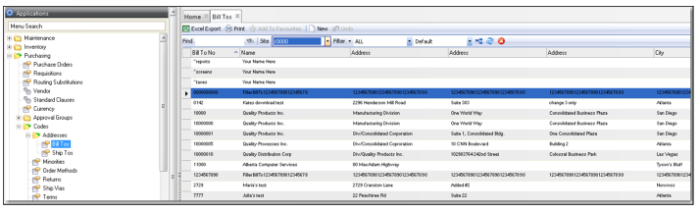
Bill-to codes are used for the vendor billing address and contact information. The bill-to codes, which are located in Purchasing|Codes|Addresses|Bill Tos, can be downloaded from the QAD ERP application. The purchase order system requires that a bill-to address is specified on each PO.
Follow these steps to manually add a bill-to code:
1 In the Bill Tos browse, click New.
2 Enter the following information in the corresponding fields:
Bill To Number
Enter the bill-to code. Make sure that the code is unique.
Name
Enter the company name.
Address
Enter the street address, city, state, zip code, and country for the vendor’s bill-to address.
Contact Information
Enter the name for the company contact.
3 Press Enter to save.
Address Codes: Bill Tos
Ship-To Codes
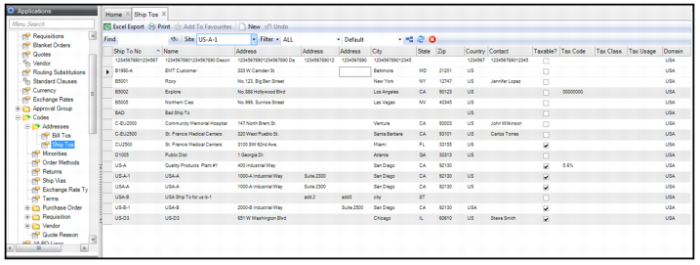
Ship-to codes are used for the vendor shipping address and contact information. Use ship-to codes to record shipping address and contact information. The ship-to codes, which are located in Purchasing|Codes|Addresses|Ship Tos, can be downloaded from the QAD ERP application. The purchase order system requires that a ship-to address is specified on each PO.
Follow these steps to manually add a ship-to code:
1 In the Ship Tos browse, click New.
2 Enter the following information in the corresponding fields:
Ship To Number
Enter the ship-to code. Make sure that the code is unique.
Name
Enter the company name.
Address
Enter the street address, city, state, zip code, and country for the vendor’s ship-to address.
Contact Information
Enter the name for the company contact.
3 Press Enter to save.
Address Codes: Ship Tos
Minority Codes
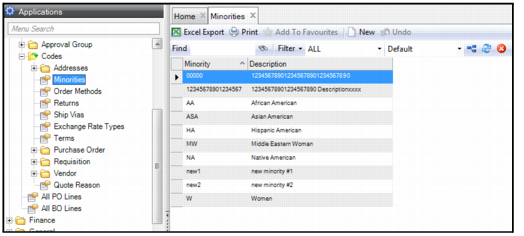
The minority codes, which are in Purchasing|Codes|Minorities, allow you to filter and report on vendors based on their minority status
Follow these steps to add a minority code:
1 Open the Minorities browse and click New.
2 Enter the minority code in the Minority field and then a brief description in the Description field.
3 Press Enter to save.
Minority Codes
Order Method Codes
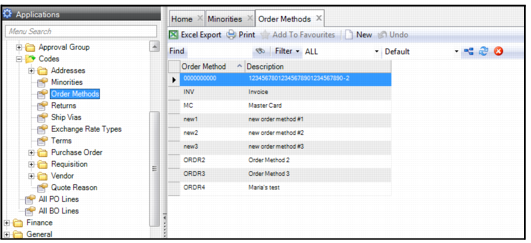
The order method codes, which are in Purchasing|Codes|Order Methods, are valid methods or ways of placing an order with a vendor.
Follow these steps to add an order method code:
1 Open the Order Methods browse and click New.
2 Enter the order method code in the Order Method field and then a brief description in the Description field.
3 Press Enter to save.
Order Method Codes
Return Codes
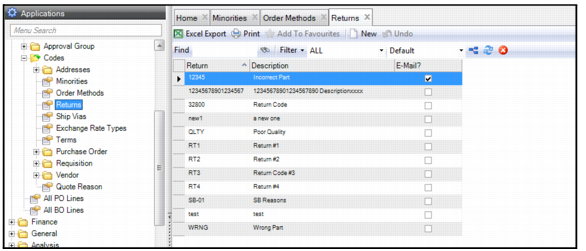
The return codes, which are in Purchasing|Codes|Returns, explain why an item was returned to the vendor. Return codes provide you with a better view of vendor history and improve the reporting capabilities on vendor performance. These codes allow you to determine the causes and gauge the frequency of the reasons for vendor returns such as quality issues or incorrect parts. EAM also provides an option to have an e-mail automatically sent to the buyer associated with the requisition’s PO each time a certain return code is used.
Follow these steps to add a return code:
1 Open the Returns browse and click New.
2 Enter the following information:
Return
Enter the return code.
Description
Enter a brief description for this type of return.
E-Mail?
Select this check box to have an e-mail sent to the buyer associated with the requisition’s PO anytime this return code is used.
3 Press Enter to save.
Return Codes
Ship-Via Codes
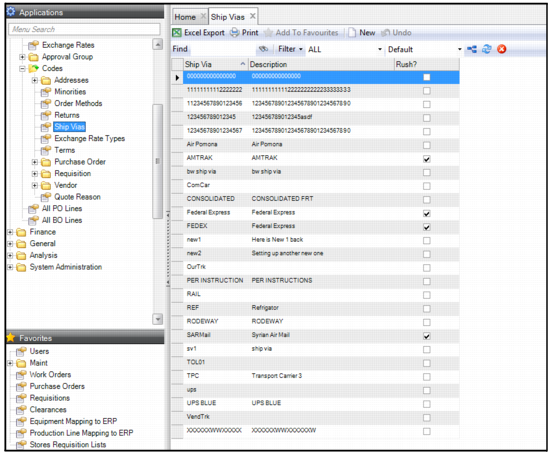
The ship-via codes, located in Purchasing|Codes|Ship Vias, are methods by which goods can be shipped to a plant. The ship-via code is associated with a vendor record when the vendor is used on a purchase order. The ship-via code from the vendor record is pulled into the purchase order Ship Via field. If necessary, the buyer can override this code.
Follow these steps to add a ship-via code:
1 Open the Ship Vias browse and click New.
2 Enter the following information:
Ship Via
Enter the ship-via code.
Description
Enter a brief description for this type of shipping method.
Rush?
Select this check box to identify rush orders. You can use to sort or group rush orders.
3 Press Enter to save.
Ship Via Codes
Exchange Rates
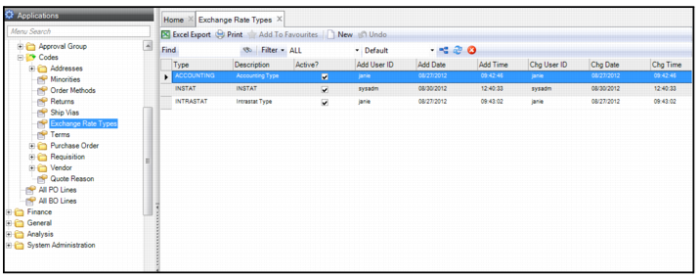
The exchange rate types are updated from System Administration|ERP Interface|Download|Currency Download|Rate Type. The rate types are from ERP exchange rates that are downloaded to EAM. EAM uses the accounting rate types.
Important: Exchange rate types are populated from ERP during implementation. Do not create new exchange rate types in EAM.
Exchange Rate Types
Terms Codes
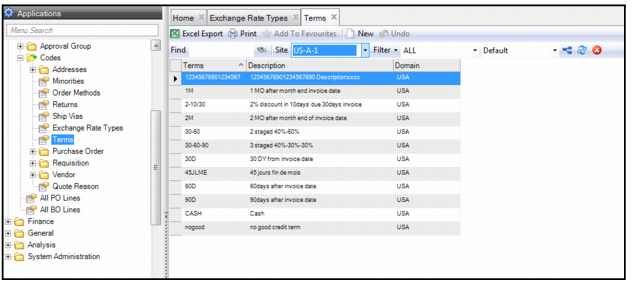
The terms codes, which are in Purchasing|Codes|Terms, represent the vendor’s terms for payment. You can download terms from the QAD ERP application at System Administration|ERP Interface|Download|Terms Download.
Follow these steps to add a terms code:
1 Open the Terms browse and click New.
2 Enter the terms code in the Terms field and then a brief description in the Description field.
3 Press Enter to save.
Terms Codes
Purchase Order Codes
Purchase order character 1 and character 2 codes are validation tables that are used with the PO Char 1 and 2 user-defined fields. For example, if you click in the PO Char 1 User-Defined field, the lookup allows you to select one of the items in the purchase order character 1 table.
For more information about using user-defined fields, see
User-Defined Fields.
PO Character 1 Codes
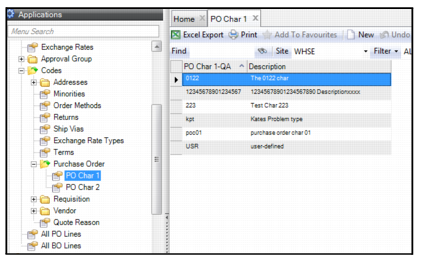
The PO character 1 codes, located in Purchasing|Codes|Purchase Order|PO Char 1, are codes that work with PO Character 1 user-defined fields.
To add a PO character 1 code, open the PO Character 1 browse and click New. Enter the code in the PO Char 1 field and a brief description of the code in the Description field. Press Enter to save.
PO Character 1 Codes
PO Character 2 Codes
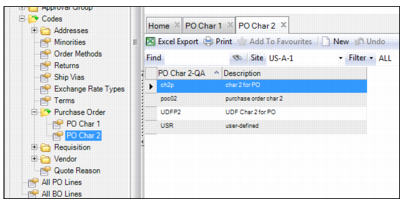
The PO character 2 codes, located in Purchasing|Codes|Purchase Order|PO Char 2, are codes that work with PO Character 2 user-defined fields.
To add a PO character 2 code, open the PO Character 2 browse and click New. Enter the code in the PO Char 2 field and a brief description of the code in the Description field. Press Enter to save.
PO Character 2 Codes
Requisition Codes
Requisition character 1 and character 2 codes are validation tables that are used with the Req Char 1 and 2 user-defined fields. For example, if you click in the Req Char 1 user-defined field, the lookup allows you to select one of the items in the req character 1 table.
For more information about using user-defined fields, see
User-Defined Fields.
Requisition Character 1 Codes
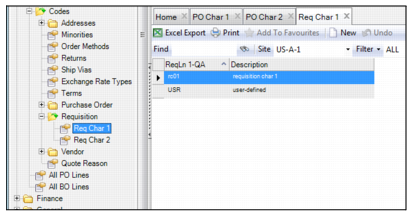
The requisition character 1 codes, located in Purchasing|Codes|Requisition, are codes that work with Req Character 1 user-defined fields.
To add a requisition character 1, open the Requisition Character 1 browse and click New. Enter the code in the Requisition Char 1 field and a brief description of the code in the Description field. Press Enter to save.
Codes: Requisition Character 1
Requisition Character 2 Codes
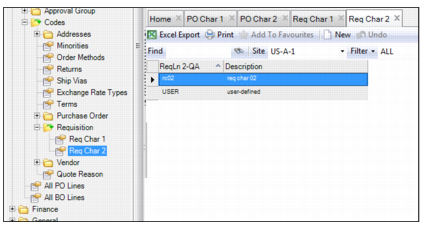
The requisition character 2 codes, located in Purchasing|Codes|Requisition, are codes that work with Req Character 2 user-defined fields.
Note: To add a requisition character 2, open the Requisition Character 2 browse and click New. Enter the code in the Requisition Char 2 field and a brief description of the code in the Description field. Press Enter to save.
Codes: Requisition Character 2
Vendor Codes
Vendor codes, which include status, type, and the user-defined character 1 and 2 codes, provide you with additional characteristics that you can attribute to a vendor. When used, these codes give you additional sorting and filtering options when searching for specific vendors.
For more information on using user-defined fields, see
User-Defined Fields.
Vendor Status Codes
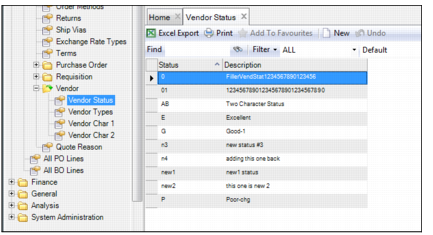
Vendor status codes are located in Purchasing|Codes|Vendor|Vendor Status. These codes are supporting data for the Vendor Status field, located on the Codes tab in a vendor record.
To add a vendor status code, open the Vendor Status browse and click New. Enter the code in the Status field and a brief description of the code in the Description field. Press Enter to save.
Vendor Status Codes
Vendor Type Codes
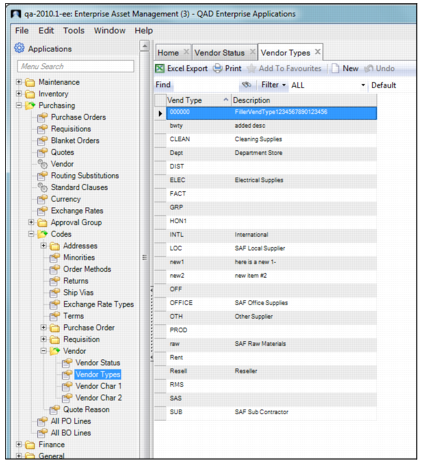
Vendor types codes are located in Purchasing|Codes|Vendor|Vendor Types. These codes serve as the supporting data for the Vendor Type field, located on the Codes tab in a vendor record.
To add a vendor type code, open the Vendor Types browse and click New. Enter the code in the Vend Type field and a brief description of the code in the Description field. Press Enter to save.
Vendor Type Codes
Vendor Character 1 Codes
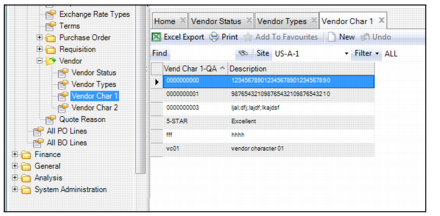
Vendor character 1 codes, located in Purchasing|Codes|Vendor|Vendor Char 1, are codes that work with Vendor Character 1 user-defined fields.
To add a vendor character 1 code, open the Vendor Char 1 browse and click New. Enter the code in the Vend Char 1 field and a brief description of the code in the Description field. Press Enter to save.
Vendor Character 1 Codes
Vendor Character 2 Codes
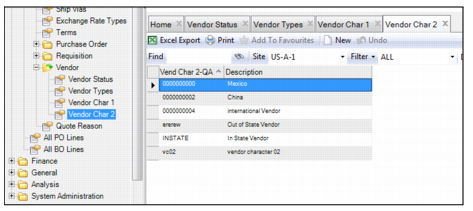
Vendor character 2 codes, located in Purchasing|Codes|Vendor|Vendor Char 2, are codes that work with Vendor Character 2 user-defined fields.
To add a vendor character 2 code, open the Vendor Char 2 browse and click New. Enter the code in the Vend Char 2 field and a brief description of the code in the Description field. Press Enter to save.
Vendor Character 2 Codes
Quote Reason
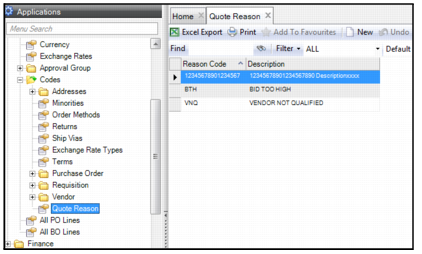
The quote reason codes, located in Purchasing|Codes|Quote Reason, are the reasons why a vendor was not awarded the bid on a selected quote line.
To add a quote reason code, open the Quote Reason browse and click New. Enter the quote reason code in the Reason Code field and short description in the Description field.
Quote Reason Codes