Authorizing a Requisition
To authorize a requisition, open the requisition. Select Authorize from the Action menu. When you select the Authorize action, the requisition begins the approval routing process.
If you do not have a large enough spending limit, the requisition is routed to the approval group. See
Requisition Approval Group.
Note: If you have a large enough spending limit and the authority for the associated accounting structure, and the approval group has no quality person, you can authorize the requisition without going through routing.
Authorize Multiple Requisitions
To authorize multiple requisitions at the same time, select the requisitions and then select Global Authorize from the Requisition Action menu.
Note: The Global Authorize option is only active if multiple requisitions are selected.
Stop Authorization
Only the initiator can stop a requisition during the approval routing. If the initiator stops the routing, an e-mail is sent to the person who is the next in line to authorize the requisition, indicating that the routing has been stopped. When you stop authorization, the routing status on the requisition changes from Routing to blank, the requisition status remains P (Pending), and no routing history is maintained. If you stop authorization and then start it again, the routing starts from the beginning.
To cancel a requisition from being authorized, open the requisition and select Stop Routing from the Action menu.
Maintain a Budget
You can use a requisition budget to manage authorized requisition spending, to be notified when spending exceeds set limits, and to be e-mailed when requisitions have been approved using over budget allowances.
Over Budget Requisition Approvals
To use over budget requisition approvals, set the following criteria.
• Ensure that a requisition budget is defined in Accounting|Requisition Budget.
• Specify YTD or Current Period in the General|Business Units|Sites|Authorization Options tab.
• Define budget options in General|Business Units|Sites|Purchase Order tab.
• Add a Req over Budget Limit amount in System Administration|Users|Detail tab.
Approval Routings
When a requisition is routed for authorization through the Action menu, EAM checks the budget limit and over budget limit of the individual user tasked with authorizing the requisition, or the users within the approval group. If the requisition amount does not exceed any limits, it moves to the next step of the authorization process. However, if the budget amount reaches its limit but is within the over budget limit of the specified authorizer or approval group, a routing is created for the requisition and a line is placed in the associated e-mail informing the user that the over budget amount was used. If the requisition amount exceeds all over budget limits, the routing is stopped and the user sees a display message that no one in the approval group has a high enough dollar value to authorize the requisition.
View Authorization Status
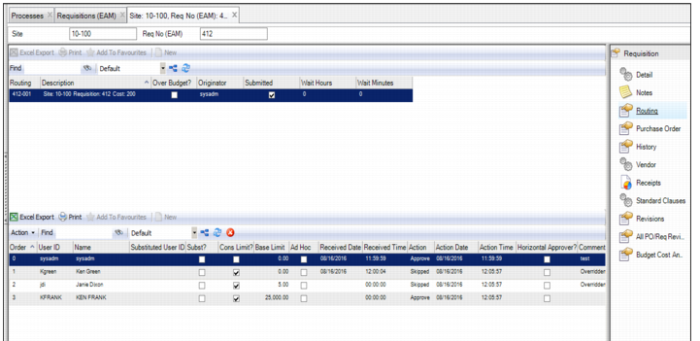
To view the authorization status for the requisition, open the requisition and select the Routing submenu.
Requisition Header: Routing Submenu
The upper browse displays the routing records for the requisition. Each time this requisition has been routed for approval, a record of that routing appears in this browse.
The lower browse shows the list of approvers for the selected routing. It displays the users who approved the requisition and those who still need to approve the requisition. It also indicates if anyone has rejected the requisition.
Note: If anyone in the approval group had any important notes regarding the requisition, the notes are displayed in the Comment column.
The lower browse also captures any currency conversion that occurred if your domain’s base currency is different than the defined system approval limit currency. It displays the approval limit in both base and approval limit currencies, the exchange rate, and the date that a user took action on the requisition.
Note: If you take too long to approve a requisition, EAM provides a job in System Administration|Job Control that automatically forwards the routing approval to the next person on the list. See
Job Control Application.