User Approval Groups
When you create a requisition, purchase order, or blanket order and initiate the routing process using the Authorize action, the system locates the appropriate approval group and sends e-mails to the group requesting their approval.
Approval groups, which consist of individuals who have specific spending authority, allow companies to monitor and control costs across the organization. There are three types of approval groups:
• Requisition Approval Group. This group can authorize an expenditure for a specific cost center, sub-account, or a combination of the two.
Note: The group for cost center, sub-account, or the combination of the two is assigned in Chart of Accounts (COA) Requisition Approval. See
COA Requisition Approval.
If that does not apply, a Requisition Approval group can authorize expenditure for a specific cost center and/or account. These groups consist of users with specific spending authority and authorization to spend against cost center or account groups.
Note: Account and cost center groups are established in Finance|Groups. Associate one or more cost center or account groups per site with a requisition authorization initiator in the initiator’s user profile. When you initiate routing, EAM validates that you can purchase against the account or cost center on the requisition. See
Groups.
• Blanket Order Approval Group. This group authorizes the expiration amount, which is the total amount that can be spent and discounted on a blanket order.
• Purchase Order Approval Group. This group, composed of buyers and buyer managers, evaluates the total expense to the organization. The total expense can include many requisitions associated with one purchase order number.
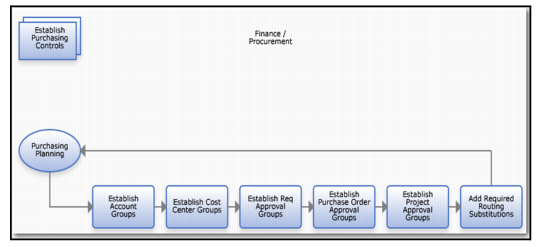
Establishing Purchasing Controls Process Flow
Establish Purchasing Controls Process Flow
1 Establish account groups.
2 Establish cost center groups.
3 Establish requisition approval groups.
4 Establish purchase order approval groups.
5 Establish project approval groups.
6 Add routing substitutions.
Requisition Approval Group
The requisition approval group can be associated with any number of account numbers or cost centers.
Note: Each account number and cost center can have only one approval group for account- or cost center-based routing. You can have only one approval group per site.
Follow these steps to create a requisition approval group:
1 Open the Requisition Approval Group browse in Purchasing|User Approval Groups.
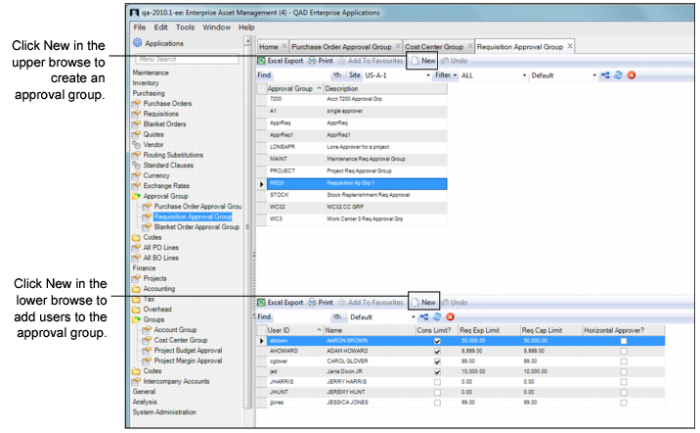
2 Click New in the upper browse.
Requisition Approval Group Browse
3 Enter the approval group name and then a short description. Press Enter to save.
4 Add users to the approval group by selecting New in the lower browse.
Note: Only users with the Req Limit? check box selected can be added to a requisition approval group. See
User Tabs.
5 In the User ID field, use the lookup to select the user to add to the group. Press Enter to auto-fill the other fields with data from the user record:
Name
The user’s name.
Req Exp Limit
The user’s approval limit for requisitions that are not flagged as a capital expense. Enter the value in the currency defined as the system’s Approval Limit Currency. See
Approval Limit Currency.
Req Cap Limit
The user’s approval limit for requisitions that are flagged as a capital expense. Enter the value in the currency defined as the system’s Approval Limit Currency. See
Approval Limit Currency.
Horizontal Approver?
If this check box is selected, the user is a horizontal approver. Horizontal approvers align with requisition approvers by having the same approval limit. As the requisition approver approves, then the horizontal approver is routed to next for approval. When this option is selected, the final approver is a horizontal approver with the required spending amount.
6 If the user authorizes requisitions based on spending authority, select the Cons Limit? check box.
Note: If this check box is not selected, the user is considered a quality approver who can only verify the quality of the vendor, budget, and so on.
7 Continue to add users to the group until it is complete.
Purchase Order Approval Group
The purchase order approval group is composed of buyers and buyer managers. This group evaluates the total expense to the organization, which can include many requisitions associated with one purchase order number.
The user who initially authorizes the purchase order determines the approval group to which the PO goes:
• If the initial user who authorizes the purchase order has a sufficient PO spending limit, the PO is approved.
• If the initial user does not have a sufficient PO spending limit, EAM verifies the spending limits and routes it to the buyer’s PO approval group, which is identified in the employee’s record.
EAM routes the PO through the group based on individual spending authority. The routing starts with the user with the lowest spending limit. The PO is authorized when it reaches the approver with a sufficient spending limit.
Follow these steps to create a purchase order approval group:
1 Open the Purchase Order Approval Group browse in Purchasing|User Approval Groups.
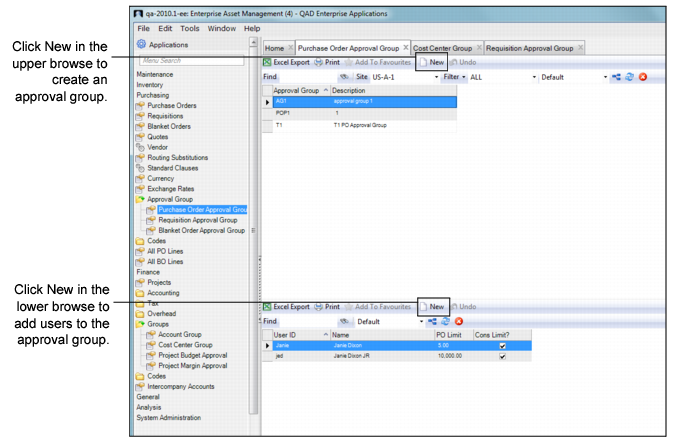
2 Click New in the upper browse.
Purchase Order Approval Group Browse
3 Enter the approval group name and then a short description. Press Enter to save.
4 Add users to the approval group by selecting New in the lower browse.
Note: Only users with the PO Limit? check box selected can be added to a purchase order approval group. See
User Tabs.
5 In the User ID field, use the lookup to select the user to add to the group. Press Enter to auto-fill the other fields with data from the user record:
Name
The user’s name.
PO Limit
The user’s PO approval limit. Enter the value in the currency defined as the system’s Approval Limit Currency. See
Approval Limit Currency.
Note: Exchange rate fluctuations after a PO has been routed could result in an approval group that has no users with a high enough approval limit to authorize a PO. Ensure that the approval limits in the group are high enough to avoid this scenario if the exchange rate changes after the PO is routed.
6 If the user authorizes the purchase order based on spending authority, select the Cons Limit? check box.
Note: If this check box is not selected, the user is considered a quality approver who can verify who can verify quality of vendor, budget, and so on.
7 Continue to add users to the group until it is complete.
Blanket Order Approval Group
The blanket order approval group authorizes the expiration amount, which is the total amount that can be spent and discounted on a blanket order:
• If the initial user who authorizes the blanket order has a sufficient spending limit, the blanket order is approved.
• If the initial user does not have a sufficient spending limit for the blanket order, EAM verifies the spending limits and routes it to the buyer’s blanket order approval group, which is identified in the employee’s record.
EAM routes the blanket order through the group based on individual spending authority. The routing starts with the user with the lowest spending limit. The blanket order is authorized when it reaches the approver with a sufficient spending limit.
Follow these steps to create a blanket order approval group:
1 Open the Blanket Order Approval Group browse in Purchasing|User Approval Groups.
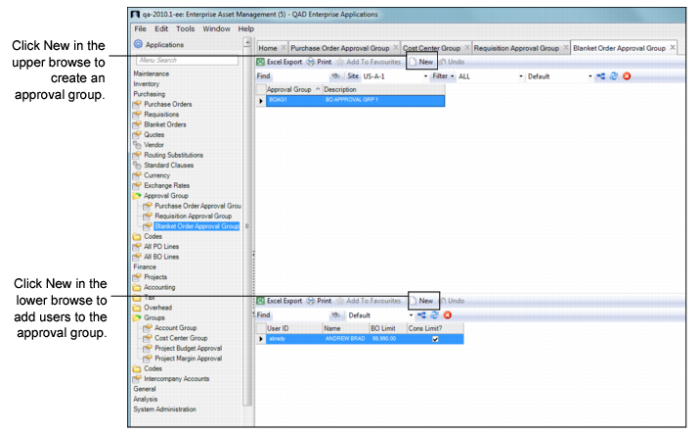
2 Click New in the upper browse.
Blanket Order Approval Group Browse
3 Enter the approval group name and then a short description. Press Enter to save.
4 Add users to the approval group by selecting New in the lower browse.
Note: Only users with the BO Limit? check box selected can be added to a blanket order approval group. See
User Tabs.
5 In the User ID field, use the lookup to select the user to add to the group. Press Enter to auto-fill the other fields with data from the user record:
Name
The user’s name.
BO Limit
The user’s blanket order approval limit. Enter the value in the currency defined as the system’s Approval Limit Currency. See
Approval Limit Currency.
Note: Exchange rate fluctuations after a BO has been routed could result in an approval group that has no users with a high enough approval limit to authorize a BO. Ensure that the approval limits in the group are high enough to avoid this scenario if the exchange rate changes after the BO is routed.
6 If the user authorizes the purchase order based on spending authority, select the Cons Limit? check box.
Note: If this check box is cleared, the user is considered to be a quality approver who can only verify quality of vendor, budget, and so on.
7 Continue to add users to the group until it is complete.