Authorize a Purchase Order
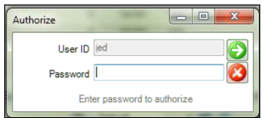
To authorize a PO, open the PO and select Authorize from the Action menu. Enter your user name and password and click OK.
When you select the Authorize action, the PO begins the approval routing process.
If you do not have a large enough spending limit, the PO is routed to the approval group. See
Purchase Order Approval Group.
If you have a large enough spending limit and the authority for the associated accounting structure and the approval group has no quality person, you can authorize the PO without going through routing.
Authorize Multiple Purchase Orders
To authorize multiple purchase orders at the same time, select the purchase orders and then select Global Authorize from the Purchase Order Action menu.
Note: The Global Authorize option is only active if you select multiple POs.
View the Approval Status of a Purchase Order
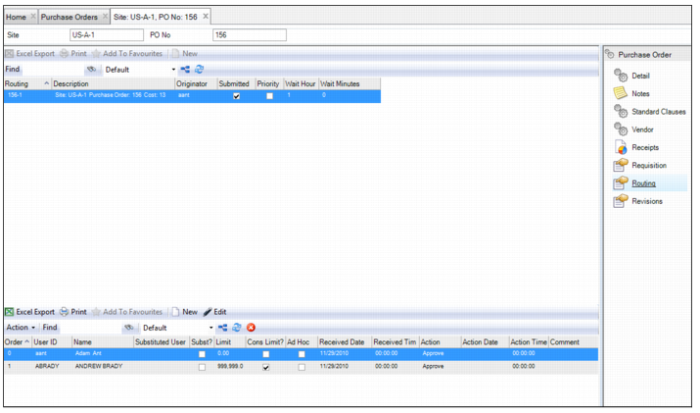
To view the authorization status for the PO, open the PO and select the Routing submenu.
Purchase Order: Routing Submenu
The upper browse displays the routing records for the PO. Each time this PO is routed for approval, a record of that routing appears in this browse.
The lower browse shows the list of approvers for the selected routing. It displays the users who approved the PO and those who still need to approve the PO. It also indicates if anyone has rejected the PO.
Note: If anyone in the approval group had any important notes regarding the PO, the notes are displayed in the Comment column.
The lower browse also captures any currency conversion that occurred if your domain’s base currency is different than the defined system approval limit currency. It displays the approval limit in both base and approval limit currencies, the exchange rate, and the date that a user took action on the PO.
Note: If you take too long to approve a PO, EAM provides a job in System Administration|Job Control that automatically forwards the routing approval to the next person on the list. See
Job Control Application.
Approving a PO
Follow these steps to approve a PO:
1 Open the Purchase Order browse and select the PO.
2 Select Authorize from the Action menu. A window opens prompting you for your password. Enter your password and click the green arrow button.
Approving a PO
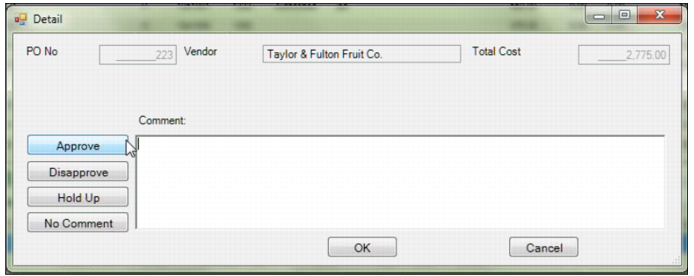
A detail window opens, which contains the important information about the PO and allows you to approve, disapprove, or place a hold on the PO.
PO No
Displays the PO number.
Vendor
Displays the vendor associated with the PO.
Total Cost
Displays the amount of money that is requested for approval.
Approve
Click this button to approve the PO. The PO is then routed to the next person on the routing list.
Disapprove
Click this button to disapprove the PO.
Hold Up
Click this button to stop notifications for this PO. The action stops notifications and causes EAM to display the status Hold Up in the PO Routing submenu, but does not freeze routing. You can still approve or disapprove a PO while it is in the Hold Up status.
No Comment
Click this button if you do not have any comments to include with the PO.
Comment field
Enter any comments in the Comment field.
Approving a PO
3 Click the Approve button to approve the PO. Then, click OK.
Globally Approving POs
You can approve multiple POs at once using the Global Authorize action on the Purchase Orders browse.
Follow these steps to globally approve multiple POs:
1 Open the Purchase Order browse and select the POs.
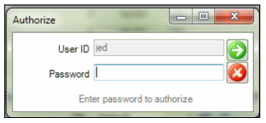
2 Select Global Authorize from the Action menu. A window opens prompting you for your password. Enter your password and click the green arrow button.
Note: When you are logged in to EAM and are listed as the Next Approver for the selected POs, you do not have to enter your password to approve or disapprove the POs. See
Suppress Password for PO Next Approver.
Approving Multiple POs
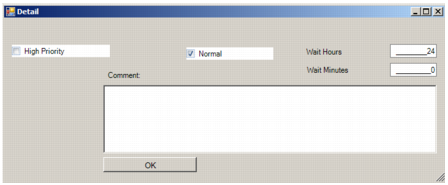
A detail window opens.
Global PO Approval
High Priority
Marks the e-mail with the high priority flag.
Normal
Does not mark the e-mail as high priority.
Wait Hours
The number of hours a request for purchase order approval waits in an individual’s mailbox. Defaults from the setting on System Control|Detail.
Wait Minutes
The number of minutes a request for purchase order approval waits in an individual’s mailbox. Defaults from the setting on System Control|Detail.
Comments
Enter any comments in the Comment field.
3 Click OK to authorize the POs.