Row Groups
A row group is a set of data retrieval specifications that the system uses to create the lines of the report. Row groups are reusable. You can combine them with various column groups to produce different reports using Report Maintenance.
Plan the general organization of the rows in advance because you cannot move them once they are created. However, you can insert rows or delete them as needed. Any changes you make to a row group updates the reports that use it.
You can define three types of row groups.
• Text Rows. Text rows print one or more lines within the row labels column.
• Data Rows. These rows set up the data retrieval specifications. Create a data row for each segment of data you want on the report. You can specify either a single GL item (such as account 1000) or an analysis code. Analysis codes define a group of similar GL items (for example, all inventory accounts). If you use an analysis code, you can explode the detail, causing the GL items within the analysis code to appear on the report. See
Analysis Codes.
• Calculation Rows. These rows perform an operation on one or more rows. Calculation rows can only refer to rows above them.
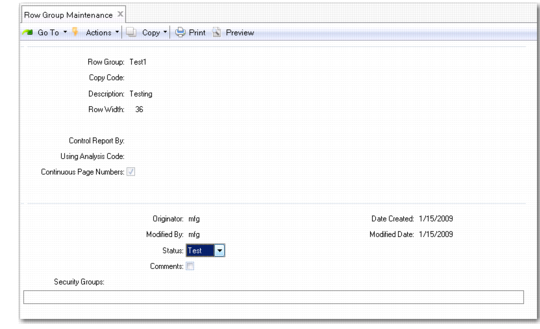
Use Row Group Maintenance (25.17.5) to establish a row group.
Row Group Maintenance (25.17.5)
Row Group
Enter up to eight characters to uniquely identify the row group.
Copy Code
Enter a row group code to create a new code based on the one specified. All rows within the row group are copied. This field is editable only when the record is new. You can copy only row groups to which you have access.
Description
Enter a brief description of the new row group (up to 24 characters).
Row Width
Enter the width, in characters, of the column that shows the row labels for this row group on your reports. Accept the default from GL Report Writer Control or assign a new row width.
Control Report By
Optionally, enter the GL code to which the controlling hierarchy analysis code applies. This determines the type of analysis code selected in the Using Analysis Code. You can assign a controlling hierarchy in Row Group Maintenance (25.17.5) or Report Maintenance (25.17.9).
Using Analysis Code
Specify the analysis code used to set up a controlling hierarchy. The controlling hierarchy feature is optional.
Continuous Page Numbers
Enter No to restart page numbers for each controlling hierarchy group.
Status
Select Test or Live. The field is for information only, and has no effect on how report components operate. Use test to develop your row groups, and change the status to live when you have run the report successfully.
Comments
Enter Yes to view the comments screen.
Security Groups
Leave blank to grant access to all users. Adding security groups in this field limits access to the listed users. If you add security groups, be sure to add your own user ID. Use a comma to separate user IDs.
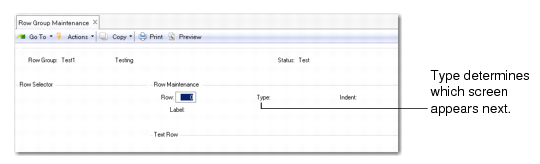
Row Group Maintenance, Second Screen
Row
Enter a four-character numeric identifier for this row.
Type
Enter the function of the row—Text, Data, or Calculation. Once you complete the process for defining a row, you cannot change its type.
Indent
Enter the number of characters the row label is indented on the report.
Label
Enter an alphanumeric row label. Can be blank. For text rows, the label appears before the text. For data and calculation rows, the label appears alongside the row figures. If the row includes exploded lines of detail, the system uses the names of the GL items as labels, and the label appears on the total and title lines. The width of the label is controlled by the Row Width field. See
Row Width.