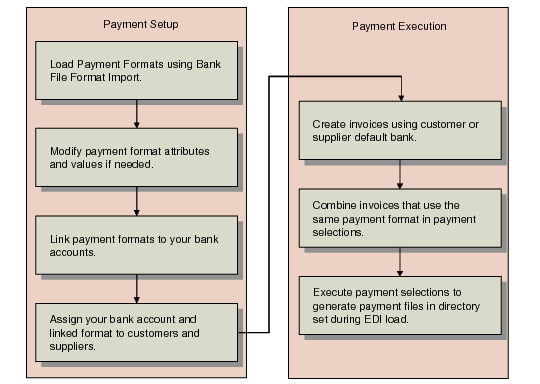
Payment Format Setup Workflow
A number of different types of data must be set up before you can generate customer and supplier payments.
The following figure illustrates the general flow. This figure assumes that you have already created bank account validations and defined your entity banks. See
Define Bank Account Formats and
Define Own Bank Number.
Setting Up Payment Data
1 Load the payment formats you need using Bank File Format Import. This function imports predefined file formats for electronic bank files.
Note: You can also use Payment Format Excel Integration to create a template and load data. For more information on Excel Integration, see
Introduction to QAD Enterprise Applications User Guide. However, this is typically not required, since Bank File Format Import provides this data for you.
2 Typically, no changes are needed to these formats, but if necessary attributes and values can be changed. See
Payment Format Maintenance.
5 When this setup is complete, you can create invoices using this payment information, combine them in payment selections, and execute the selections to generate payment files. These activities are described in
Customer Payments.