General Tab
Supplier Code/Business Relation Name/Reference/Posting/Posting Date/TC Invoice Amount
These read-only fields are automatically populated when you enter the invoice details in the fields below. The system generates a posting reference for all invoices and credit notes, based on the combination of the entity, year, and daybook.
Note: Following the initial installation, you use Record Number Maintain (36.16.21.2) to set the numbering sequence.
Supplier Code
Specify the code that identifies the supplier to be paid with this invoice. The business relation code associated with the supplier automatically displays next to it.
When you create a new invoice, you can specify a business relation before selecting the supplier. In this case, the supplier code is loaded. When more than one customer is linked to the business relation, you must select from the available supplier codes.
Business Relation
The system displays the business relation code linked to the supplier and the business relation name.
Reference
Enter an alphanumeric reference to help identify the invoice in the system. This reference is typically the ID number of the invoice received from the supplier.
Note: Supplier Invoice Create validates the uniqueness of the invoice reference for the same invoice type and supplier within the current entity. If you enter a duplicate reference, you receive a warning message, “The reference already exists on another invoice for this supplier,” when you navigate away from the General tab for the first time. The invoice can still be posted.
The duplicate check is also made when you save the invoice. The warning is displayed once if a second validation on save is not required. For example, if you create an invoice and the warning is raised early in the process, the warning is not raised again when you save the invoice if you did not make any subsequent changes that would require a second validation.
Description
Enter a brief description (maximum 40 characters) of the invoice. This field is mandatory. The system generates a default description based on the Reference and Supplier Code.
Registration Number
The Registration Number field identifies all supplier invoices and credit notes in the system, both initial and standard, and is an automatic number generated by entity and year.
PO Number
If you are matching this invoice to PO receipts, you can right-click this grid to add new rows for the numbers of the receipts. However, this step is not mandatory; you can add PO numbers separately in receiver matching.
Invoice Type
This field displays the invoice type. When creating an invoice, choose the invoice type from the drop-down list:
• Invoice
• Credit Note
• Invoice Correction
• Credit Note Correction
Invoice Correction and Credit Note Correction display as choices only when the appropriate daybook types have already been defined.
Daybook Set Code
Specify the daybook set you want to use to number the invoice.
The default value is the daybook set associated with the supplier in Supplier Data Maintenance (2.3.1). However, if you specified a PO number in the PO Number field, the daybook set on the PO overrides the daybook set on the supplier data record if they are different, and defaults instead. If you specify more than one PO in the PO Number grid, the daybook set associated with the first PO defaults in. You can overwrite the default value.
Site
If daybook sets by site is activated, specify the site for which you want to use specific invoice numbering. The default value is the site associated with the supplier in Supplier Data Maintenance (2.3.1). However, if you specified a PO in the PO Number grid, the site on the PO overrides the site on the supplier data record if they are different, and defaults instead. If you specified more than one PO in the PO Number grid, the site associated with the first PO defaults in.
Daybook Code
Specify an internal daybook that matches the invoice type: supplier invoice, invoice correction, credit note, or credit note correction. The system-generated invoice number is based on the daybook.
Year/Period
Specify the accounting year and period for the invoice. The system defaults to the accounting year and period associated with the posting date. If you modify these fields, the posting and tax dates are changed correspondingly.
Posting Date
Specify the date on which the invoice is to be posted. This date defaults from the invoice creation date.
Invoice Date
Specify an invoice creation date; the default is the system date. A warning displays if this date is not prior to the posting date or within the same GL period as the posting date.
The system uses the invoice date with the credit terms to calculate due date and discount date.
TC Invoice Amount
Enter the total invoice amount, including tax, and specify a transaction currency. Currency defaults from the supplier record.
You can save zero-value invoices, which have no TC invoice amount. The system displays a warning to prevent you from doing so by mistake, which will not be detected until you attempt to match the invoice. This warning also displays if you attempt to start receiver matching from within the invoice. A similar warning is displayed when saving customer invoices.
Exchange Rate
If the transaction currency is not the same as the domain base currency, the applicable accounting exchange rate displays and can be edited; otherwise, the system displays 1 and the field cannot be changed. The BC Invoice Amount is calculated based on the exchange rate.
If you modify the BC Invoice Amount, the exchange rate is automatically adjusted.
Example: The base currency is Euro, the transaction currency is British Pounds (GBP), and the default exchange rate for these currencies is 0.5 (2 euro to 1 GBP). The transaction amount is 1000 euro, and the base currency amount is 500 GBP. By increasing the base currency amount to 750 GBP, you change the exchange rate for this transaction from 0.5 to 0.75.
BC Invoice Amount
When the transaction and base currencies are the same, this field is read-only and displays the same amount as TC Invoice Amount. Otherwise, it is TC amount adjusted based on the exchange rate.
If you modify the base currency amount when creating an invoice, the system automatically recalculates the exchange rate to ensure that the transaction currency amount remains the same.
Invoice Status Code
Specify an invoice status code to determine the approval, payment, and allocation status. The default code is taken from the supplier record.
The Invoice Status Code Allocation Status field displays the allocation status defined for this code.
Note: You can create initial invoices in the standard invoice screen by selecting an Initial Status invoice status code.
Taxable
If the Taxable Supplier field is selected on the Tax Info tab of the supplier, this field is selected by default. If the supplier has not been defined as taxable, you can select the Taxable field to subject the invoice to tax.
Tax Excluded
Select this field to indicate that the amount specified in the TC Invoice Amount field excludes tax. The system then uses the amount in the TC Invoice Amount field as the basis for tax calculation.
Clear the Tax Excluded field to indicate that the amount specified in the TC Invoice Amount field includes tax.
The Tax Excluded field facilitates Vertex use tax calculations and the recording of invoices with multiple taxes. It is also useful in situations where taxes apply, but do not appear on the invoice you received from the supplier.
Note: You can set a default value for the Tax Excluded field using the Invoice Total Excludes Tax field in the Taxes tab of the Entity record. See
Taxes Tab.
Sub-Account
Specify a sub-account code if the supplier control account is defined with sub-account analysis. This sub-account applies to all invoice posting lines.
For supplier invoices, the system refers to the supplier’s sub-account profile and uses the default sub-account specified in that profile for the sub-account shared set of the current domain.
Project
Specify a project to which this invoice is to be posted. This project is then displayed in the SI and Matching Posting tabs.
Cost Center Code
Specify a cost center to which this invoice is to be posted.
Note: For receiver matching, any postings to the PO Receipts account use the cost center associated with that account in Product Line Maintenance (1.2.1) or Purchasing Account Maintenance (1.2.5). This cost center is then displayed in the SI Posting and Matching Posting tabs.
Link to Invoice
Specify an invoice or credit note to which you want to link the current document. A credit note can have a one-to-one link to an invoice. You can select invoices for this supplier that have opening balances greater than or equal to the amount of the credit note. When you create the link, the system creates an automatic invoice adjustment (supplier adjustment) of the invoice and credit note with a posting date equal to that of the credit note, using a Supplier Adjustment daybook.
The following links are possible:
|
Current Document
|
Link To
|
|
Credit Note
|
Invoice
|
|
Invoice Correction
|
Invoice
|
|
Credit Note Correction
|
Credit Note
|
|
Invoice
|
Prepayment on an account
|
Note: When you select a correction invoice for a specific supplier in a browse, the results also display all previous invoices created for this supplier.
Approved/Lock Payment/Initial Status/Receiver Matching
The Approved, Lock Payment, Initial Status, and Receiver Matching fields display the values for these attributes of the invoice status code. See
Invoice Status Codes. If the Receiver Matching field is selected, this field makes the Matching button available, which you click to start Receiver Matching Create. See
Receiver Matching.
Open
When selected, this read-only field indicates the invoice has not been completely paid. It is updated automatically when complete payment is confirmed.
Selected
This read-only field indicates whether the invoice is included in a payment selection.
Role
This field display only when automatic ad-hoc workflow is enabled and the Specific SI Approval field is selected in the Maintain System function. This field ensures that approval workflow is applied to the supplier invoice, with an approval request sent to the specified role. For more details on workflow, see
QAD System Administration User Guide.
For more information on roles and security, see
QAD Security and Controls User Guide.
Adjustment
If you are linking documents, specify a daybook for the credit note and invoice adjustment. The internal daybook must be of type supplier adjustment (SA) and the voucher number is system-generated.
If you are matching this invoice against existing purchase order receipts, click Matching to display the Receiver Matching Create screen. See
Receiver Matching.
Chronological and Consecutive Invoice Numbering
The system includes three options for numbering supplier invoices, credit notes, and invoice and credit note corrections.
• Standard invoice numbering without numbering checks. This option is the default, and applies if consecutive and chronological numbering are not enabled.
• Consecutive invoice numbering.
If consecutive invoice numbering is enabled, the system ensures that invoice, credit note, and invoice and credit note correction numbers are consecutive without gaps.
• Chronological invoice numbering—an extension of consecutive invoice numbering.
If chronological invoice numbering is enabled, the system ensures that invoices, credit notes, and invoice and credit note corrections are sequentially numbered in the correct date order and without gaps. Chronological invoice numbering can only be enabled if consecutive invoice numbering is also enabled.
You can configure whether the system displays a warning or an error when users attempt to save transactions with past or future posting dates, thereby disrupting the chronological numbering sequences.
For standard, consecutive, and chronological invoice numbering; invoices, credit notes, and invoice and credit note corrections are numbered by entity, year, GL period, and daybook.
You enable consecutive and chronological invoice numbering, and select a warning or error option at domain level. See
Invoice Numbering Tab.
When consecutive and chronological invoice numbering are enabled, the numbering controls described in this section apply in Supplier Invoice Create, Receiver Matching Create and Receiver Matching Modify, Supplier Invoice Reverse, and Supplier Invoice Replace. Outside of AP, the controls also apply in Customer Invoice Create, Invoice Post and Print, Customer Opening Balance Create, and Supplier Opening Balance Create.
Note: When consecutive and chronological invoice numbering are enabled, numbering controls apply in Receiver Matching Create and Receiver Matching Modify when you match supplier invoices in the initial status. When an initial supplier invoice is matched, the supplier invoice becomes non-initial and an invoice number is generated for the record.
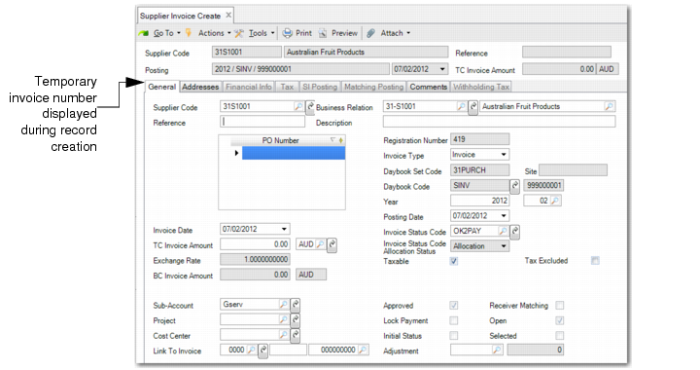
When consecutive and chronological numbering are enabled, the system does not populate the Posting field until after you save the invoice or credit note record.
Supplier Invoice Create, Temporary Invoice Number
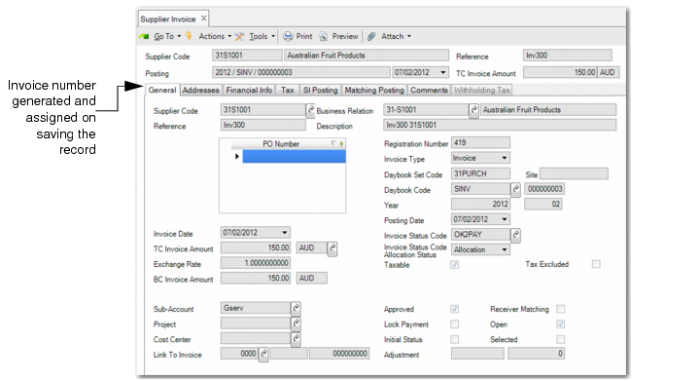
When you save the posting, the system assigns the invoice number.
Supplier Invoice Create, Invoice Number Assigned
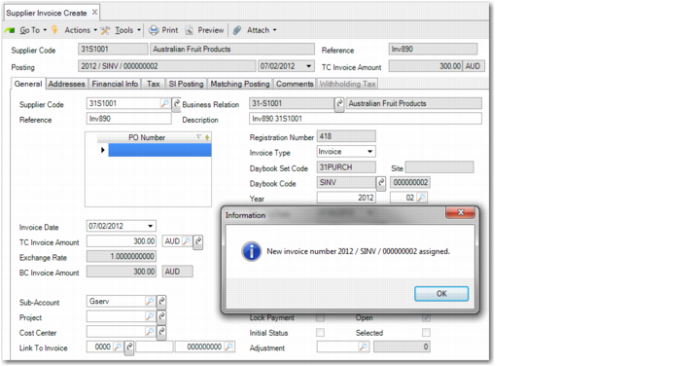
You also have the option to automatically display the supplier invoice number in a popup after you save the invoice. You enable this option at domain level.
Supplier Invoice Create, Invoice Number Popup
When chronological invoice numbering is enabled, the numbering controls described in this section apply in the supplier invoice functions:
• If you attempt to save an invoice with a posting date that is earlier than the posting date of a saved invoice with the same entity and daybook combination, the system displays an error or warning message, depending on the option selected in the domain Invoice Numbering tab.
Past Invoice Date Warning
• If you attempt to save an invoice with a future posting date, the system displays an error or a warning, depending on the option selected in the domain Invoice Numbering tab.
Future Posting Date Warning
• When you attempt to save the first invoice in a new GL period for a daybook and entity combination, the system displays a warning.
Note: This message is always a warning.
First Invoice in GL Period Warning