Financial Info Tab
Use the Financial Info tab to define credit terms and to view the banking and payment details for this supplier.
Credit Terms
Specify the credit terms that apply to this invoice. Credit terms determine invoice due dates and any settlement discounts on early payments. Credit terms also determine if multiple payments are made in stages based on invoice percentages.
When the credit terms code is changed, the invoice due date is recalculated.
Credit terms default from the supplier record.
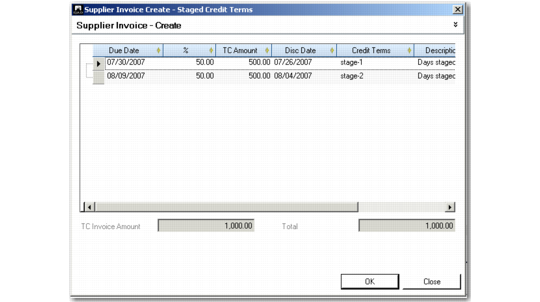
When you specify a credit terms code that has been defined with stages, an additional window displays for update of the terms. You can modify the percentage allocation of the terms or make other changes as needed.
You can review the amounts at any time by clicking Staged. The sum of the stage amounts must equal the total invoice amount.
Staged Payment, Modify
Due Date and Discount Due Date
These fields display the date when payment is due and the last date a discount applies, calculated by the system based on the credit terms and the invoice date. You can modify the due dates without affecting the credit terms.
Note: If the credit terms have a base date specified, this is used in the due date calculations rather than the invoice creation date.
BLWI Group
Specify a BLWI group code for the subject of this invoice, if valid. The BLWI status applies to certain trade transactions for organizations in Belgium and Luxemburg only.
Payment Reference
Optionally specify a unique reference number to be included in the supplier payment file. If the payment is of type Single Euro Payments Area (SEPA), this reference is a SEPA reference number from the supplier. If you enter an incorrect reference or no reference in this field and SEPA messages are turned on for this entity, a warning is displayed that the reference number is not a valid SEPA reference. This reference can also consist of a Transfer with Structured Message (TSM) number. The TSM is a standard reference numbering system for electronic transfers, used by many banks.
Bank Account Grid
The grid displays the default banking and payment details configured for this supplier. The default supplier bank account details are displayed in the first line of the grid.
If you have configured multiple accounts for this supplier, you can add these account details by inserting a new row for each account. You can use a maximum of three bank accounts to make the invoice payment, specifying the bank reference and amounts to be paid per account in each case. The total of the separate amounts must equal the total invoice amount.
Financial Info Tab, Accounts Grid
Validation
This field displays the bank format validation code for the supplier bank account. Account number validation ensures that the account number is formatted according to the regulations of the national banking system. See
Linking Payment Formats to Bank Accounts.
Supplier Bank Number
Specify the supplier bank account number. The bank number is mandatory when the payment instrument for the supplier is electronic.
Own Bank Number
This field displays the account number that makes payments to this supplier. This number is defined on the supplier record, and is normally the default bank account number for the entity you are currently working in.
Payment Format
This field displays the default format you have defined for payments from your bank to this supplier.
You can define multiple formats for each bank account, which are then selectable from a drop-down list. Only the formats initially defined for the account are available in this grid.
Payment Instrument
This field displays the payment instrument defined for payments to this supplier from your bank account.
Extension
This field displays the bank number extension. The extension defines the currency when an account has amounts in multiple currencies.
For example, if you have a single bank account with separate accounts defined for US dollars, euro, and yen, define a bank extension for each currency.
TC Payment Amount
Specify the amount in transaction currency that is to be paid to this bank account.The total invoice amount displays initially, but you can split this among three bank accounts.
Business Relation Code
This field displays the business relation for the supplier’s bank, and contains bank addressing information.
SWIFT Code
This field displays the SWIFT code of the bank, if any. SWIFT (the Society for Worldwide Interbank Financial Telecommunication) is a banking network for world-wide payments between banks. Also known as the BIC or Bank Identifier Code.
Formatted Bank Number
This field displays the supplier bank account number, formatted according to the validation you applied. See
Define Bank Account Formats.
Last Modified User/Date/Time
These read-only fields display the ID of the user who last updated this record and the date and time of update.
Purchase Type
Select a purchase type code, if required. Purchase types group invoices together for reporting, letting you track your cash expenditures for different types of expenses. For example, use EX for miscellaneous expenses and PO for purchases of raw materials or components.
You must use at least three purchase codes—for Rents, Royalties, and Non-Employee Compensation—if you are submitting 1099 tax reports. Each of these categories is summarized into a different box on the 1099 report.
A default purchase type can be assigned to the supplier. See
Purchase Type.
TC Non-Disc Amount
Specify the non-discount amount in the transaction currency. This is the amount of the invoice total that is not subject to any discount defined as part of an early settlement discount credit term. For example, if tax and freight charges cannot be discounted, specify that amount here.
TC Hold Amount
Specify an amount of the invoice total that is not to be paid. Once specified, the hold amount is taken into account during payment processing.
Hold amounts are typically an amount under dispute, such as an incorrect billing amount, and can be set to an amount less than or equal to the invoice total.
When you match invoices to receiver amounts, and the matching process produces an adverse variance, the Hold Variance Amount field in Supplier Invoice Control (28.24) determines whether the variance amount or the total invoice amount is put on hold. See
Supplier Invoice Control Settings. When set, the system displays a warning once the variance is calculated.
Once the hold amount is set, you can only select the rest of the amount for either automatic or manual payment. For example, if you enter an invoice for $100 and enter a hold amount of $20, the system allows you to select and pay $80 only.
Hold amounts must be:
Less than the invoice total and greater than zero (for invoices or correction invoices)
Greater than the document total and less than zero (for credit notes or correction credit notes)
If the document amount is less that zero—for example, a credit note—the hold amount must always be zero.
You can update the hold amount at any stage during invoice processing. You can also update the hold amount when using open item adjustment to match an invoice with a credit note. You remove the hold amount by setting it to zero.
During receiver matching, if adverse variances are calculated during the receiver matching process, the whole invoice amount or just the variance amount is placed on hold, depending on a setting in Supplier Invoice Control.
Bank GL Account
This field displays the account code of the bank account linked to the own bank account and payment format combination.