Setting Up AP Bank Charges
There are a number of steps to complete so that the system is configured to calculate bank charges on payments to suppliers:
• Record bank branch details.
• Record bank charges.
• Enable bank charges in your own bank’s GL account.
• Link your own bank account to payment methods, and specify which payment methods incur a bank charge.
• Configure the supplier record to show that the supplier pays the bank charge.
• Record the details of the supplier’s bank account.
Recording Bank Branch Details
Use Bank Branch Create (31.14.5), View (31.14.7), Delete (31.14.8), Modify (31.14.6), and Excel Integration (31.14.9) activities to create and update a list of valid branch codes that you can associate with a particular bank account in GL Account Create and Supplier Create. The integration activity allows you to upload a list of branch codes in an Excel file. The bank branch data is stored at system level.
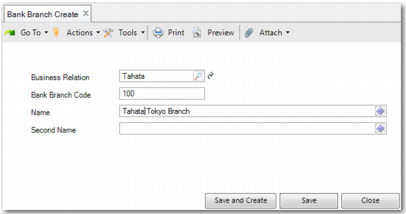
Bank Branch Create
Business Relation
The business relation representing a particular bank. It may be the bank that you transfer money from to make payments to suppliers, or it may be the supplier’s bank. This field is mandatory.
Bank Branch Code
Enter a code representing the particular bank branch. This field is mandatory.
Name
Enter the name of the bank branch. This field is mandatory.
Second Name
Enter another name or a description for the bank branch.
Different banks can have the same branch code. The combination of bank branch code and business relation is a unique identifier for a particular branch.
In Bank Branch Modify, you can change the Name and Second Name fields only. It is not possible to modify the Business Relation and Bank Branch Code fields.
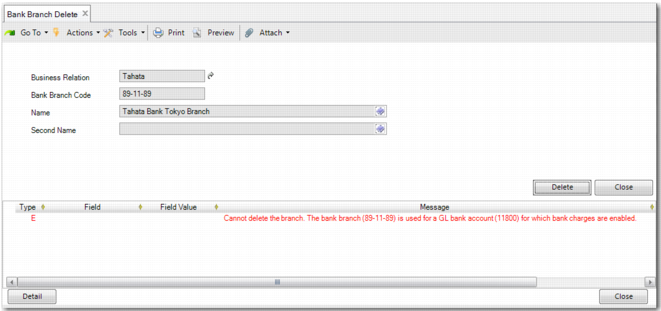
In Bank Branch Delete, if a branch has been linked to a bank account of yours that has Bank Charge selected in GL account, an error message is displayed and you cannot delete the bank branch. Similarly, if the bank branch is linked to a supplier bank account that is linked to one of your bank accounts that has Bank Charge selected, you cannot delete the bank branch.
Bank Branch Delete Error Message
Bank Branch Excel Integration
Bank Branch Excel Integration (31.14.9) allows you to view, import or export a list of bank branches to the system from an Excel file. The file has the following fields in each row: Business Relation Code, Bank Branch Code, Name, and Second Name. To view the list of bank branches currently stored in the system, right-click the screen and choose Load Bank Branch. To import a list of bank branches, right-click in the grid and choose Import from Excel. If the business relation codes in the file do not correspond to business relations in the system, an error displays. To export the list of bank branches to Excel for maintenance, choose Export to Excel for Maintenance. You can then edit the Excel file and import it into the system again.
Recording Bank Charge Rates
Use AP Bank Charge Create (31.14.1), Modify (31.14.2), View (31.14.3), and Delete (31.14.4) to create and update the bank charge rates published by your bank. The system uses this information when calculating charges for payments.
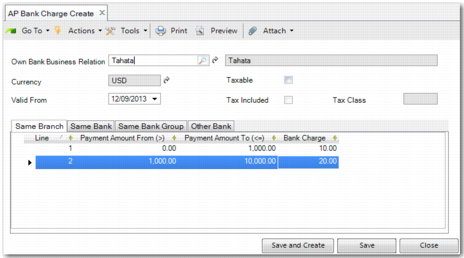
AP Bank Charge Create
Own Business Bank Relation
Select the business relation that represents your bank from the lookup. The lookup displays all business relations that:
• Are linked to your bank records in bank GL accounts
• Have the Bank Charge field selected in the bank GL account
• Have the same currency in the bank GL account as either the base currency or statutory currency of the current entity
Currency
Select a currency. Choose either the base currency or the statutory currency. Only payments made in this currency will have bank charges applied to them. After you choose the currency, it is not possible to modify this field when creating bank charges that are valid for this bank with different Valid From dates. It is also not possible to modify the currency of bank charges in AP Bank Charge Modify.
Valid From
Specify the date from which the bank charges are valid. You can create multiple bank charges with different dates. You cannot change the Valid From date using AP Bank Charge Modify.
Note: When paying an invoice using Supplier Payment Create (28.9.3.1), the payment posting date is used to find the valid bank charge rate.
Note: When paying for an invoice using Supplier Payment Selection Create (28.9.4.1), and the payment format is electronic transfer, the execution date is compared with the Valid From date in AP Bank Charge to find the valid bank charge rate. When paying for an invoice using Supplier Payment Selection Create (28.9.4.1), and the payment format is not electronic transfer, the posting date is compared with the Valid From date in AP Bank Charge to find the valid bank charge.
Taxable
Select this field when the bank charge is taxable. The tax charges that apply relate to the business relation of your bank. The Ship From zone is taken from your bank’s business relation. The Ship To zone is taken from your company’s business relation. For more information, see
Calculating Tax on Payments with AP Bank Charges.
Tax Included
Select this field when the bank charge set by the bank includes bank charge tax. If this field is selected, then the tax portion of the bank charges is deducted from the bank charge stored in AP Bank Charges.
If this field is not selected, the tax is not included in the bank charge, and the system calculates the tax on the bank charge. The system then deducts the bank tax from the payment to the supplier in addition to the deduction for the bank charge.
In each case, the bank charge is posted to a bank charge account, and the tax on the bank charge is posted to a separate tax account. For more information, see
Calculating Tax on Payments with AP Bank Charges.
Tax Class
This field is optional. This class is used in the lookup of the tax rate. For more information, see
Calculating Tax on Payments with AP Bank Charges.
The grid contains four tabs:
• Same Branch. Use this tab to enter the rates that the bank charges for transfers to accounts within the same bank branch.
• Same Bank. Use this tab to enter the rates that the bank charges for transfers to accounts at a different branch within the same bank.
• Same Bank Group. Use this tab to enter the rates that the bank charges for transfers to accounts to a different bank within the same bank group as your bank.
• Other Bank. Use this tab to enter the rates that the bank charges for transfers to accounts in any bank group that is not your bank’s bank group.
Each tab contains a grid that you can use to list the rates that the bank charges for a transfer. Each row contains a range and the charge that applies to transfers of amounts that lie within that range. Amounts greater than Payment Amount From (>) and up to and including Payment Amount To (<=) are charged the bank charge amount that appears in the corresponding row of the grid. For example, in
AP Bank Charge Create, transfers of $99.99 cost $10 and transfers of $1000.00 cost $20. As
AP Bank Charge Create displays the Same Bank tab, these charges refer to payments made to accounts at other branches of the bank at which your company’s account is located. There is validation to make sure that the Payment Amount To (<=) value of one row matches the payment amount Payment Amount From (>) value of the following row.
How the AP Bank Charge Rates are Used in a Payment
The system compares your bank details, stored on the Banking tab of GL Account Create, to those of your supplier’s bank, stored on the Banking tab of Supplier Create. From this information, it identifies and checks the appropriate bank charge tab. If the bank charge amount is not found in the corresponding tab, the system checks the other tabs until it finds one with a charge listed. The order in which the system checks the tabs is Same Branch, Same Bank, Same Bank Group, and Other Bank. If there are no bank charges found, the system displays an error informing you that no bank charge is available, and requesting that you define the bank charge in AP Bank Charge Create or AP Bank Charge Modify.
Note: The AP bank charge data can be used in any domain and entity where an own bank account exists that has the same business relation and currency as the bank charge table.
Setting Up Your Own Bank Account
In GL Account Create (25.3.13.1) and GL Account Modify (25.3.13.2), create or modify the details for the bank account that you use to make payments to the supplier.
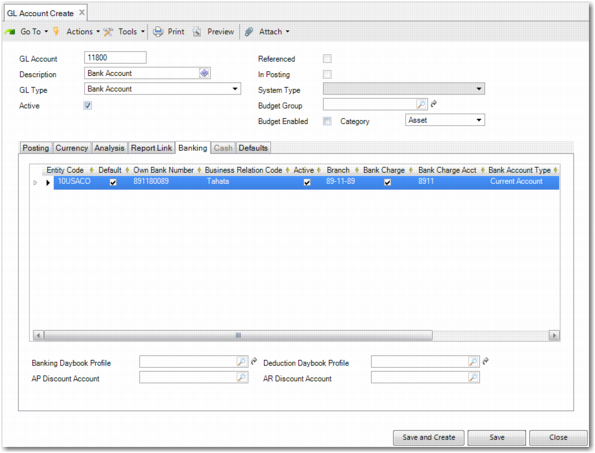
GL Account Create, Banking Tab shows the Banking tab of GL Account Create.
GL Account Create, Banking Tab
There are a number of fields to note on the Banking tab:
Business Relation Code
The business relation code of your bank. This field is mandatory when the Bank Charge field is selected.
Branch
Your bank branch. Define bank branches using Bank Branch Create or Bank Branch Excel Integration. This field is mandatory when the Bank Charge field is selected.
Bank Charge
Select this field if the bank account represented by this GL account will be used to pay bank charges. When you select this field and leave the Business Relation Code and Branch fields blank, an error displays. If you deselect this field and there is an associated payment format in Bank Payment Format Link (25.11.2) for this bank number, the following warning message displays: Bank number <bank_number> is associated with payment formats for which bank charges are activated.
For more information on linking the bank account to bank payment formats with bank charges, see
Linking the Account to the Payment Method.
Bank Charge Account
A GL account, of type Standard, that the bank charges are posted to. This must be a manual account of type Standard.
Bank Account Type
Specify the account type. This information is printed on the payment file sent to the bank during the AP payment process.
Linking the Account to the Payment Method
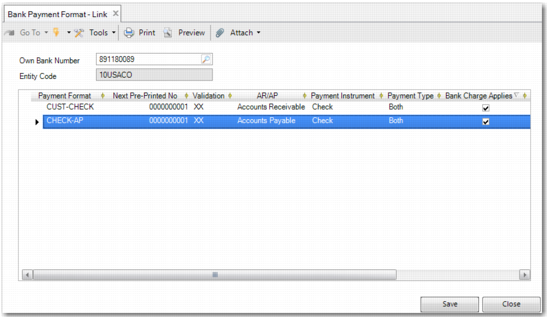
In Bank Payment Format Link (25.11.2), create a record for the bank account that you created in GL account. Specify the methods of payment that are acceptable for this bank account; for example, check payment. If the payment format requires a bank charge to be paid to the bank, select the Bank Charge Applies field. The Bank Charge Applies field is only applicable to accounts that are of type Accounts Payable. The Bank Charge Applies field is hidden by default and can be displayed by right-clicking the column header, choosing Columns, and selecting the Visible option in the appropriate row. For more information about linking payment formats to bank accounts, see
Linking Payment Formats to Bank Accounts.
Note: It is only possible to edit the Bank Charge Applies field if the Bank Charge field on the Banking tab of GL Account is selected for that particular bank account.
Bank Payment Format Link
Indicating if the Supplier Pays the Bank Charges
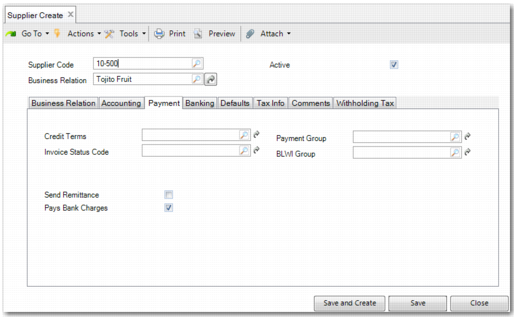
Use the Pays Bank Charges field in the Payment tab of Supplier Create to specify whether or not the supplier is liable for bank charges resulting from payment transfers to cover invoices. This field is hidden by default and can be added using Design mode.
Supplier Create: Payment Tab
Recording the Supplier’s Bank Account Details
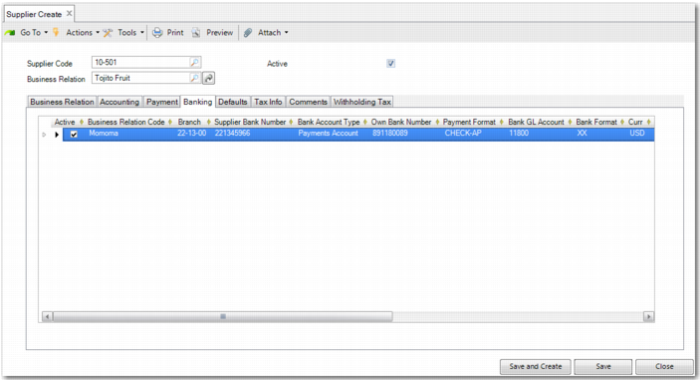
To facilitate the calculation of bank charges for payments to your supplier, record the details of the supplier’s bank account. On the Banking tab of Supplier Create, enter details of the supplier’s bank account and your bank account number. The system can then select the appropriate category. For example, if your bank account and your supplier’s bank account are in the same bank and same branch, a charge stored in the Same Branch tab of AP Bank Charges applies.
Supplier Create: Banking Tab displays banking information related to the supplier.
Supplier Create: Banking Tab
There are a number of important fields on the Banking tab:
Business Relation Code
The business relation representing the supplier’s bank account. If you select Bank Charge in GL Account Create for your own bank number, then this field is mandatory.
Branch
The branch of the supplier’s bank account. If you select Bank Charge in GL Account Create for your own bank number, then this field is mandatory.
Supplier Bank Number
The bank account number to which you transfer payments when paying the supplier.
Own Bank Number
The bank account number related to your bank’s business relation. When you specify the own bank number, you are prompted to choose from the payment formats that are linked to the bank account. Choose a payment format that the bank charge applies to. The Entity Code, Bank GL Account, Payment Format, and Payment Instrument fields in this row automatically populate when you populate the Own Bank Number field and choose from the available payment formats. This account is the bank account that you transfer funds from to pay your supplier.
Bank Account Type
This field allows you to specify the supplier’s bank account type. This information is printed on the payment file sent to the bank during the AP payment process.
Curr
Specify the currency of the account.