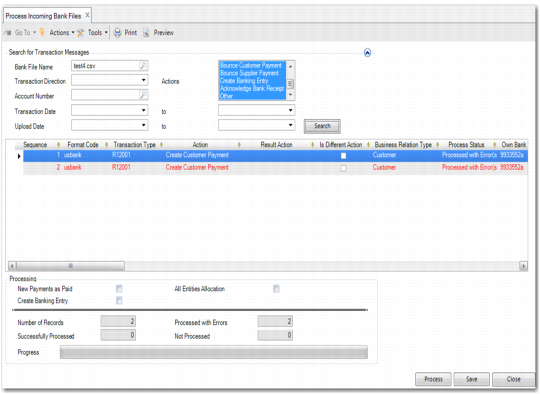
Process Incoming Bank Files Function
Use Process Incoming Bank Files (31.1.6) to select imported bank files, and to process the transactions contained in the files.
Use the search criteria in the Filter area to select the transactions contained in the file by transaction type, transaction date, upload date, or bank account number. The system loads these transactions into the transaction grid.
Each transaction displays the following information:
• Customer or supplier details, including name, business relation, address, and bank accounts
• Bank format in use
• Transaction code
• Value date
• Payment amount in transaction currency, and exchange rates if the original payment currency is different from the currency used by the bank
• Invoice details, if supplied by the bank
• Action to be performed on the processed transaction
• Processing status
• Batch
You then click Process to process these transactions and automatically generate the corresponding customer or supplier payment activity. Process Incoming Bank Files processes files in batches of up to 200 lines. The values in the Successfully Processed and Processed with Error fields at the bottom of the screen are updated after each batch is processed. You specify the batch size to use in the Bank File Batch Size field in System Maintain. See
QAD System Administration User Guide.
When the system cannot match the payment information in the transactions with payment records for the customer or supplier, an error message is displayed in the transaction line on the grid. You can then manually specify a customer, supplier, or payment in order to complete the processing.
Process Incoming Bank Files
Field Descriptions
Search for Transaction Messages
Bank File Name
Enter the name and location of the bank file, or select the file using the lookup.
Transaction Direction
Choose the transaction direction.
Incoming: Payments to your bank account from customers.
Outgoing: Payments from your bank account to suppliers.
All: All payments.
Account Number
Specify your bank account number. The system retrieves transactions involving this account only.
Transaction Date
Enter one or a range of dates for when the transactions occurred.
Upload Date
Enter one or a range of dates during which bank files were uploaded.
Actions
Retrieve transactions by their related actions. You map transaction types to corresponding payment actions using Bank File Format Maintenance.
Create Customer Payment
Pay Customer Payment
Pay Supplier Payment
Bounce Customer Payment
Bounce Supplier Payment
Create Banking Entry
Other
Acknowledge Bank Receipt
Click Search to add transactions to the grid.
Grid
The grid displays information on each transaction. You can use certain fields to manually select customer or supplier records when automatic processing of the transaction line has failed.
Sequence
This field displays a maximum of nine characters for the sequence number of the bank file.
Format Code
This field displays the format of the imported bank file. The Bank File Format also matches with the Trading Partner code used in EDI during the upload of the bank file with Document Import.
Transaction Type
This field displays code provided by the bank for the transaction type, and configured using Bank File Format Maintain. The transaction type indicates to the system what action it should take.
Action
This field displays the action to be performed on the transaction. It is also configured using Bank File Format Maintain.
Result Action
This field displays the action that was performed on the transaction. The action to perform in certain error cases can be configured in Payment Processing Configuration Maint. Therefore, the outcome can be different from the initially intended action; for example, create customer payment can result in an unallocated banking entry.
Is Different Action
This field indicates whether the action taken was different from the initially requested action specified in the bank file.
Business Relation Type
This field displays the business relation type, Customer or Supplier.
Process Status
This field displays the current status of the transaction processing. The possible values are: Not Processed, Processed OK, and Processed with Errors. When a different result action occurred based on the settings in Payment Processing Configuration Maint, the status is also set to Processed OK.
Own Bank Number
This field displays the own bank account number linked to the payment format used for this payment process.
Value Date
This field displays the date on which the bank processed the payment.
When creating banking entries, this date is used as the banking entry detail line date. It is also used as the posting date for GL transactions.
Statement Number
This field displays the number of the bank statement if supplied by the bank.
All lines with the same bank statement number are grouped in one banking entry.
Description
This field displays the transaction description supplied by the bank.
When creating banking entries, this description is used as the banking entry detail line description.
Direction
This field displays the transaction direction. The values are:
In: Used for inflow to your bank account (typically, payments from customers).
Out: Used for outflow from your bank account (typically, payments to suppliers).
Amount TC
This field displays the transaction amount of the payments (not invoices) in bank currency.
Currency
This field displays the currency in which the bank performed the transaction.
Original Amount TC
This field displays the amount of the original AR or AP payments in the payment currency.
Original Currency
This field displays the currency of the original AR or AP payment.
Exchange Rate
This field displays the exchange rate applied between the original currency and the bank currency.
Exchange Scale
This field displays the scale factor for the exchange rate above, if any is applied.
Original Transaction Date
This field displays the date on which the customer or supplier made the payment.
Customer Code
This field displays the customer code. If the customer code in the bank file does not match a customer record in the system, and if neither the customer name nor the customer bank account matches an existing customer record in the system, an error is displayed for the transaction. In this case, you can click to manually select a customer code to complete the transaction processing.
Customer Name
This field displays the customer name associated with the transaction.
If the customer name in the bank file does not match the customer record in the system, and neither the customer code nor the customer bank account matches an existing customer record in the system, an error is displayed for the transaction. In this case, you can click to manually select a customer to complete the transaction processing.
If a new name for an existing customer is used in a bank file, the system automatically enters the name and address details used in the bank file into a new remittance address for the business relation record of the customer.
Example: The customer name in the system is Auto Trader, and the customer name used in the bank file is Auto Traders. Use the customer browse to select this customer record. The system automatically enters Auto Traders and related address details as a new remittance address in the business relation for the customer Auto Trader. This ensures a future match between the bank file and the system records. See
Payment Tab.
Supplier Code
This field displays the supplier code used in the bank file.
If the supplier code in the bank file does not match a supplier record in the system, and if neither the supplier name nor the supplier bank account matches an existing supplier record in the system, an error is displayed for the transaction. In this case, you can click to manually select a supplier code to complete the transaction processing.
Supplier Name
This field displays the supplier name used in the bank file.
If the supplier name in the bank file does not match the supplier record in the system, and neither the supplier code nor the supplier bank account matches an existing supplier record in the system, an error is displayed for the transaction. In this case, you can click to manually select a supplier to complete the transaction processing.
Address Line
This field displays the first line of the customer or supplier address used in the bank file.
Address City
This field displays the city of the customer or supplier address used in the bank file.
Address Zip
This field displays the postal code of the customer or supplier address used in the bank file.
Address Country
This field displays the country of the customer or supplier address used in the bank file.
Bank Number
This field displays the bank account number used in the bank file.
If the account number does not match a bank account number in the system and neither the customer or supplier code nor the customer or supplier bank account matches an existing customer or supplier record in the system, an error is displayed for the transaction. In this case, you can click to manually select a bank account number to complete the transaction processing.
Payment Number
This field displays the customer or supplier payment number used in the bank file.
For transactions that change the status of an existing payment, this field is used to locate the payment in the system.
If this payment number does not match the payment number in the system, an error is displayed for the transaction. In this case, you can click to manually select a payment number to complete the transaction processing.
The search logic for existing payments is as follows:
a If the payment number is available in the bank file, the system searches for a payment with a payment reference that matches the payment number supplied by the bank.
If a payment is found, it is used. Otherwise, the system continues to step b.
b If a payment reference is included in the bank file, the system searches for a payment with the same payment reference as that supplied by the bank.
If a payment is found, it is used. Otherwise, the system continues to step c.
c The system searches for the payment based on the customer or supplier and the amount in the bank file. The bank file amount must be less than or equal to the open item amount for the payment and open item to be matched.
Payment Reference
This field displays the payment reference used in the bank file.
For transactions that change the status of an existing payment, this field is used to locate the payment in the system.
If this payment reference does not match the payment reference in the system, an error is displayed for the transaction. In this case, you can click to manually select a payment reference to complete the transaction processing. See
Payment Number also.
If you are using EDI Advanced Banking, this field contains the bank title number. See
EDI Advanced Banking for Accounts Receivable.
Invoices
This field displays the invoices paid with this transaction.
For transactions that create a new customer payment, this field is used to find the related invoices in the system
This field can contain a list of all customer invoices that are included in a new customer payment. This list is only used after the system succeeds in finding the customer, based on the name, code, or bank account. Then, the system starts looking for open invoices.
The invoice list is a comma- or blanks-separated list of customer invoice numbers, ideally containing the daybook and voucher number of each invoice. However, the invoice number alone works if the number is unique. The system compares this list with the customer invoice CI Text field, and with the combination of daybook and voucher number.
If these invoices do not match the original invoices in the system, an error is displayed for the transaction. A customer payment with status Initial is created, and you can click to manually select invoices to complete the transaction processing.
If you are using EDI Advanced Banking, this field contains the internal reference number. See
EDI Advanced Banking for Accounts Receivable.
Info
When creating banking entries, the Info field text is copied to the Banking Entry Create detail line information. See
Reference Details.
Cost
Use this field in custom developments when bank charges are to be allocated to a expense GL account.
Batch Number
When the imported bank file contains transactions to allocate to open items, this field displays the lock box batch ID of the imported transactions. The batch ID is also subsequently referenced in the Customer Activity Dashboard and the Supplier Activity Dashboard. The batch ID is also included in the Imported Bank File report.
If the lock box ID is unavailable, this field displays the filename of the imported bank file.
Reference
This field contains the transaction reference number.
TC Discount Amount
This field displays the TC discount amount on this transaction, if any.
TC Interest Amount
This field displays the TC interest amount on this transaction, if any.
Process Date
This field indicates the date on which the transaction was processed.
Create Banking Entry
This field saves the setting of the corresponding field on the processing screen as it is set at the time of processing.
New Payments As Paid
This field saves the setting of the corresponding field on the processing screen as it is set at the time of processing.
Processing Area
New Payments as Paid / New Payments as For Collection
This field displays the number of new payments created with Paid and For Collection statuses.
Create Banking Entry
Select this field to automatically create new banking entries for the new AR payments, and to link AR and AP Paid payments to banking entry lines. This field only applies for actions that result in a payment being paid. The actions are:
• Create Customer Payment (when the New Payments as Paid field is selected)
• Pay Customer Payment
• Pay Supplier Payment
All Entities Allocation
Select this field to process payments in other entities in the current domain. The system retrieves open items from all entities and displays the oldest invoice first. When an invoice belonging to another entity is paid with a payment, the system uses the domain cross-company accounts to create a cross-company payment.
Number of Records
This field displays the number of records selected for processing.
Successfully Processed
This field displays the number of records successfully processed. This value is updated after each batch is processed.
Important: When all batches are processed, the number of successfully processed records may change in some cases. These cases can occur if the system attempts to save a processed batch, and one of the underlying components fails to validate. The system rolls back the whole batch, and the values in the Successfully Processed and Processed with Errors fields are then updated accordingly.
Processed with Errors
This field displays the number of transactions processed with errors. This value is updated after each batch is processed.
When all batches are processed, the number of records processed with errors may change in some cases, as described for the Successfully Processed field.
Not Processed
This field indicates the number of lines that were not processed. Lines that are not processed are those within a batch that are not processed because of errors on other lines.
Progress
This field displays the percentage of transactions processed and a progress indicator.
Save
Click to save this session when processing is finished.
Stop
Click to interrupt the current processing.
Process
Click to process the selected transactions.
Close
Click to close the current window.