Structures Tab
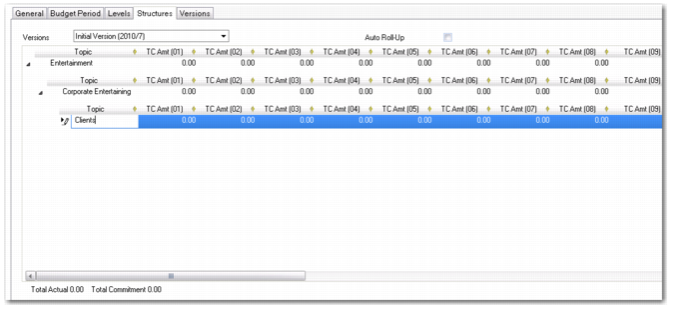
Use the Structures tab to create the budget topics according to the structure defined on the Levels tab, and enter data for each topic. You can create budget structures manually or by using the Excel hotlink. See
Linking with Excel.
The columns in the grid default from the settings on the General and Periods tab. The grid contains a column for the topic code, a budget column, and a forecast column for each budget period. In addition, if you select the Use Quantity Info field in the General tab, the grid includes a Budget Quantity and Forecast Quantity column for each budget period.
When you select a topic for an operational budget, the system displays the linked account or COA component and the total actuals for the topic at the bottom of the Structures tab.
Budget Create, Structures Tab
Field Descriptions
Versions
Choose the budget version for which you want to view or modify the structure and data. See
Versions Tab for more details on versions.
Auto Roll-up
Select to aggregate the budget data to the higher levels. When you select this, the system automatically sums budget, actuals, and forecast data from the lower budget levels and updates the subtotals at the higher levels.
The following fields display in the Structures grid:
Topic
Enter a description (maximum 40 characters) of the budget topic. This field also contains a lookup browse that enables you to select the topic you want. The Topic field lookup browse displays the COA Element type you select on the Levels tab. For example, if you choose General Ledger as your top-level COA Element type, the Topic field lookup browse for the first row in the grid displays a list of GL accounts.
If you do not enter a label in the topic field and you select a line in the lookup browse, the field label defaults to the actual element code.
TC Amt
Enter the budget amount for the corresponding budget period.
Forecast Cost
Enter a forecast for the corresponding budget period. After you have set up and entered budget data, you can enter new information that affects the budget in the forecast columns.
Budget Quantity, Forecast Quantity
Enter the budget quantity and forecast quantity for the corresponding budget period. These columns only appear if you selected the Use Quantity Info field in the General tab.
Link by Level
This field displays the COA element to which the topic is linked. You link a topic to a COA element using the Topic Properties window. See
Defining Topic Properties.
The Link by Level field is hidden by default. You can display the field by right-clicking in the grid and selecting Columns from the context menu. In the Columns window, indicate that you want to display the Link by Level field by selecting the check box beside that label.
Budget Group
This field displays the budget group to which the topic is linked. You link a topic to a budget group using the Topic Properties window. See
Defining Topic Properties.
The Budget Group field is hidden by default. You display the field as described in the Link by Level field description.
Alternate COA Group
This field displays the alternate COA group to which the topic is linked. You link a topic to an alternate COA group using the Topic Properties window. See
Defining Topic Properties.
The Alternate COA Group field is hidden by default. You display the field as described in the Link by Level field description.
Description
This field displays an extended description (up to 120 characters) of the topic. You can optionally print the description on reports based on this structure. You define the extended description in the header of the Topic Properties window. See
Defining Topic Properties.
Print Description
This field indicates if the topic property extended description, as specified in the Topic Properties window, must be displayed on reports based on this structure.
You indicate your description print preference using the Print Description field on the General tab of the Topic Properties window. See
Defining Topic Properties.
The Description field and Print Description field in the Topic Properties window are only enabled if the Use as Report field is selected on the General tab of Budget Create.
Category
This field indicates if the budget topic is an asset, liability, income, or expense.
Budget Grid Options
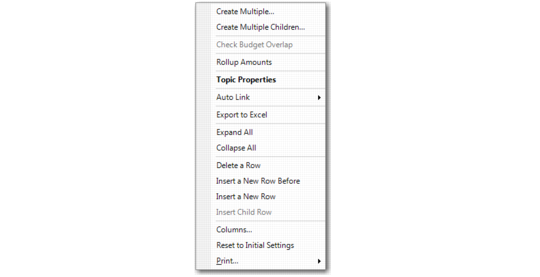
A number of right-click menu options are available within the grid in the Structures tab.
The Topic Properties right-click option is discussed in a separate section. See
Defining Topic Properties. Exporting to Excel is described in
Linking with Excel.
Right-Click Menu Options
Create Multiple Rows
The Create Multiple and Create Multiple Children options let you automatically create budget rows and link topics in a single task. For example, to create rows for a GL account topic level, select Create Multiple and use the fields in the Create Multiple screen to specify the range of accounts to link. Each topic row is linked in sequence to a GL account in the range you specify.
If you position the cursor in a parent row and click Create Multiple Children and specify an SAF structure, the system creates a child row for each SAF concept associated with the SAF structure.
You can control how the child rows are created by specifying a break position.
Example: You want to create a structure with multiple levels referencing 4 accounts numbered 1000, 1100, 1110, 2000. Specify Link From Code 1000 and Link To Code 2000. Then specify Break Position 1. The system looks for the first change in pattern in position 1 and starts a new topic. In this case, accounts 1000, 1100, 1110 are grouped (they all have 1 in the first position) and account 2000 starts a new topic. For finer granularity, specify Break Position 2. In this case, 3 levels are created with 1000 in one level, 1100 and 1110 in the next, and 2000 in the third.
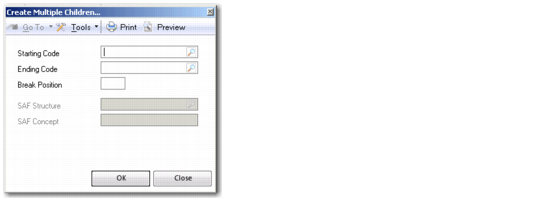
Create Multiple Children
Starting Code
Specify the first COA code in the range for which you want to create budget rows and automatically link COA components.
Ending Code
Specify the last COA code in the range for which you want to create budget rows and automatically link COA components.
Breaking Position
To group related codes, specify the character position the system should use to distinguish one group from another. For example, specify 1 for the system to use the first position.
SAF Structure
Specify the SAF structure to link. The system creates a child row for each concept in the structure.
SAF Concept
This field displays the first SAF concept in the structure.
Check Budget Overlap
The Check Budget Overlap option checks all COA combinations that are linked to the budget topic, if this option is enabled for the entity. This check also generates a list of combinations of all COA codes and checks the uniqueness of each combination. You cannot set the budget status to Operational if overlaps are found.
The ability to check for budget overlaps is activated in the General tab of Entity Create. See
Setting Up Entities for more details.
Rollup Amounts
The Rollup Amounts option lets you aggregate budget amounts, actuals, and forecast data from the lower budget levels to update the subtotal amounts at higher levels. You can also set the budget structure to roll up amounts automatically by selecting the Auto-Rollup field in the Structures tab.
Auto Link
If you create budget topics that use the same naming convention as the accounts or analysis you want to link to, select Auto Link to automatically create a link to the relevant COA component. You can do this for the entire budget or for the current row in the grid.