Designing a Budget Structure
As described previously, you link a budget to your financial reports using analysis codes. Best practice is to limit the number of analysis codes you link to the budget and must then maintain. This section uses a fictional budget structure and analysis codes to illustrate the options to consider when designing your budget structure and the related analysis codes.
Your organization wants to create a budget structure to include in financial reports. The budget consists of:
• Three countries. Each country is an entity.
• Five cost centers. Each cost center is available in each entity.
• 10 cost categories. Each cost category has its own GL account.
You can use three distinct data models to implement the budget structure and analysis codes for this example. The following sections discuss the advantages and disadvantages of each approach.
Approaches to Assigning Analysis Codes to Budgets
Model 1
In the first model, the budget structure requires 150 unique budget combinations. Therefore, the budget consists of 150 topics. If each topic has its own analysis code, you also need 150 analysis codes. This model is time-consuming to create and maintain.
Budget Structure: Model 1
Model 2
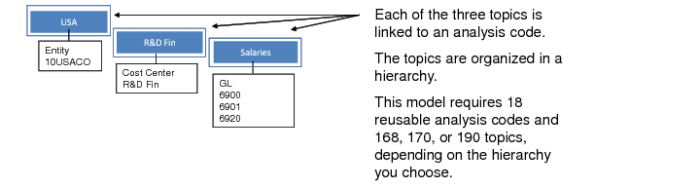
Using the second model, you associate three analysis codes with each topic. Although you need 150 topics, you only need 18 analysis codes: one for each country, cost center, and cost category.
Budget Structure: Model 2
Model 3
Using the third model, you must also create and maintain 18 analysis codes. Because the structure is hierarchical, you need an extra topic for each parent level. You may need as many as 190 topics.
However, the third model has other advantages:
• You have a better visual overview. When you maintain the budget, you can collapse parts of the hierarchy that you are not interested in.
• You can give the topics the same name as the report analysis codes. You can then use the Autolink function of the budget, which automatically links the topics to the analysis codes because they have the same name.
Budget Structure: Model 3
Therefore, the recommended approach for budget structures of any complexity is to avoid model 1 and to use model 2 or model 3. In practice, model 3 is the best.
Matching Budget Topics and Report Analysis Codes
When you assign analysis codes and link them with topics, the budget amounts are retrieved when you run a financial report. The budget column amounts are displayed wherever an analysis code match is found between the codes in the financial report and the codes in the budget.
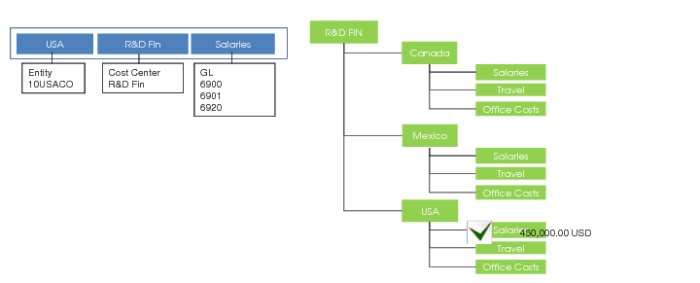
If analysis codes match, the matching budget topic is always found, even if the hierarchy in the budget does not match the hierarchy in the report. For example, in
Budget and Report Match, a match is found for the Salaries analysis code in the budget and report, even though the hierarchy is different.
Budget and Report Match
When you are linking budgets to reports, analysis codes that identify entity dimension details are important. There are several scenarios to consider.
Budget and Report Tree with Entities
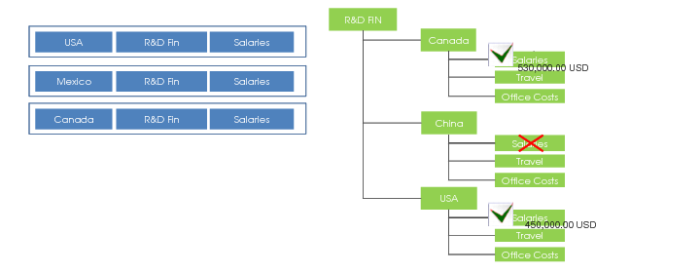
When the budget and report tree contain entities, only matching entities can result in a budget figure on the report. For example, a budget can contain the budget for a particular subset of entities. The corporate report contains amounts for all entities. In this case, only the entities where a match is found have information included from the budget in the report. In
Budget and Report Tree Contain Entities, the China entity is not in the budget so no match is found in the financial report.
Budget and Report Tree Contain Entities
Budget without Entities and Report Tree with Entities
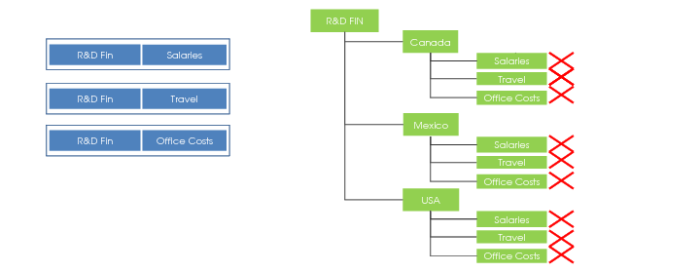
When the budget has no entity dimension details, but the report has entity analysis codes, no budget figures can be used.
Only the Report Tree Contains Entities
Budget and Report Tree without Entities
The read-only list of entities in Budget Create is the complete list of all potential entities for the associated report chart. However, when you run a report without entities against a budget without entities, the report output includes data for all entities in the report cube. The budget is assumed to be valid for the same list of entities, which can be a subset of the list in the Budget record.
Budget and Report Tree without Entities
Budget with Entities and Report Tree without Entities
You can create a budget with entity-level detail. However, the financial report is set up to give the consolidated group-level view. In this case, the system ignores the entity-level analysis codes in the budget, and the topics matching over other dimensions are rolled up to compose the cross-entity budget. This principle also applies for other dimensions.
Budget with Entities and Report Tree without Entities
Creating a Budget
After you decide how you want to link your budget to your financial report, you can begin to create a budget structure for use in Financial Report Writer.
1 Open Budget Create (25.5.5.1).
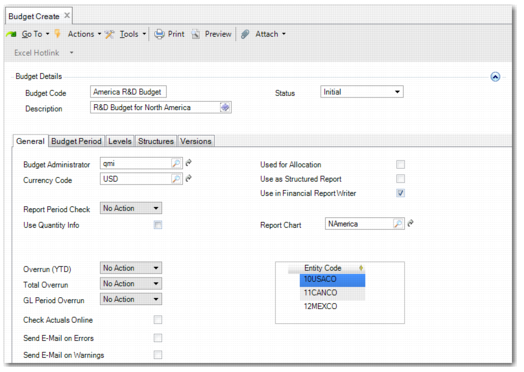
2 In the Budget Details section, supply a meaningful budget code and description. In the example in these steps, you are creating a simple budget for North American R&D Finance.
3 On the General tab, select Use In Financial Report Writer.
Note: When you select Use In Financial Report Writer, the fields Report Period Check, Overrun (YTD), Total Overrun, and GL Period Overrun are no longer available. This restriction applies because budget checks are not currently supported for this type of budget. A budget for use in financial reports cannot be reused for any other purpose. If you want to use the budget for something else, create a copy.
4 On the General tab, select a report chart of accounts, which is a mandatory step. When you select a report chart, the Entity Code field is automatically populated with the entities associated with that report chart and becomes read-only. If you want to create a budget for specific entities, create topics in the Structure tab that are linked to report analysis codes that contain those entities.
Budget Create, General Tab
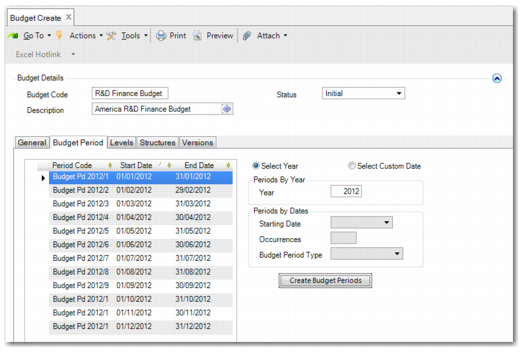
5 When you select the Budget Period tab, a message is displayed that the budget periods you enter must correspond with periods used in the report cube. Add the periods you want the budget to cover.
Note: Not all the year periods of the cube and the budget must be the same. For example, a cube can have data for 2010, 2011, and 2012 with 12 months in each year. The budget can be for only one of these years with the same 12 months in it. Alternatively, the budget can run into the future with a greater number of periods than the cube. However, as long as the same periods are used in the budget and the cube, the budget is acceptable.
Budget Create, Budget Period Tab
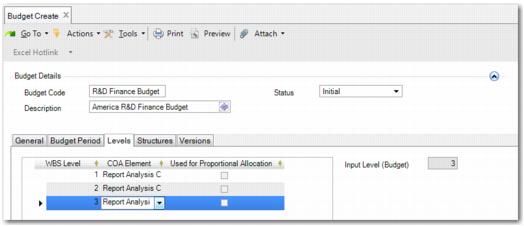
6 Select the Levels tab. You can now specify a top level at which to link the budget to a report analysis code. You can add as many levels of analysis code or subtotals as you need for your budget. In this example, there are three levels of analysis code because there are three levels in the budget structure: R&D Finance (cost center), Country (entity code), and cost (GL category).
Budget Create, Levels Tab
7 Select the Structures tab.
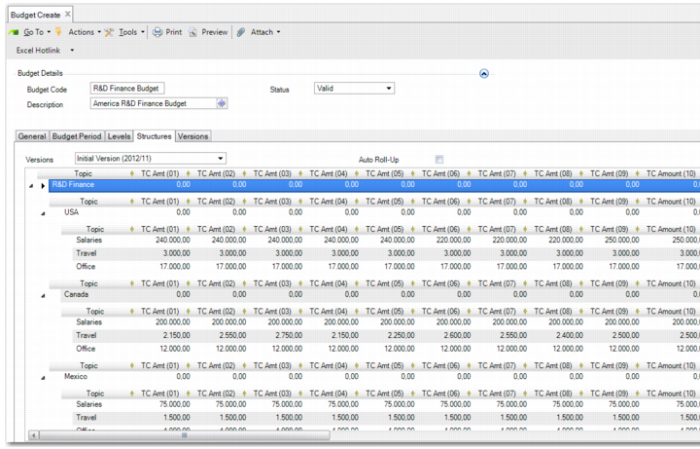
a If you want to create a budget from an Excel file, click the Excel hotlink and navigate to the file you want to use to create your budget. If your budget topic names match existing analysis codes, you can right-click and use the Autolink option on the context menu to automatically associate each topic with an analysis code.
b Alternatively, you can manually add the topics that you want to include in your budget by selecting an analysis code in the Topic field lookup. If, however, you want your topics to have particular labels, enter the text you want to appear in the Topic field. Right-click the line and use the Topic Properties option to link the topic to an analysis code. The Topic label continues to display the original text you entered.
In this simple example imported from Excel, there are three activities to budget for in each entity.
Budget Create, Structures Tab
Note: Many organizations create a budget for each cost center or entity. The organization then rolls up the budgets into one consolidated budget. For details on updating budgets, see
Budget Activities.
8 No changes to the Versions tab are necessary. To create your budget for use in Financial Report Writer, click Save.
9 To make the budget amounts available to display, add a budget column in Report Column Group Create. See
Report Column Group.
10 Create or modify a report master so that the budget columns are displayed in Financial Report Run. See
Maintaining Report Masters.
11 Run the report in Financial Report Run.
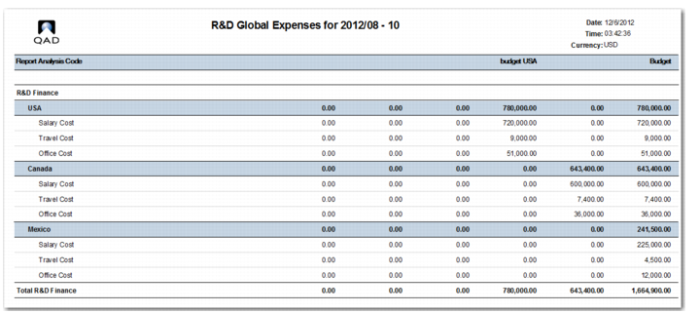
Report Including a Budget Column