Updating Signature Profiles
Use E-Signature Workbench Profile Maintenance (36.12.14.5) to adjust profile settings for your specific environment by:
• Defining control settings that determine how electronic signature processing works for each category
• Specifying the menu programs from the available list where signatures will be applied to the category
• Updating the list of tables and fields that are to be signed and included in signature records
• Setting up filters to control whether specific data is subject to or exempt from signature requirements
To disable electronic signatures for a profile that currently requires them, you must create a new activated profile for the category. Do this by updating the workbench profile and setting the E-Signature On value to No; then activate that new profile with the proper begin date. See
Activating Electronic Signature Profiles.
Use E-Signature Workbench Profile Report (36.12.14.6) to display the information updated in this program.
Note: Some special considerations apply when you are setting up profiles that involve category 0007, Transaction History. See
here for information.
Specifying Control Settings
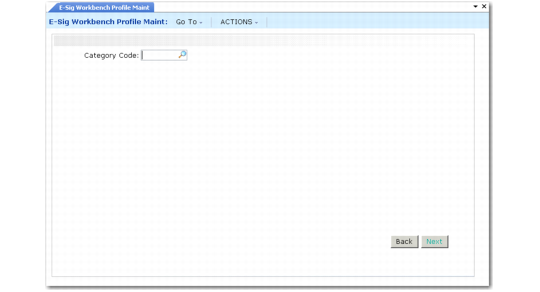
E-Signature Workbench Profile Maintenance (36.12.14.5) illustrates the first frame of E-Signature Workbench Profile Maintenance.
E-Signature Workbench Profile Maintenance (36.12.14.5)
Enter a QAD-defined category code and choose Next. The system displays several fields you can use to control electronic signature processing.
Top Table Name
The system displays the name of the table used to identify the set of data defined by the category; this sets the context for the signed data.
Example: Category 0002, Quality Results, has a value of wr_route (work order routing) in this field. Master specification test history (mph_hist) is shown as the first table in the 0002 profile structure. One electronic signature could contain many records of this type—so the mph_hist identification is not unique. However, all mph_hist records from the electronic signature instance are related to a single wr_route record, which serves as a unique identifier for the signed data. See
Tables and Fields.
E-Signature On
Indicate whether the system should apply the electronic signature functions for the category defined in this profile when it is activated.
No: Electronic signatures do not apply to this category. Use this option to turn electronic signatures off for programs that currently require them. For example, if signatures are currently used and a new profile for this category with E-Signature On set to No is activated, electronic signature functions stop on the new profile’s begin date.
Yes: Once this profile is activated, electronic signatures are required for this category as defined by the menu details and applicable filters.
When you refresh from QAD-provided default data, the value is Yes.
Display Latest E-Sig
Indicate whether the system displays the latest electronic signature when programs controlled by this profile are executed. See
Recording Electronic Signatures.
When you refresh from QAD-provided default data, the value is Yes.
Prompt for Preview E‑Sig
For programs that generate transactions, enter Yes to have the system prompt for a signature before the transaction data is created. The user is given the option to display the final data before signing. You can use this feature to avoid potential record-locking issues. This feature does not apply to all signature-enabled programs.
When the user sets Show Final Data to Yes when entering a signature, the system creates the transactions and displays final data before it is signed. Otherwise, the user enters the signature without viewing the final data.
When you refresh from QAD-provided default data, the value depends on the types of programs included in the category.
This configurability is provided to address record-locking issues that might be caused by the user interacting with the signature frame. In some menu programs that create transaction records such as operation or transaction history, the system locks frequently updated records while creating the transaction records. These programs have been designed to minimize the amount of time that records are locked by having no user interaction during record creation.
When electronic signatures are used with these programs and the final data to be signed—including the transaction data—must be displayed to the user while prompting for the signature, records remain locked until the user successfully completes the signature. This record-locking during signing is necessary because all changes must be rolled back if the signature is not accepted. During this time, no other users can update these same locked records. This issue becomes even more problematic, for example, if the user decides to leave their computer at this crucial time, before entering the signature fields.
This problem can be avoided in most situations because the relevant data for the user to review before signing are the fields that the user entered. These fields are generally available in the preview signature frames. After the signature is accepted, the program generates the transaction records and includes them in the signed data stored with the signature. Your system validation process can provide the assurance that the program systematically and reproducibly generates the transaction records based on the entered data. So, by signing in the preview signature frame, the final data never needs to be displayed and the records will not be locked any longer than required to create them. If the signature is not accepted, all user changes are rolled back and the transaction records are not created.
Set Prompt for Preview E-Sig to Yes to avoid these potential problems.
Data Frame Optional
Enter Yes to allow users to immediately enter an electronic signature without scrolling through the data to be signed. In this case, they can still view all the fields by setting Scroll Details to Yes in the signature frame.
When the field is No, focus is on the frame that displays the data to be signed. To enter the signature, users must first choose End to exit that frame.
When you refresh from QAD-provided default data, the value is Yes.
Prompt for Remarks
Indicate whether the user can add an optional remark while entering electronic signature data. When this field is Yes, a 64-character updateable Remarks field displays in the signature frame. Remarks are included in the electronic signature record.
When you refresh from QAD-provided default data, the value is Yes.
Filter Mode
Specify the type of filtering the system will use in determining whether specific data requires electronic signatures. See
Filters.
None: Filters are not used. The Filters and Filter Criteria frames do not display.
Inclusion: Only data meeting the specified filter criteria requires electronic signatures.
Exclusion: All data except those meeting the specified filter criteria require electronic signatures.
Note: A profile can have either inclusion or exclusion filters, but not both.
When you refresh from QAD-provided default data, the value is None.
Multiple Categories
Based on the data they update, some menu programs can be associated with more than one category. When this occurs, the system includes logic to resolve conflicting workbench profile setup data for three settings:
• Prompt for Preview E-Sig
• Data Frame Optional
• Prompt for Remarks
Profile Precedence for Multiple Categories shows the sequence the system uses for determining which profile takes precedence in each such case.
Note: This logic is needed only when a program is selected in the Workbench Profile Menu Details frame of more than one category profile. Additionally, when the menu program is executing, if a signature is not required for the first category, the second category profile is used to determine these three settings.
Profile Precedence for Multiple Categories
Menu Program | Category Sequence |
Labor Feedback by Work Order (16.20.1)
Labor Feedback by Employee (16.20.2)
Labor Feedback by Work Center (16.20.3)
Operation Move Transaction (16.20.6) | 1. Operation History (0003)
2. Quality Results (0002) |
Quality Order Results Entry (19.11) | 1. Transaction History (0007)
2. Quality Order (0008) |
Apply Profile to Menu Programs
When you initially set up electronic signature functions by refreshing profiles based on QAD-provided data, each category is associated with one or more menu programs that update the data defined in the category.
Although you cannot specify additional programs, you can use the Workbench Profile Menu Details frame to control whether signature functionality will apply to the available menu programs.
When a program is included in the category profile, an asterisk (*) displays in the Apply column. Clear the field to deselect a program.
Note: If a program appears more than once in the menu system, the frame lists all menu numbers. Changing the Apply setting for one menu number automatically updates all.
In some profiles, the program list includes reports and inquiries. See
Functional Reports and Inquiries. These programs can display signature data if included in the activated profile. When they are included, they have a Display E-Signature Details field that gives the user the option of displaying signature data in the output.
Select Tables and Fields
QAD-provided setup data includes a set of tables and fields that define the data to be signed and stored with the signature. The Workbench Profile Structure frame lists the tables and fields defined by the category.
If the current profile was refreshed based on default data, all tables and fields are selected.
Toggle the asterisk in the Sel column to select or deselect fields or tables. If you deselect or select a table, all fields in the table are automatically deselected or selected as well. In that case, the frame display does not refresh immediately.
Note: The first field listed for each table is the system-assigned object ID (OID) that uniquely identifies each record in the database. You cannot deselect this field.
The system uses greater-than symbols (>) and spaces to show the hierarchical relationships between table and field elements in the profile structure. See
Tables and Fields.
Set Up Filters
When Filter Mode is Inclusion or Exclusion in the Workbench Profile Details frame, additional frames let you select and set up filters. Filter frames do not display when Filter Mode is None.
These settings determine whether electronic signature processing occurs for data associated with specified values. See
Filters.
Use the Filters frame to specify which of the available filters you want to apply to this category profile. When the Sel column includes an asterisk, the filter is selected and displays in the Filter Criteria frame.
Note: You cannot complete the profile record if all selected filters do not have at least one criteria value. The system prompts you to remove such filters from the profile.
The Filter Criteria frame lists all the filters that were selected in the Filters frame. To enter criteria values for a filter, navigate to the Criteria Value frame and enter a value that will be used to either include or exclude electronic signature processing, depending on the filter mode.
You cannot enter data ranges for a filter. Instead, enter multiple criteria values. Each criteria value displays on a separate line in the Filter Criteria frame.
To filter on a blank value, enter the filter field name and leave Value blank. The system prompts you to confirm. A blank value is not a wildcard; instead, it only matches data where the value is actually blank.
Important: Since the system does not validate this value, you should be careful when you set up filters. For example, if you are setting up an inclusion filter to require electronic signatures only for a single site and accidentally enter an invalid site code, the program will never prompt for a signature.