QAD 2017 Enterprise Edition
>
User Guides
>
EDI eCommerce
>
Using EDI eCommerce
>
Tracking Import/Export Document Status
Tracking Import/Export Document Status
Status and error tracking are important concepts in eCommerce. The process is designed to run continuously:
• During import, from initially loading the SNF file through transforming it and transferring it to the database
• During export, from initially selecting a business document through transforming it and unloading it into an SNF file for transmission to the EC subsystem.
These processes are complex, and errors can occur at any of the three major steps: load/unload, transformation, or gateway transfer.
Each time you run an import or export program, the system automatically assigns a session number. You can use that number to track the status of documents processed during that session
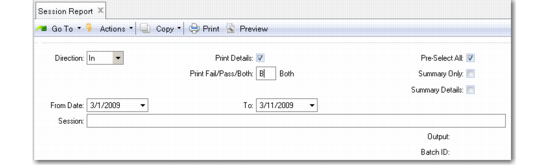
Session Report (35.7) shows the status of document imports or exports at each processing step. Use the report to analyze where problems occurred, then resolve the problems either at the source—for example, by adding missing data with the appropriate maintenance program—or in the data repository. Once the problems are corrected, either start the import or export again or use one of the reprocessing programs.
Session Report (35.7)
Direction
Enter the direction of the document transfers to be included in this report. Documents imported into your system are inbound, while documents exported to the EC subsystem are outbound.
Print Details
Enter Yes to include error messages on the report. If you enter No, the report includes only the status code for each document processed during the session.
Pre-Select All
Enter Yes to have all sessions selected—that is, marked with an asterisk (*)—when displayed in the selection list. When this field is No, the sessions still display, but none are initially selected.
When the list displays, you can select or deselect sessions as needed.
Print Fail/Pass/Both
Specify the status of documents to include in the output report of this program.
Failed (the default): The report is limited to documents that failed to process.
Passed: The report is limited to documents that processed correctly.
Both: The report includes all documents regardless of status.
From/To Dates
Enter an optional date range to limit the selection to session numbers processed between those dates.
Session
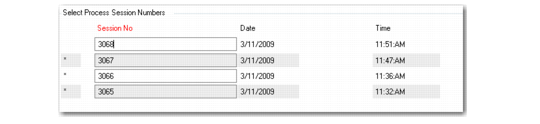
Enter the session numbers of the process sessions to include in this report. Separate multiple entries with commas. Choose Go to display a list of sessions showing the date and time they were started. Selected sessions are marked with an asterisk (*). You can deselect sessions as needed.
Note: If you enter both a date range and one or more session numbers, the report includes the specified sessions only if they fall within the date range. If none of the sessions match the date range, the system displays the message No files to process.
Summary Only
Set this field to Yes to limit the report to the summary section, which includes a trading-partner-level summary of which documents were processed, how many passed, and how many failed. The Load, Transformation, and Gateway Process sections do not display.
Summary Details
Set this field to Yes to have each section of the report include additional processing details. Details include status information for each sequence number created, as well as cross-references between exchange file and application document reference IDs and sequences.
Session Report, Select Process Session Numbers Frame
After selecting sessions from the list, Choose Go. Selected sessions display in the Session field. Then, select an output for the report or specify a batch ID.
The system assigns a status code to each document at each step of the process. Status codes are listed in
Document Processing Status Codes.
Document Processing Status Codes
Code | Direction | Status |
11 | Inbound | Load process failed. Could indicate problem in SNF file or with trading partner or document definition. |
12 | Inbound | Exchange file load successful. |
13 | Inbound | Exchange file transformation errors. |
14 | Inbound | Exchange file transformation successful. |
21 | Inbound | Application document created, but has not moved to transfer process. Can indicate a problem with gateway processing. |
22 | Inbound | Application document transfer errors. |
23 | Inbound | Application document transfer successful. |
31 | Outbound | Application document transfer errors. Correct in application, then treat as new export. |
32 | Outbound | Application document transfer successful. |
33 | Outbound | Application document transformation errors. |
34 | Outbound | Application document transformation successful. |
41 | Outbound | Exchange file created, but has not moved to unload process. Can indicate a problem with gateway processing. |
42 | Outbound | Exchange file unload errors. |
43 | Outbound | Exchange file unload successful. |
The status of the document tells you where in the process any errors occurred. You can then use one of the document repository inquiry or report programs to display the error messages and identify the causes of specific problems:
• Exchange Doc Status Inquiry (35.9.1) or Report (35.9.2)
• Application Doc Status Inquiry (35.9.8) or Report (35.9.9)