Exporting ASNs
An advance ship notice (ASN) document informs customers when items have left the supplier’s site.
Depending on specific trading partner implementations, an ASN can provide a wide variety of shipment-related data items. Typically, an ASN includes the following:
• Purchase order number
• Item number
• Authorization number
• Quantity shipped
• Cumulative quantities
• Shipment time
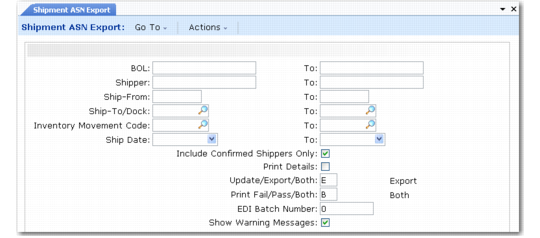
In Shipment ASN Export (35.4.1), enter selection criteria to indicate which shipments have ASNs sent. The system uses these criteria to execute the appropriate gateway program, select the appropriate trading partner information, and transform the outbound data to the format compatible with the receiving party’s EC subsystem.
This export uses the following trading partner parameters, which are set up in Trading Partner Parameter Maint (35.13.10):
• Logical position 01: Send EDI ASNs; set to Yes or No
• Character: Shipping Document Name; set to the name of the application document definition to use; for example, Shipping-Notice
• Integer: Shipping Document Ver; set to the version number of the application document definition to use
EMT suppliers can use this program to export an ASN indicating that a secondary sales order has been shipped. Ordinarily, you use eCommerce Manager to export such ASNs. However, Shipment ASN Export lets you enter selection criteria to specify a range of shipments or even a single shipment to have an ASN exported.
See
QAD Sales User Guide for information on ASNs in EMT.
Shipment ASN Export (35.4.1)
Bill of Lading (BOL), Shipper, Ship-From, Ship-To/Dock, Inventory Movement Code, Ship Date
Use these fields to specify ranges of selection criteria for the system to use in selecting ASNs for export.
Include Confirmed Shippers Only
Enter Yes to include only confirmed shippers in the selection.
Print Details
Enter Yes to include detailed error and warning message information on the report generated when this program executes. If you enter No, the report is limited to higher-level summary information.
Update/Export/Both
Specify whether the system prompts you to update previously defined fields before exporting the documents meeting the selection criteria:
Update: The system displays the fields you have set up as editable in the implementation definition for exporting this document type. You can modify them as needed.
Any updates you make are not reflected in the database. They affect only the outbound document.
Important: If you set this field to Update, export the documents in two steps. First, enter selection criteria and update the selected documents as needed. Then run the program again with the same selection criteria and set this field to Export.
Export: The system exports the documents that meet the selection criteria without prompting you to update them.
Both: The system prompts you to update the documents, then exports them as part of the same process.
Print Fail/Pass/Both
Specify the status of documents to include in the output report of this program.
Failed (the default): The report is limited to documents that failed to process.
Passed: The report is limited to documents that processed correctly.
Both: The report includes all documents regardless of status.
EDI Batch No
To reexport a group of documents, enter the batch number assigned to the group.
When exporting a new group of documents, leave this field set to zero. The system assigns a new batch number to each group of exported documents.
Show Warning Messages
When this field is Yes, the system displays warning messages stating that some of the selected documents were skipped during export because of trading partner parameter setup data. Otherwise, the system skips the documents without displaying the messages.
In some circumstances, you have to combine multiple shipment lines into a single shipping document. For example, bar-code scanning can produce many more lines than necessary, such as one line for each container.
When you want to combine similar line items into one line for ASN processing for a trading partner, set up a record in Trading Partner Parameter Maintenance (35.13.10) to define the combining logic.
For the selected address/site combination, create a record in the Integer Parameters frame. In the Integer Param Desc field of any available line, enter Combine Like Items Level. For Integer Param Value, enter the appropriate value from
ASN Combining Logic Codes to indicate the selected combining level code.
ASN Combining Logic Codes
Implementation Record Name | Level Code | Combining Logic Structure |
CTR-TARE (CT) | 5 | CT,CP,CI,I.item-no,I.reference |
CTR-PRIM (CP) | 4 | CP,CI,I.item-no,I.reference |
CTR-ITEM (CI) | 3 | CI,I.item-no,I.reference |
ITEM (I) | 2 | I.item-no,I.reference |
| 1 | I.item-no |
| 0 | No items are combined. |
Example: If you specify a level code 4 for a trading partner, the system combines shipping records for items, container items, and the primary container into a single ASN for that trading partner’s shipments.