Attribute Deviations - Purchasing
In IAQ, you can create the following item profiles that are specific to purchasing:
• Item Supplier Profile. Applies to a specific item, supplier, and site combination.
• PO Line Profile. Applies to a specific purchase order and scheduled order line.
Maintain Item Supplier Profile
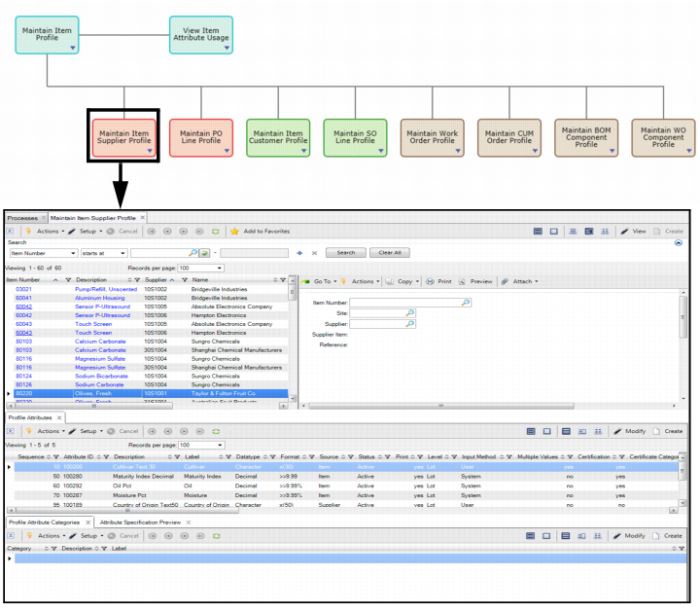
In the Maintain Item Supplier Profile collection, you can create Item Supplier Profiles that allow you to track different attributes when dealing with a certain supplier.
To access the item supplier collection, select Maintain Item Supplier Profile from the Manage Attribute Profile process map.
Maintain Item Supplier Profile
The top browse of the Item Supplier Profile collection contains the following fields:
Item Number
Enter or select the receiving item number for the item supplier profile.
Site
Optionally, enter or select the receiving site to associate with the item supplier profile. Leave the Site field blank if you do not want to restrict the profile to a particular site.
Supplier
Enter or select the supplier to associate with the item supplier profile.
Supplier Item
Displays the supplier’s item number for the item and supplier.
Reference
Optionally, enter any reference information.
Creating a Deviation - Item Supplier Profile
Follow these steps to create an item supplier profile:
1 Select the Maintain Item Supplier Profile collection from the Manage Attribute Profile process map.
2 To create a new profile, click Create.
3 In the top browse of the item supplier profile collection, specify which item, site, and supplier are associated with the profile by entering the required information. For detailed field definitions, see
Maintain Item Supplier Profile.
Maintain PO Line Profile
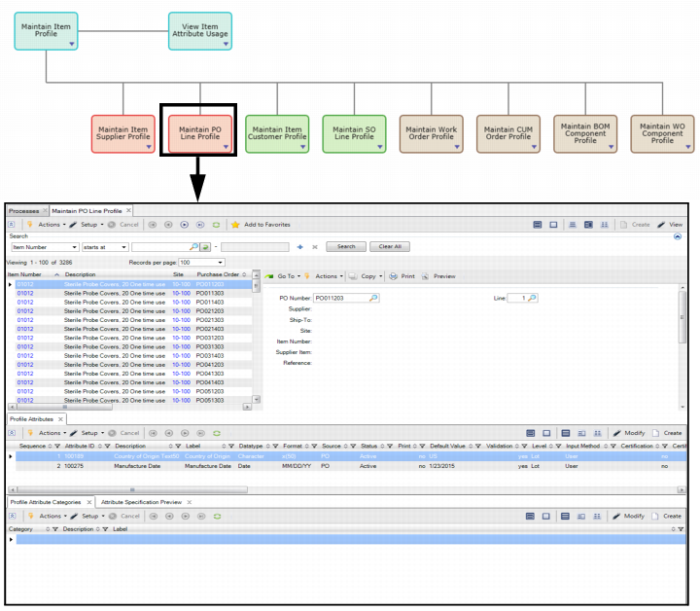
In the Maintain PO Line Profile collection, you can create PO line profiles that allow you to track different attributes associated with a specific PO or scheduled order line.
To access the PO line profile collection, select Maintain PO Line Profile from the Manage Attribute Profile process map.
Maintain PO Line Profile
The top browse in the Maintain PO Line Profile collection contains the following fields:
Purchase Order
This field displays the PO number associated with the PO line profile.
Line
This field displays the PO line number associated with the PO line profile.
Supplier
This field displays the address code of the supplier providing the items on this order. The address code identifies a specific supplier and related data, such as credit information.
Ship To
This field displays the address code that identifies where the items on the order should be delivered.
Site
This field displays the site on the PO that is associated with the PO line profile.
Item Number
This field displays the item number on the PO line that is associated with the PO line profile.
Supplier Item
This field displays the supplier’s item number.
Reference
Optionally, enter any reference information.
Creating a Deviation - PO Line Profile
Follow these steps to create a PO line profile:
1 Select the Maintain PO Line Profile collection from the Manage Attribute Profile process map.
2 To create a new profile, click Create.
3 In the top browse of the PO line profile collection, specify which purchase order and order line are associated with the profile by entering the required information. For detailed field definitions, see
Maintain PO Line Profile.
Attribute Layer Priority - Purchasing
When there are multiple item supplier and PO line profiles, some profiles will override other profiles. For example:
• What if there are multiple profiles for an item, item and supplier, as well as PO line?
• What if the same attribute appears with different default values at different levels?
• What if the same attribute appears with different specifications at different levels?
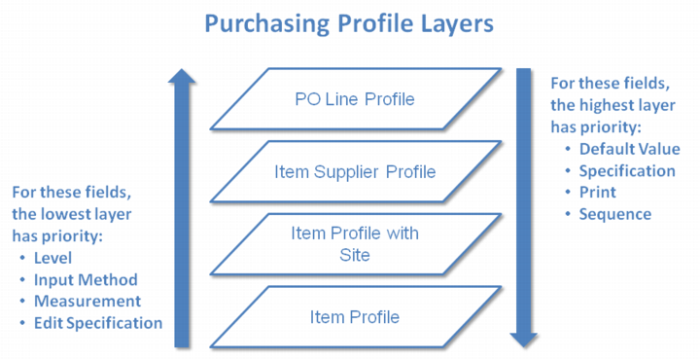
Each profile uses a different set of layers and priorities, which control how profile attributes override one another. The following graphic outlines the attribute layer priority for purchasing profiles:
Attribute Layer Priority - Purchasing
The sub-layers determine how different entries within a layer override one another. The sub-layers will not, however, allow a layer to override a higher layer.
• PO Line Profile
• Item and Supplier Profile
• Item, Supplier, and Site
• Item and Supplier
• Item Profile
• Item and Site
• Item
Field priority functions in both directions, depending on the field. In the case of Default Value, Specification, Print, and Sequence, the highest layer has priority. The field value of the highest layer cascades down.
For the Level, Input Method, UM, and Edit Specification fields, the lowest layer has priority. The field value of the lowest layer cascades up.