Creating a Test Specification
Use this function to create and maintain a specification for a test ID and revision, with one or more attribute specifications. A test specification is uniquely identified by its test ID and revision. The status for a test specification determines whether it is used to create test records for a quality order.
A test specification can apply to one or more items. You can do this by creating a link between the test specification and its items. Similarly, you can create links between an item and the test specifications that apply to it.
Follow these steps to create a test specification:
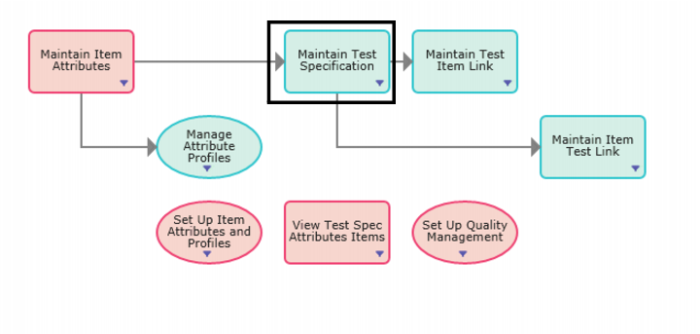
1 Select Maintain Test Specification from the Manage Test Specifications process map.
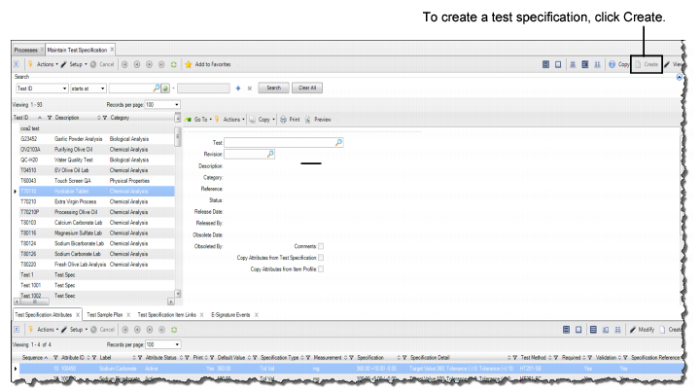
Maintain Test Specification, Create Frame
2 To create a test specification, click Create in the top frame. A blank record opens.
Creating a Test Specification
3 Enter the required information in the following fields:
Test
Enter a unique identifier for the test specification.
Revision
Enter the revision of the test specification. The test ID and the revision for a test specification uniquely identify the attributes and specifications for a test specification.
Description
Optionally, enter a description of the test ID. The description applies to a test ID, regardless of its revision.
Category
Optionally, enter a valid category defined in Category Maintenance for the test ID.
Reference
Optionally, enter data that identifies a test, lab, or reference document for the test specification.
Status
Enter the status for the test specification to identify its state within its document life cycle. The status for a test specification can be any one of the following:
• Draft. The test specification can be edited, but it cannot be referenced by test records.
• Submitted. The content of the test specification cannot be edited, and it cannot be referenced by test records.
• Released. The content of the test specification cannot be edited, and it is referenced by test records for quality orders and for work order and CUM order operations. Only one test specification revision for a test ID can have a Released status at the same time. When a new revision for a test ID is released, the status for the existing test specification for the test ID is automatically changed to Obsolete.
• Obsolete. The content of the test specification cannot be edited. It is not referenced when the system creates test records for quality orders and test records. You can manually create a test record for a test specification when its status is Obsolete.
Release Date
This field displays the release date of the test specification.
Released By
This field displays the ID of the user who released the test specification.
Obsolete Date
This field displays the date the test specification was obsoleted.
Obsoleted By
This field displays the ID of the user who obsoleted the test specification.
Comments
Select this check box to enter comments for a test specification.
Copy Attributes from Test Profile
Select this check box to copy the attribute specifications from a different test ID and revision to this test specification.
Copy Attributes from Item Profile
Select this check box to copy the attribute specifications from an item profile to this test specification.
Test ID
Select or enter the test ID to copy the attributes from.
Revision
Select or enter the revision of the test ID to copy the attributes from.
Item
Select or enter the item number to copy the attributes from.
Site
This field displays the site for the item profile that is selected in the Item field. Typically, the value for Site is left blank.
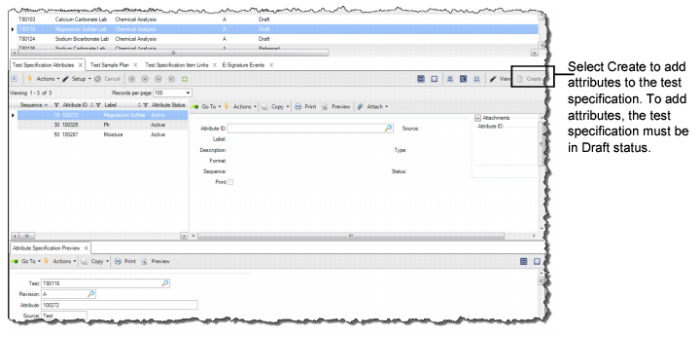
Adding Attributes to a Test Specification