Completing Quality Orders
The three most common ways to complete an open quality order are to close it, cancel it, or delete it. Each has a specific purpose within most workflows.
Note: You can only delete quality orders that are created manually.
Closing a Quality Order
The most common scenario when completing a quality order is to record the results of the order and close it. Follow these steps to close a quality order:
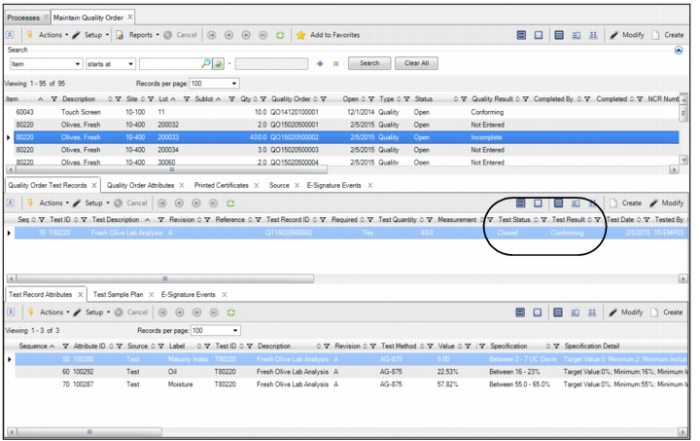
3 Verify that the test records have been closed.
Note: To close a quality order, all associated test records must be closed as well.
Checking Results of a Test Record
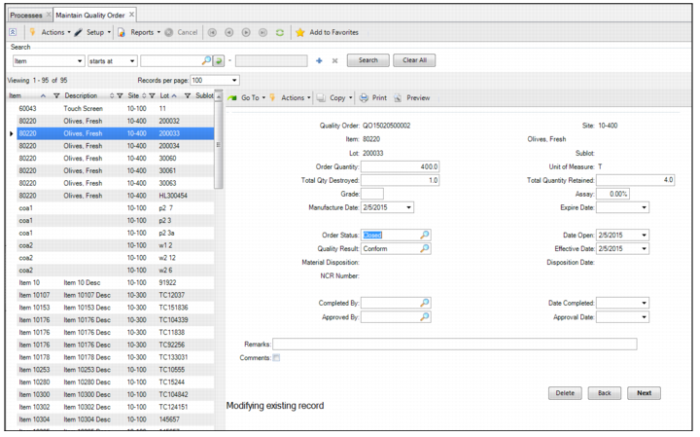
4 Double-click and open the quality order.
Closing the Test Record
5 Review the quantities destroyed and retained, which are updated when the associated test records are closed.
6 Optionally, enter the inventory detail attributes for the item, site, lot, and quantity.
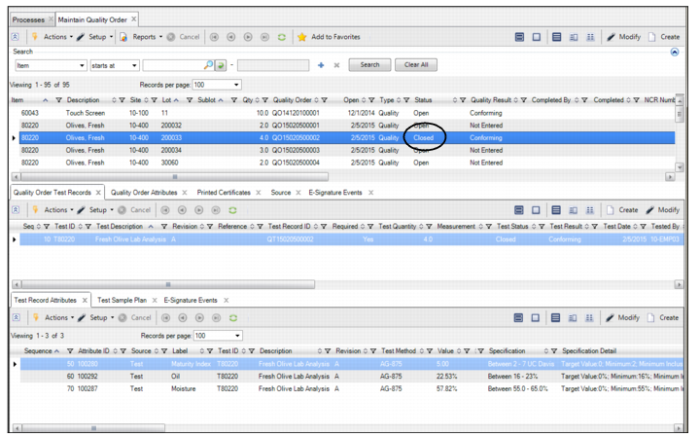
8 If all the required information has been entered, change the Order Status to Closed and click Next.
9 When closing a lot, you have the option to transfer material quantities and update the inventory status for the quantity remaining after inspection. When processing the transfer of inventory, select the source and destination locations for the transfer transaction.
If there were any items destroyed during the quality testing, the system prompts you to perform a scrap transaction.
If there were any items retained, the system prompts you to transfer those items to a specific location.
For the remaining items, the system prompts you to transfer those items to the appropriate inventory location.
For more information about performing inventory transactions, see
QAD Master Data User Guide.
10 After the items have been transfered, the quality order is closed.
Closing a Quality Order
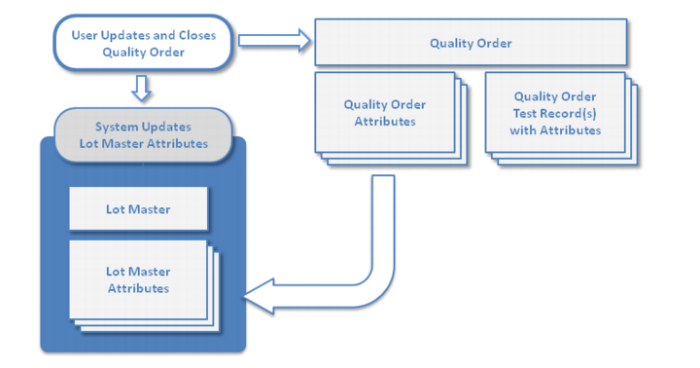
11 After closing a quality order, if the test’s results are Conforming or Non-Conforming, you can update the lot master attributes with the values of the quality order attributes.
Closing a Quality Order depicts the process when closing a quality order.
Note: If the test’s results are Canceled, No Data, or Inconclusive, or if the test record is deleted, the attributes are not updated.
Closing a Quality Order
Canceling a Quality Order
Another scenario when completing a quality order is to cancel the order when it is no longer helpful but is still incomplete. After canceling an order, a record of the canceled order remains in the system.
Follow these steps to cancel a quality order:
2 Select the order in the top-level browse.
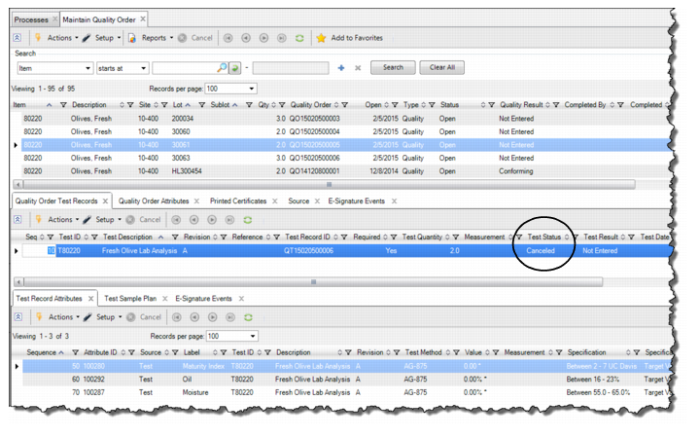
3 In the Quality Order Test Records tab, cancel any test records that are associated with the order by changing the status to Canceled. See
Quality Order Workflow.
Note: To cancel a quality order, any test records that are associated with the order must be canceled first.
Canceling a Quality Order
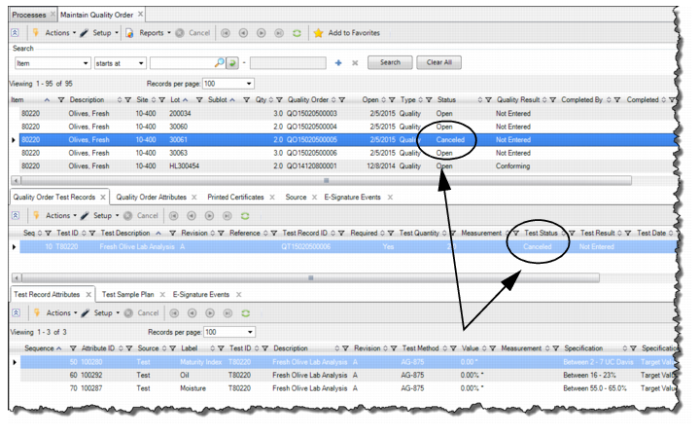
4 Open the quality order and change the Order Status to Canceled. The quality order is canceled.
Canceling a Quality Order
Deleting a Quality Order
The third most common scenario when completing a quality order is to delete the order if it is redundant or manually created and no longer required. Deleting an order is useful when you need to remove the order from the system and a record of a canceled order would be confusing.
Note: You can delete manually created quality orders when the quality order status is set to Open or Results Pending. Quality orders that are system generated automatically from receipt transactions cannot be deleted.
Follow these steps to delete a quality order:
2 Double-click and open the order.
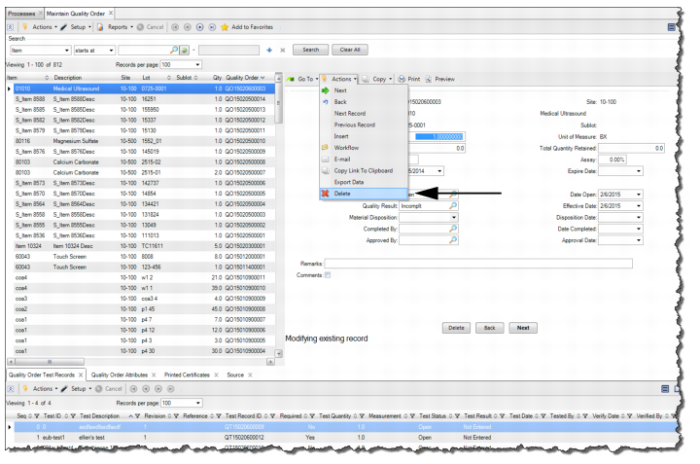
3 To delete the order, select Delete from the Actions menu. Then click Yes to confirm. The order is deleted.
Deleting a Quality Order
Editing a Closed Quality Order
In IAQ, you can edit a limited number of fields on a closed quality order by using the Edit Closed Quality Order program. Follow these steps to edit a closed quality order:
1 For the type of order (inventory, purchasing, production, or sales), open the Inspect Inventory, Inspect Production Receipts, Inspect Purchasing Receipts, or Inspect Inventory for Sales Order process map.
2 Select Edit Closed Quality Order Test Record.
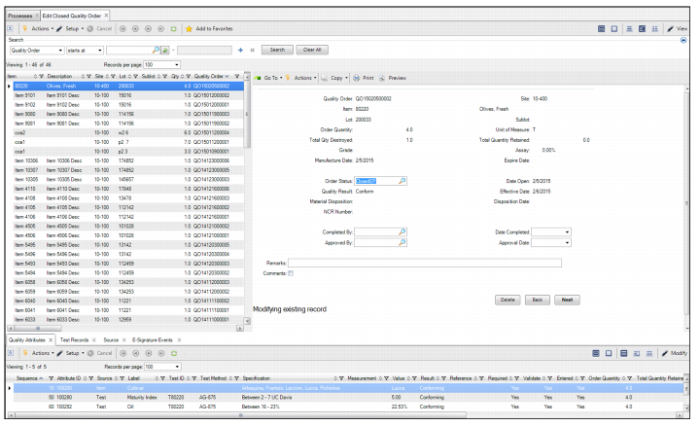
3 Select the order in the top-level browse and click Modify. While you modify the closed quality order for corrections, the system temporarily changes the status to Closed Edit Pending, allowing you to update fields for Order Status, Completed By, Date Completed, Approved By, Approval Date, Remarks, and Comments. For detailed field definitions, see
Lot Attribute or Quality Orders Field Descriptions.
Editing a Closed Quality Order
4 After you have completed the necessary changes, set Order Status to Closed and click Next.