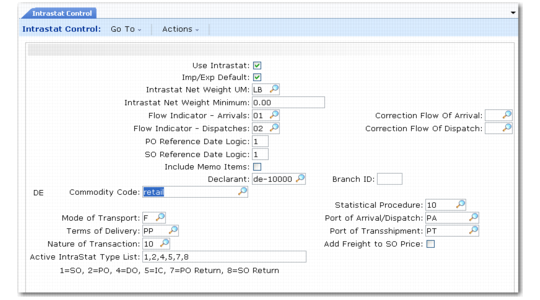
Set Up Intrastat Control
Use Intrastat Control (29.22.24) to set general parameters for Intrastat processing and defaults for Intrastat data fields.
Intrastat Control (29.22.24)
Use Intrastat
Enter No if you do not want the system to automatically create Intrastat history records. If No, you can still create records manually. See
Manually Creating Intrastat History.
Enter Yes to have the system automatically create Intrastat history records for applicable shipments and receipts:
• All programs that create shipments automatically create an Intrastat record for each order line that relates to both an Intrastat item and a shipment to or return from another EU country.
• All programs that create purchase receivers automatically create an Intrastat history record for each receiver line that relates to both an Intrastat item and a shipment to or receipt from another EU country.
Note: If you use Enterprise Material Transfer (EMT), the system automatically determines which trading partner is responsible for reporting direct-shipment transactions when the supplier and end customer are in different EU countries. It then creates appropriate Intrastat history records as required. For more information on EMT, see
QAD Sales User Guide. The system determines whether a shipment or receiver line is involved in Intra-EU inventory movement by comparing the country codes associated with the ship-from or receipt site and the country of destination/dispatch for the related order line. If the codes are not the same and both relate to EU countries, the transaction is an Intra-EU transaction. If source and destination countries are the same, the transaction is considered domestic.
A shipment or receiver line is considered an Intrastat item when Intrastat Item is Yes in the corresponding order line.
Note: Intrastat data created in inventory transfers must be manually posted to history.
Imp/Exp Default
Enter Yes if most orders are subject to Intrastat reporting. Otherwise, enter No. This sets the default for the Imp/Exp field in order maintenance programs.
No: The Imp/Exp field in order maintenance programs always defaults to No. To update Intrastat data, you must manually set the field to Yes.
Yes: The Imp/Exp field in order maintenance programs defaults to Yes when both the from and to addresses involved in a transaction belong to EC countries. Otherwise, Imp/Exp defaults to No.
The Imp/Exp field controls whether the Intrastat Data frame appears in the order maintenance functions specified in the Active Intrastat Type List field.
Note: For the defaulting logic to work correctly, you must associate address records with each site.
Intrastat Net Weight UM
Enter the unit of measure code used in your company to indicate kilograms, which is the UM required for Intrastat reporting of net weight. The default is KG.
If the net weight in the item master is not expressed in this unit, the system converts it.
Flow Indicator – Arrivals and Dispatches
Enter the codes used in your country to indicate Intrastat arrival and dispatch transactions. These codes supply default values when Intrastat data is collected in supported functions. During order entry, the user can override the default. Define these codes first in Flow Indicator Maintenance (29.22.1.1).
The system uses the value you specify here in Intrastat Declaration Print to determine which Intrastat history records to include in the Arrivals and Dispatches reports.
Correction Flow of Dispatch and Arrivals
Enter the default values for the flow indicator codes the system should use for correction of arrivals and dispatches.
This field determines whether the correction of an arrival of goods should be posted as a negative arrival of goods or a positive dispatch of goods. This feature is used primarily in Italy and the Netherlands. Additionally, if correction dispatch and arrival indicators are both specified and they are different, the system uses special correction logic for declarants in Poland.
When a value is specified for these fields that is different from the arrival or dispatch flow indicator values, a frame displays during the creation of Intrastat data and in Intrastat History Maintenance that prompts for the correction information.
PO Reference Date Logic
Enter 1, 2, or 3 to indicate the method you use to assign a reference date to purchasing-related Intrastat history records.
1. Use the inventory transaction effective date (the default).
2. Use the supplier invoice effective (posting) date. With this setting, an unmatched record is never reported in Intrastat Declaration Print.
3. Use the tax point or supplier invoice date. The system uses whichever date falls earlier in the month. The tax point date is defined by Intrastat regulations as the 15th day of the month following the transaction effective date.
The reference date assigned to an Intrastat history record determines when it is reported using Intrastat Declaration Print.
SO Reference Date Logic
Enter 1, 2, or 3 to indicate the method you use to assign a reference date to sales-related Intrastat history records.
1. Use the inventory transaction effective date.
2. Use the invoice effective (posting) date. With this setting, an uninvoiced record is not reported in Intrastat Declaration Print.
3. Use the tax point or invoice date. The system records whichever date falls earlier in the month. The tax point date is defined by Intrastat regulations as the 15th day of the month following the transaction effective date.
The reference date assigned to an Intrastat history record determines when it is reported. Reference date is the main criterion for selecting Intrastat history records for reporting.
Include Memo Items
Enter Yes if you typically create Intrastat history records for memo items. Otherwise, enter No. This value becomes the default for Include Memo Items on order headers. You can override it during order entry.
Declarant
Enter the code defined in Declarant Maintenance (29.22.1.20) that identifies the company address that is typically responsible for reporting Intrastat data to the government. This field is required.
The value you enter here defaults to the Declarant field in Intrastat Declaration Print (29.22.19).
Branch ID
If the declarant is in a country such as Belgium that requires a branch for filing the declaration, enter the branch ID here. This branch is included in Intrastat Declaration Print (29.22.19).
Commodity Code
Enter a valid code defined in Intrastat Commodity Code Maintenance to be used as the default when collecting Intrastat data in supported functions.
The default specified here is used only when a more specific value has not been defined for the line item and country in Item Intrastat Data Maintenance (29.22.6). During order entry, the user can override this value. See
Set Up Intrastat Item Data.
Statistical Procedure, Mode of Transport, Port of Arrival/Dispatch, Terms of Delivery, Port of Transshipment, and Nature of Transaction
Enter default code values for Intrastat orders. You can change these values during order entry. These are optional fields.
Add Freight to SO Price
Use this field to manage how the invoice value is calculated and displayed on Intrastat and Extrastat reports.
No: The invoice value for an order line is set to the line price multiplied by the quantity, regardless of the freight terms.
Yes: Include freight amounts in the invoice value when the freight term type is Add, Allow, or Collect. Value is calculated as:
(sales order line price + freight charge) * quantity
For freight term types Include, Prepaid, and Willcall, this control setting has no effect. For included freight, the line item price already reflects the freight cost. For prepaid and willcall, freight is not calculated. For more information on freight terms, see
QAD Master Data User Guide.
Based on local regulatory requirements, the invoice value reported to authorities may need to include the cost of any included freight. In this case, set this field to Yes.
Active Intrastat Type List
Specify the transactions or documents for which you want to collect Intrastat data. You can use this list to suppress the display of frames for document types that do not require Intrastat reports.
Enter the numbers, in a comma-separated list, that correspond to the type of transaction or document for which you want to enable the creation and modification of Intrastat data.
1 Sales Orders
2 Purchase Orders
4 Distribution Orders
5 Intersite Transfers
7 Purchase Order Returns
8 Sales Order Returns
Note: Transaction 6 identifies records created manually in Intrastat Maintenance.